Signals Triggers
Catalyst Signals is a powerful event bus service that listens for the occurrences of pre-determined events and automatically executes associated Event functions, or the targeted Circuits.
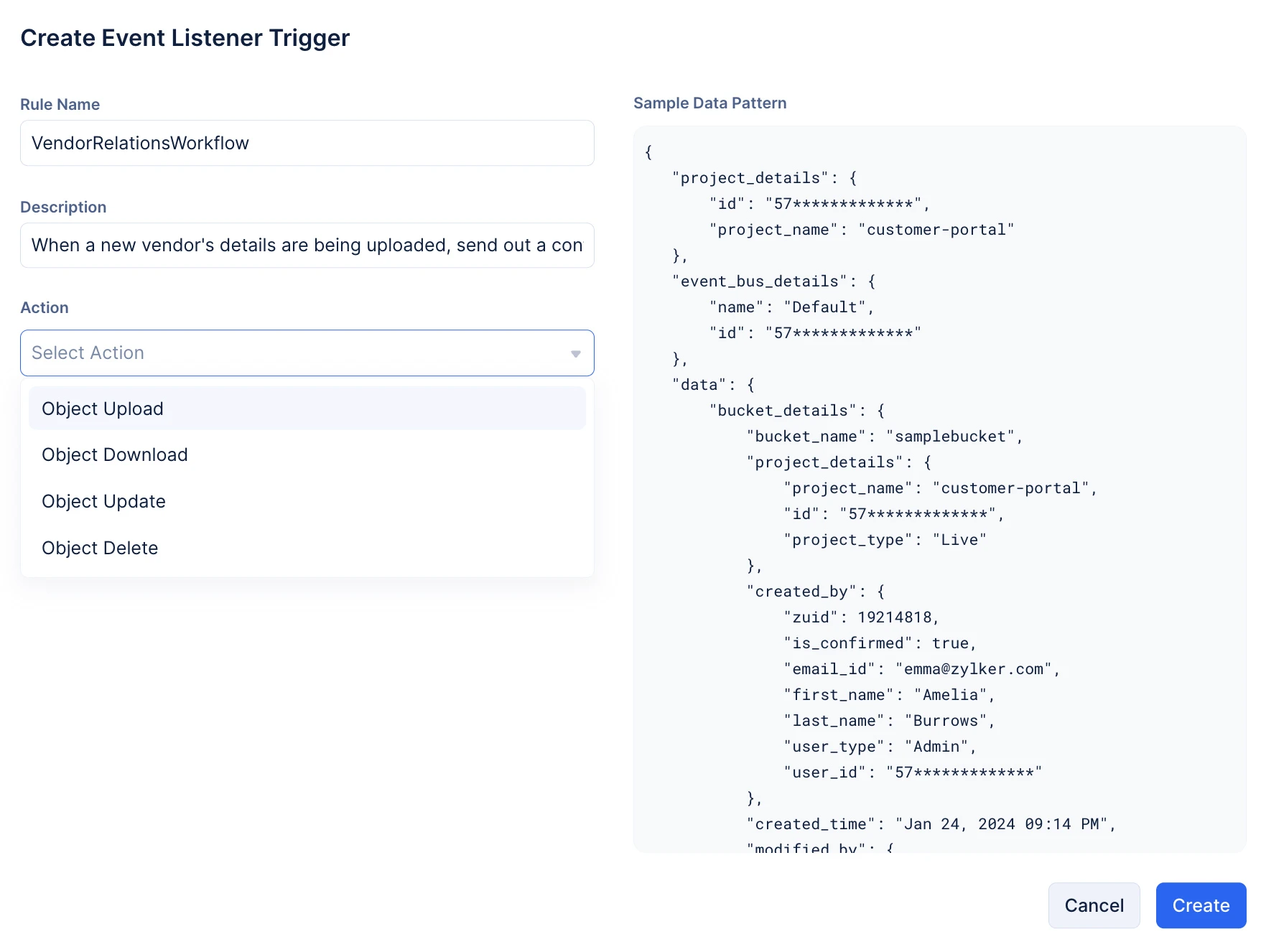
In Stratus, you can configure the required rule to trigger Catalyst Signals at the event of an:
- Object Upload
- Object Download
- Object Update
- Object Delete
Create Signals Rules in Buckets
To create a Signals rule in Stratus:
-
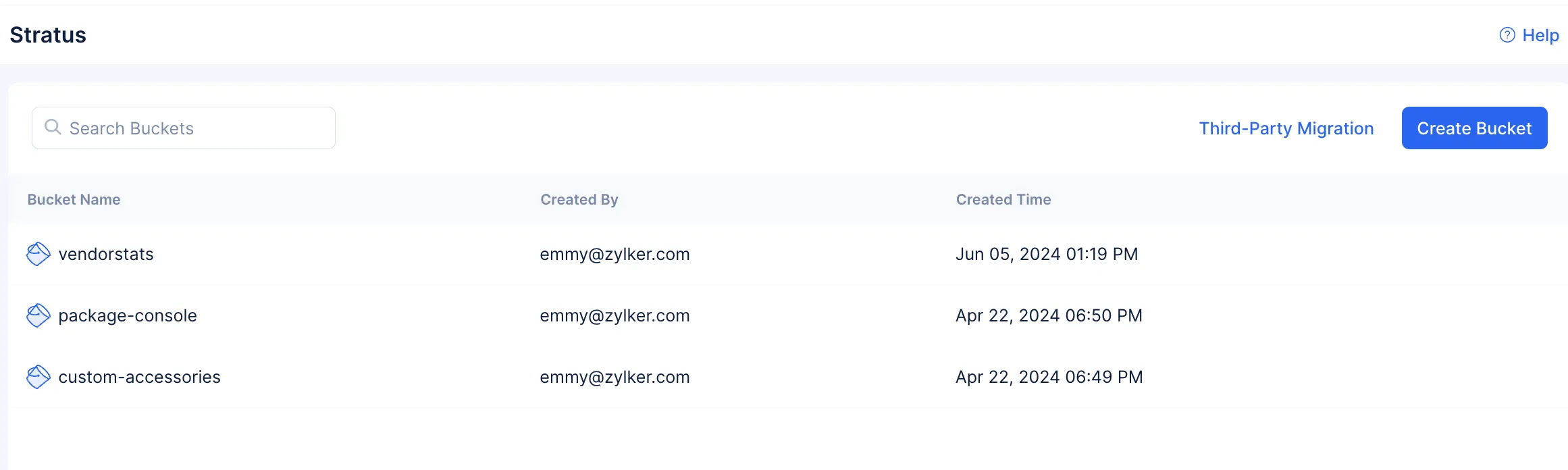
Click on the required bucket.
-
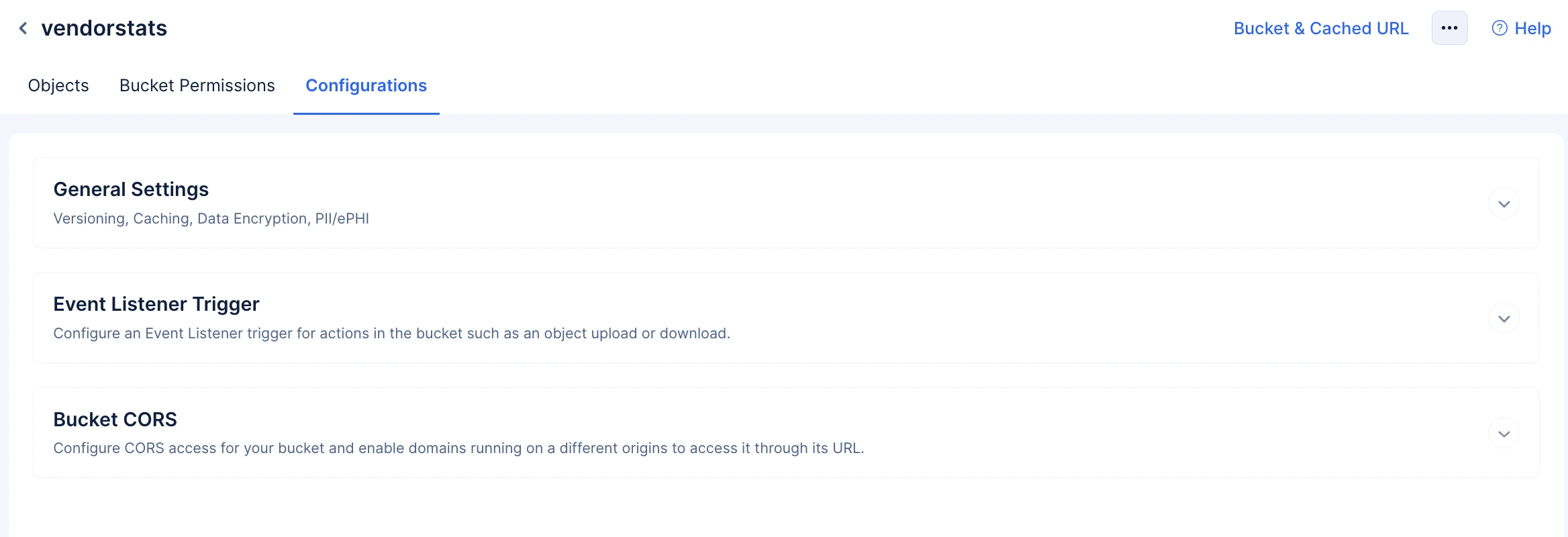
Click the Configurations tab.
-
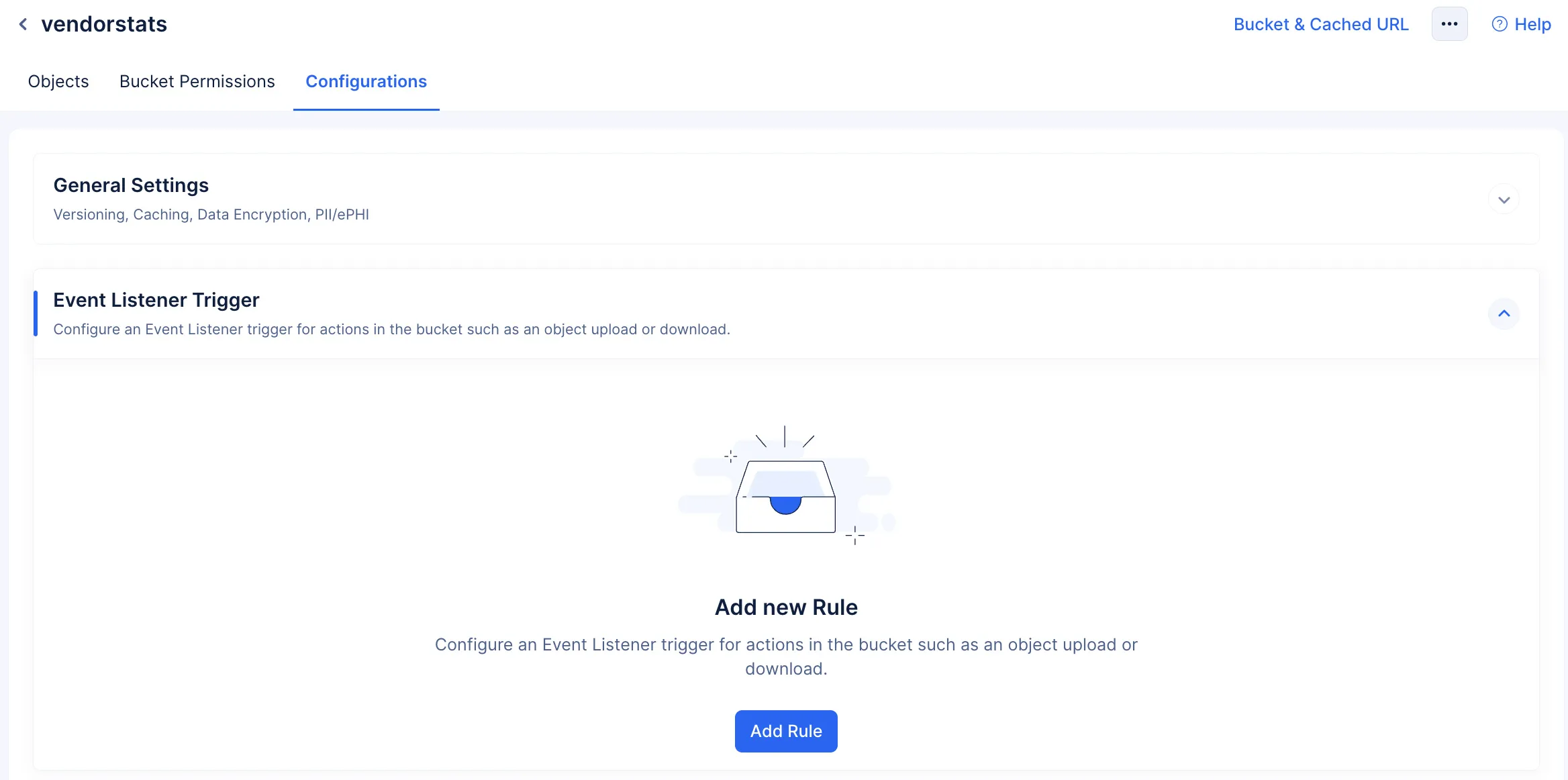
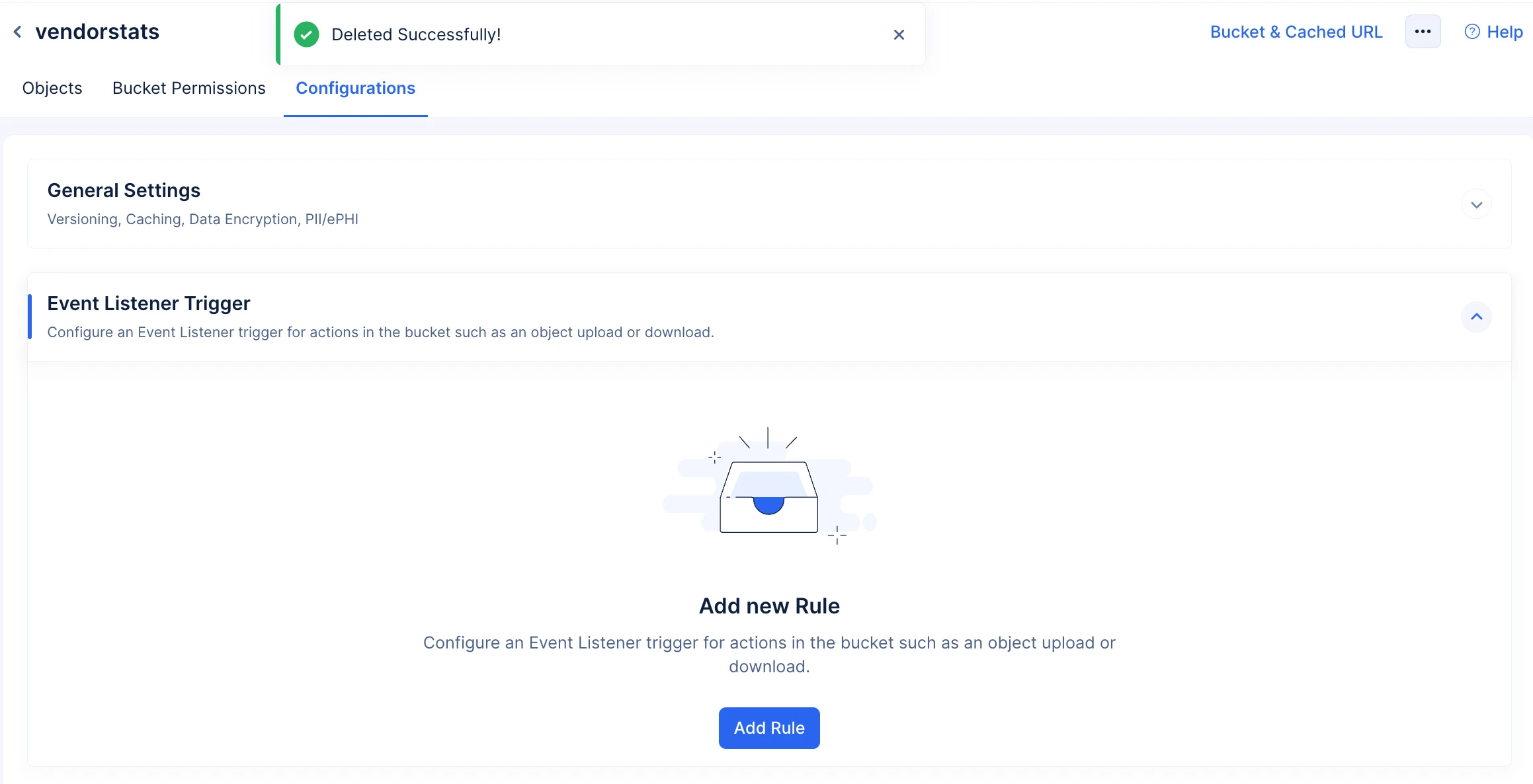
Expand the Signals section and click Add Rule.
-
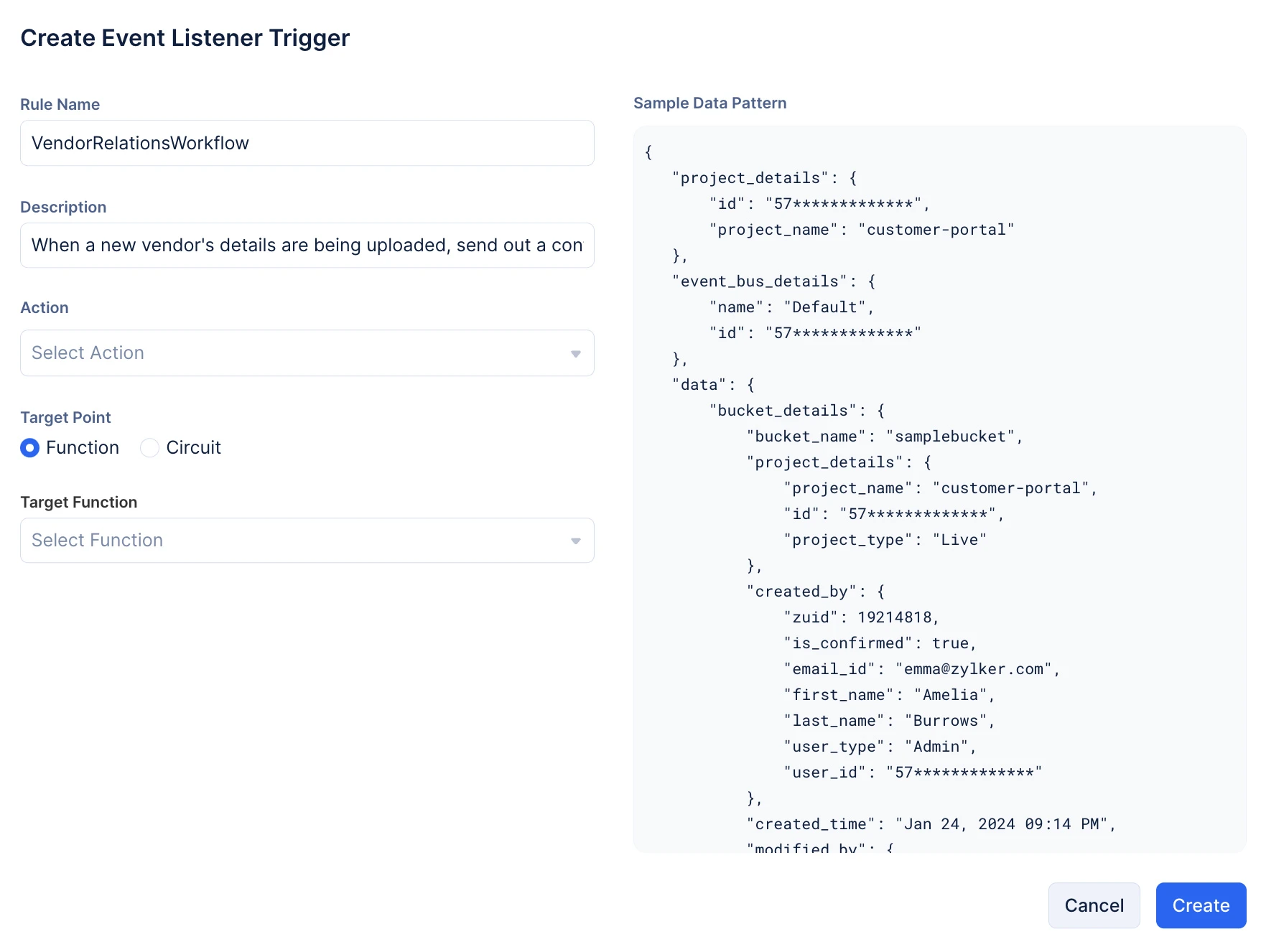
Provide a name and description for the rule.
-
Select the action or actions that is supposed to trigger Signals from the Action drop-down.
-
Choose your required Target Point. Based on this selection, either an Event Function or a Circuit will be triggered when the selected actions occur.
-
Before you choose a target point, make sure the required target event function or target circuit is configured and deployed to the catalyst console. Only if you deploy the required Target Point to the console will it be available in the Target Function or Target Circuit drop-down.
-
The Circuits component is currently not available to Catalyst users accessing from the EU, AU, IN, or CA data centers. Hence, users from these DCs will not be able to trigger Circuits using the Stratus component.
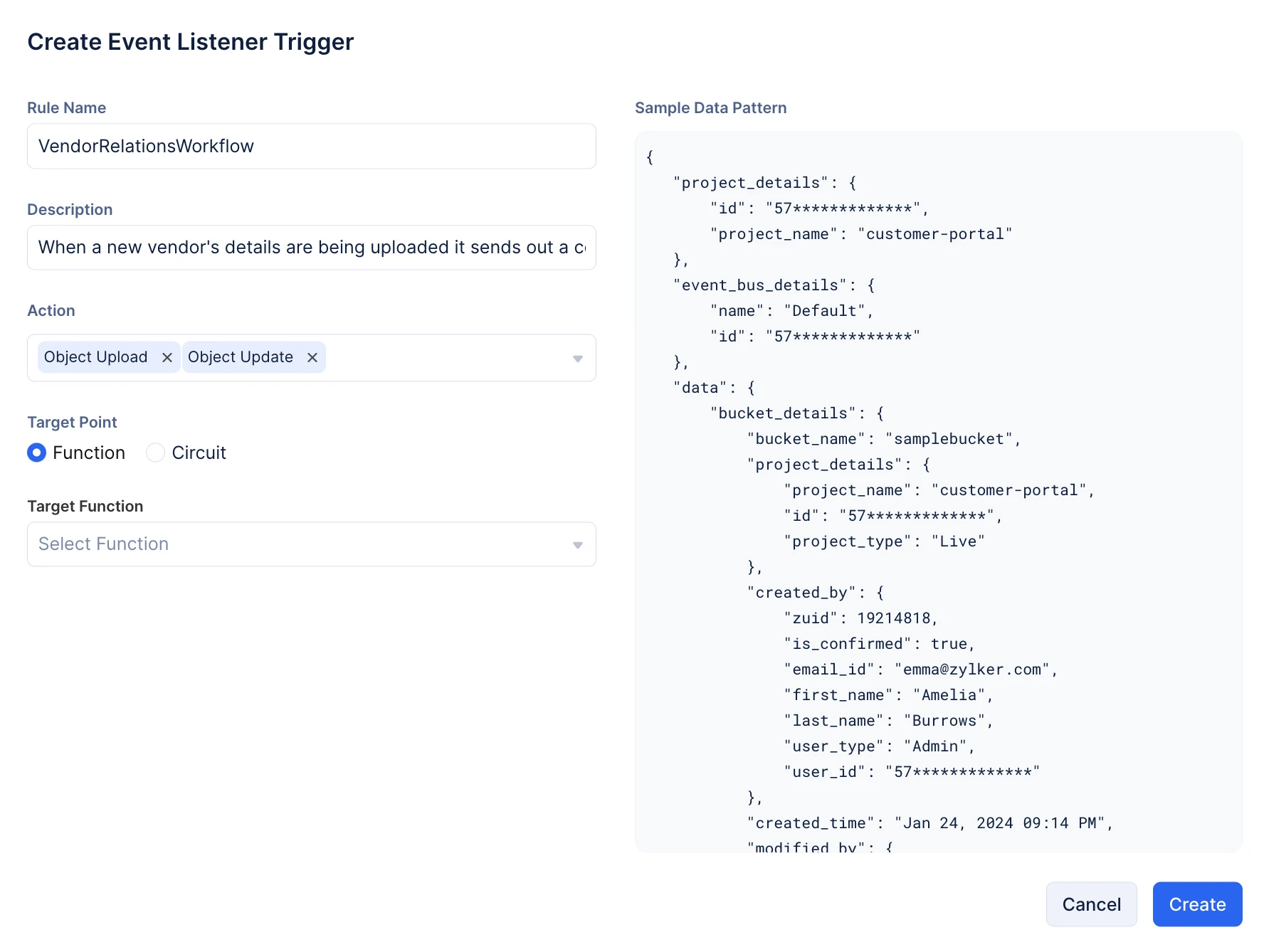
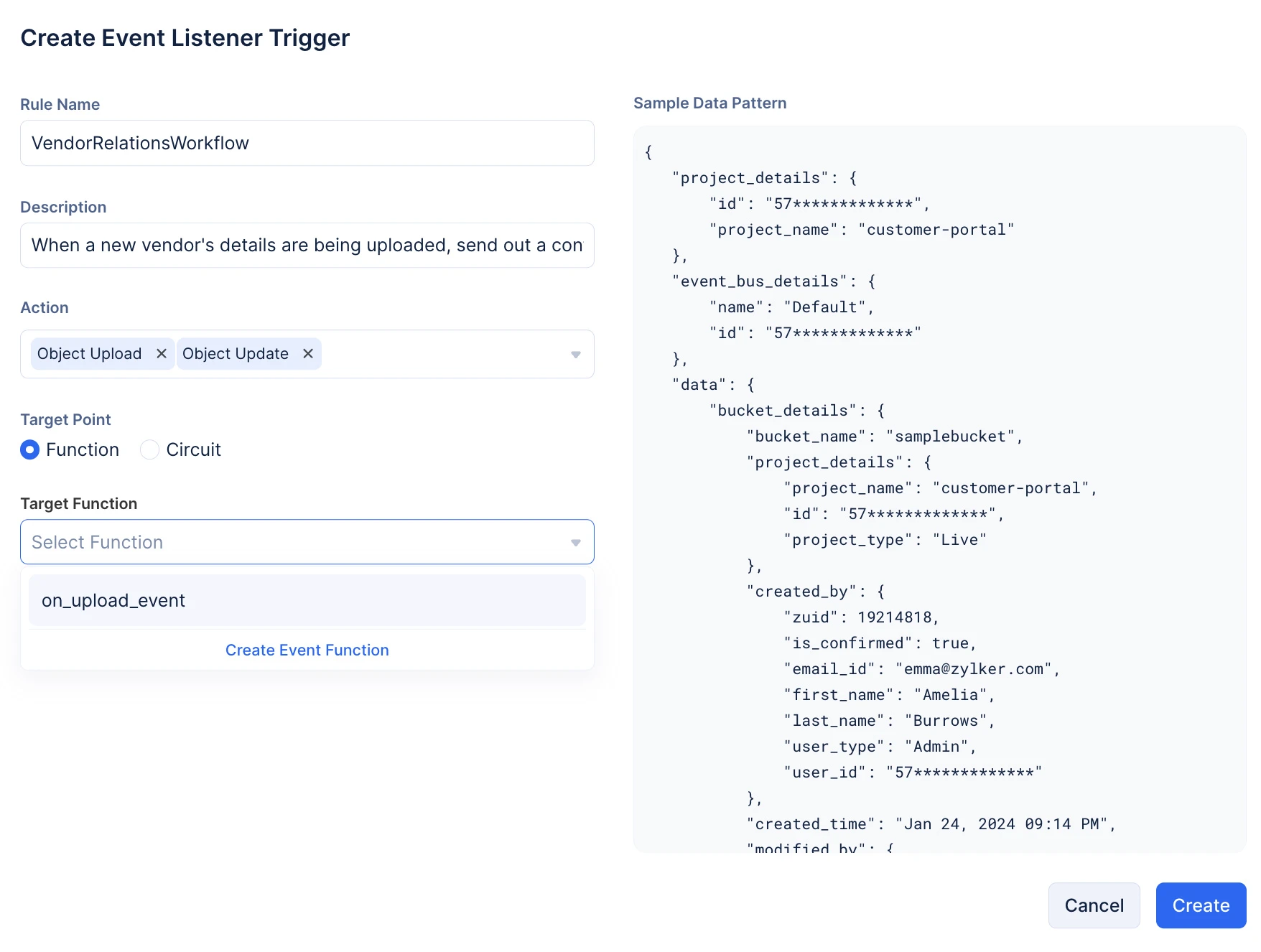
7. Choose the required event function from the Target Function drop-down.
Note:
-
If you still have not coded and deployed the required Event Function, click the Create Event Function button. You will be directed to the Serverless section of the console, and follow the steps listed in this help documentation to create an event function.
-
If you have initialized the required function using the Catalyst CLI, ensure you deploy the function to the Catalyst console once you have coded your required business logic.
- Click Create.
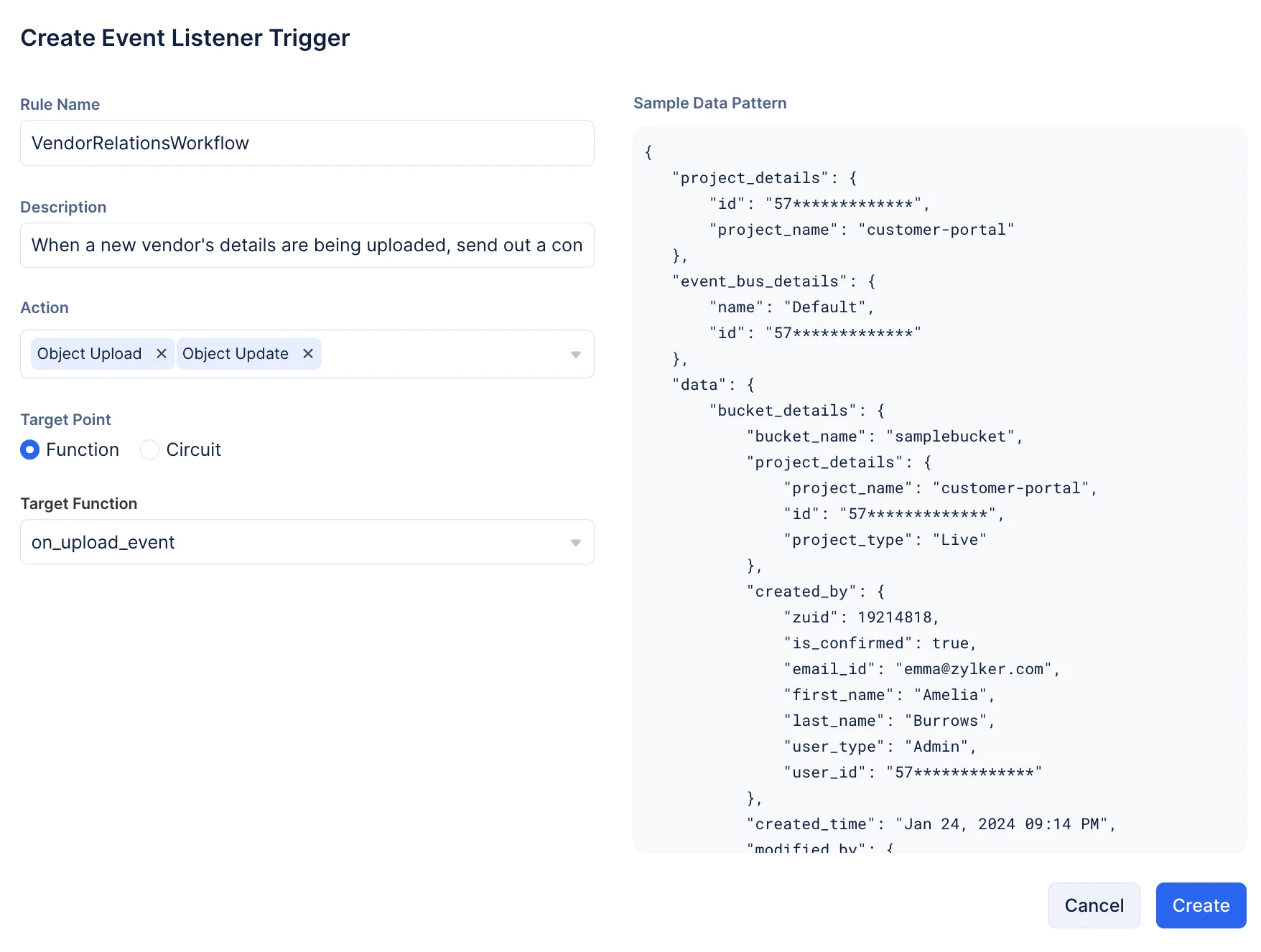
The rule will be created, and the Signals rule will be enabled.
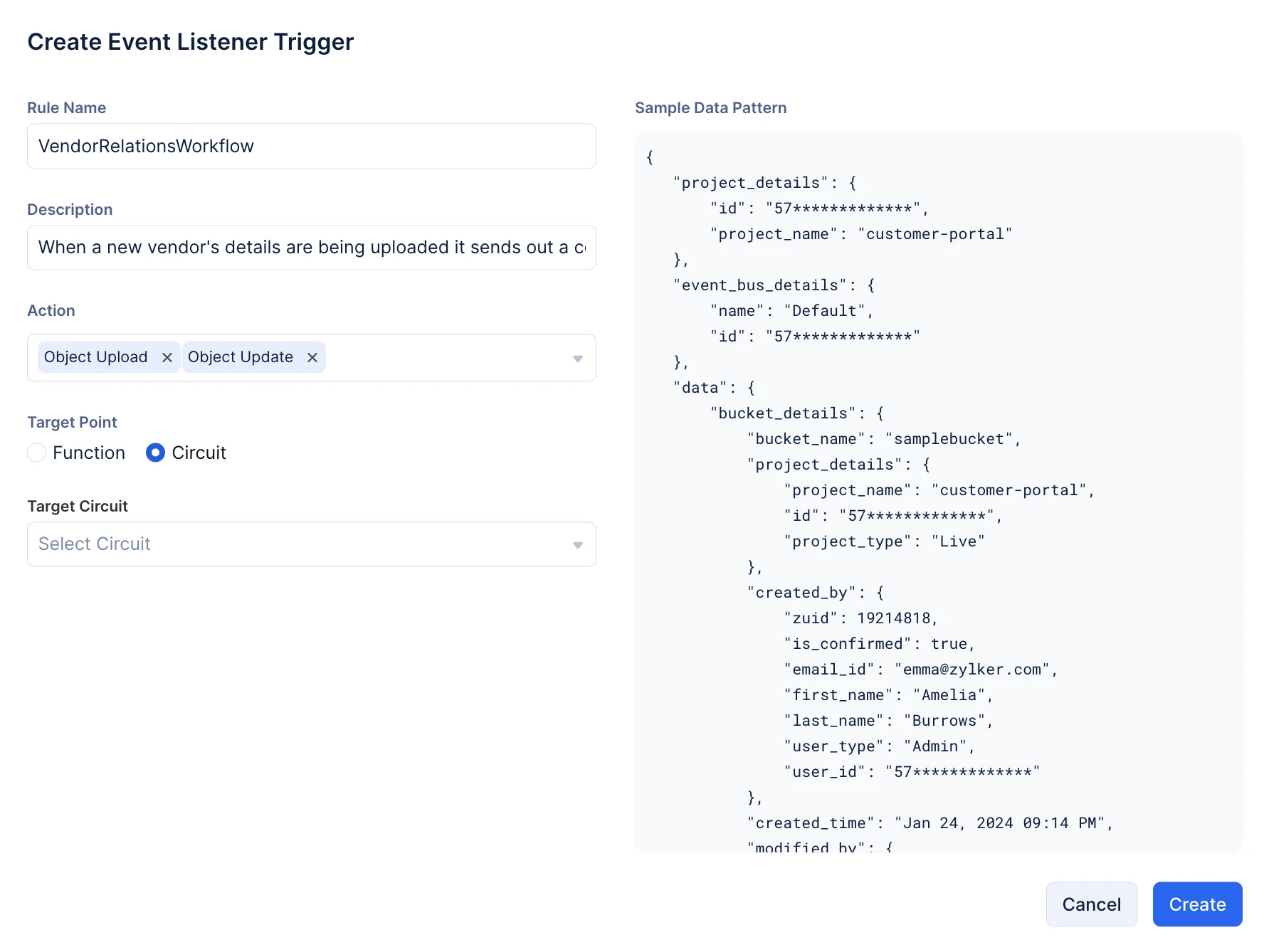
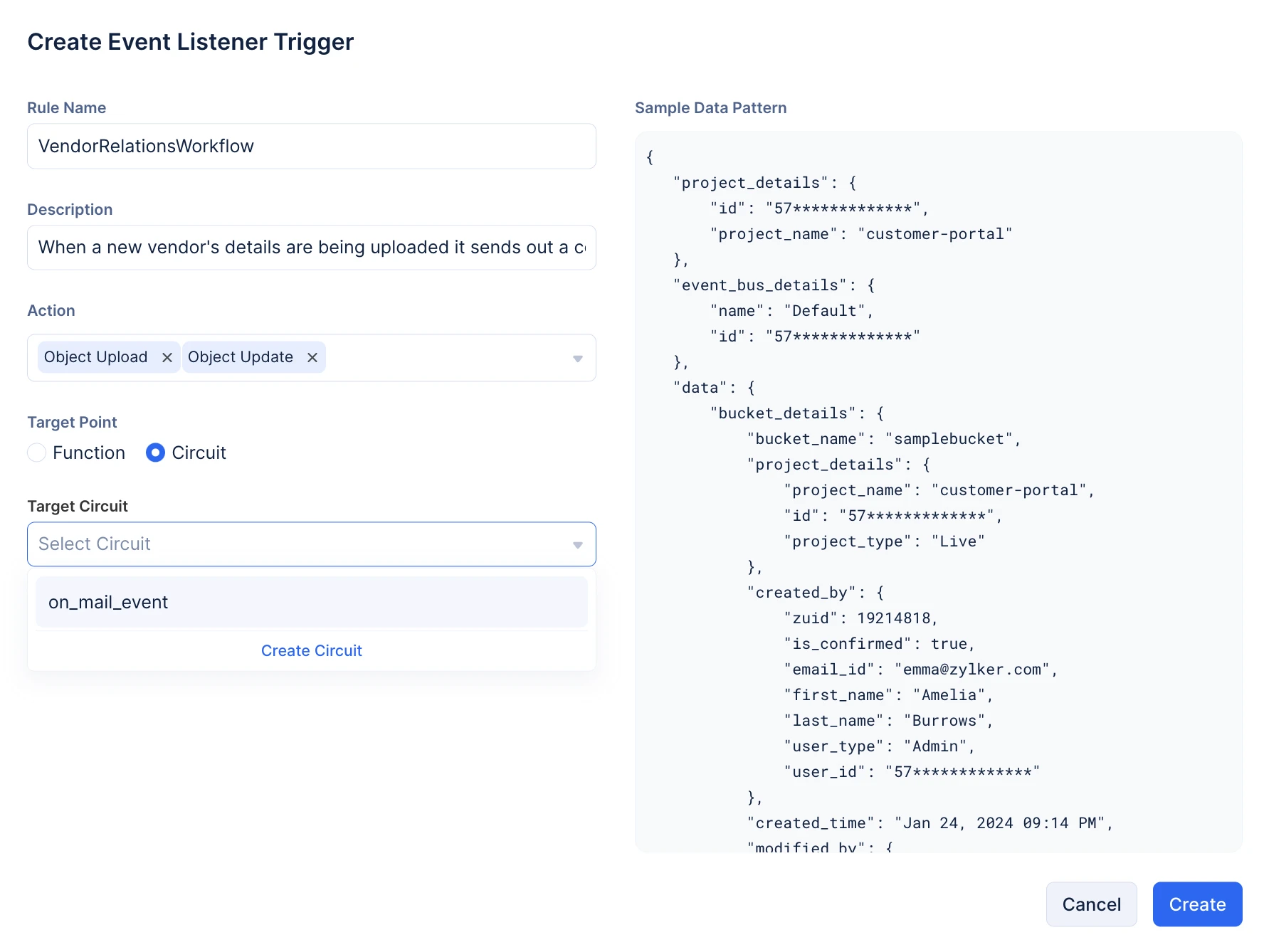
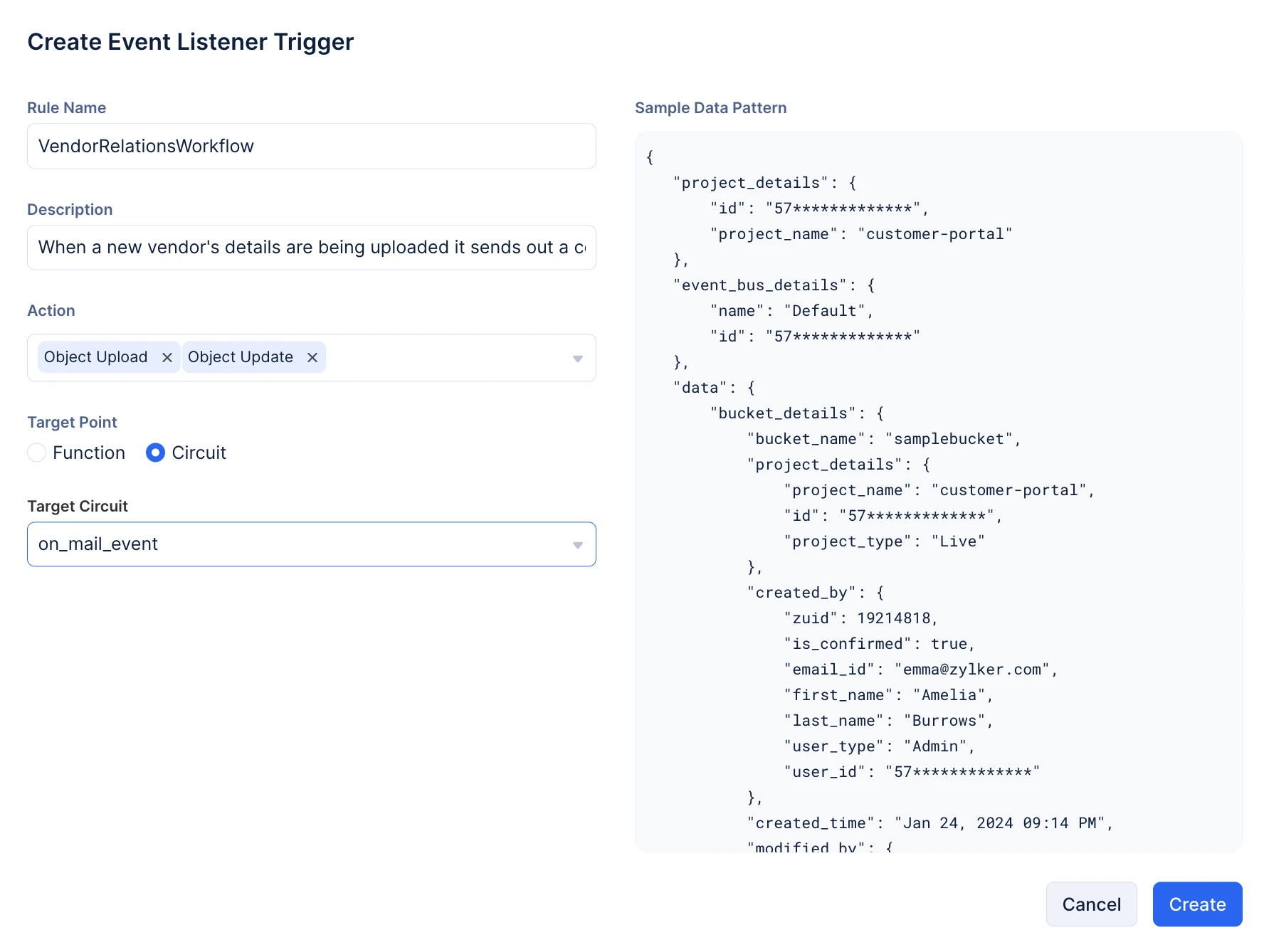
- Choose the required circuit from the Target Circuit drop-down.
- Click Create.
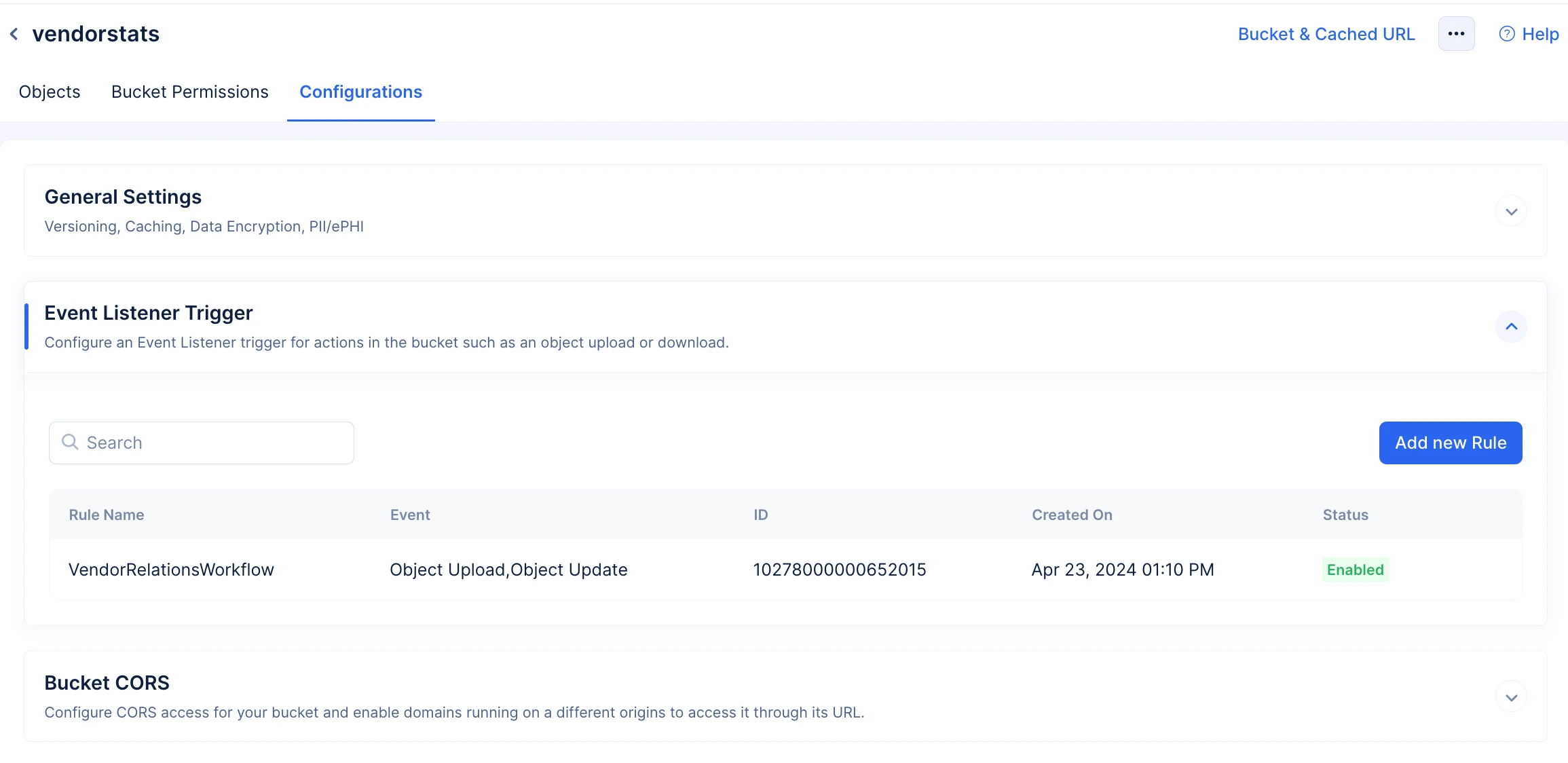
The rule will be created, and the Signals rule will be enabled.
Edit a Signals Rule
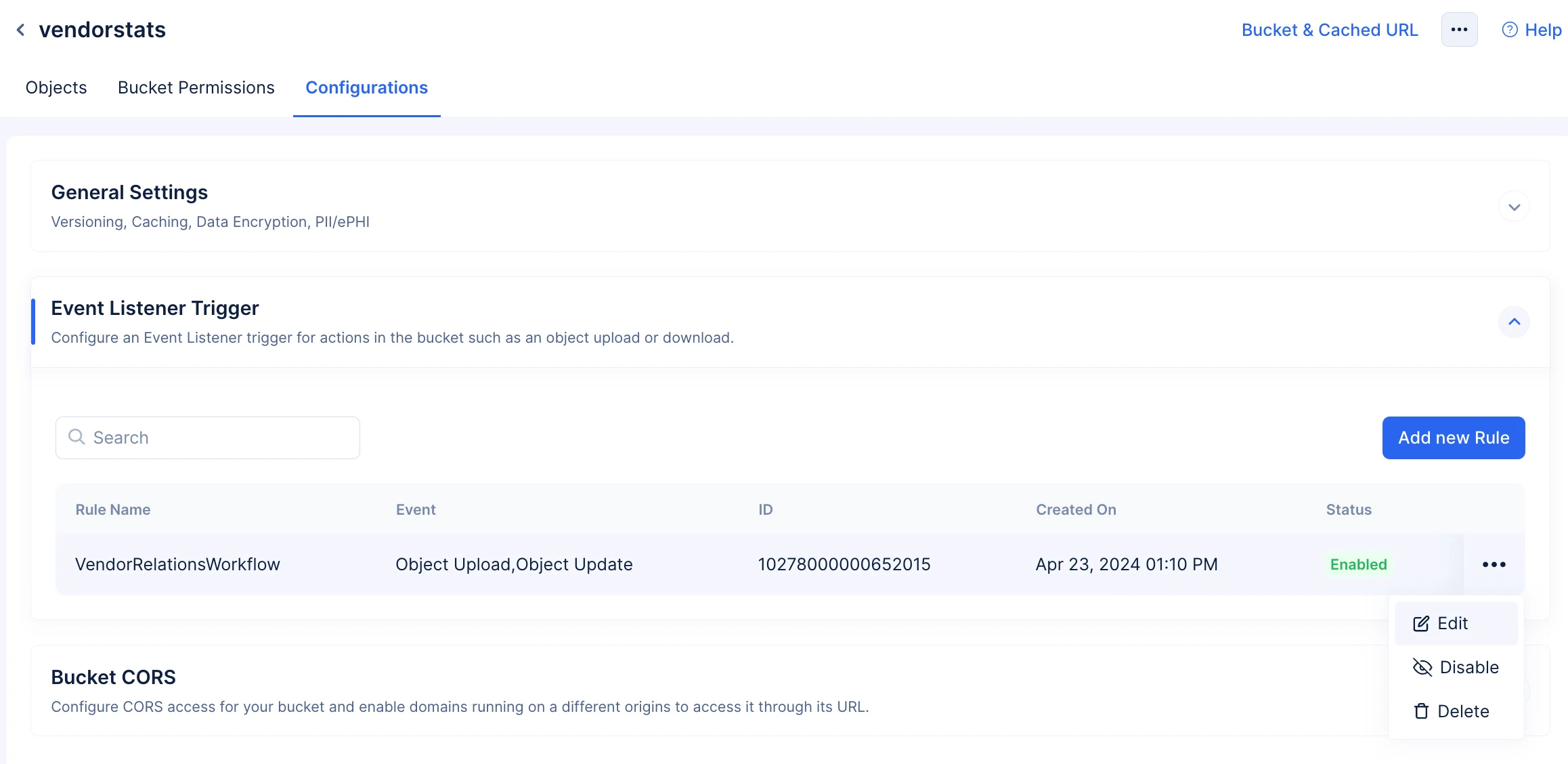
To edit a Signals rule:
-
Click the ellipsis icon next to the rule, then click Edit.
-
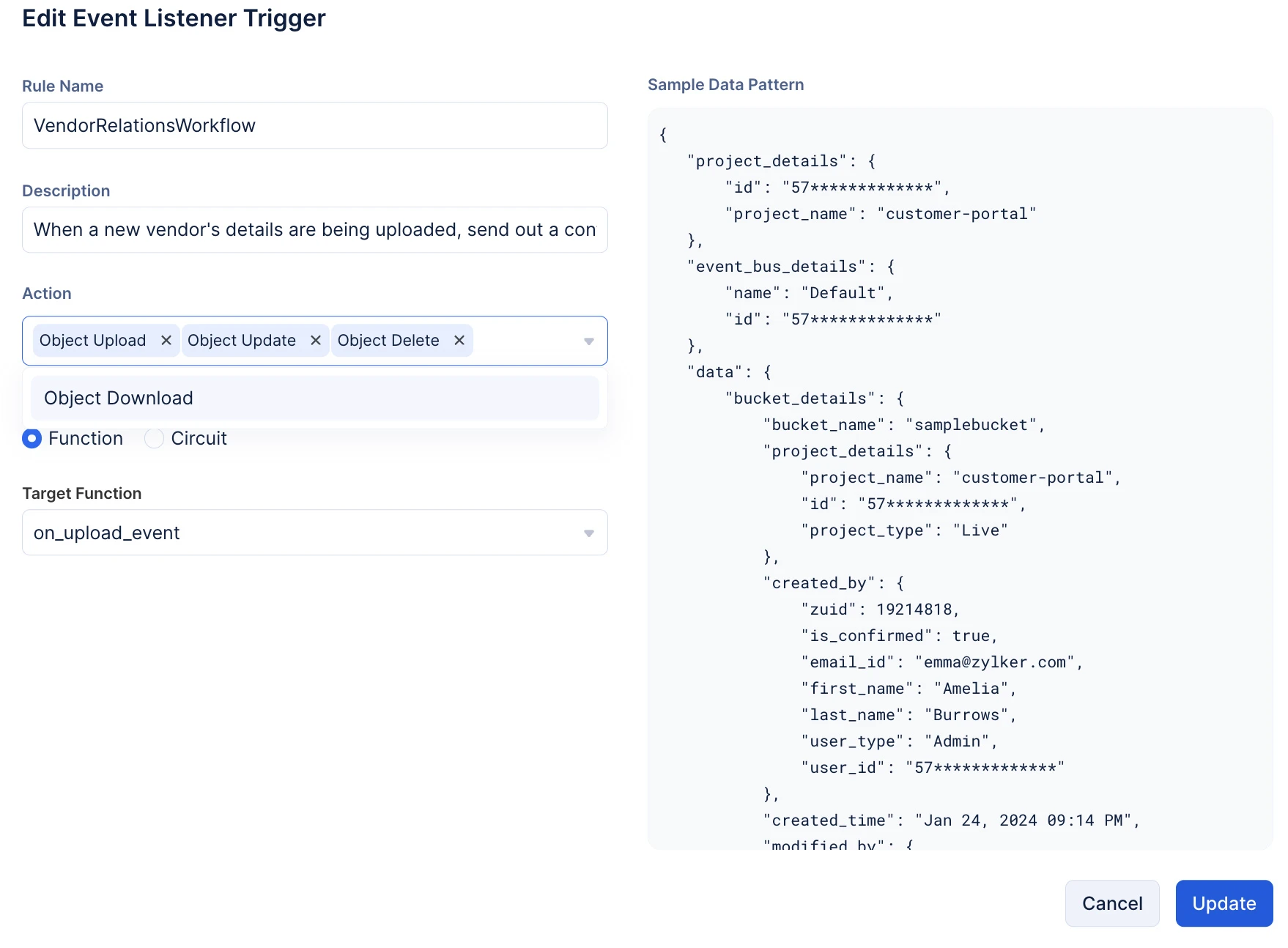
Make the required edits and click Update.
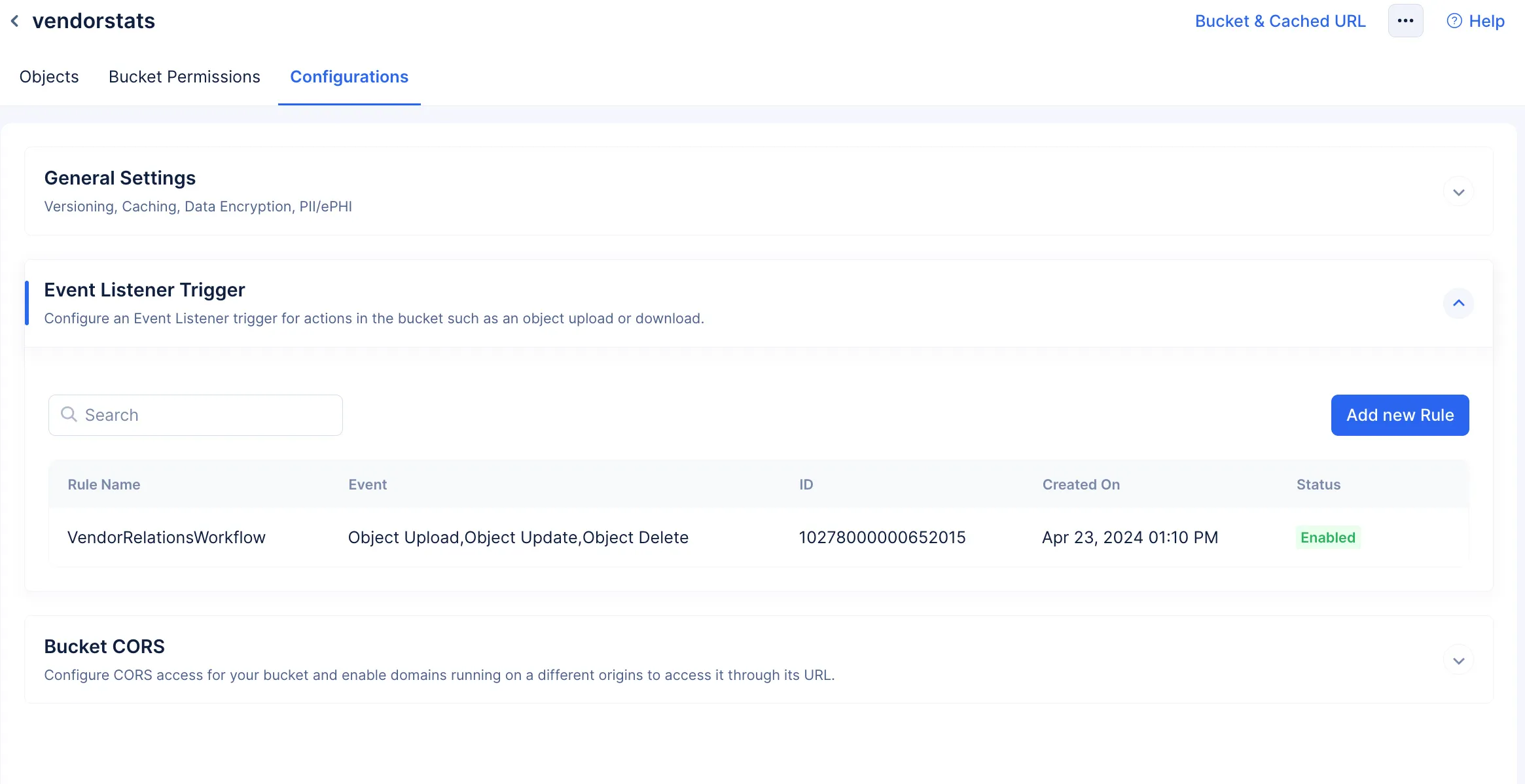
The changes will be applied.
Disable a Signals Rule
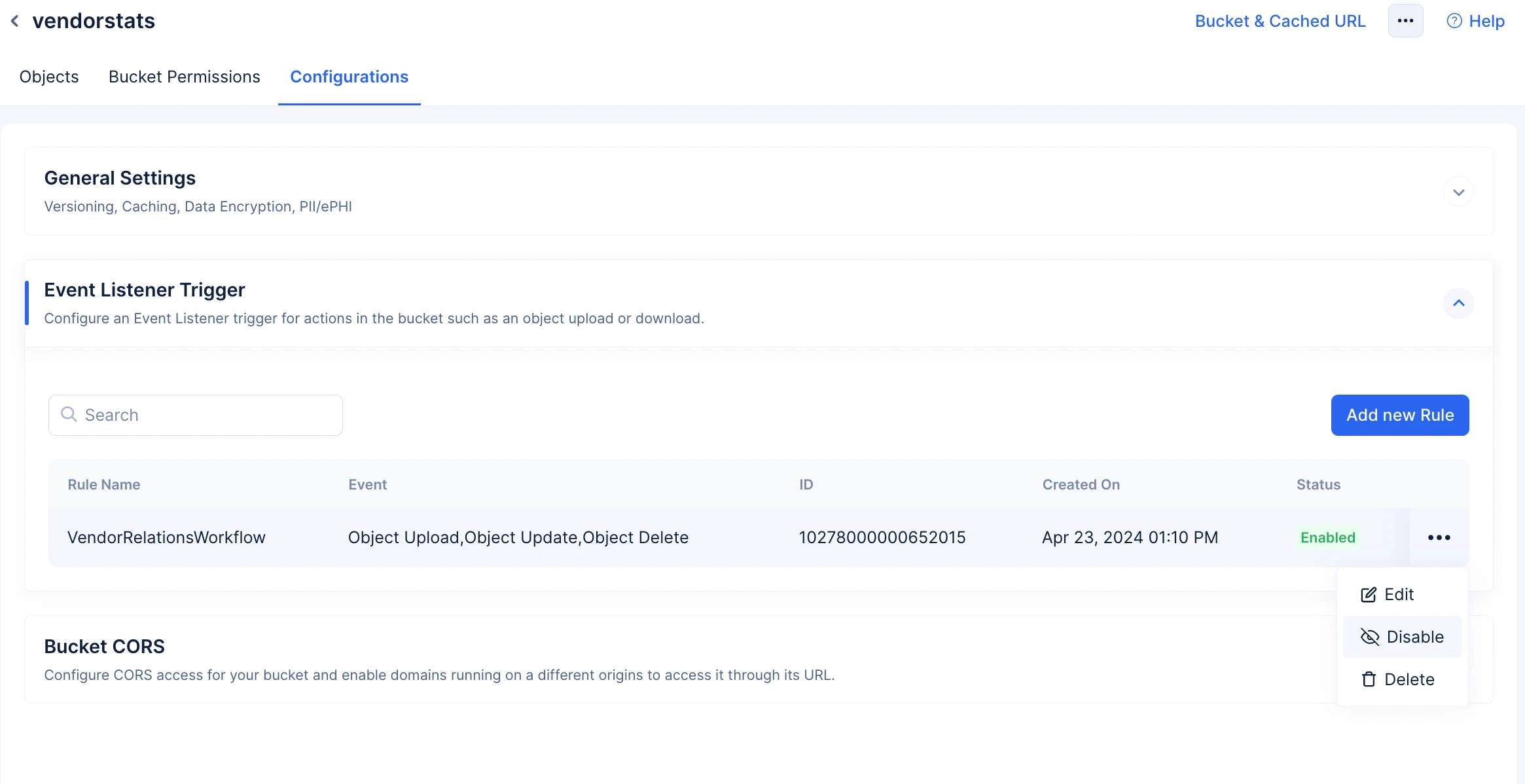
To disable a Signals rule:
-
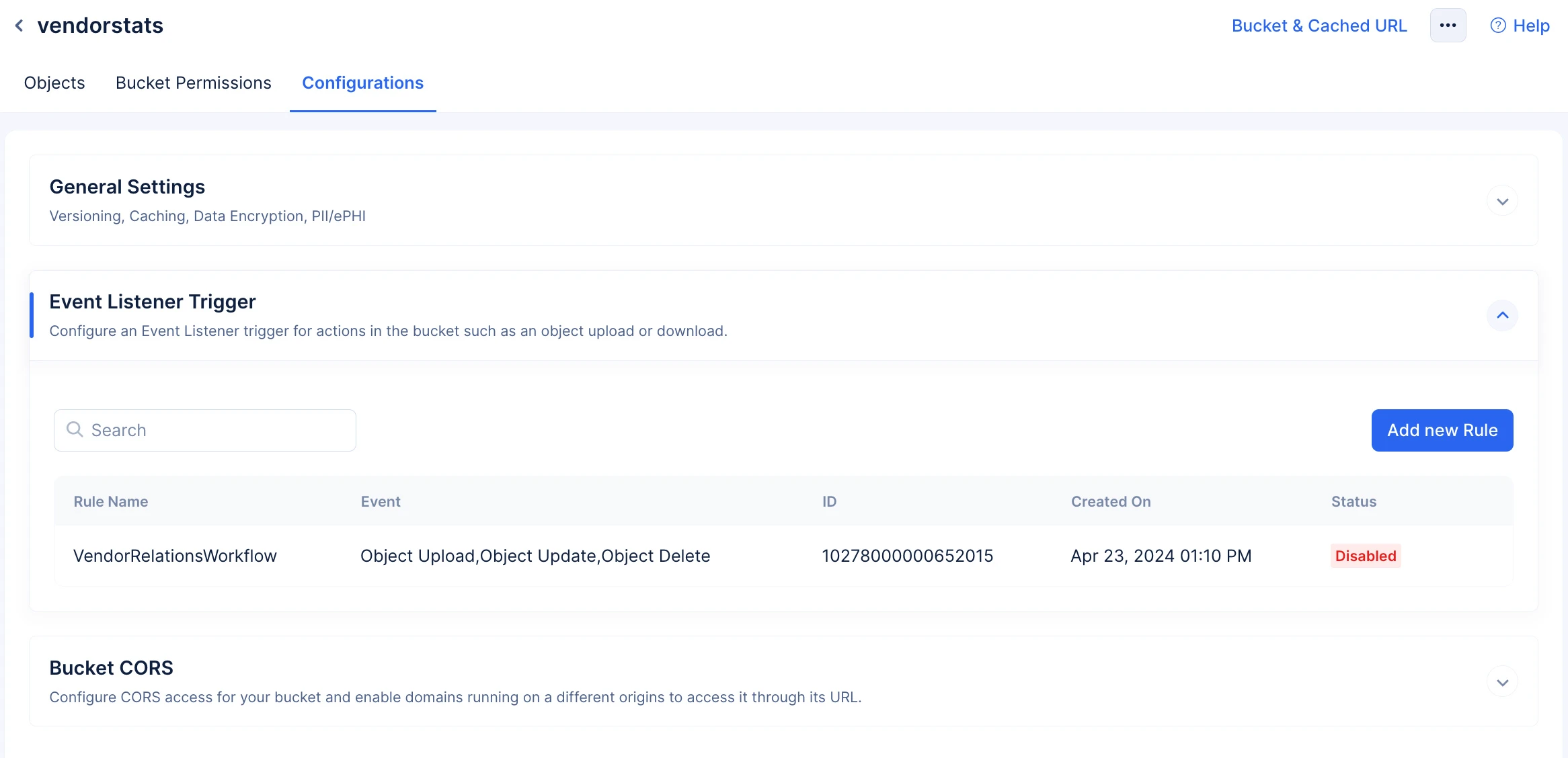
Click the ellipsis icon next to the rule, then click Disable.
-
Click Disable in the prompt to confirm your action.
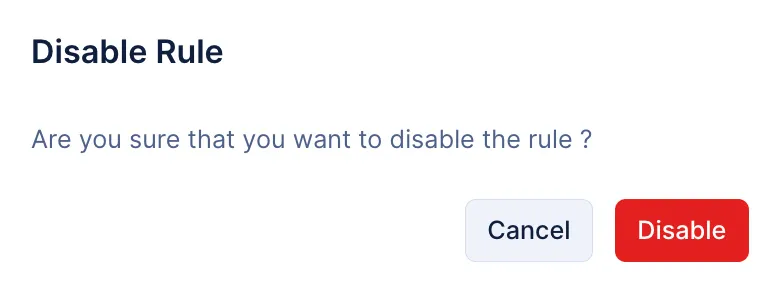
The rule will be disabled.
Delete a Signals Rule
To delete a Signals rule:
-
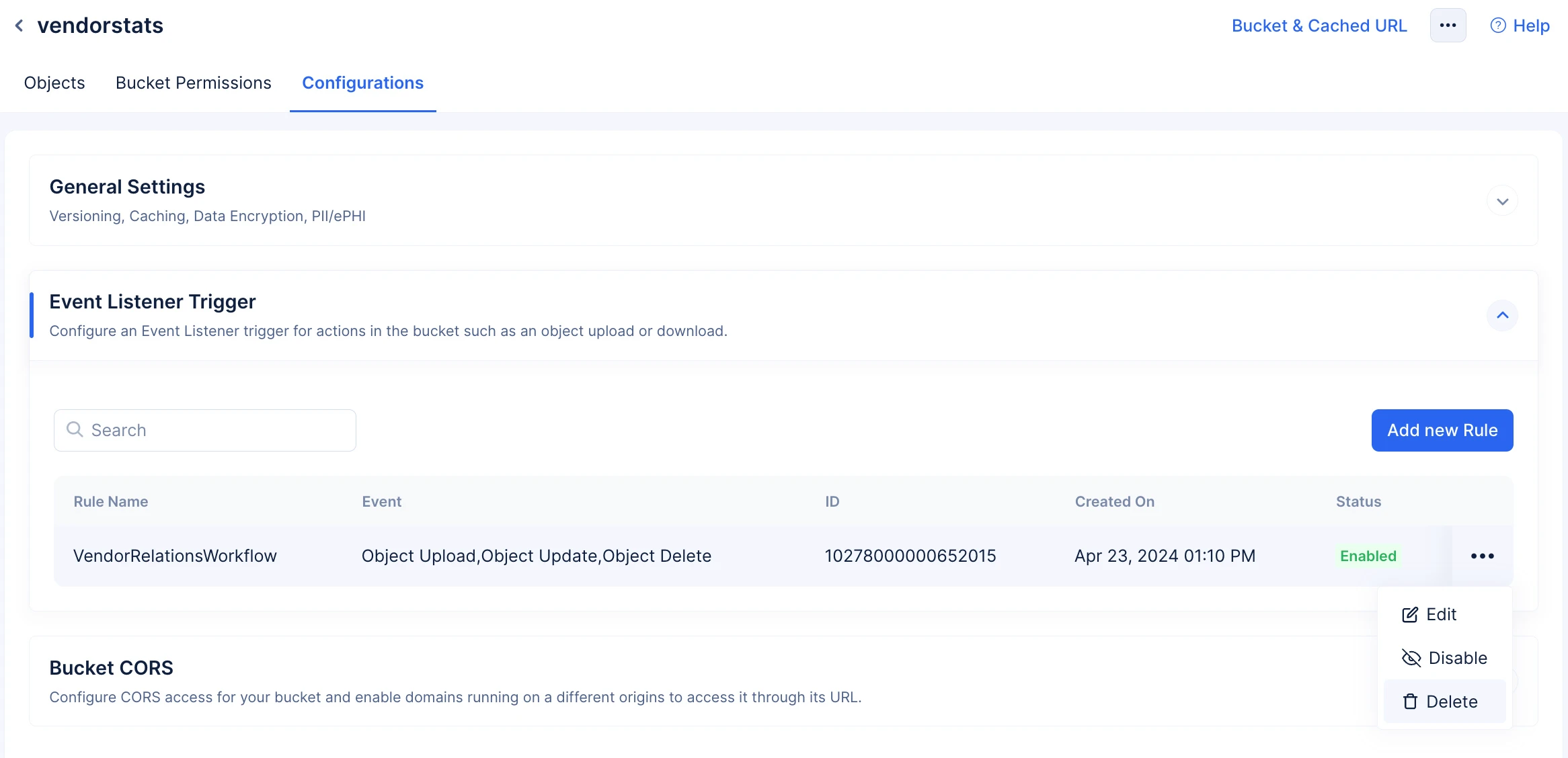
Click the ellipsis icon next to the rule, then click Delete.
-
Click Delete in the prompt to confirm your action.
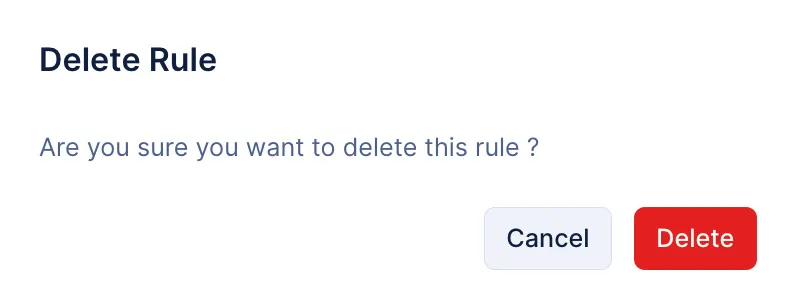
The rule will be deleted.
Last Updated 2026-09-08 16:37:33 +0530 IST
Yes
No
Send your feedback to us
 Ask ChatGPT
 Ask Claude
 Ask Perplexity