Setup Access Control
To configure access control for your channel:
- Select an access control type during channel creation or from the Access Control section.
Use this when subscribers are authenticated users in Catalyst Authentication with predefined roles.
-
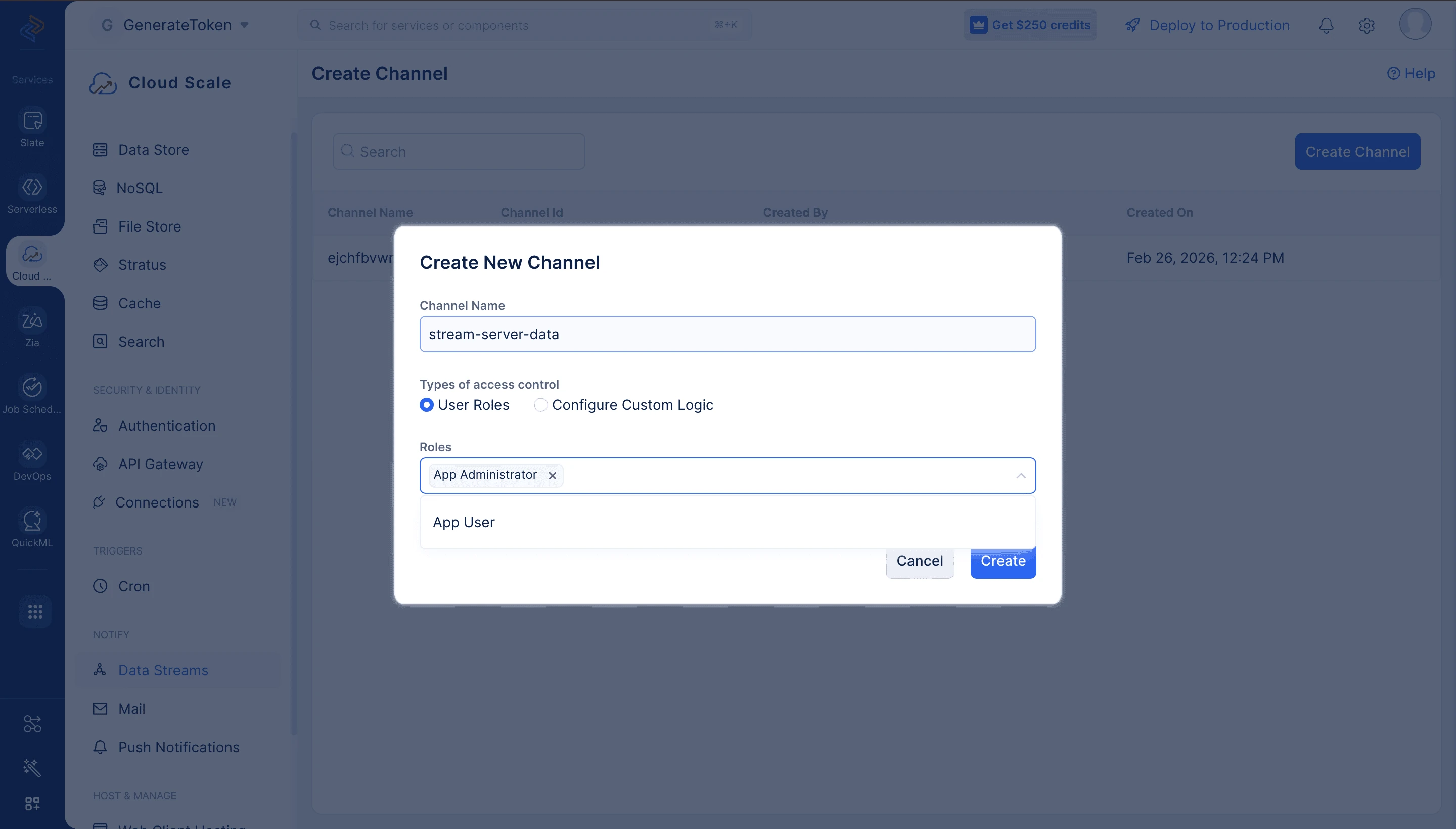
Select User Roles.
-
Select one or more roles from the dropdown menu.
-
Click Create or Update.
Only users belonging to the selected roles can subscribe to the channel. When a role is removed, subscribers with that role lose access immediately. When a role is granted, users with that role can subscribe immediately.
Use this when you need custom authentication logic beyond role-based access (SSO, session-based connections, anonymous users, or custom criteria).
- Create an Advanced I/O function that validates the subscriber with your own logic and then generates the token pair. The function you select becomes the channel’s access control source: token pairs for this channel must be generated from inside it, using a connection name. A token pair requested from any other function or from the REST API is rejected with “Invalid access control source! Kindly request from the configured one!”
const { zcAuth } = require('@zcatalyst/auth');
const { DataStreams } = require('@zcatalyst/datastreams');

// Advanced I/O functions receive Node's raw request and response objects,
// so read the JSON body and write the JSON response yourself.
const readJson = (req) => new Promise((resolve, reject) => {
    let raw = '';
    req.on('data', (chunk) => (raw += chunk));
    req.on('end', () => {
        try { resolve(raw ? JSON.parse(raw) : {}); } catch (e) { reject(e); }
    });
});

const sendJson = (res, status, body) => {
    res.writeHead(status, { 'Content-Type': 'application/json' });
    res.end(JSON.stringify(body));
};

module.exports = async (req, res) => {
    try {
        const { channelId, connectionName } = await readJson(req);

        // Your custom validation logic
        const isAuthorized = await yourCustomValidationLogic(req, connectionName);
        if (!isAuthorized) {
            return sendJson(res, 403, { approved: false, reason: "Unauthorized" });
        }

        // Generate the token pair here, in the configured function
        const app = await zcAuth.init(req);
        const datastreams = new DataStreams(app);
        const token = await datastreams.getTokenPair(channelId, { connectionName });
        sendJson(res, 200, { approved: true, token });
    } catch (error) {
        sendJson(res, 500, { error: error.message });
    }
};
Your client calls this function to get a token pair, then uses it to open the WebSocket connection. Catalyst does not call the function on its own.
-
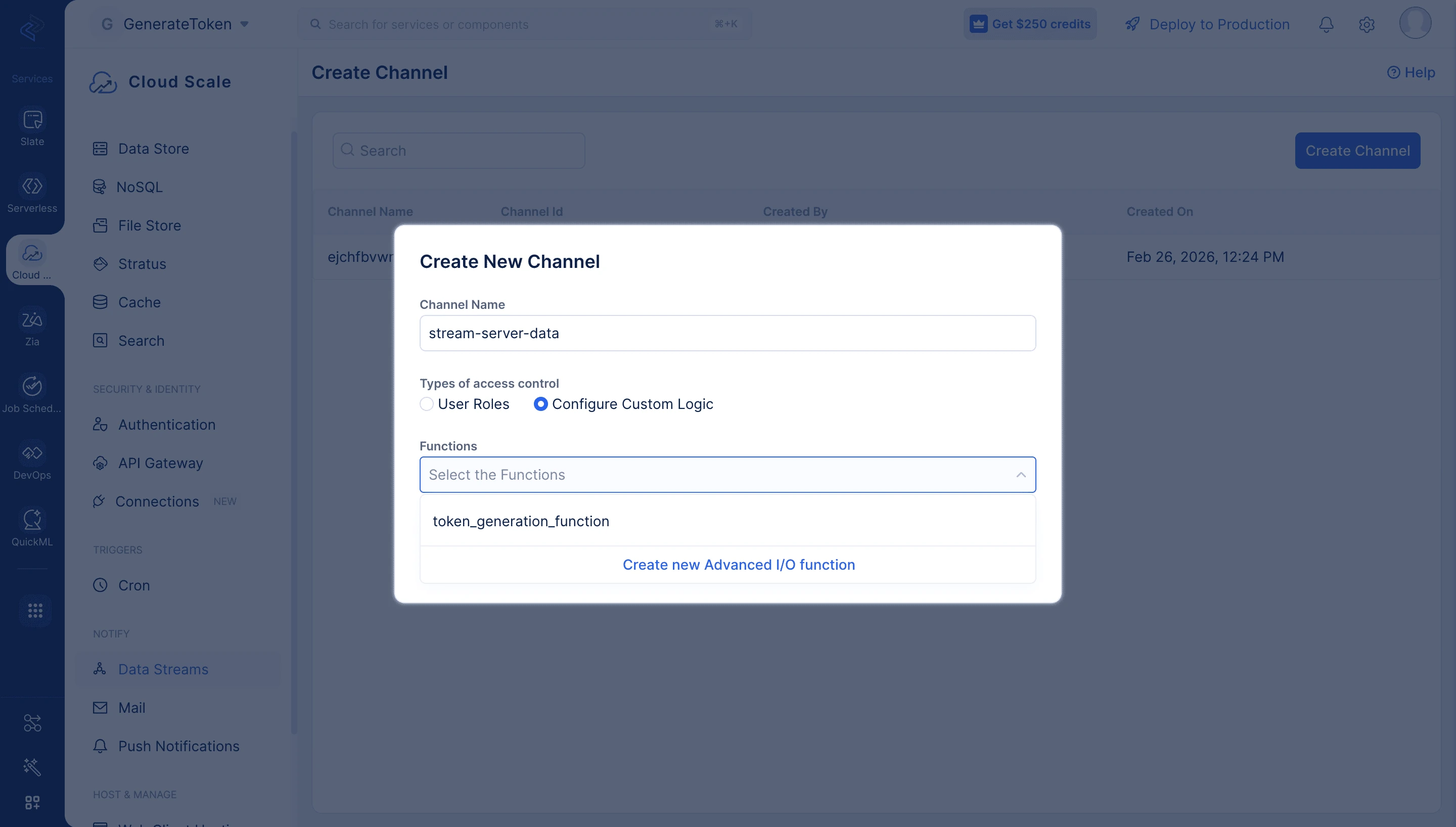
Select Custom Logic.
-
Select your Advanced I/O function from the dropdown. If the function doesn’t exist, click Create new Advanced I/O function to create one first.
-
Click Create or Update.
Manage Subscriber Connections
After access control is configured, navigate to the Manage Connections section in the Access Control tab to view all subscribers.
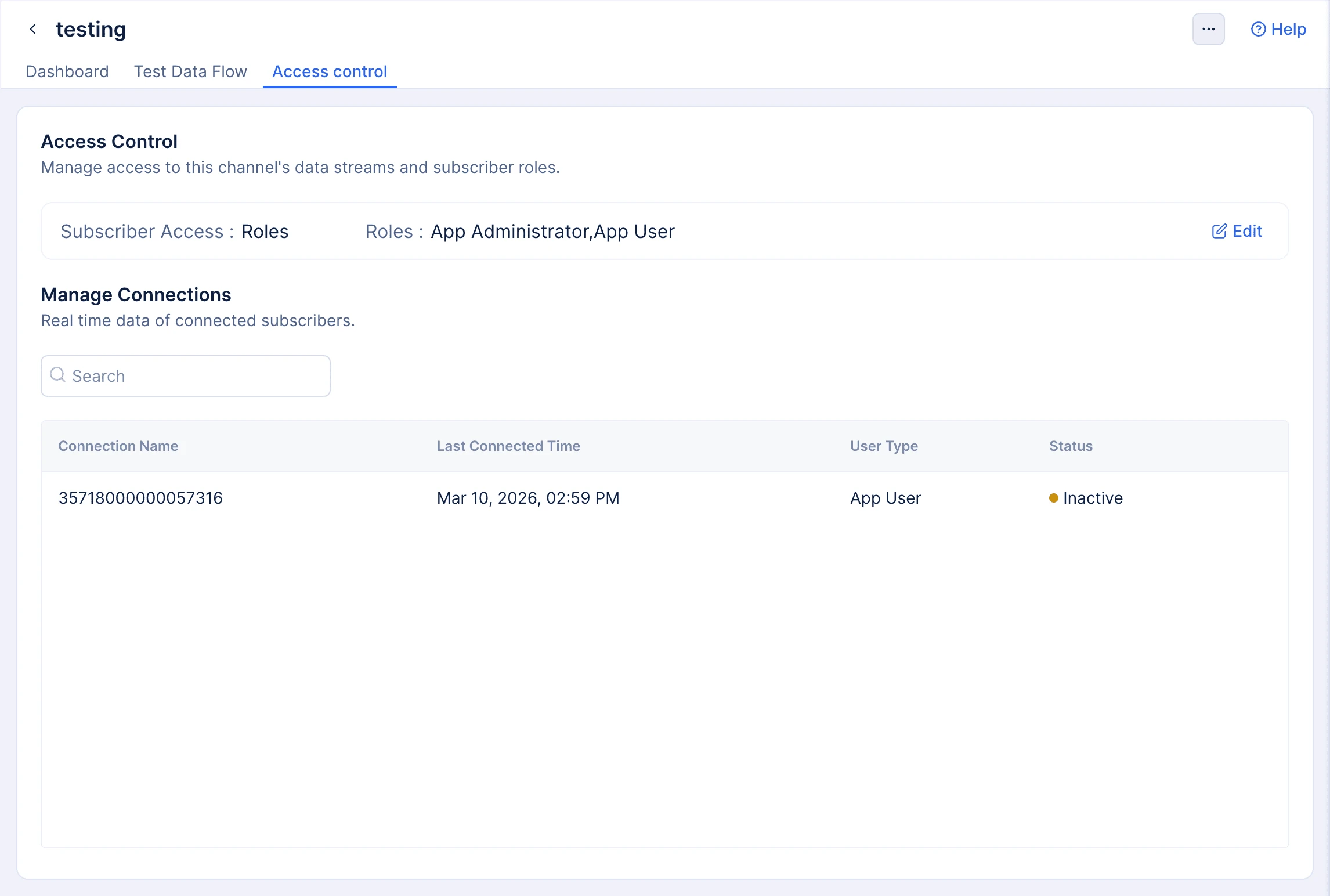
Each connection displays:
| Field | Description |
|---|---|
| Connection Name | Unique identifier for the subscriber connection (generated during token pair creation) |
| User Type | Type of user (App User or Custom User) based on access control configuration |
| Status | Current connection state: Active, Inactive, or Blocked |
To block a subscriber:
- Locate the subscriber connection.
- Click the three-dot menu icon.
- Select Block.
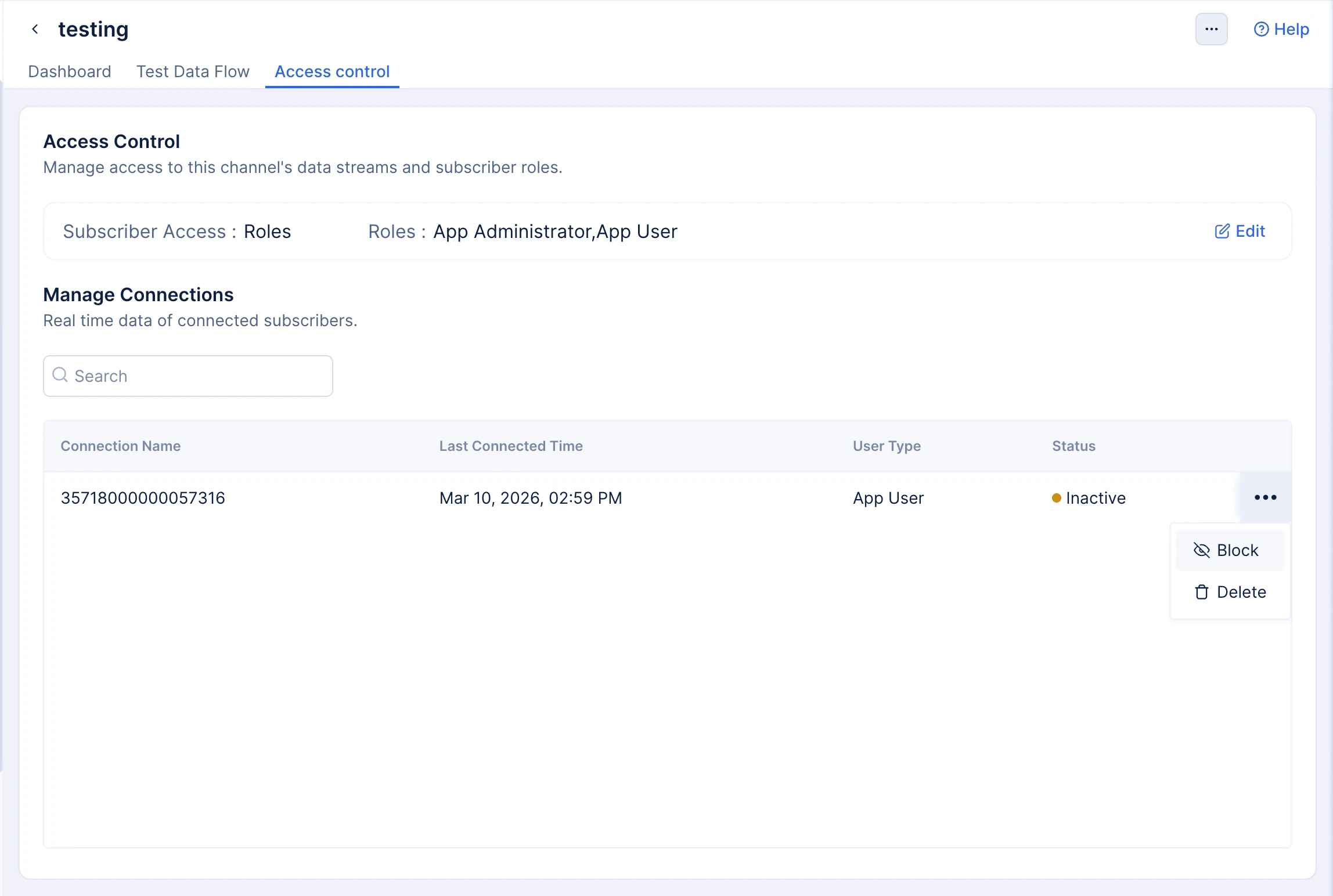
Blocking terminates the active connection immediately.
To delete a subscriber connection:
- Locate the subscriber connection.
- Click the three-dot menu icon.
- Select Delete.
- Confirm deletion in the dialog.
Last Updated 2026-10-25 11:43:01 +0530 IST
Yes
No
Send your feedback to us
 Ask ChatGPT
 Ask Claude
 Ask Perplexity