Dashboard
The Channel Dashboard provides a consolidated view of the activity, data flow, and configuration details of a Data Streams channel. It enables you to monitor live streaming activity, track subscriber engagement, and access channel configuration details such as Channel ID, access control type, and retention time.
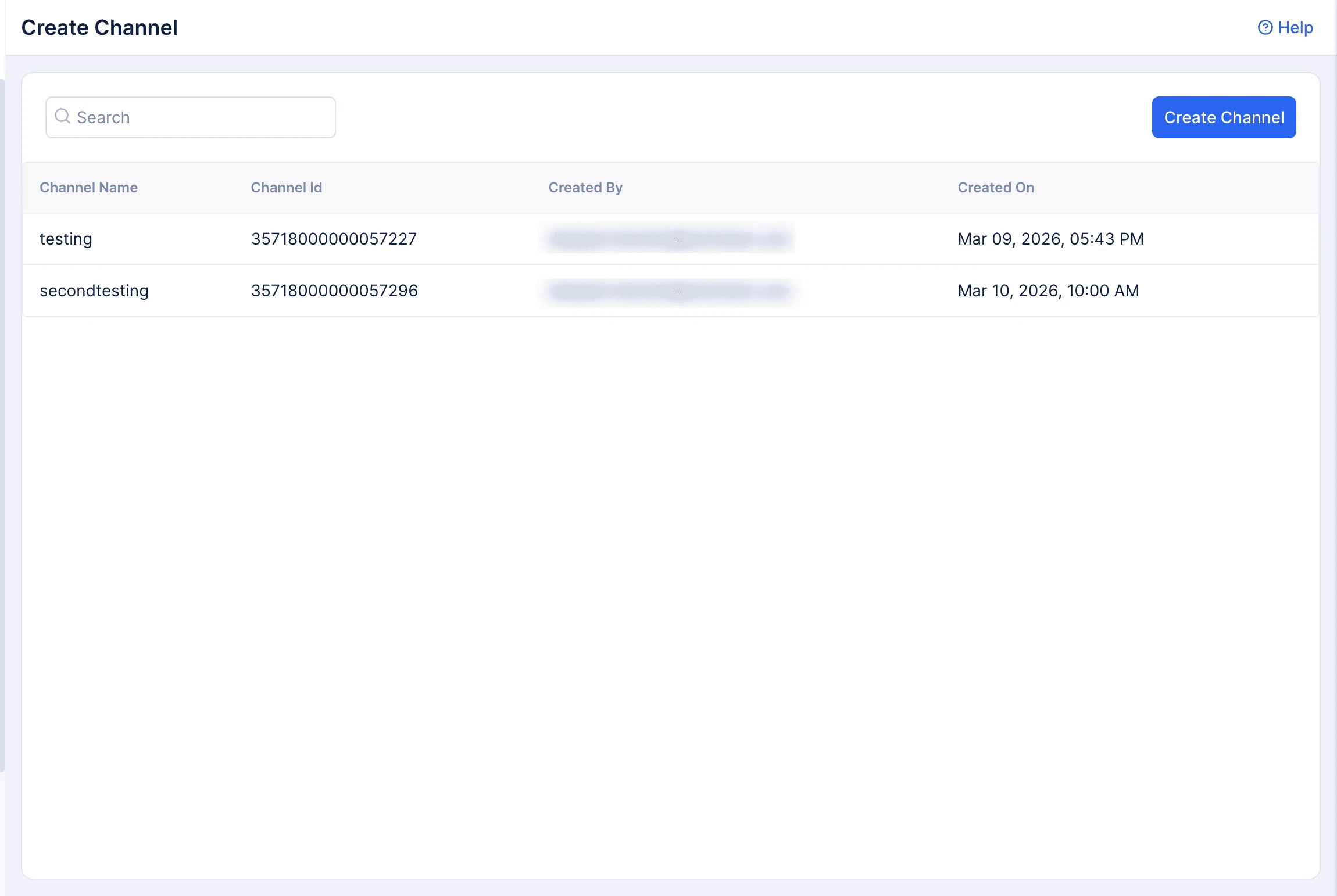
You can access the Channel Dashboard by selecting a channel from the Channels list page.
Live Channel Activity
This section displays real-time metrics that help you monitor the data streaming activity of a channel and its connected subscribers.
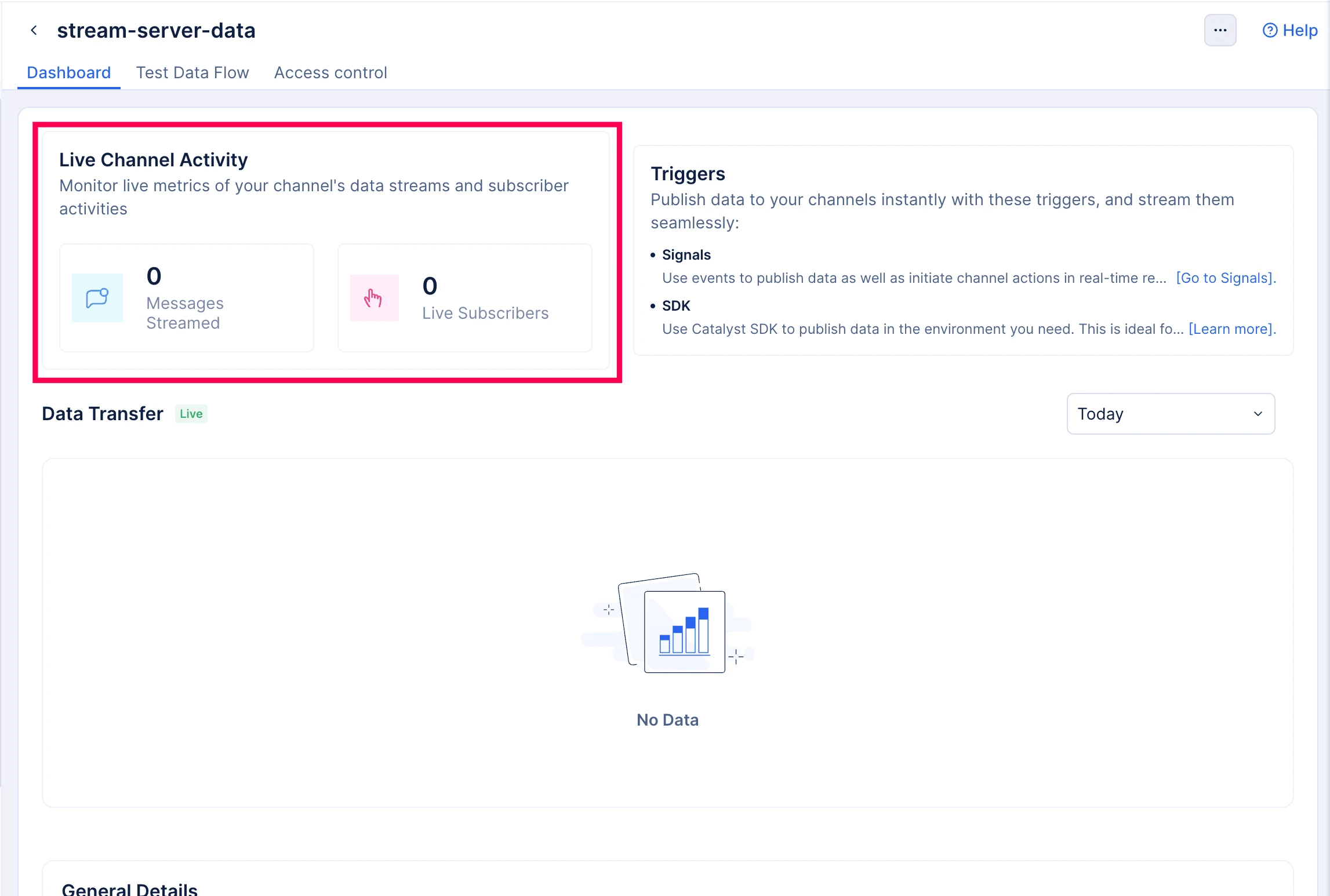
- Messages Streamed - This metric displays the total number of messages streamed through the channel for the day.
- Live Subscribers - This displays the number of subscribers currently connected to the channel and actively receiving streamed data. This value reflects the real-time count at the moment you view the dashboard.
Triggers
The Triggers section displays the available methods for publishing data to the channel. These triggers enable you to stream data into the channel seamlessly.
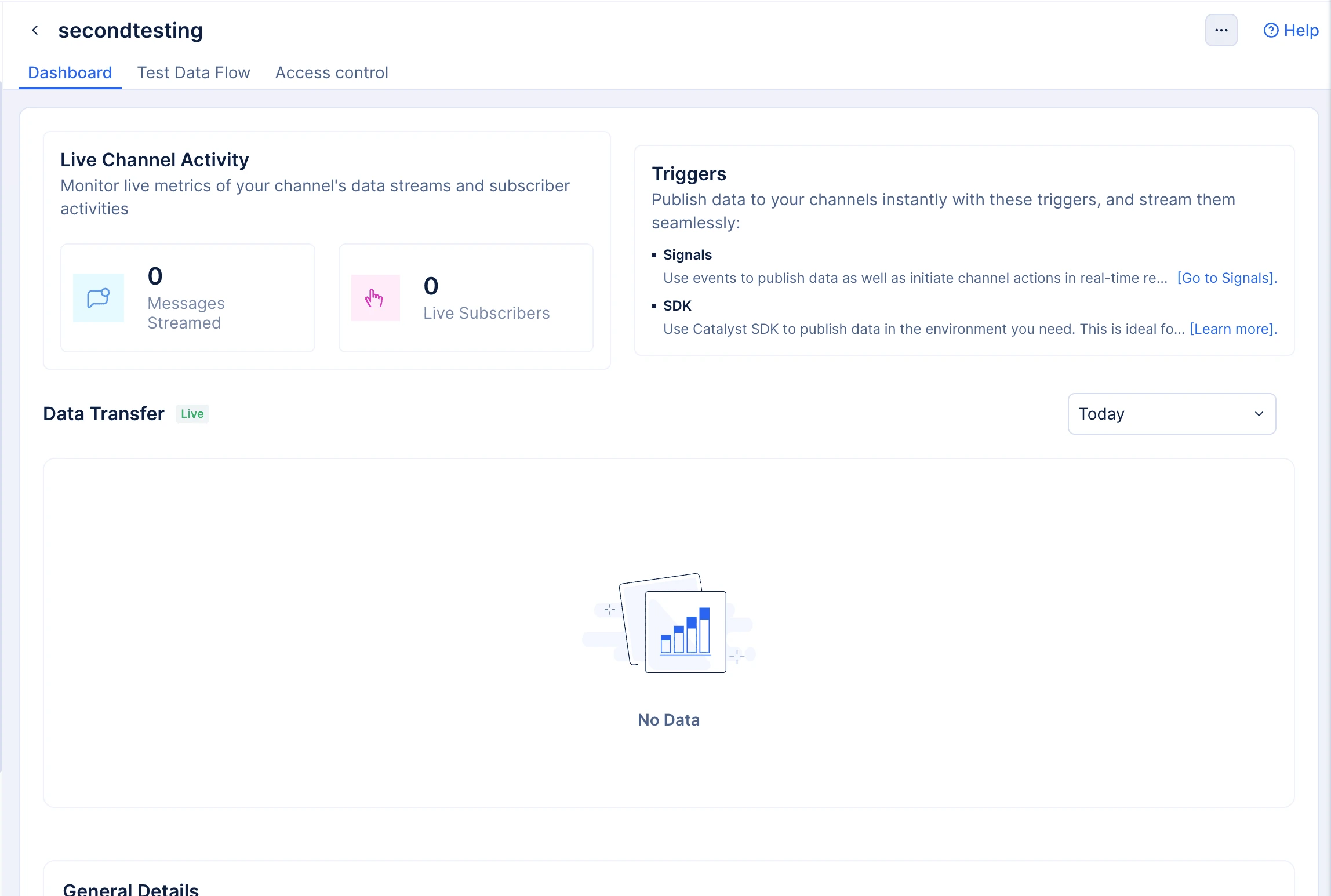
The following triggers are available:
Signals:
Use Catalyst Signals events to publish data to the channel and initiate channel actions in real-time responses. When events occur in connected services (such as Zoho CRM, Data Store, or custom publishers), they can be routed to the Data Streams channel through Signals rules and targets. Click Go to Signals to navigate to the Signals service and configure event-driven publishing for this channel.
SDK
Use the Catalyst SDK to publish data to the channel from your application code. This is ideal for scenarios where your backend service or function generates the data to be streamed. Click Learn more to view the publishing guide.
Refer to the Key Concepts page to learn more about the different ways to publish data to a Data Streams channel.
Data Transfer
The Data Transfer section presents the volume of data published through the channel over a selected time period in a graphical format.
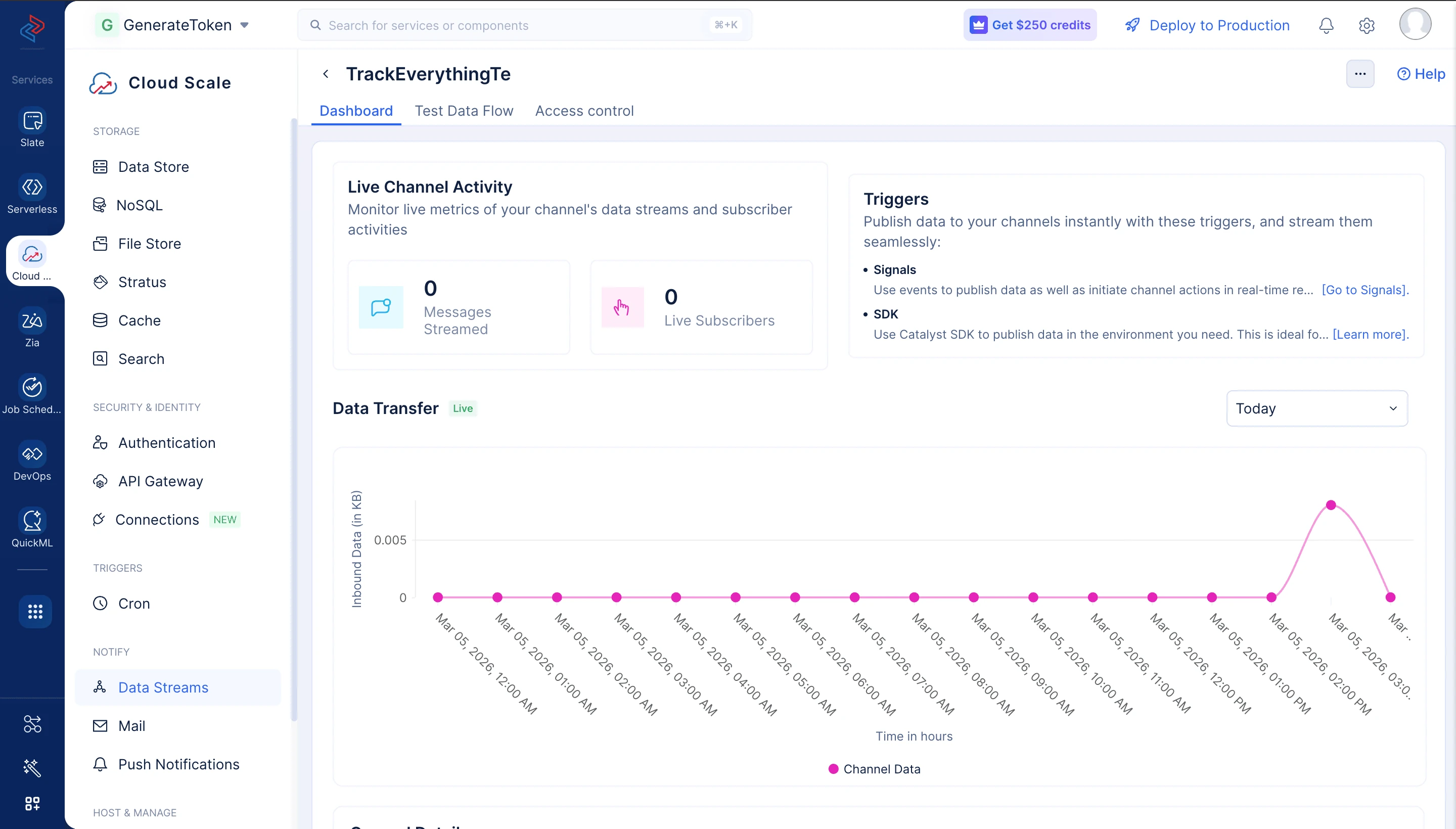
You can adjust the time frame using the time period selector in the top-right corner. You can choose from the default time ranges or specify a custom date range.
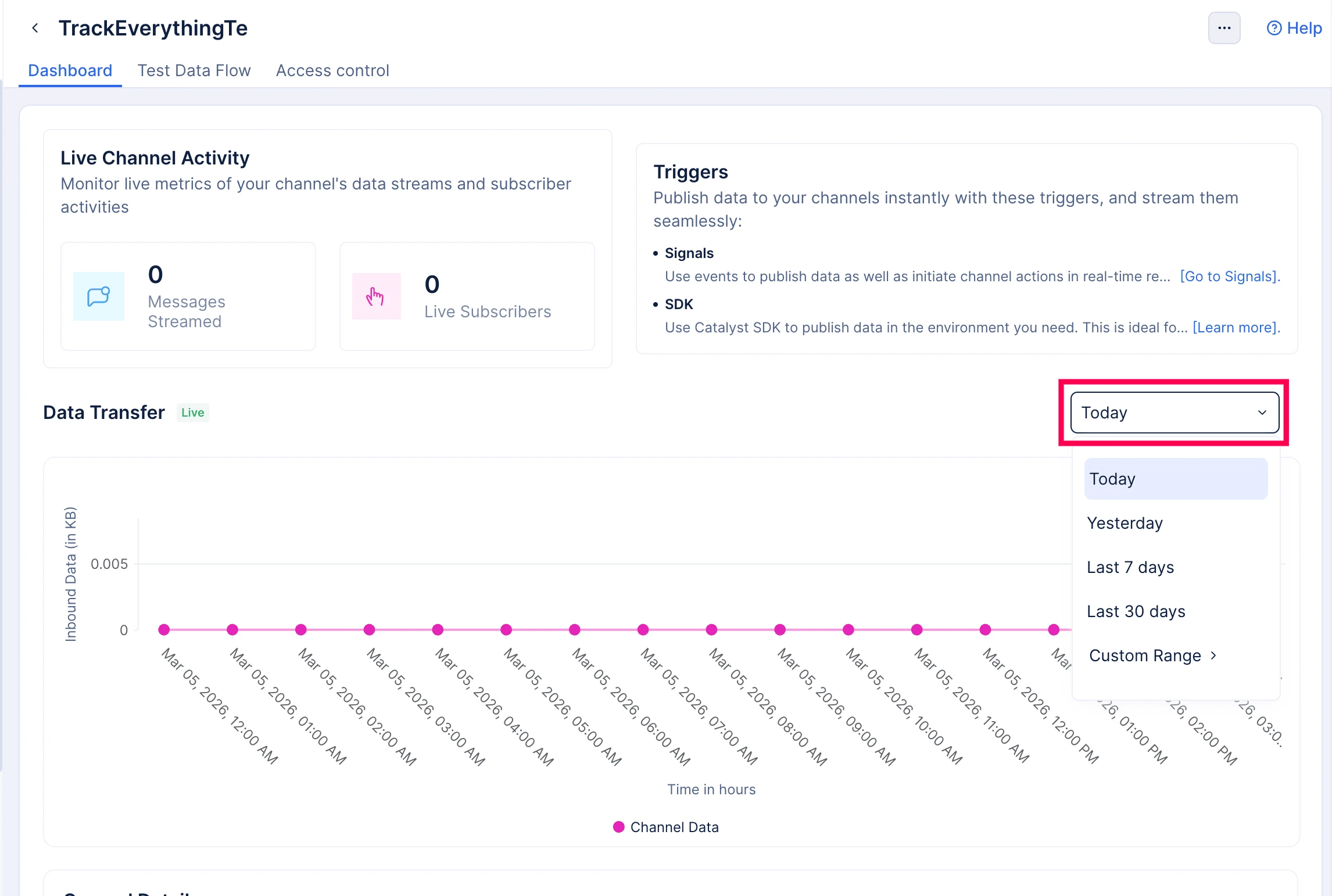
You can select one of the following time periods to view channel data transfer:
| Time Period | Range |
|---|---|
| Today | Displays the inbound data streamed through the channel from 12:00:00 AM of the current day until the present time. The graph shows the data volume received during each time interval within the day. |
| Yesterday | Displays the inbound data streamed through the channel during the entire previous day, from 12:00:00 AM to 11:59:59 PM. |
| Last 7 days | Displays the overall data transfer for each day of the last 7 days, including the current day until the present time. The previous 6 days are calculated starting from 12:00:00 AM of the first day. |
| Last 30 days | Displays the overall data transfer for each day of the last 30 days, including the current day until the present time. The previous 29 days are calculated starting from 12:00:00 AM of the first day. |
| Custom Range | Enables you to select a specific start and end date using the calendar picker, within a maximum interval of 2 months. The chart then displays the inbound data published through the channel within the selected date range. |
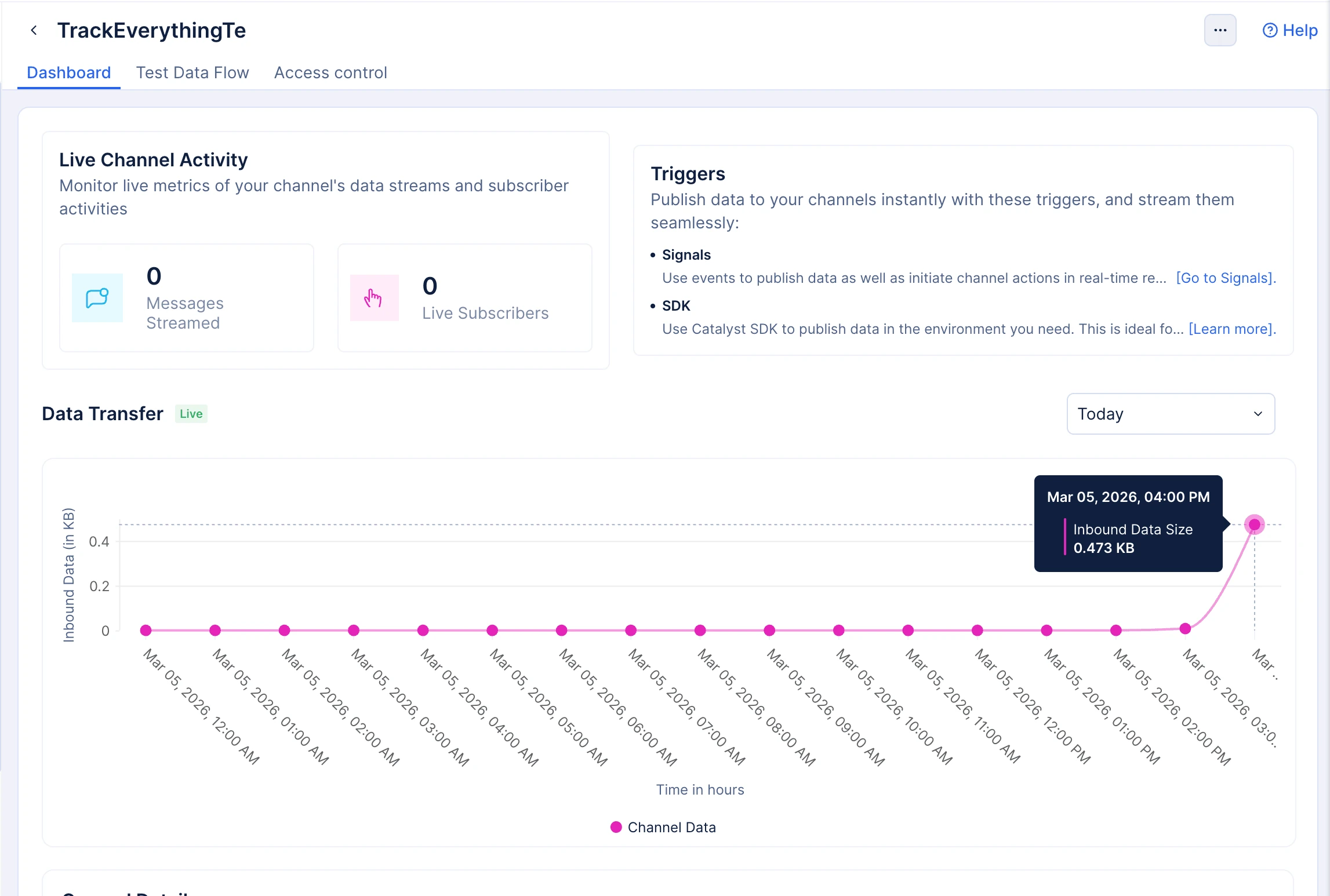
The chart displays the inbound data size (in KB) received by the channel within the selected time range. Each data point on the graph corresponds to the volume of the data streamed into the channel during a specific time interval. Hovering over a data point displays the timestamp and the exact inbound data size recorded for that interval.
The graphical visualization helps you monitor data transmission trends and identify spikes in streaming activity over time.
General Details
The General Details section displays important configuration information about the channel.
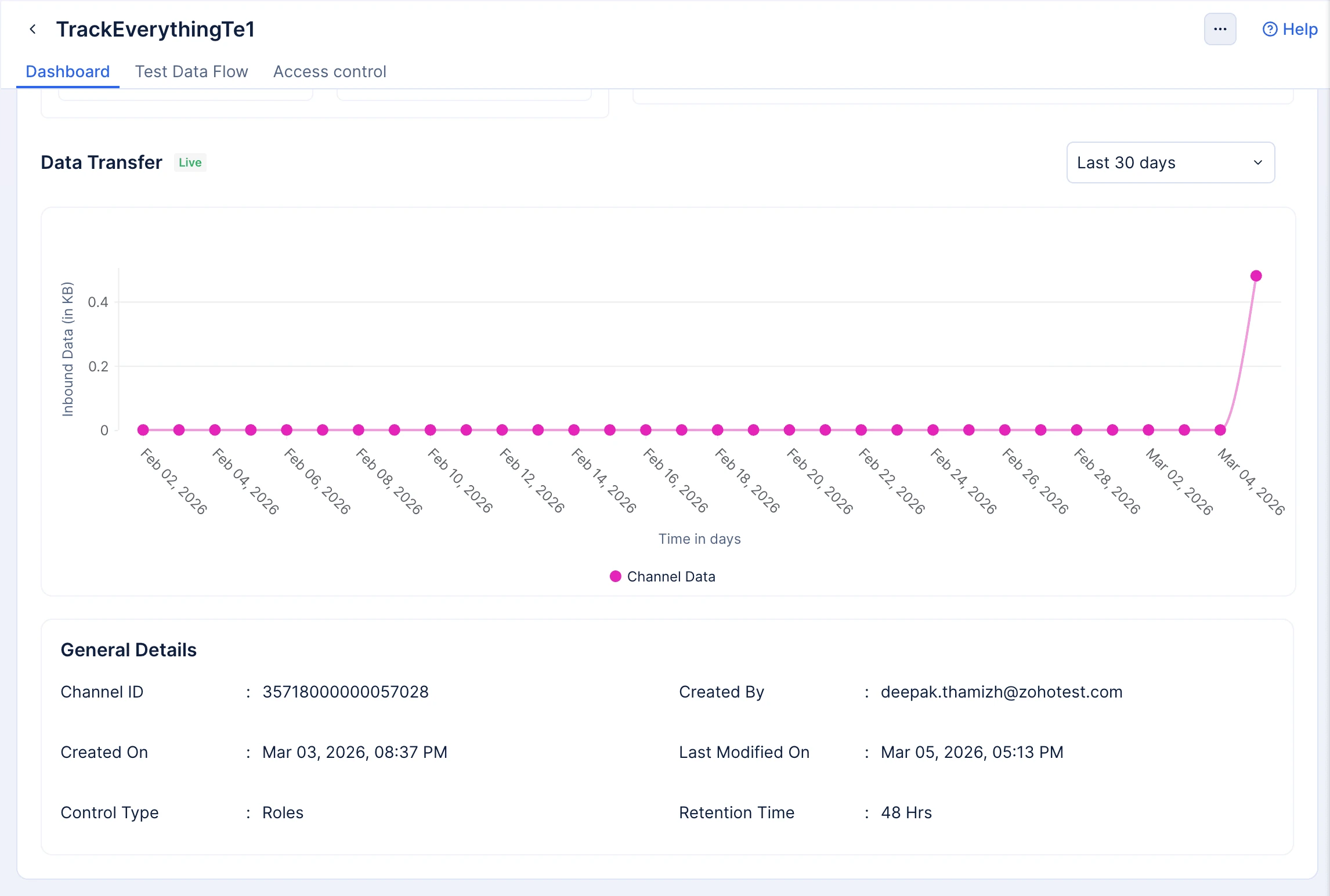
The following details are displayed in this section:
- Channel ID - The unique identifier assigned to the channel while it is created. This ID is required when publishing data to the channel or when generating subscriber connection tokens using the SDK or API.
- Created By - The user who created the channel.
- Created On - The date the channel was created on.
- Last Modified On - The timestamp of the most recent modification made to the channel configuration.
- Control Type - The access control configured for the channel - either User Roles or Custom Logic.
- Retention Time - The duration for which streamed data is retained in the channel after it is published.
You can edit the channel name or delete the channel from the channel page using the three-dot menu icon in the top-right corner. Refer to the Manage Channels guide for detailed instructions.
Last Updated 2026-10-08 12:04:32 +0530 IST
Yes
No
Send your feedback to us
 Ask ChatGPT
 Ask Claude
 Ask Perplexity