Catalyst Context for LLM
The right context drives the right output. To ensure your LLM has the right context about the Catalyst by Zoho service, and its respective components and features, the help documentation site has various easy-to-use options that you can avail to feed your LLM with the necessary context.
Catalyst by Zoho help documentation content is available in two versions, the standard HTML version for humans and an MD version to cater to Agents. This promotes better agent discovery and allows you to serve Catalyst context in the most appropriate medium for your LLM.
You can serve catalyst documentation in the .md format using the following options:
llms-full.txt
The documentation site serves an llms-full.txt file containing complete documentation content in plain text, allowing your LLM to retrieve full context in a single request.
- At the root of the documentation site, llms-full.txt contains the entire site’s documentation, including Getting Started, all services along with their related API reference, SDK, and FAQ content, the CLI reference, tutorials, and other resources.
- At each service section, llms-full.txt contains that service’s own content along with its related API reference, SDK, and FAQ content.
You can access the llms-full.txt content using the following URL:
https://docs.catalyst.zoho.com/en/llms-full.txt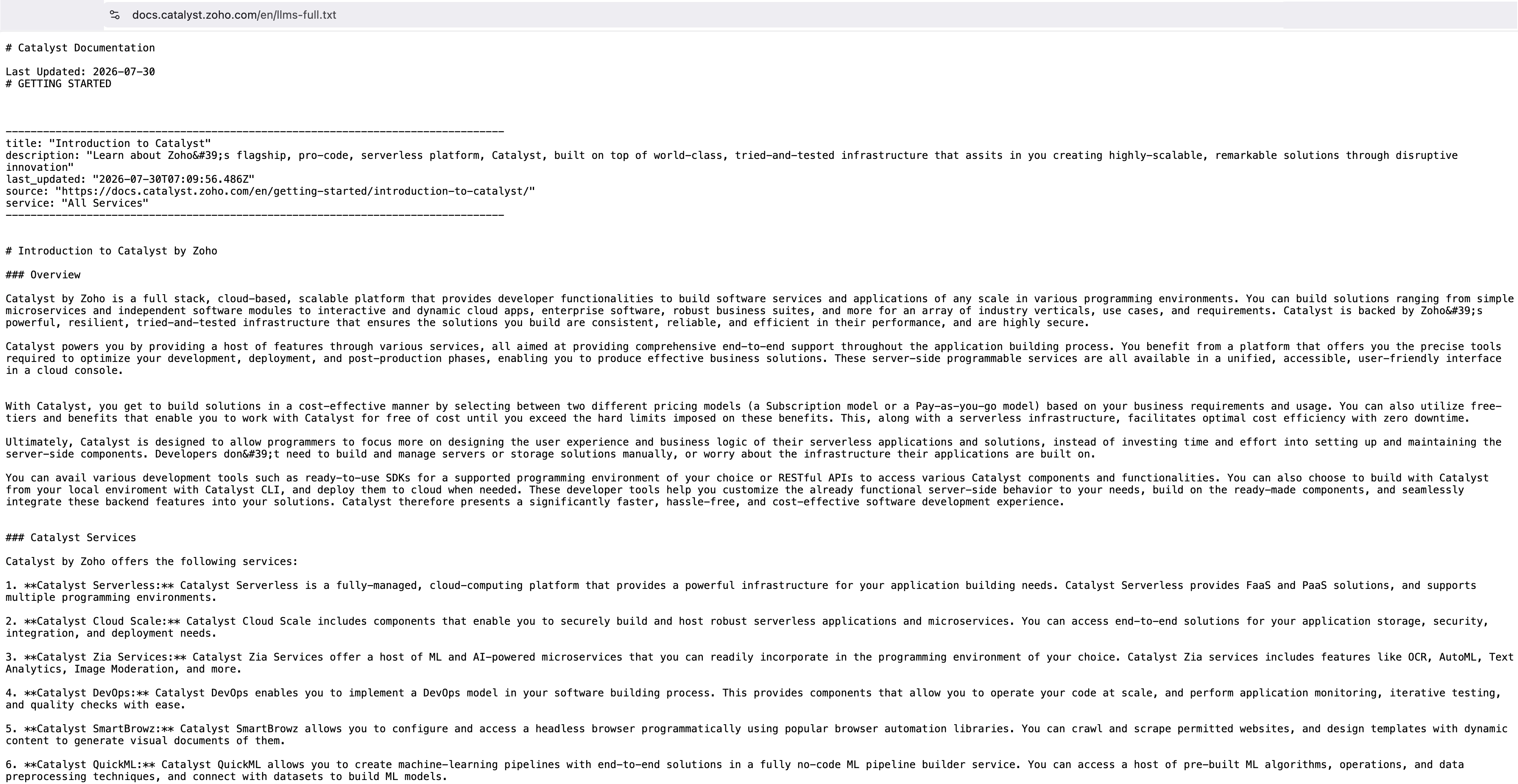
Paste this content into your LLM to give it the context it needs on Catalyst so it can help you build your applications on the platform.
.md Endpoints
To get the markdown version of a help documentation, simply append /index.md to the end of the page URL.
This will return the same content stripped down to clean, structured markdown, free of HTML markup, navigation clutter, or UI elements.
For example, to get rich context from the following Catalyst help document URL:
https://docs.catalyst.zoho.com/en/cloud-scale/help/nosql/components/
Then, simply append the URL with /index.md.
https://docs.catalyst.zoho.com/en/cloud-scale/help/nosql/components/index.mdNow, this format is ideal for feeding directly into an LLM, since it will give your model precise, readable context about Catalyst NoSQL components without the overhead of parsing a full webpage.
Request Markdown from Canonical URL
You can also run a curl request in the following format to fetch the required context in .md format.
curl help-documentation-link/index.md
For example, to serve context to your LLM about the Job Pool component, you need to run the following curl command:
curl https://docs.catalyst.zoho.com/en/job-scheduling/help/jobpool/introduction/index.mdThis command will fetch the content present in the URL in .md format, allowing you to easily feed context on JobPools to your LLM.
Copy as .md
The Copy as .md button is available in every Catalyst document help page.
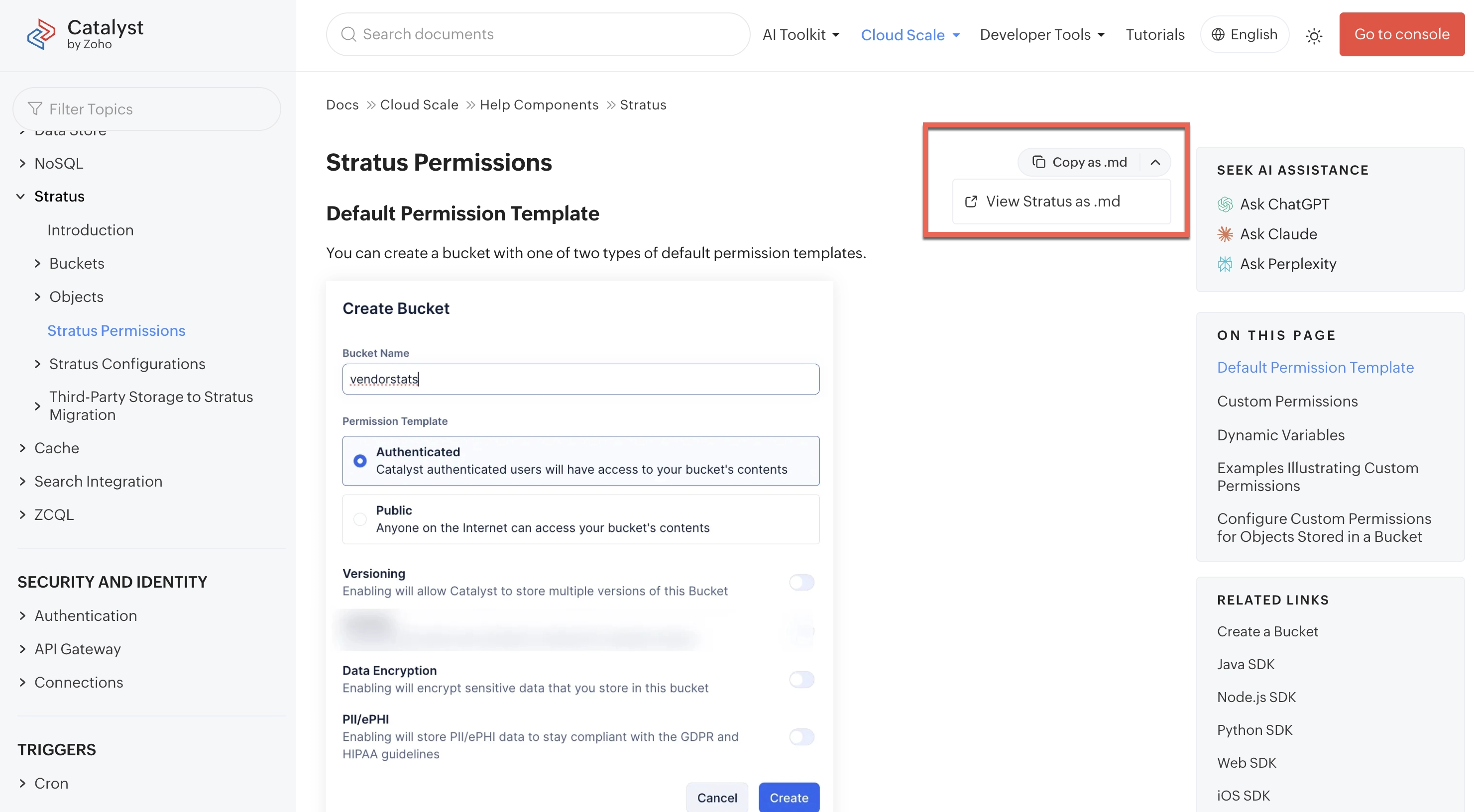
The purpose of this button, is to copy the help context of any particular help page in Markdown format. You can then paste it in any LLM to provide it with the required component’s context.
Additionally, selecting the copy option from the dropdown copies not just the current page’s content, but the entire component’s documentation in Markdown format. This content will contain everything about the component, including its SDKs in all runtimes, and information on its REST APIs. This gives your LLM complete context in a single step, without the need to gather it page by page.
Seek AI Assistance
This selection is available in every help page, you can choose to seek AI assistance from popular AI tools like Claude.ai, ChatGPT, and Perplexity on any particular page.
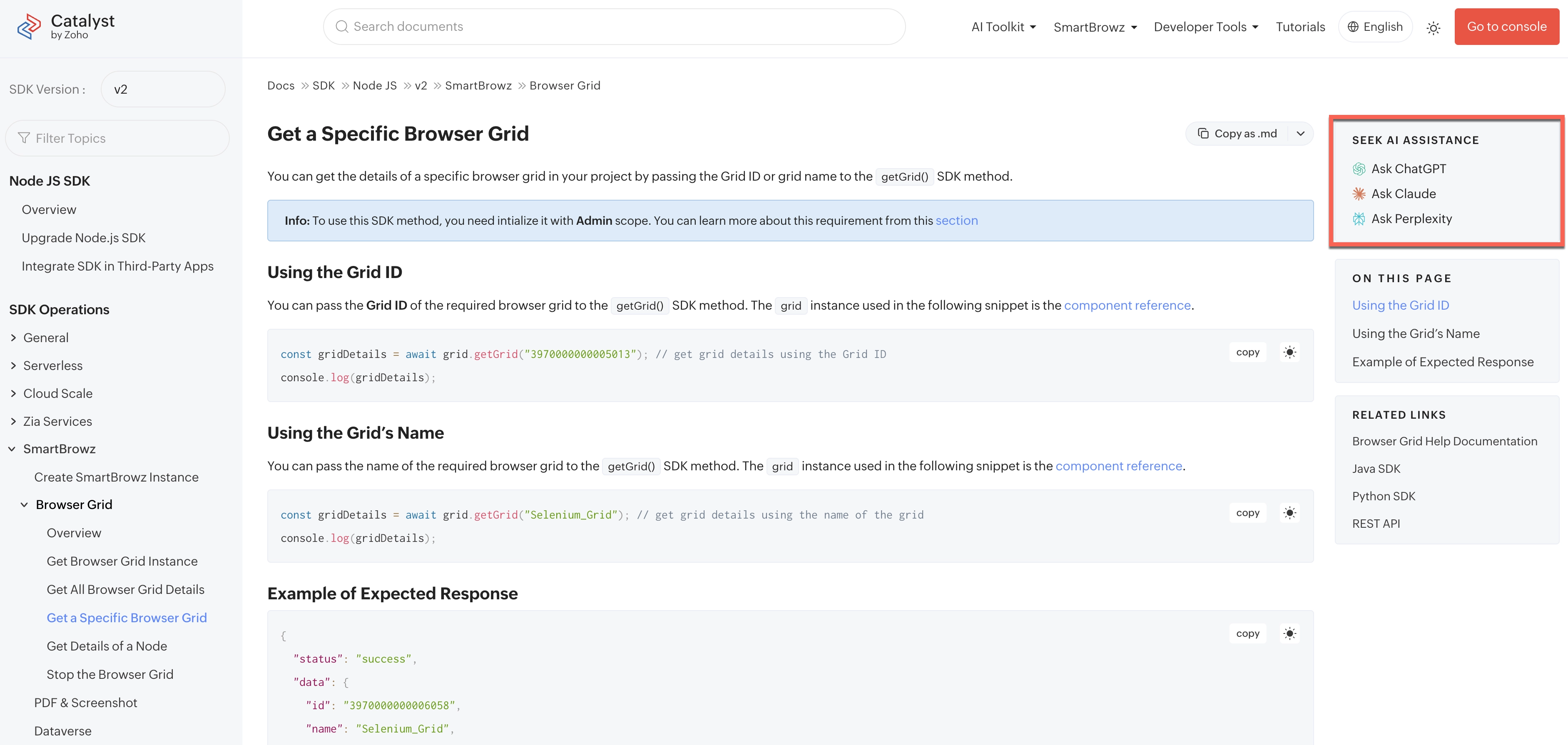
Clicking on any of these options will direct you to the respective LLM, and you will be able to execute a pre-populated prompt which will contain the Markdown content of the required page.
Armed with this new context, the chosen LLM will be able to assist you on queries about the component.
Last Updated 2026-09-15 11:59:39 +0530 IST
Yes
No
Send your feedback to us
 Ask ChatGPT
 Ask Claude
 Ask Perplexity