Manage Channels
Edit Channel Name
You can update the Channel Name at any time. The Channel ID remains unchanged.
-
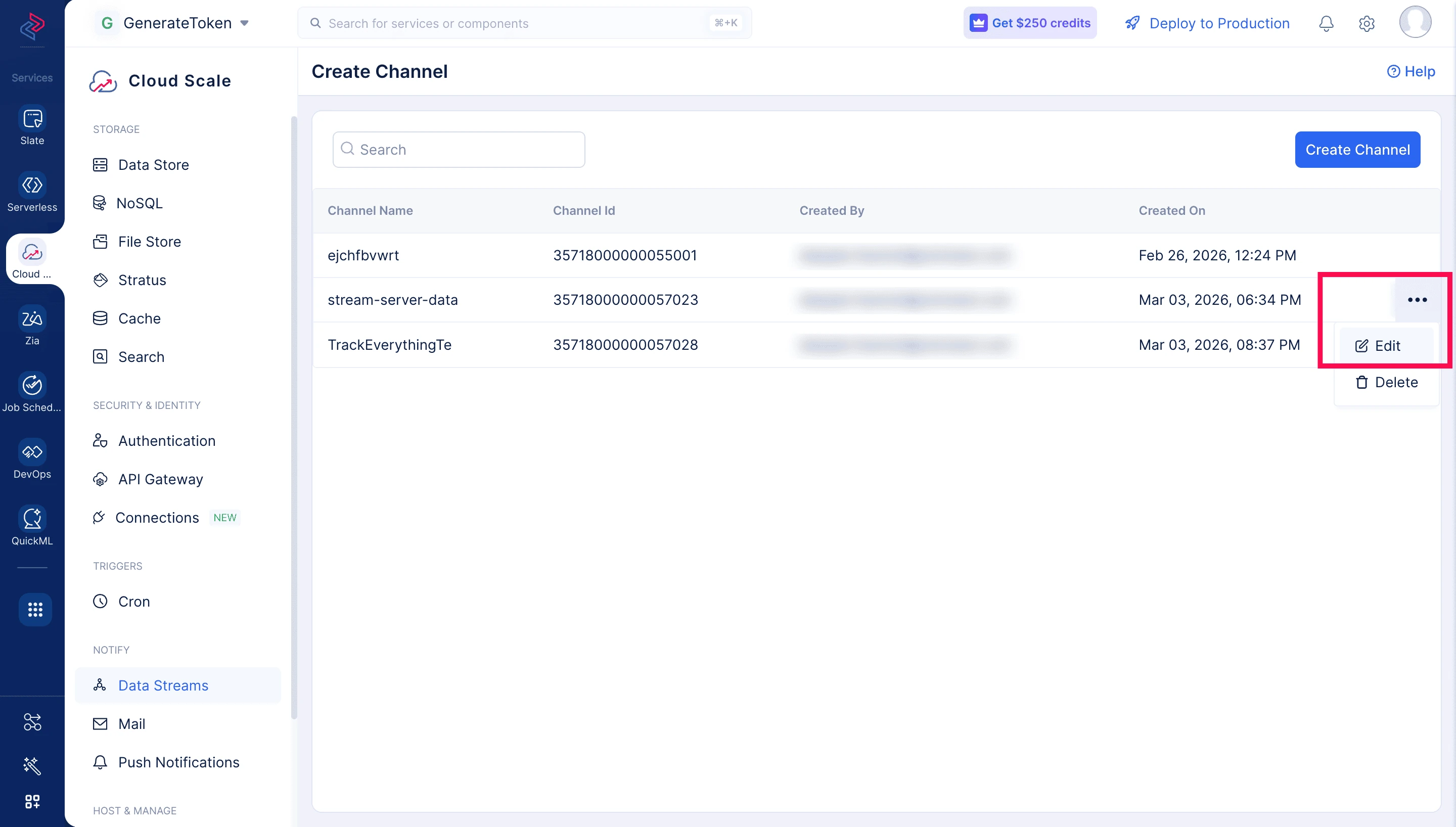
Click the three-dot menu next to the channel.
-
Select Edit.
-
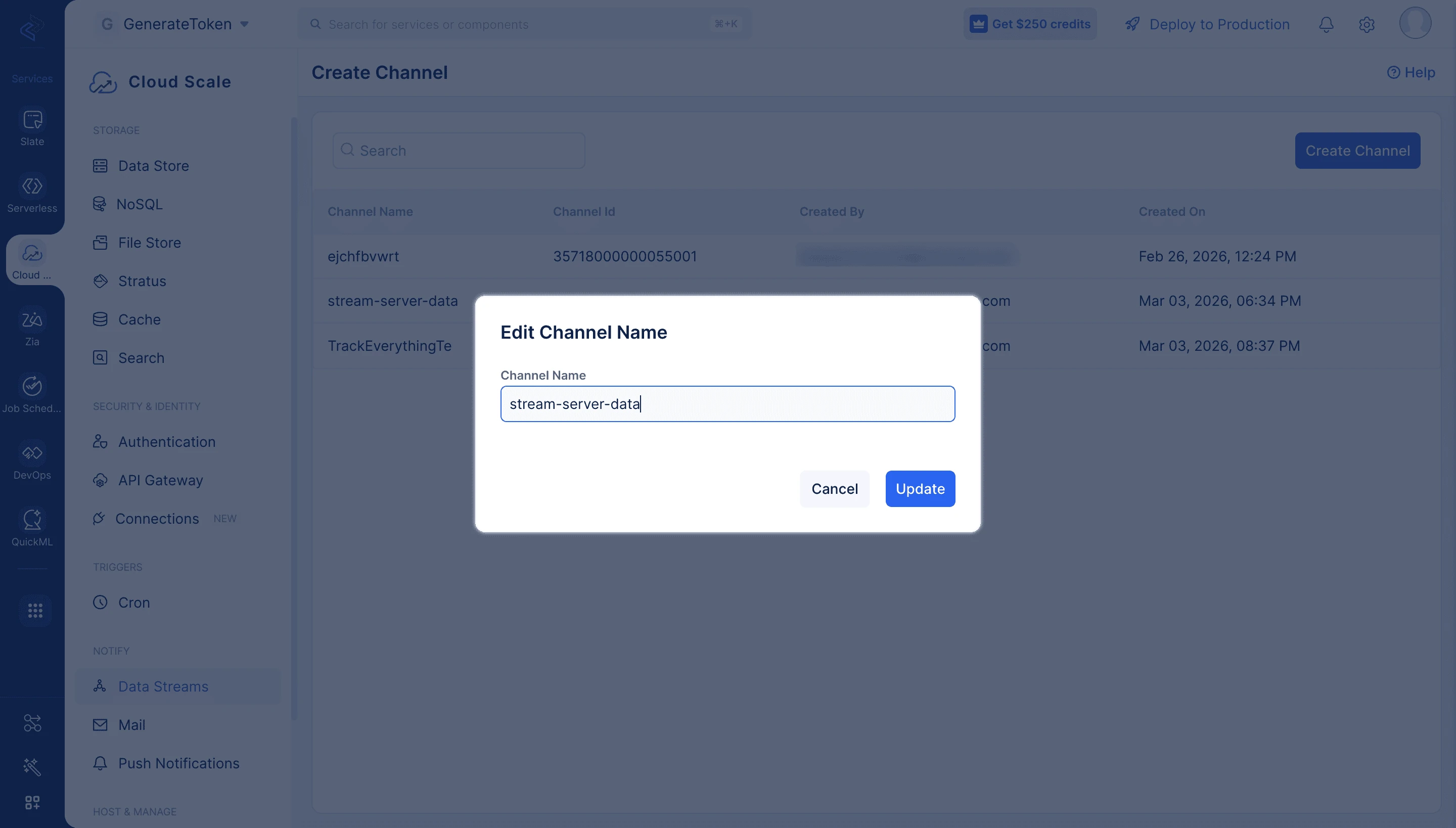
Update the Channel Name.
-
Click Update to save changes.
-
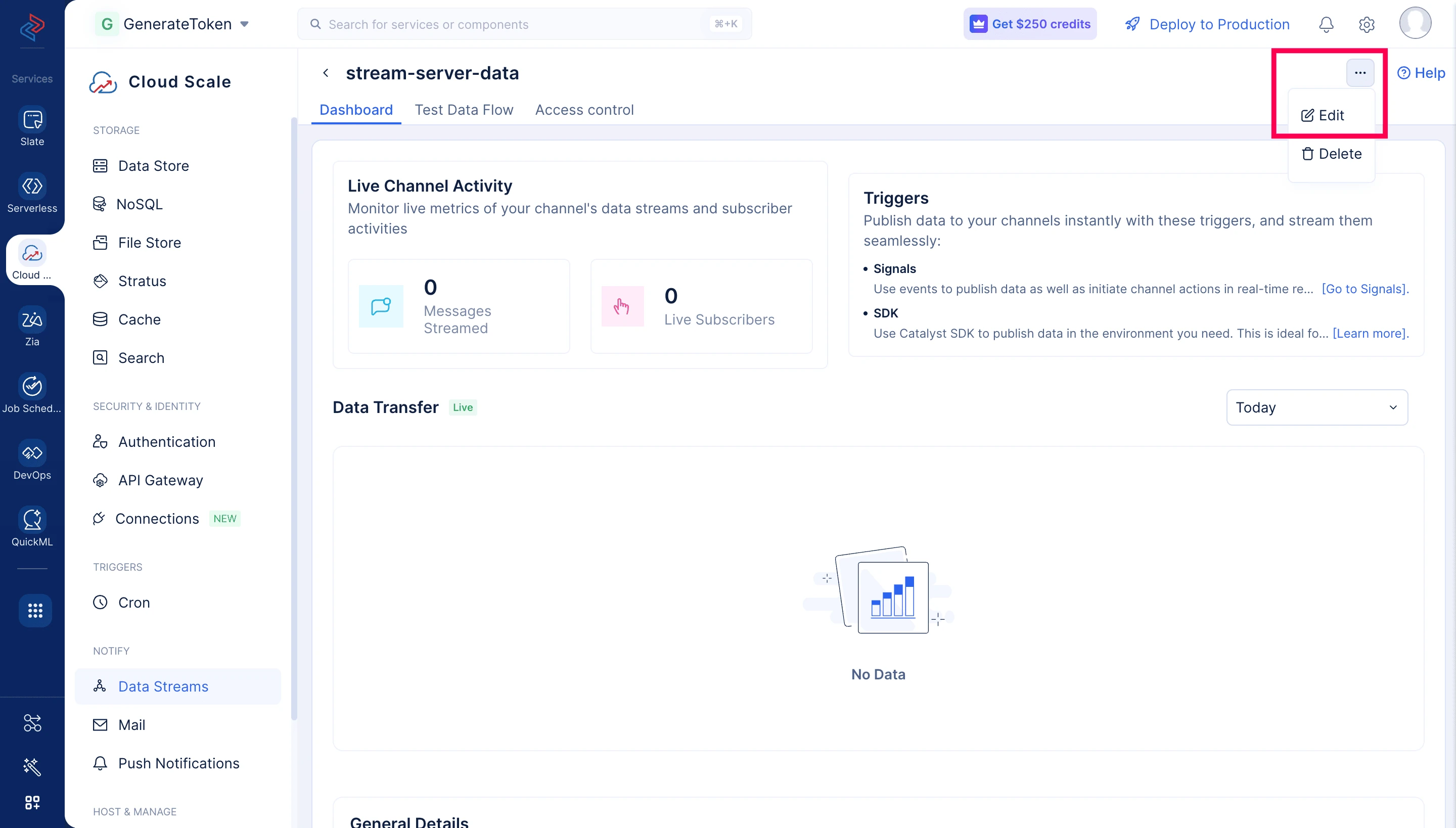
While viewing a channel, click the three-dot menu in the top-right corner.
-
Select Edit.
-
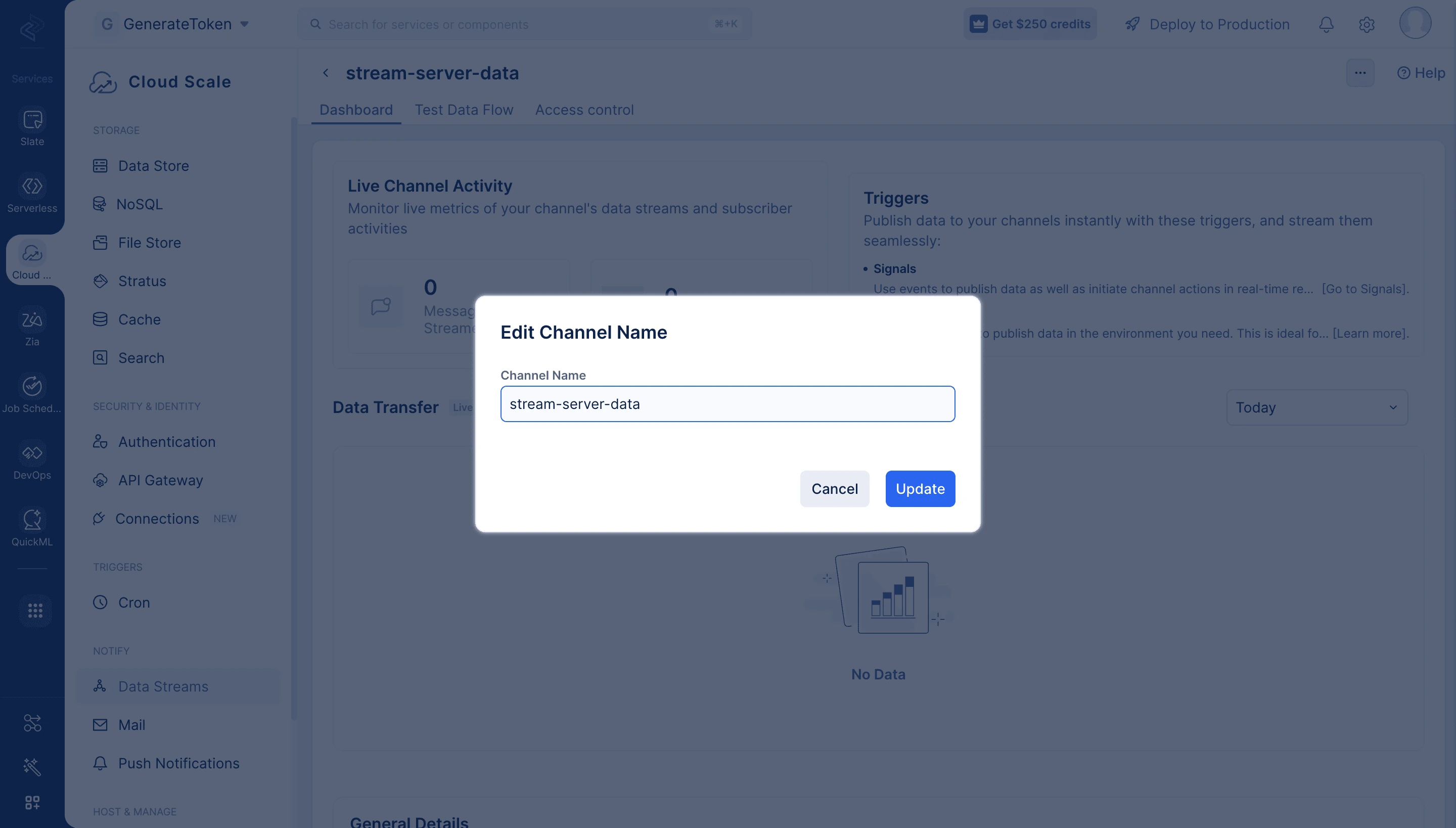
Update the Channel Name.
-
Click Update to save changes.
Edit Access Control
To update subscriber authentication rules:
-
Go to the Access Control tab.
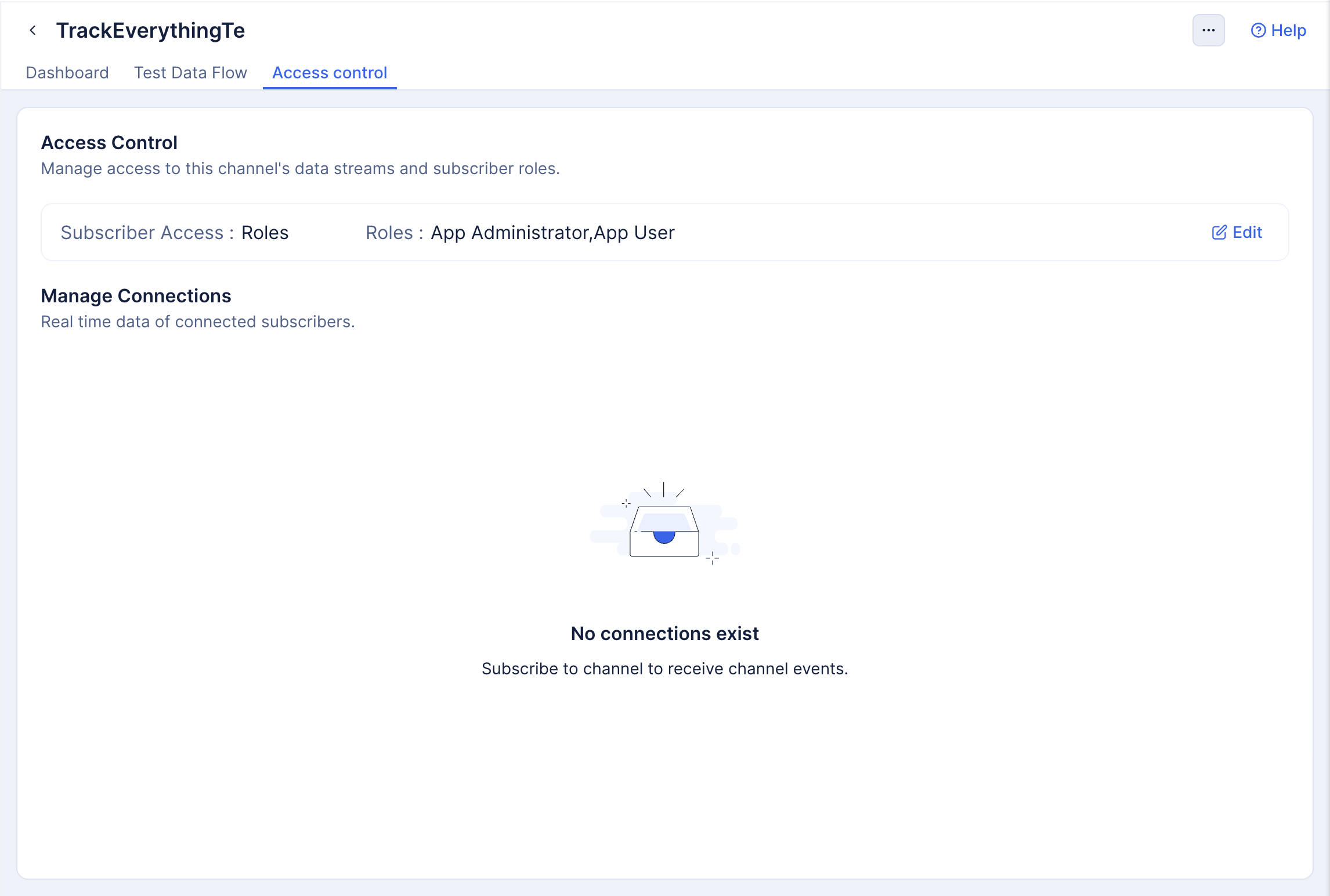
-
Click Edit in the Subscriber Access section.
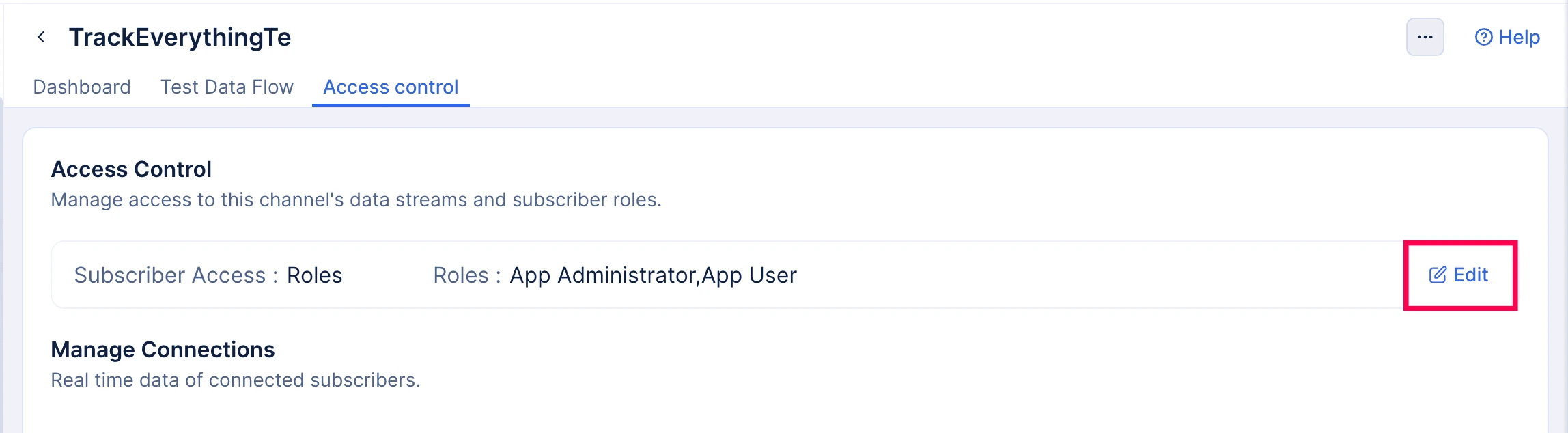
-
Modify the access control configuration:
- User Roles — Add or remove roles
- Custom Logic — Select a different Advanced I/O function
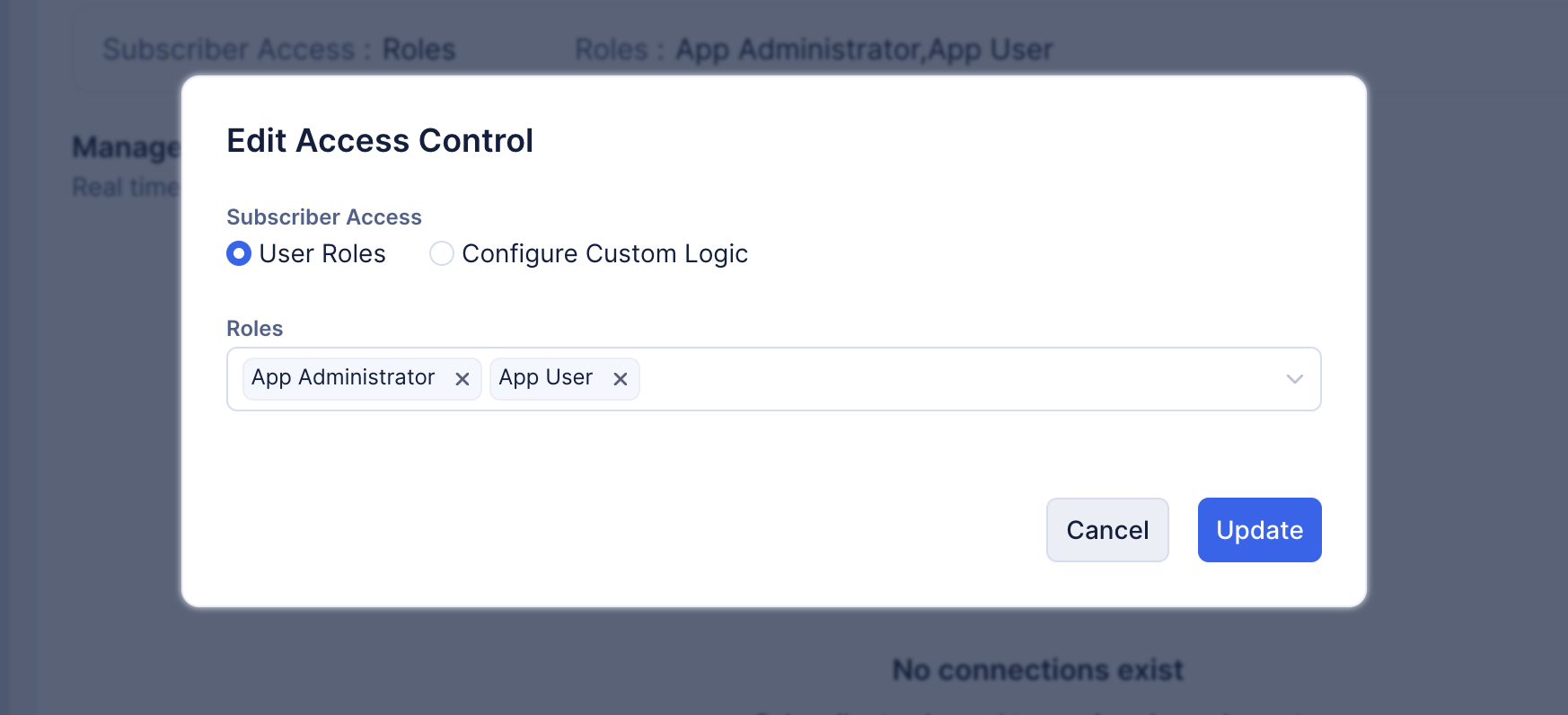
- Click Update to save changes.
Delete a Channel
-
Click the three-dot menu next to the channel.
-
Select Delete.
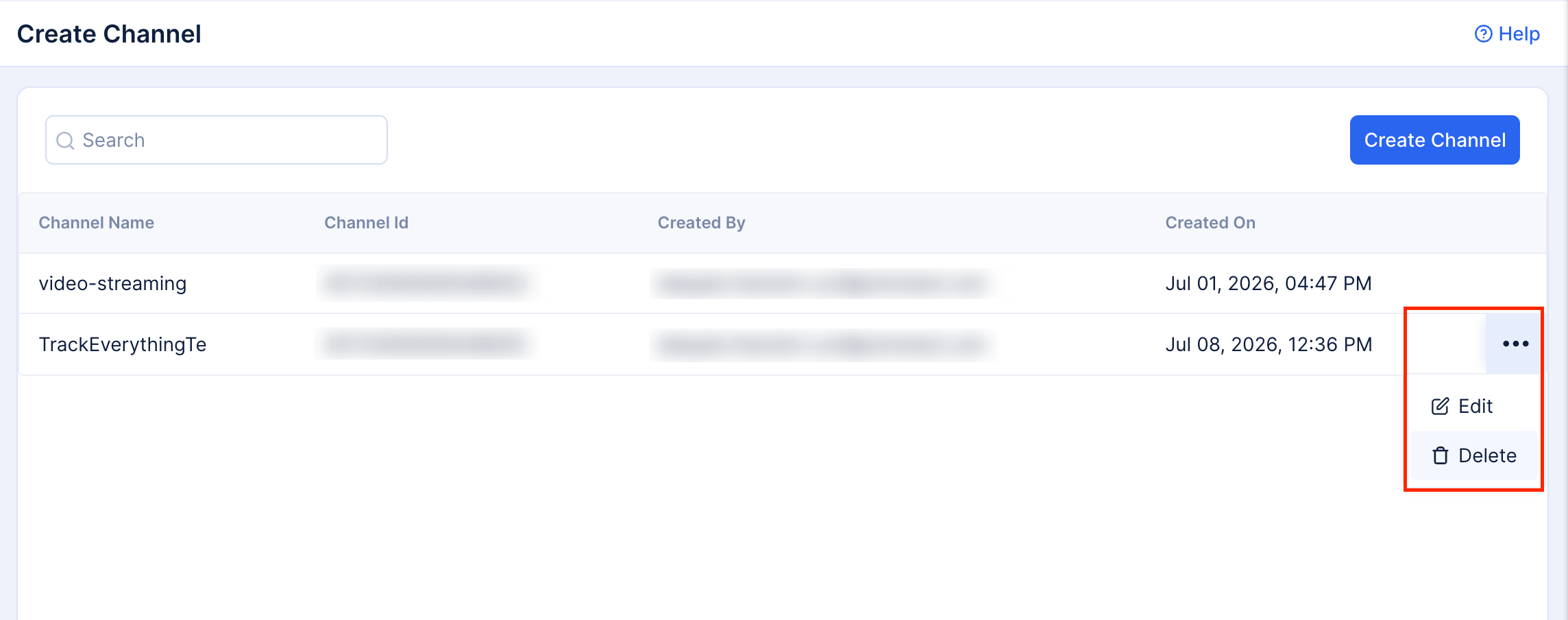
-
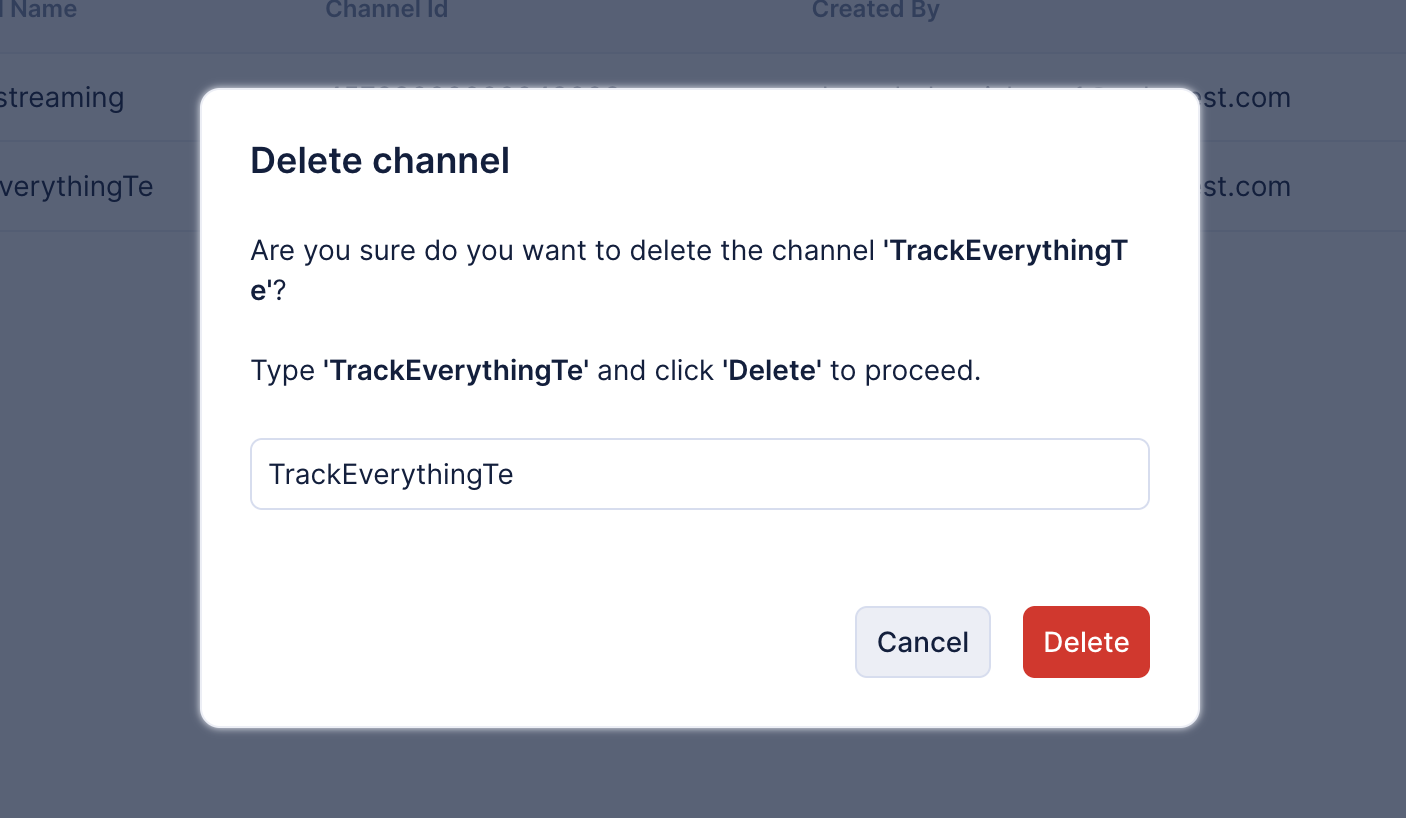
Type the Channel Name in the confirmation dialog.
-
Click Delete to confirm.
-
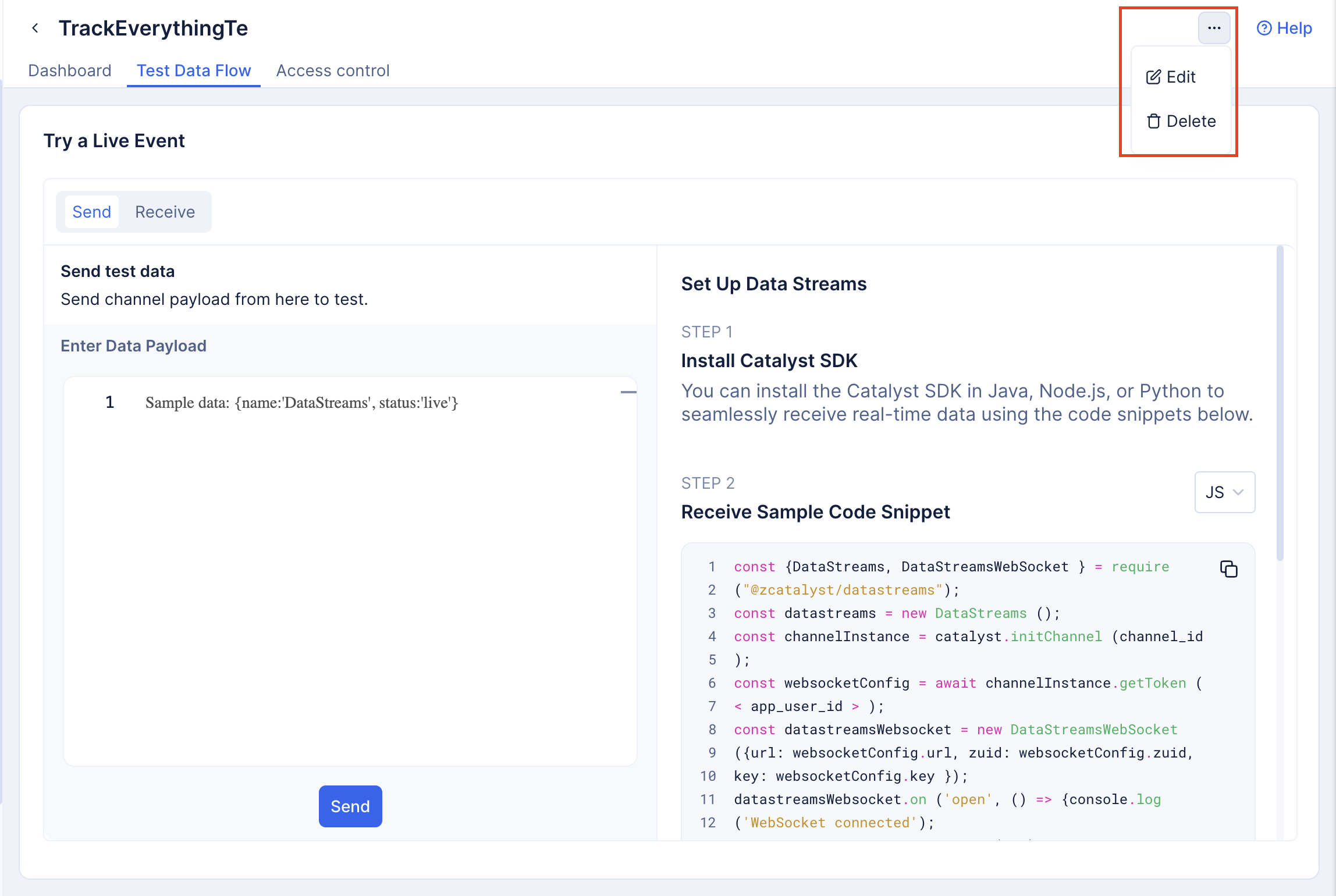
While viewing a channel, click the three-dot menu in the top-right corner.
-
Select Delete.
-
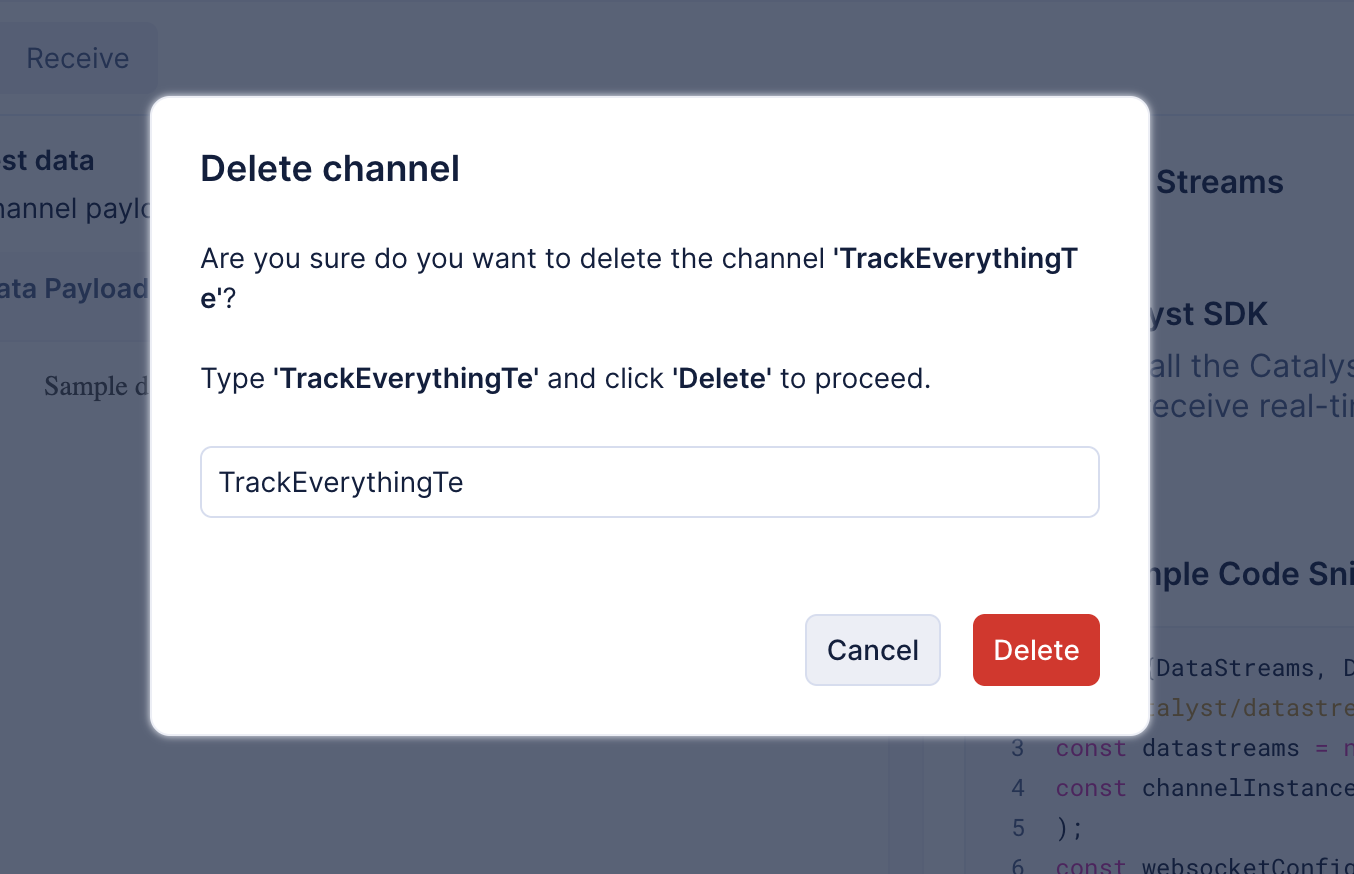
Type the Channel Name in the confirmation dialog.
-
Click Delete to confirm.
Last Updated 2026-10-08 12:04:32 +0530 IST
Yes
No
Send your feedback to us
 Ask ChatGPT
 Ask Claude
 Ask Perplexity