Test Data Flow
After creating a channel or any time you open an existing channel from the Channels list page, you will be directed to the Test Data Flow section. This section enables you to verify how data is published and received through the channel before implementing it in your application.
Using this interface, you can simulate both a publisher and a subscriber directly from the Catalyst Console, without writing any code or deploying a function.
The Test Data Flow section contains two primary actions: Send and Receive.
Send Test Data
The Send tab allows you to simulate a publisher and send sample data to the channel. The data you send will be treated as a real streaming event and will be delivered to any active subscribers connected to the channel, including the test receiver in the console.
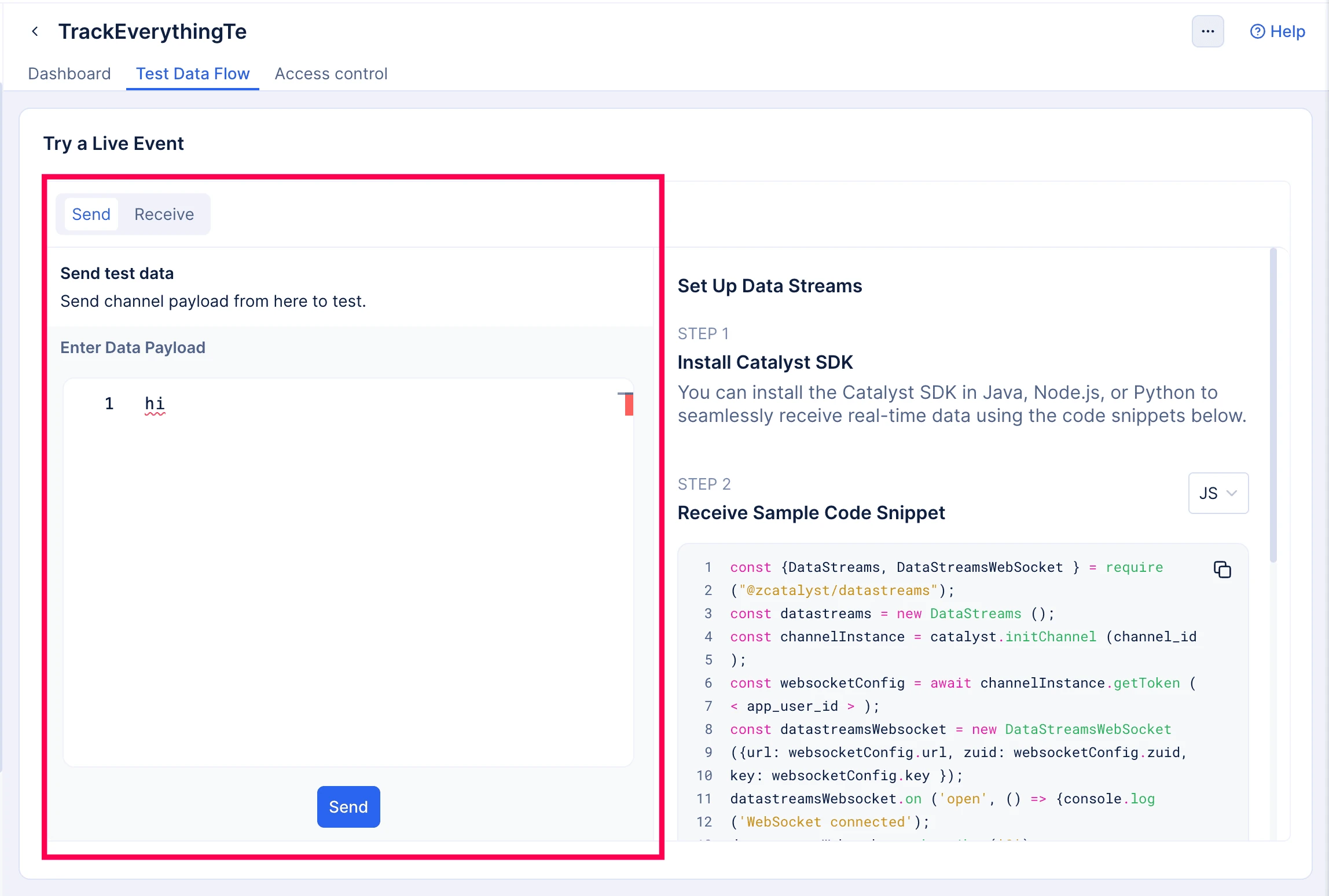
To test publishing:
- Navigate to the Send tab in the Test Data Flow section of your channel.
- Enter the sample payload in the Enter Data Payload field.
- Click Send to publish the data to the channel.
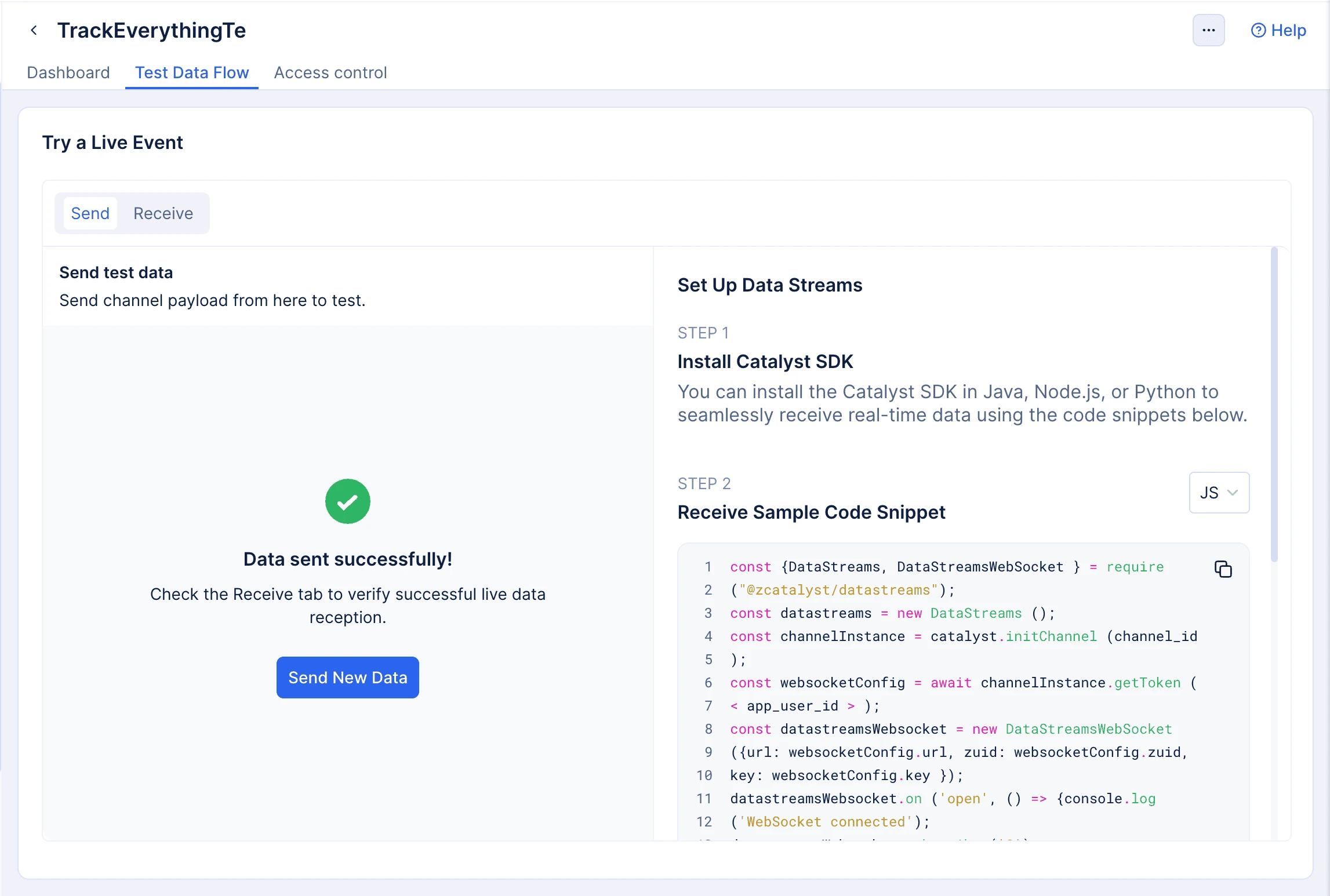
This allows you to verify how event data will be published by your application services. You can use this to confirm that the channel is correctly configured before integrating the publishing logic in your application.
Receive Channel Data
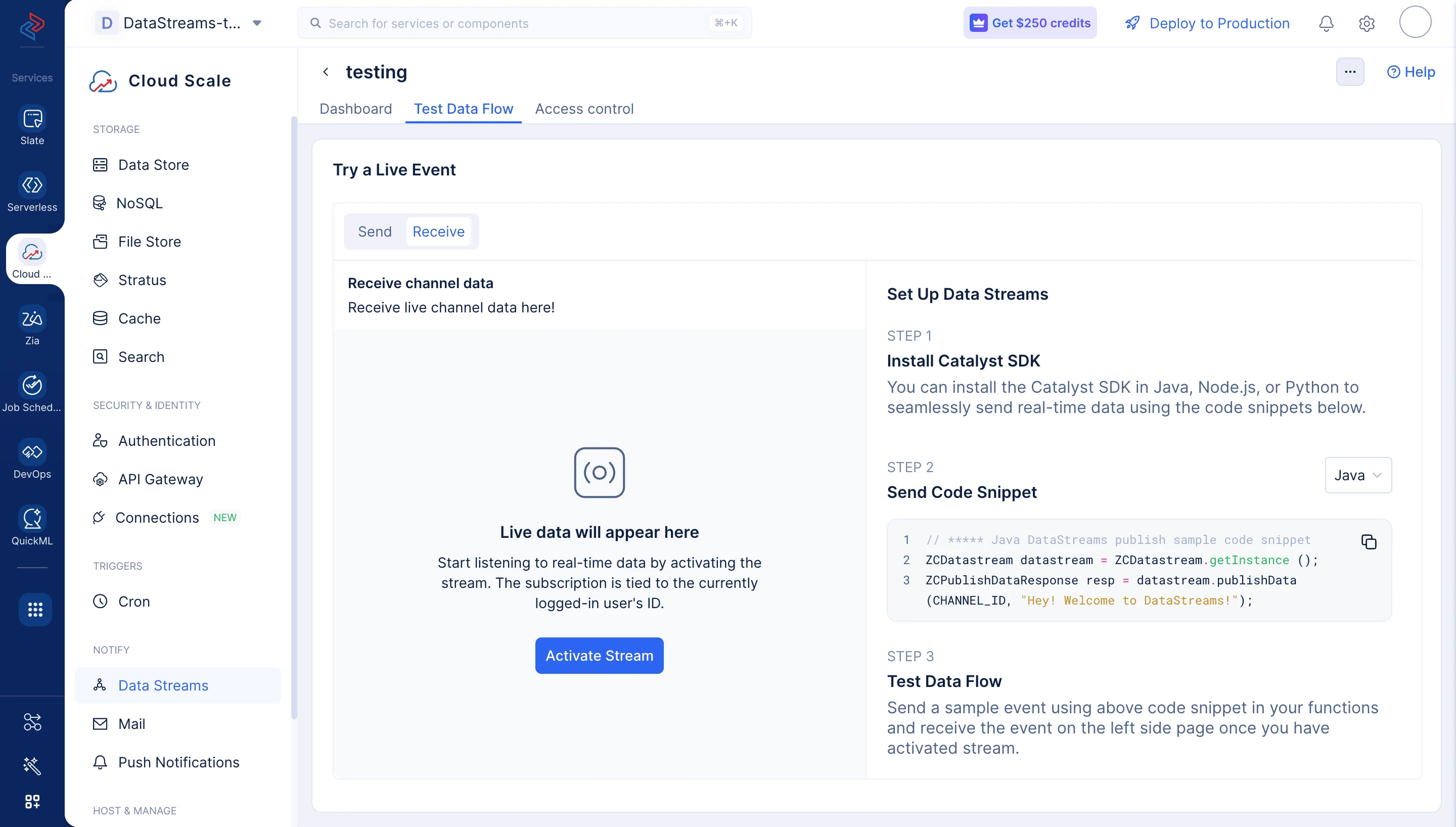
The Receive tab allows you to simulate a subscriber and listen for incoming events from the channel.
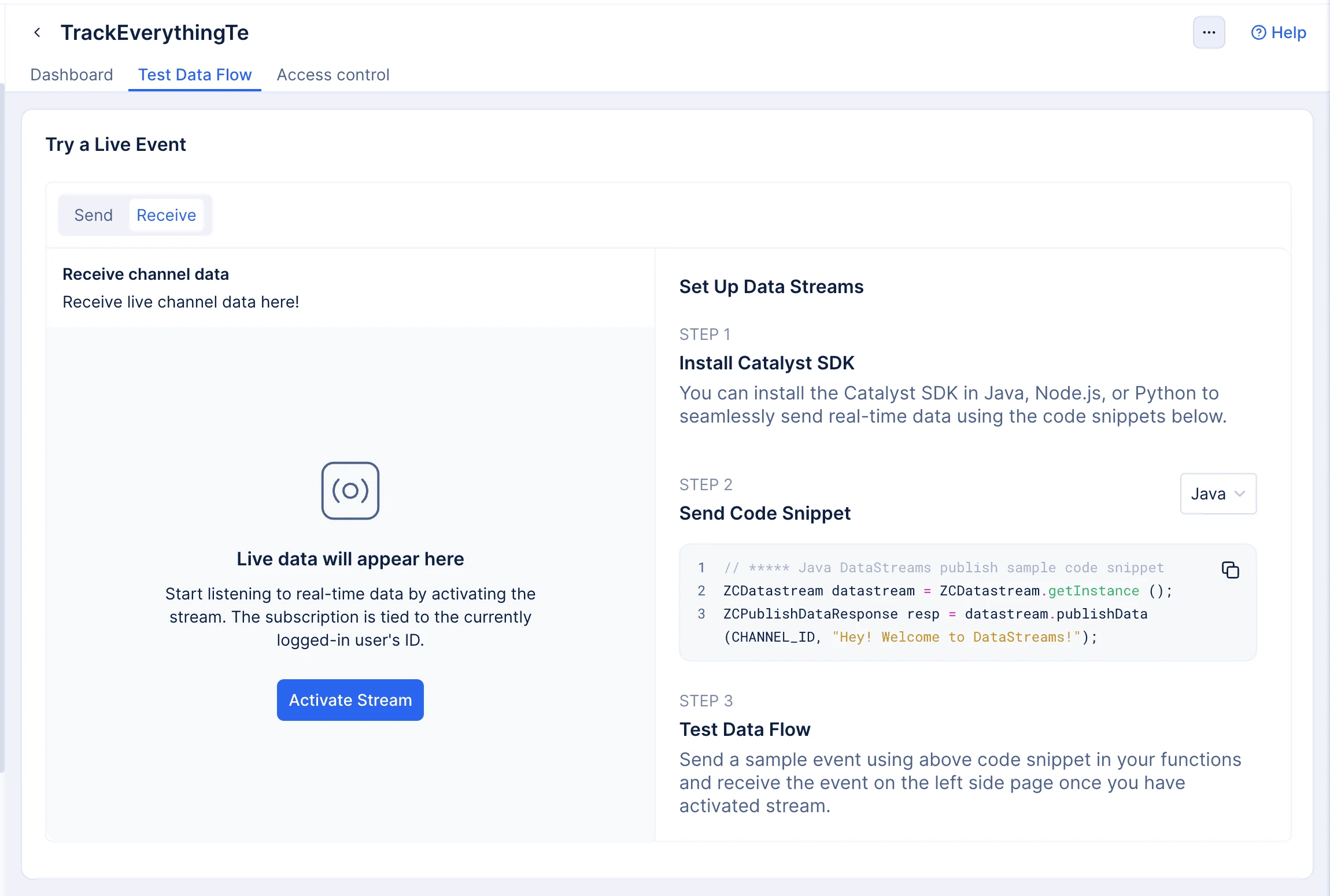
To start receiving events:
- Navigate to the Receive tab in the Test Data Flow section of your channel.
- Click Activate Stream to establish a test subscription.
- The console will begin listening for events published to the channel.
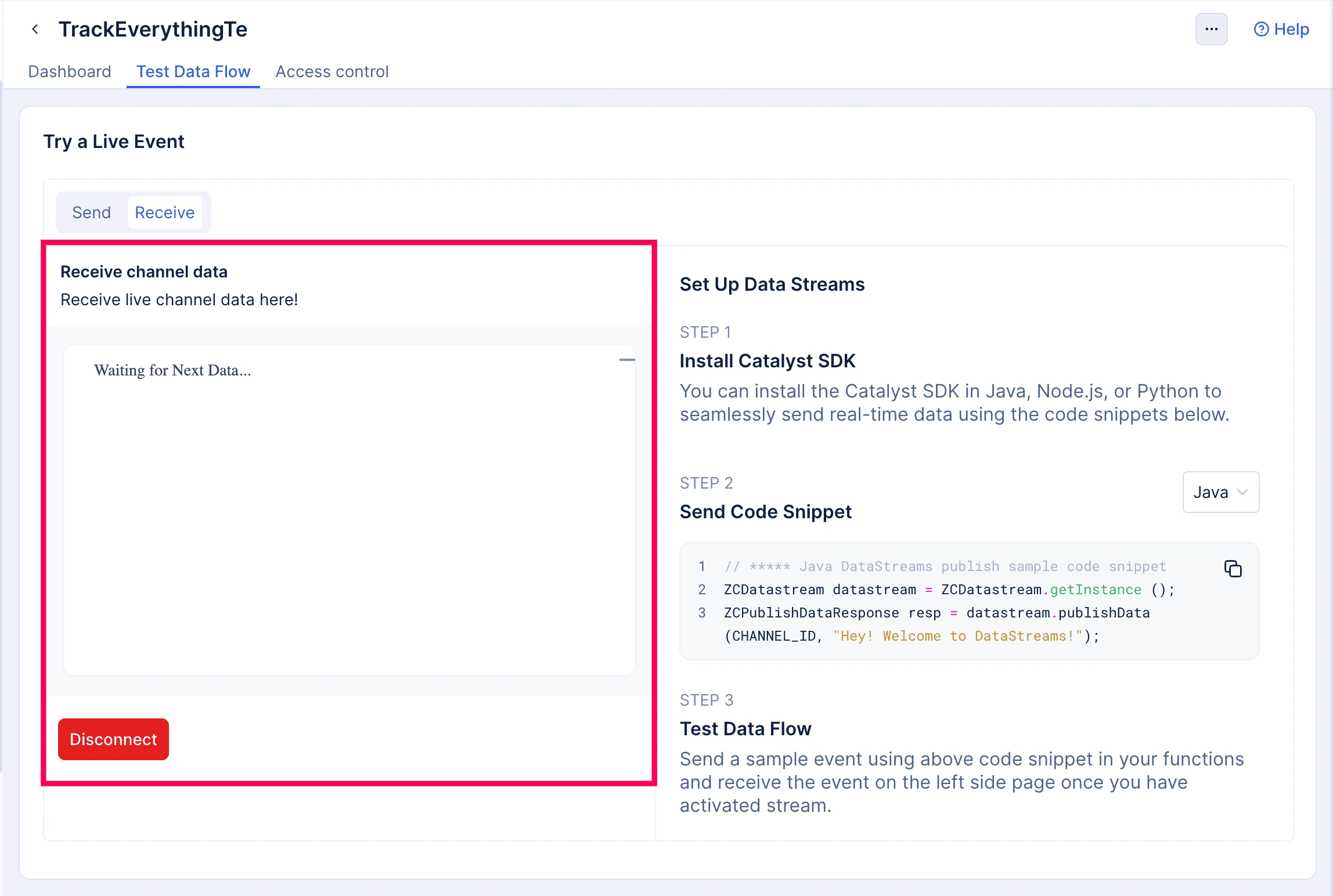
- Any incoming data will appear in the Receive channel data panel in real time.
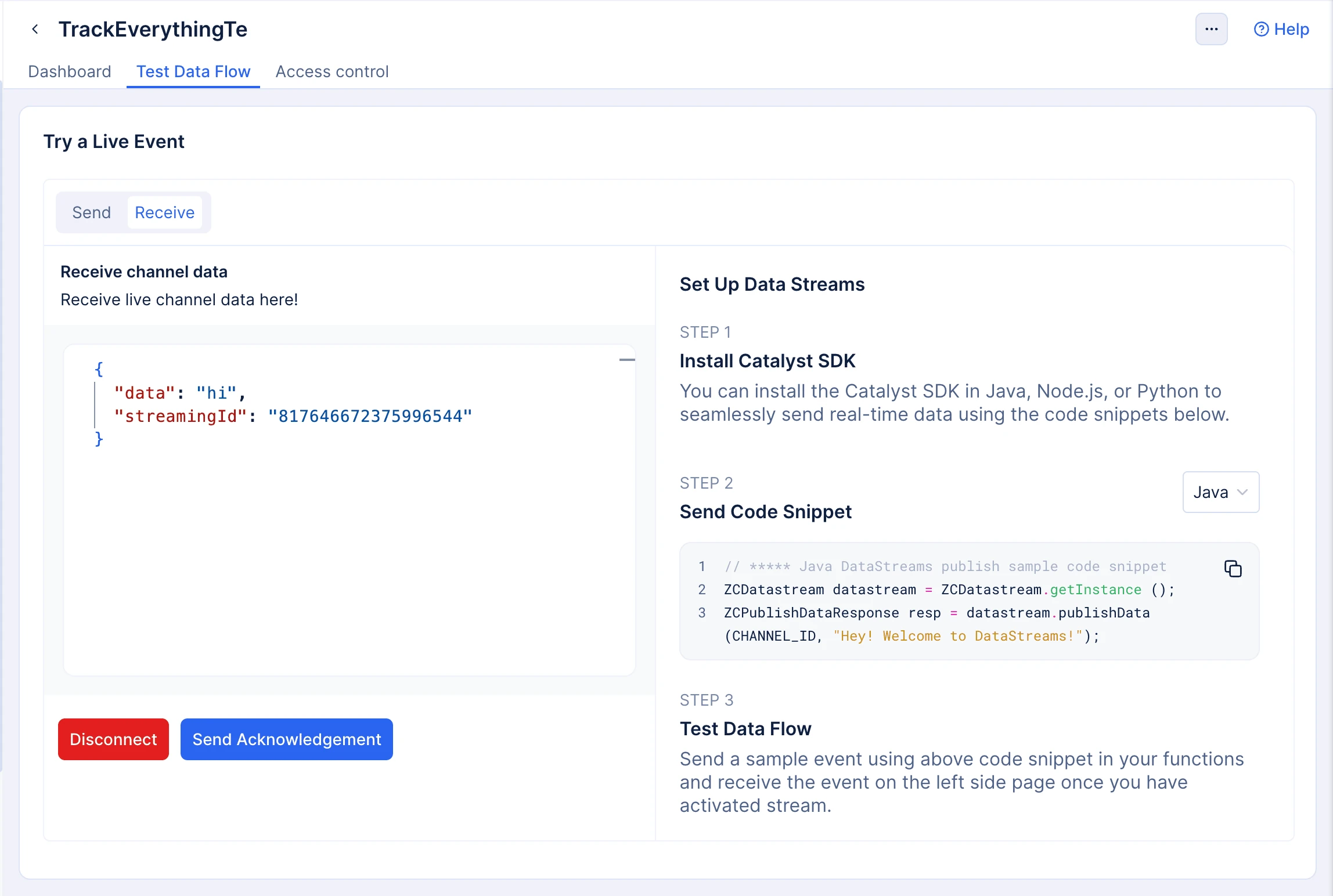
Each event displayed will include the following fields:
- data – the payload that was published to the channel.
- streamingId – the unique identifier assigned to that event in the stream.
These fields correspond to the message event structure that your application will receive when subscribing through the SDK.
Event Acknowledgement
After receiving an event, you must click Send Acknowledgement to confirm that the message has been processed.
Data Streams delivers events in sequence, and the acknowledgement ensures that the next event in the stream can be delivered. Until the acknowledgement is sent, subsequent events will not be displayed in the receiver.
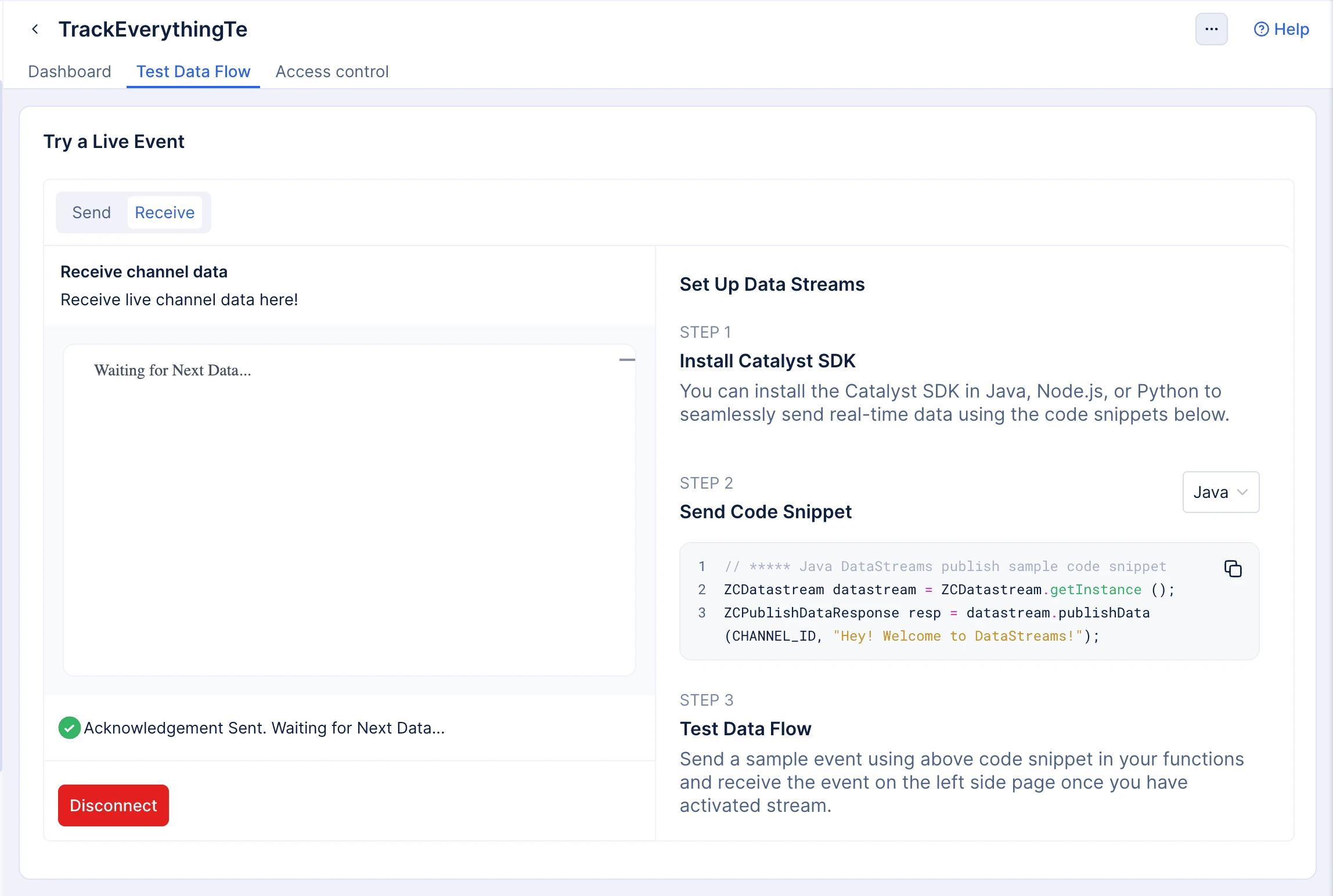
This behavior mirrors the sendAck() method used in the SDK. In your application code, you must call sendAck() after processing each message to receive the next one. Refer to the Subscribe with WebSocket guide for implementation details.
Closing the Test Stream
You can stop the test receiver at any time by clicking Disconnect. Once disconnected, the test subscriber will no longer receive events from the channel. If you do not manually disconnect, the test connection will be closed automatically after two minutes.
Set Up Data Streams
The right side of the Test Data Flow section provides example code snippets for sending or receiving events using the Catalyst SDK. Snippets are available in supported languages including Java, JavaScript, and Python.
These examples help you implement the same publishing and subscribing behavior in your application.
For complete implementation details, refer to the SDK and API documentation.
Last Updated 2026-10-08 12:04:32 +0530 IST
Yes
No
Send your feedback to us
 Ask ChatGPT
 Ask Claude
 Ask Perplexity