Browser Grid Workflow
Overview
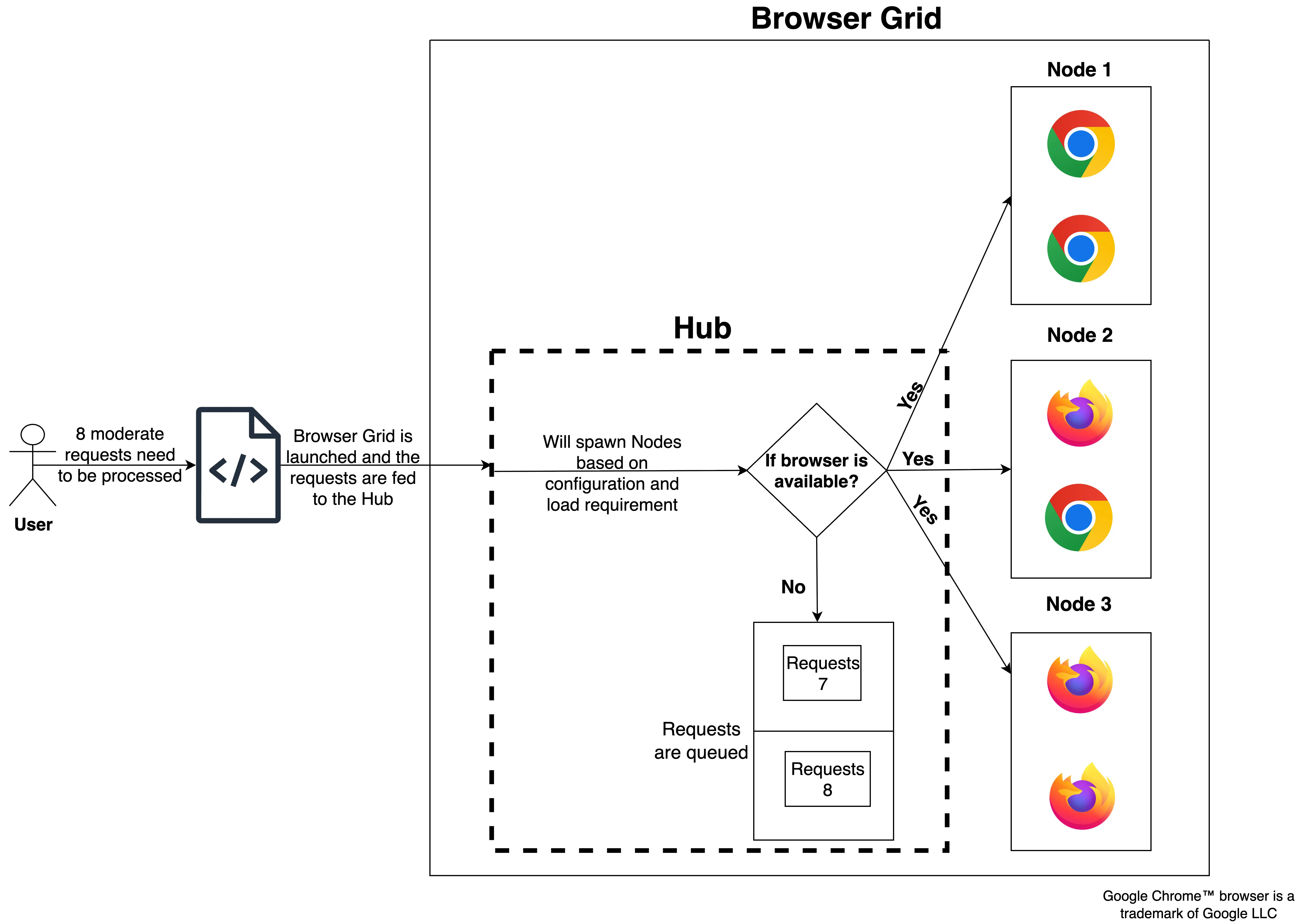
The following overview diagram attempts to illustrate the operations that occur when you employ the Browser Grid component.
-
A maximum of 3 nodes can be created.
-
A maximum of 2 browsers per node will be spawned
-
A maximum of 6 browsers will run concurrently
From the above diagram, we can understand that:
-
A user tries to connect and launch their remote browsers through their code.
-
Once they connect to their remote browser through their configured Browser Grid, the grid will become active, and the user can start to send their request load for processing.
-
When the user starts sending requests to their configured browser grid, it is first encountered by the hub.
-
The hub performs the necessary computation to check if there is an available node.
-
If the nodes have browsers available, the request is sent to the available browser.
-
If there are no browsers available, then the request will be queued.
Deeper Look at the Browser Grid Workflow
The elemental workflow that occurs when you try to process a request in a browser is that:
-
The hub will check for an available node.
-
If the node is available, then the request will be processed by the browser in the node.
-
If the node is not available, then the request will be queued.
The following section aims to provide more context and greater detail of the same workflow with the help of an example.
Consider an example scenario where you have created your Browser Grid with the Basic configuration. You can only run one browser in one node and have chosen to create a maximum of three nodes.
This configuration will allow you to create three nodes, each with one browser running in them.
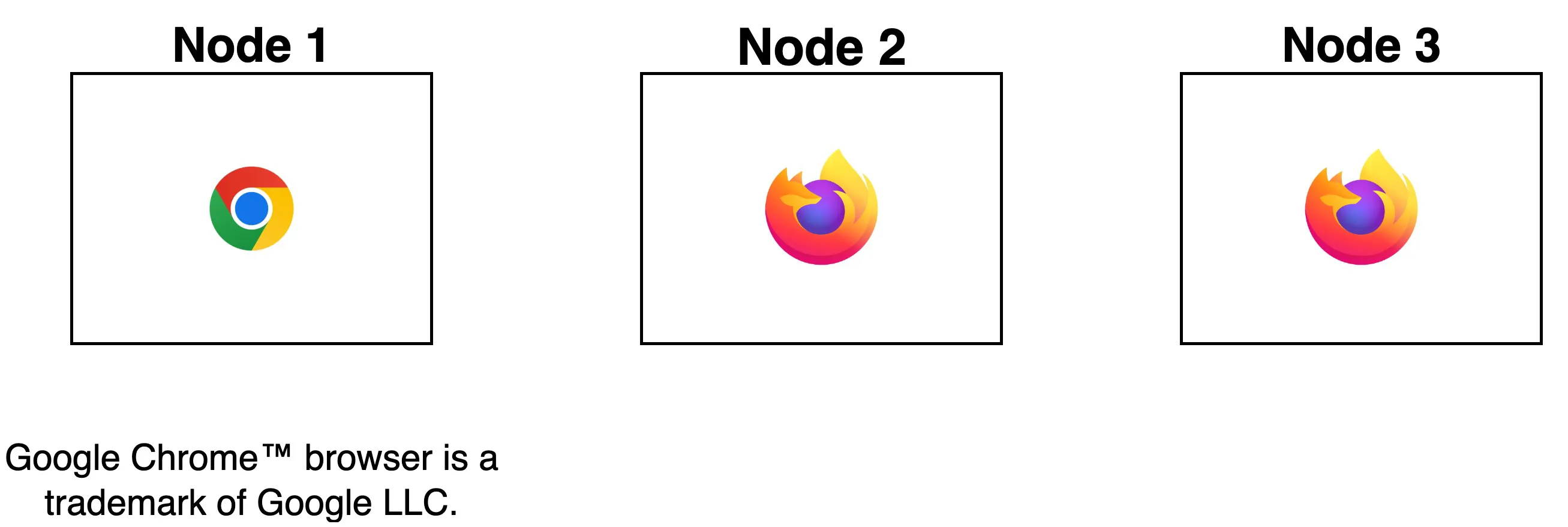
At its full capacity, the grid will be running three browsers concurrently.
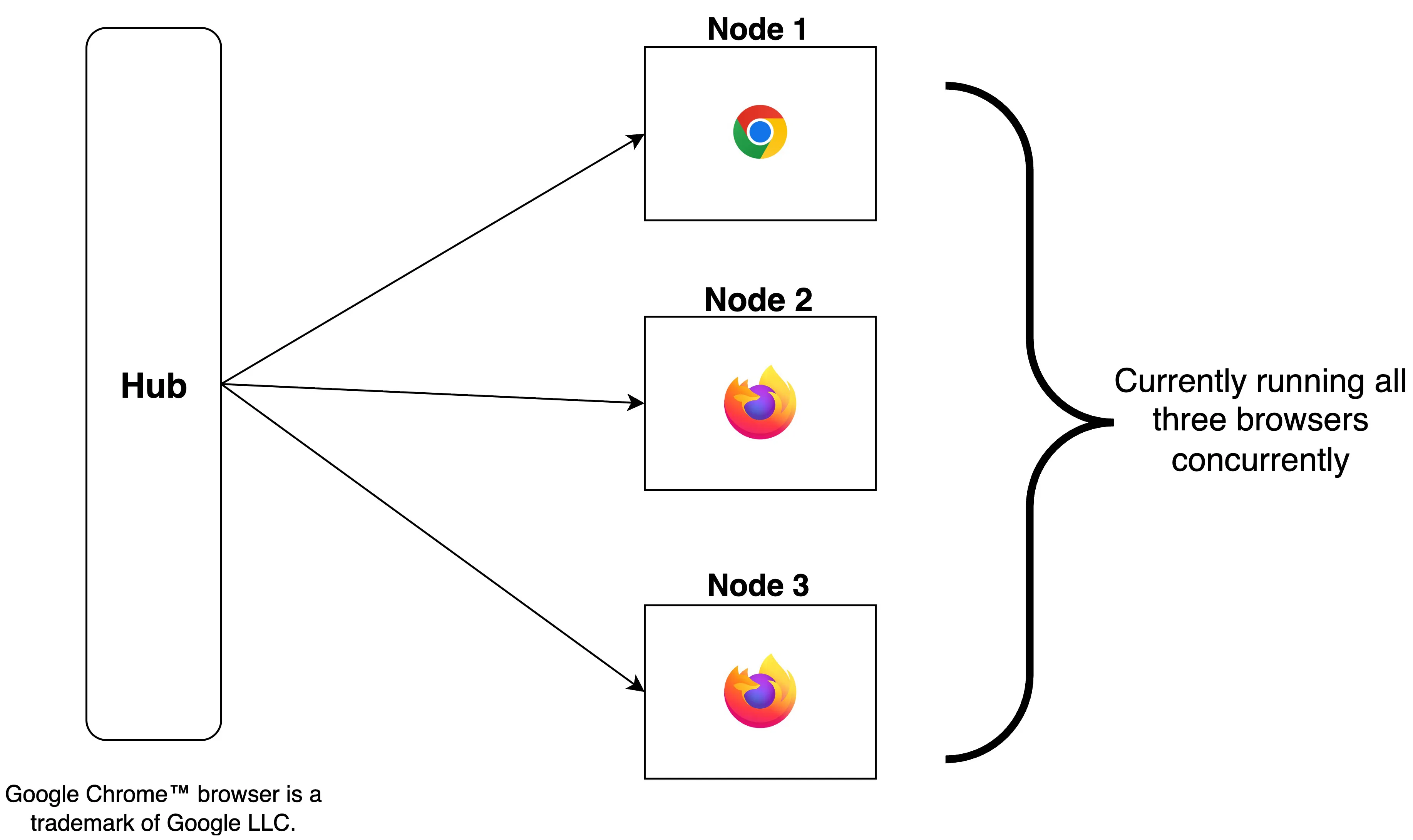
-
The node limit configured while creating the Browser Grid has not been exhausted.
-
If the node limit has not been exhausted, then a new node with the required browsers will only be spawned if the existing browsers are running at full capacity in the nodes that have already been created.
Now, consider that in this grid, based on your requests, the first node has been created, and in that node, a singular browser is processing your requests.
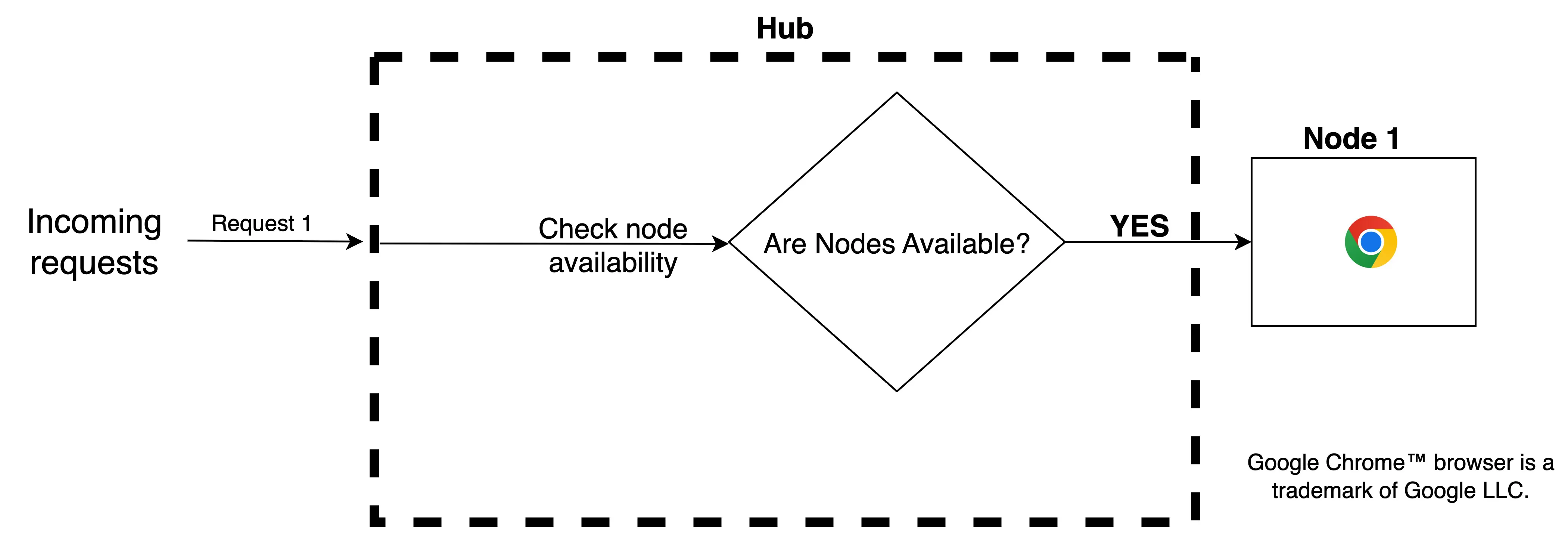
The second node with the second browser will only be created if the volume of requests increases, and the browser in the first node is still operating at full capacity.
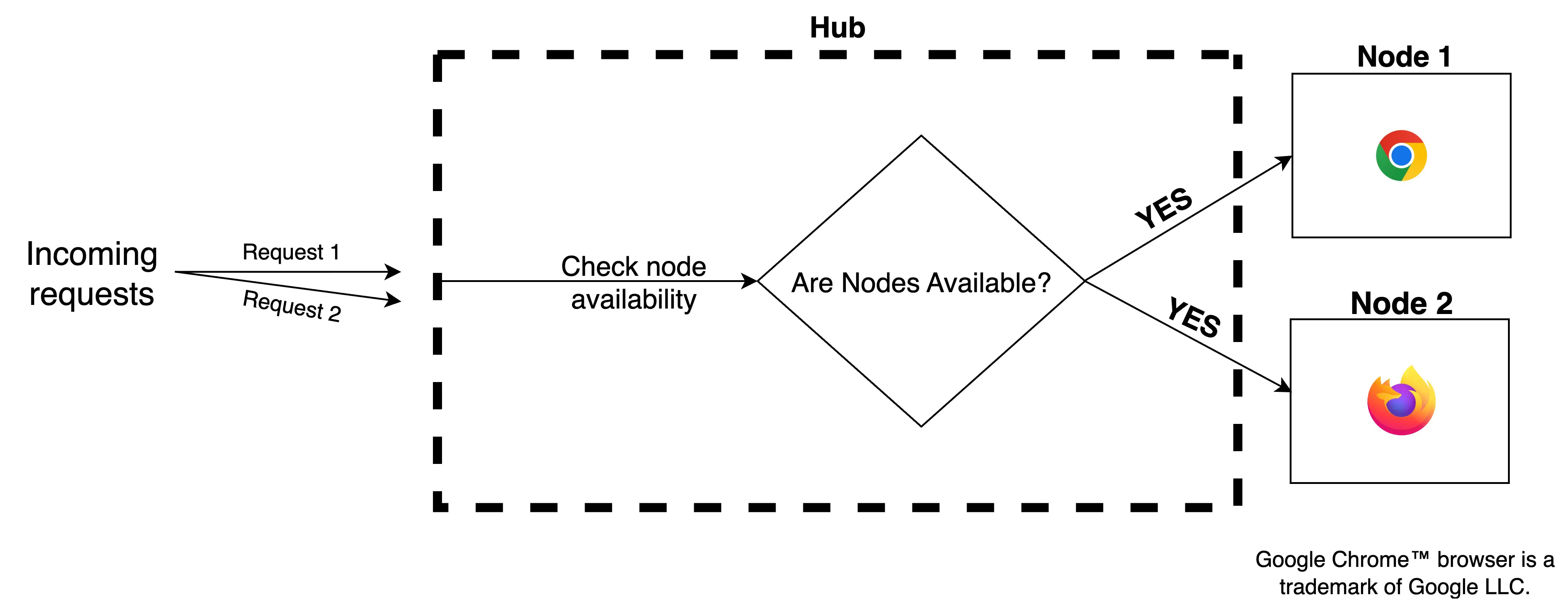
Similarly, the third and last node configured for the grid will only be created if the load of requests increases and both nodes are running browsers at full capacity.
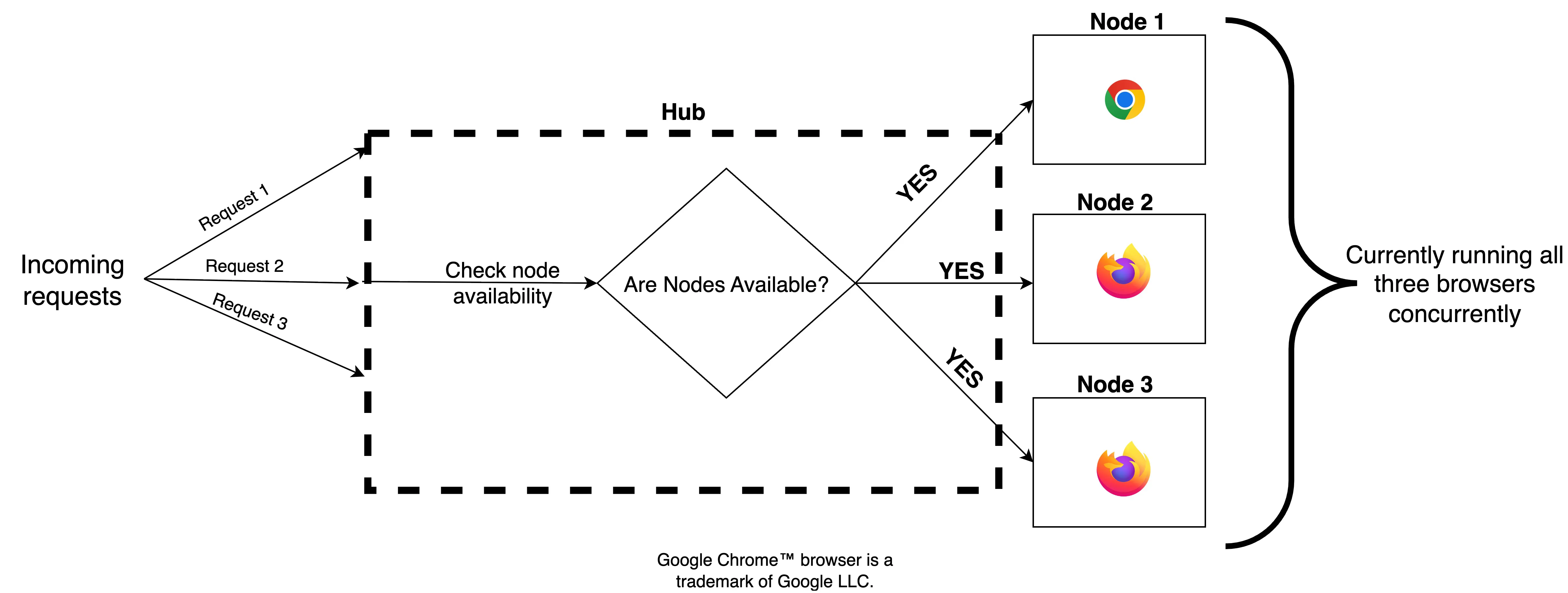
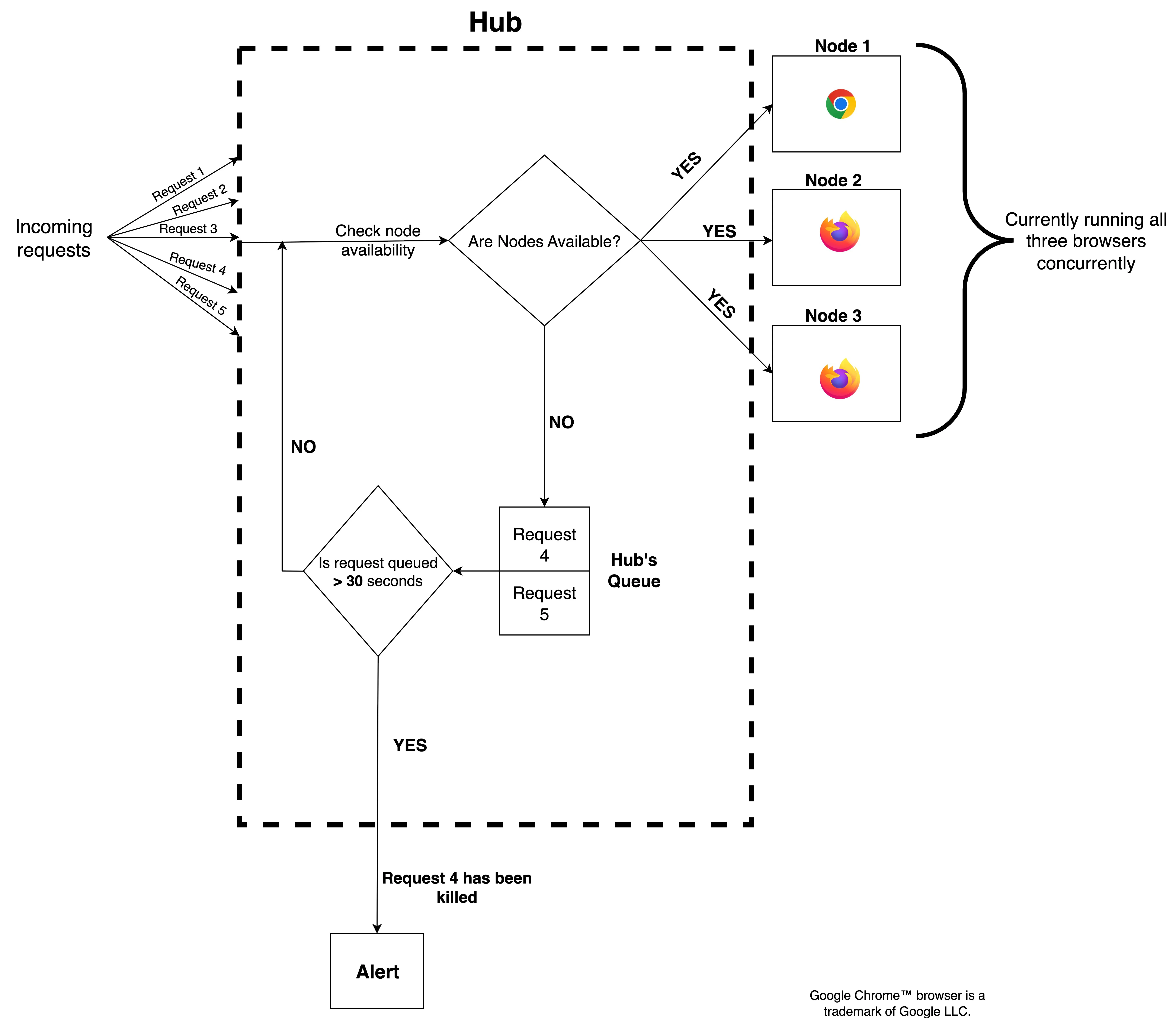
If the load of requests increases further, they will be queued. The queue will be valid for a duration of 30 seconds (to demonstrate this example, we can consider that the headless browser is being connected to using the Selenium automation library).
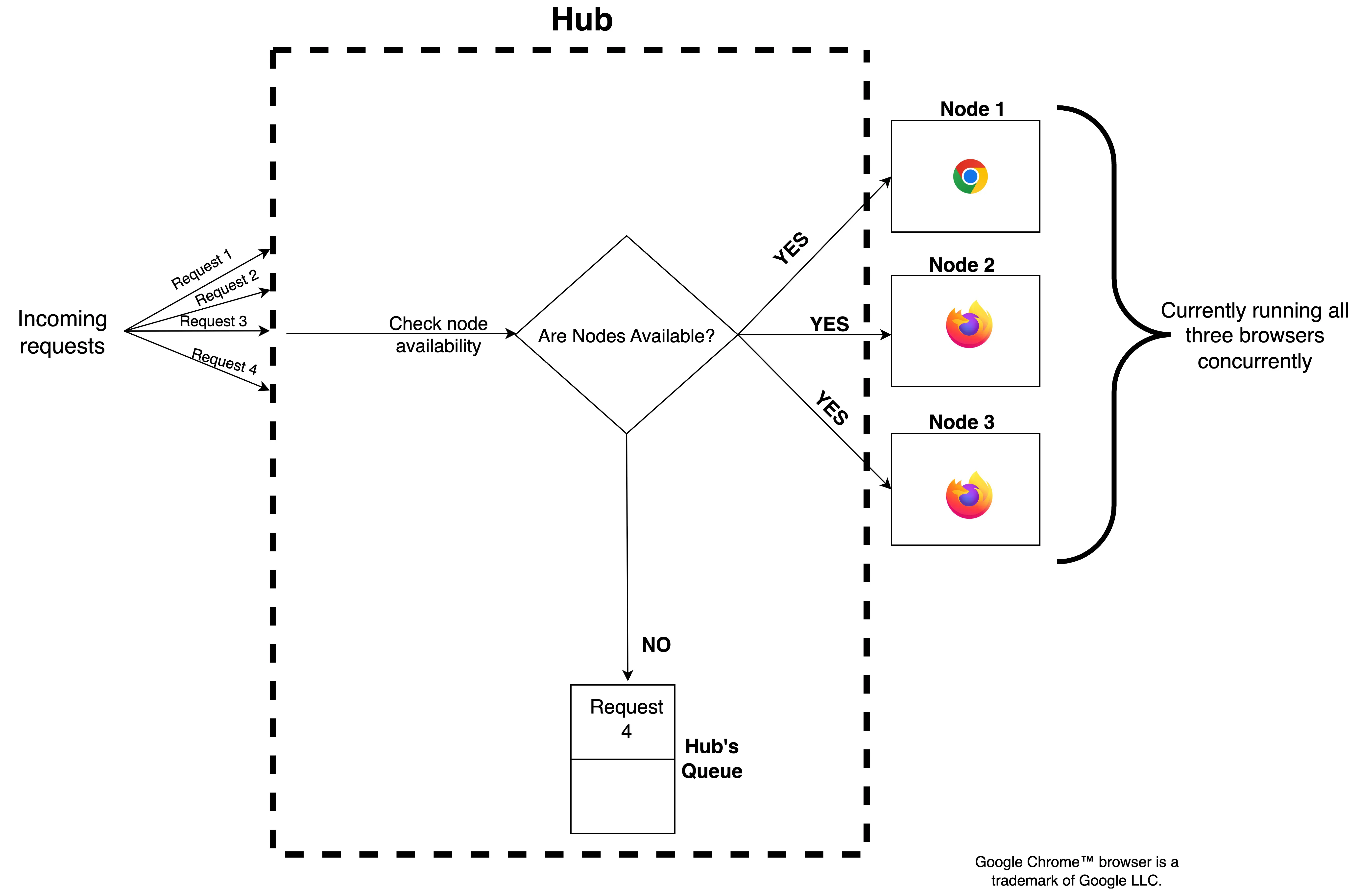
In this time interval, if a remote browser in a node becomes available, the hub will push the queued request to the newly available node.
If the queue duration expires, then the request will be killed and an alert will be raised by SmartBrowz to notify you of the killed request. This alert notification, like all Browser Grid alerts, can be viewed in the Alerts section section of the Dashboard.
Last Updated 2025-12-19 11:24:47 +0530 IST
Yes
No
Send your feedback to us