Manage Browser Grid
Once a browser grid is active and operational, you can perform the following operations:
Stop the Browser Grid
To make the browser grid inactive again:
-
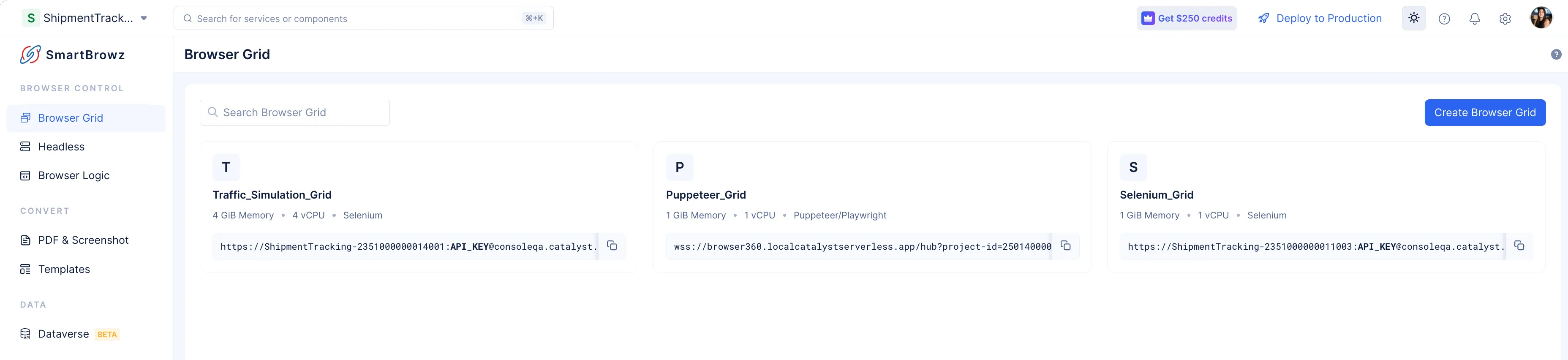
Select the required browser grid tile from the Browser Grid component space.
-
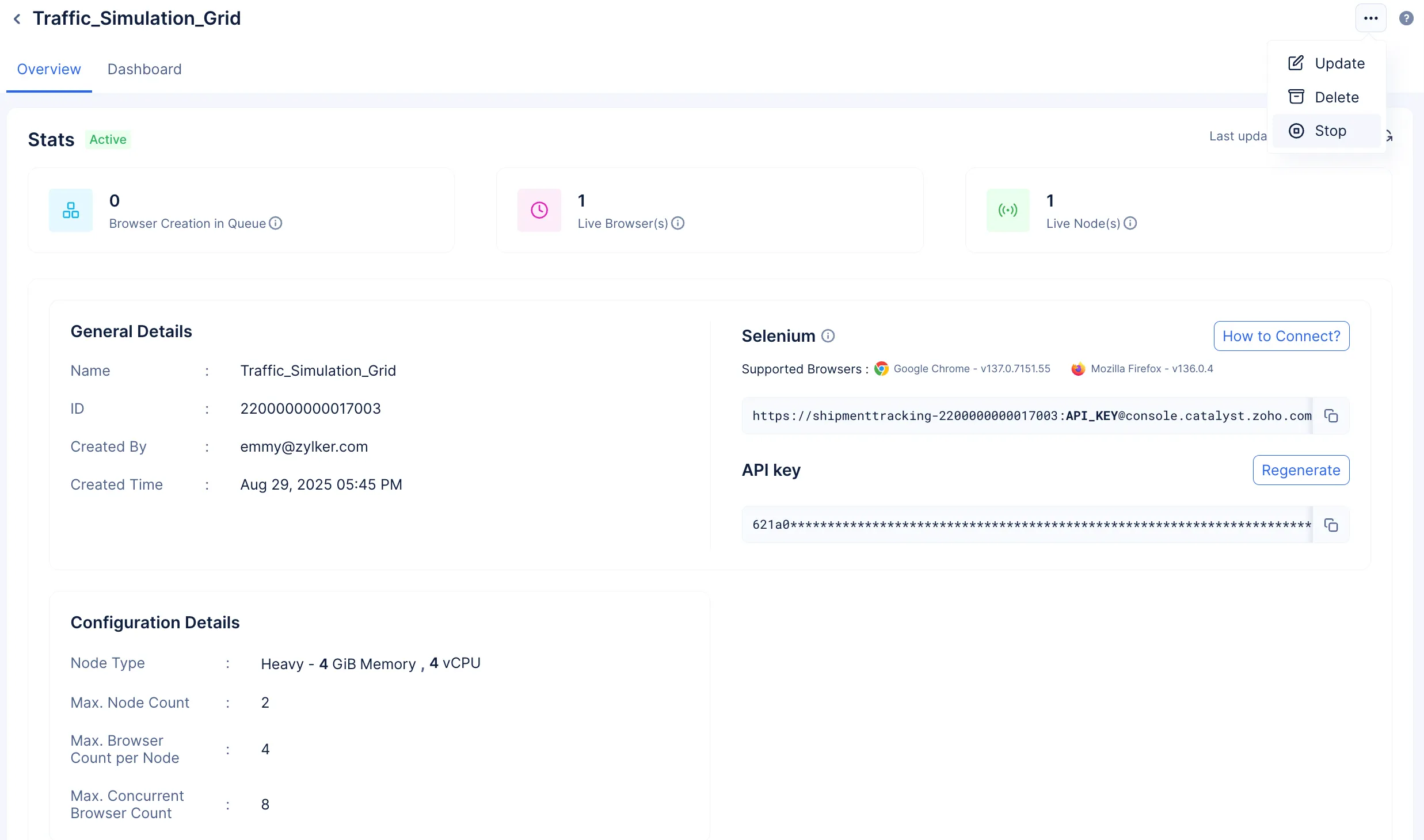
Click the ellipsis and select Stop.
-
Click Stop.
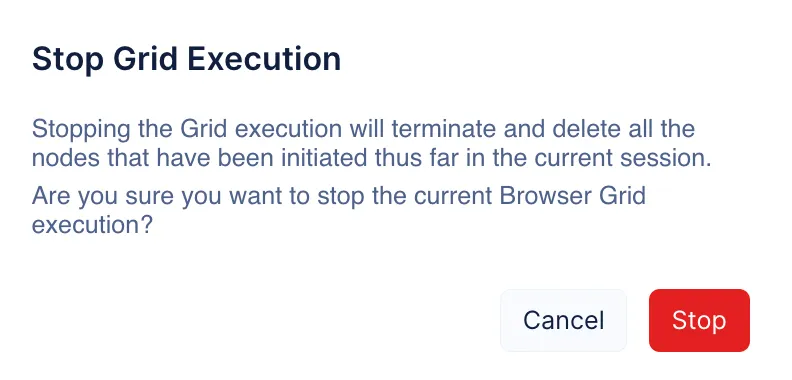
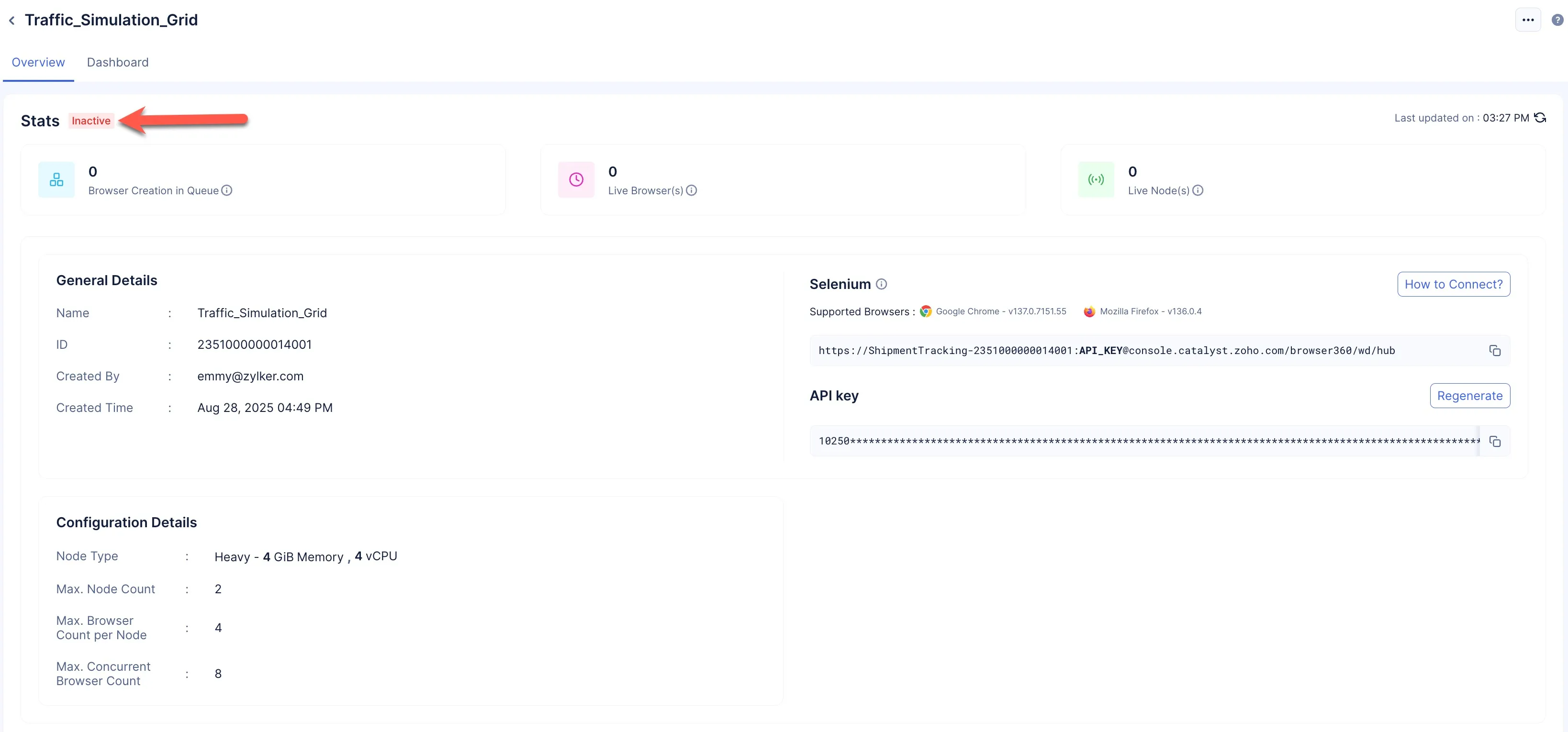
The browser grid’s operations will be suspended, and the grid will be marked Inactive.
Update Browser Grid
-
You will only be able to update a browser grid if it is in the Inactive state.
-
If your browser is having trouble processing requests due to improper configurations, then you need to Stop the grid, and only then update it.
-
Once you update a configuration, the grid will behave as a completely new grid. The Dashboard populated with data from previous executions will be permanently deleted.
To update the configurations of your browser grid:
-
Select the required browser grid tile from the Browser Grid component space.
-
Ensure your required grid is inactive, and click on the ellipsis and select Update.
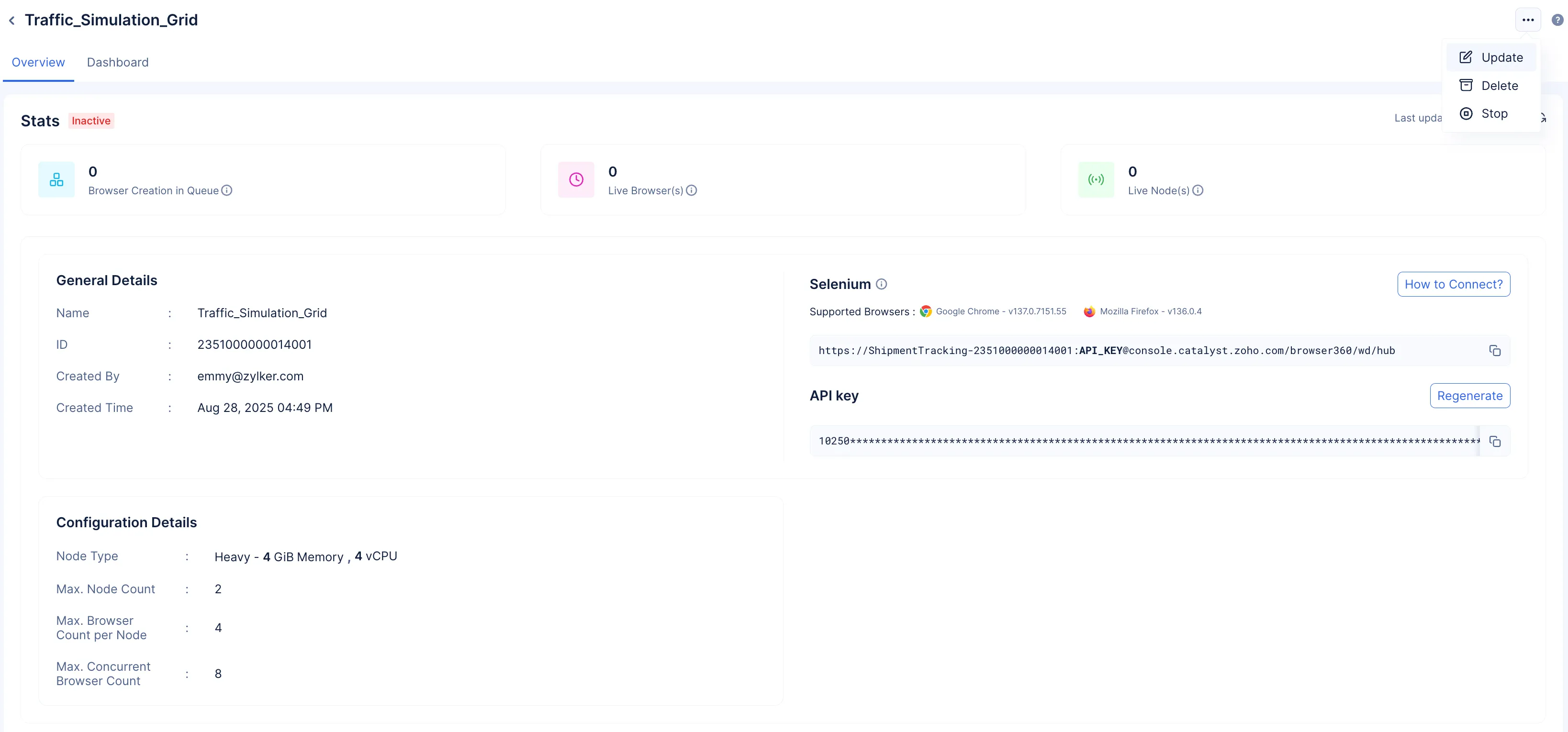
-
Update your grid in the required manner and click Update.
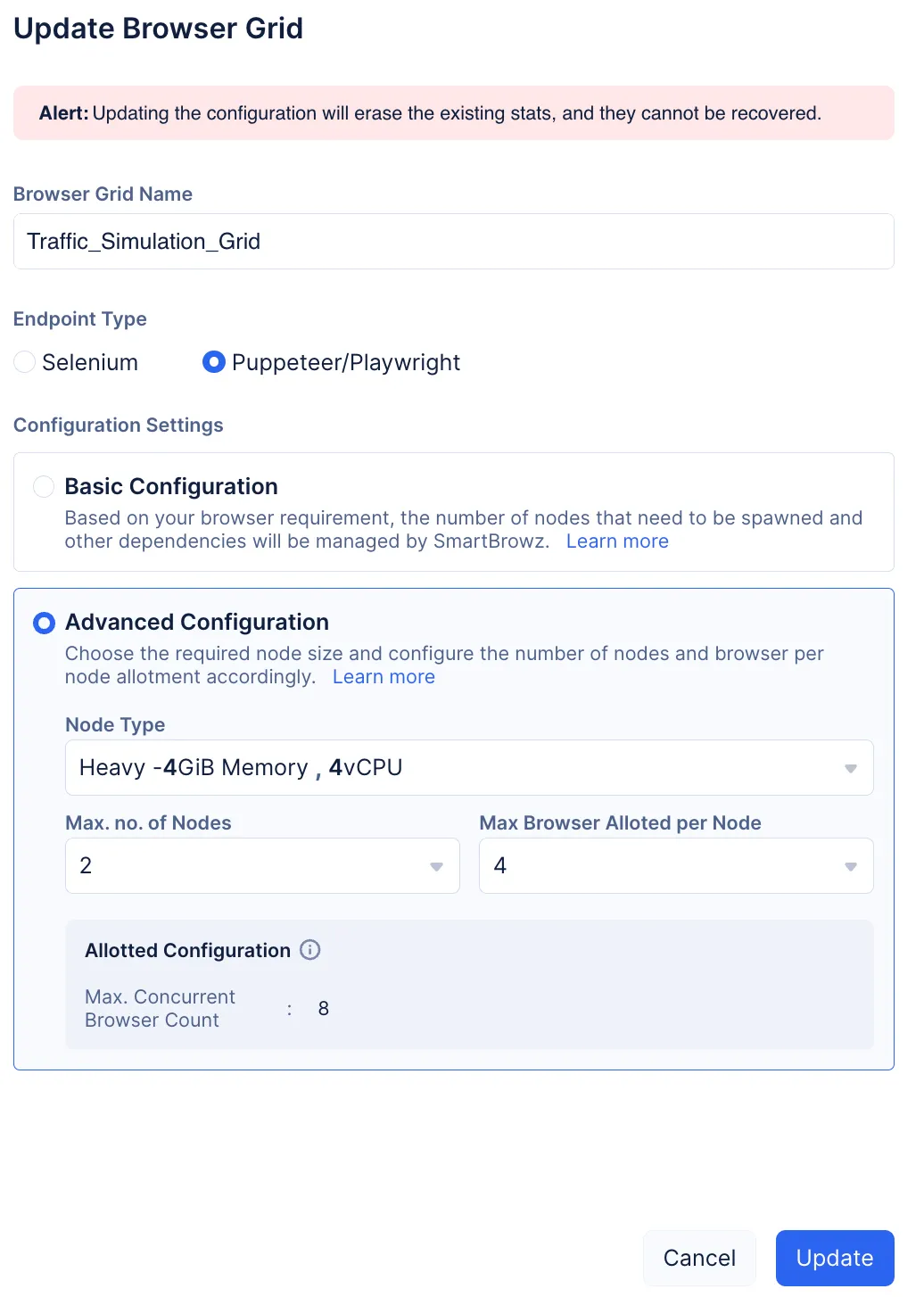
The required changes will be rendered.
Delete Browser Grid
-
You will only be able to delete a browser grid if it is in the Inactive state.
-
If you are required to delete an active browser grid, then you need to Stop the grid, and only then delete it.
To delete a grid:
-
Select the required browser grid tile from the Browser Grid component space.
-
Ensure your required grid is inactive, and click on the ellipsis and select Delete.
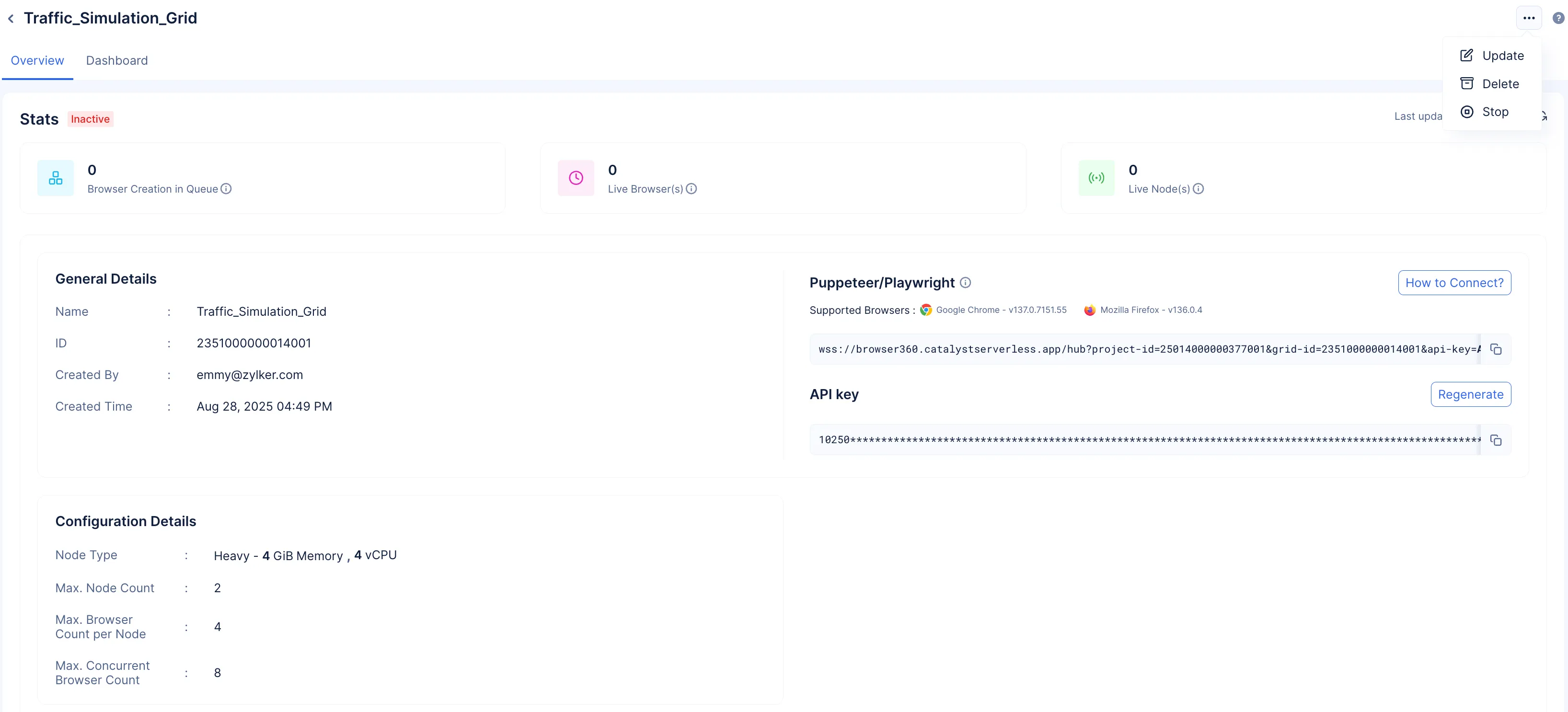
-
Click Delete.

The browser grid will be permanently deleted.
Last Updated 2025-12-19 11:24:47 +0530 IST
Yes
No
Send your feedback to us