Create a Browser Grid
By default, when you create a Catalyst project and access the Browser Grid component present in the Catalyst SmartBrowz service, you will have access to two preconfigured browser grids.
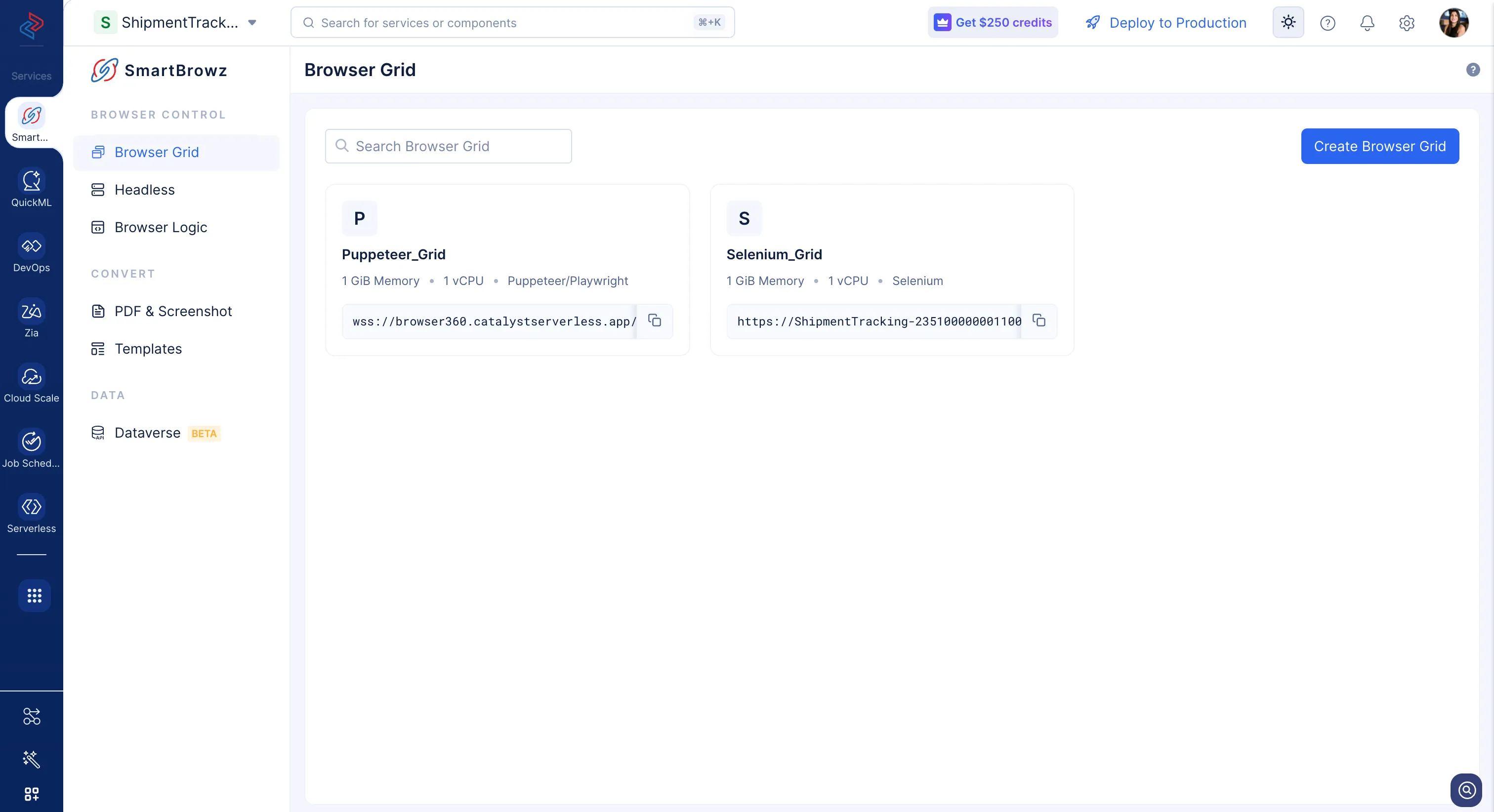
The predefined browser grids will be configured in the following manner:
-
They will be named Puppeteer_Grid and Selenium_Grid.
-
The Puppeteer_Grid will allow you to connect and process requests in a remote browser using the Puppeteer or Playwright automation libraries.
-
The Selenium_Grid will allow you to connect and process requests in a remote browser using the Selenium automation libraries.
-
Both the grids will be configured as Basic Configurations. They will be able to run one browser in one node, and no configuration for concurrent browsers will be made.
By providing you these pre-defined browser grids, the Catalyst SmartBrowz service offers you the option to use this grid without initial set up and test the functionality of the component.
You can also update the configurations of the browser grid to suit your requirement, or delete these pre-defined grids and create your own Browser Grid from scratch.
To create a Browser Grid:
-
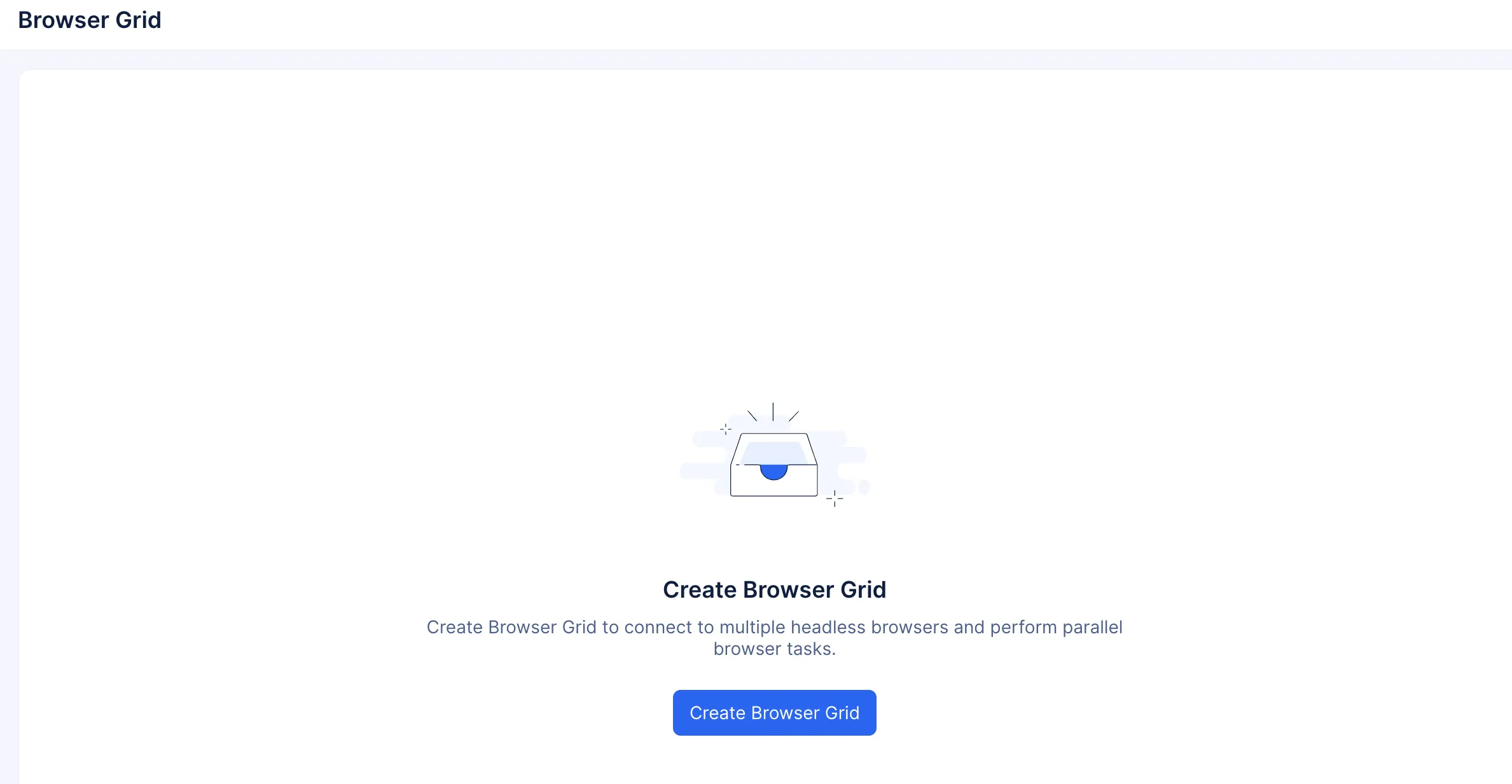
Click the Create Browser Grid button.
-
Choose your required endpoint type.
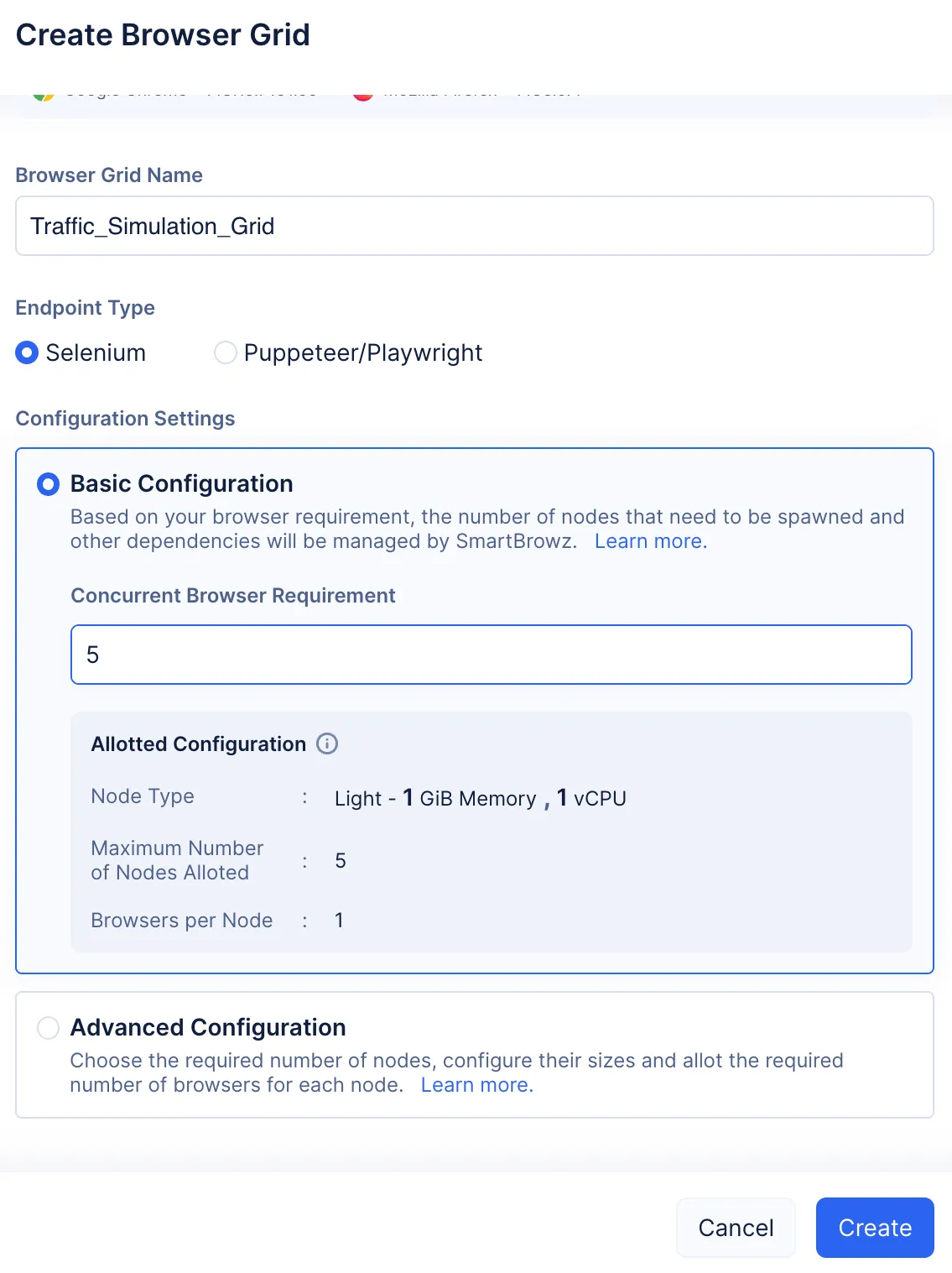
Based on your selection, Catalyst SmartBrowz will generate the required CDP/Webdriver endpoint that will allow you to connect to a headless browser using Selenium, Puppetter, or Playwright automation libraries. -
Choose your configuration based on the load of requests you wish to process in your remote browser. You have the option to configure your Browser Grid with a:
Basic Configuration
The Basic configuration allots up to a maximum of 10 nodes, each allocated 1 GiB of virtual memory and one vCPU core. Each node will run one browser in them, and the grid can run a maximum of 10 browsers concurrently.
This configuration is best suited for processing lighter request loads.
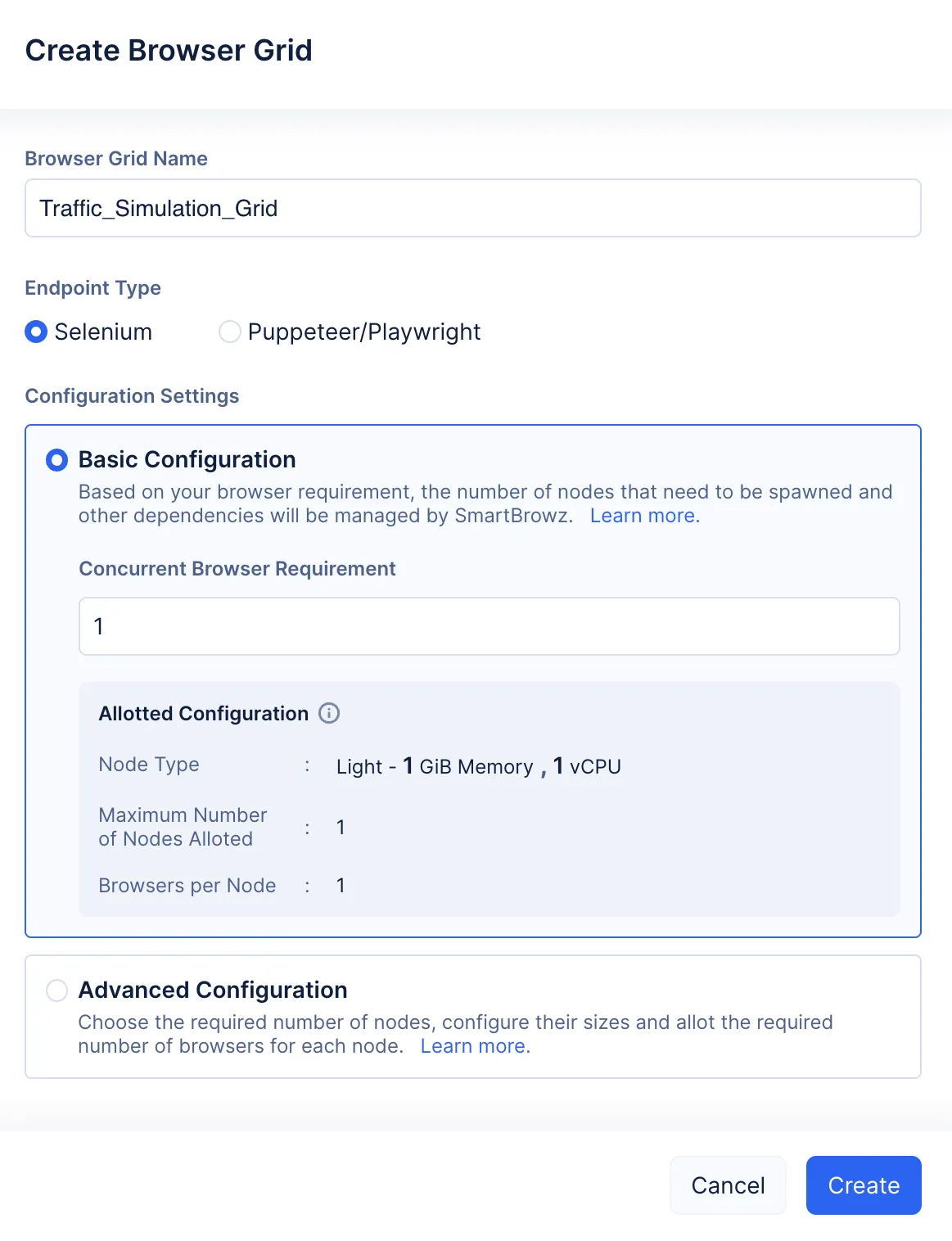
Based on your requirement, you can enter 1-10 as the number of nodes to be allotted for your browser grid.
You will be able to view the definition of your configuration in the Allotted Configuration section.
Advanced Configuration
This configuration provides you with greater control in allotting your required number of nodes and the number of browsers that need to be allotted to each node.
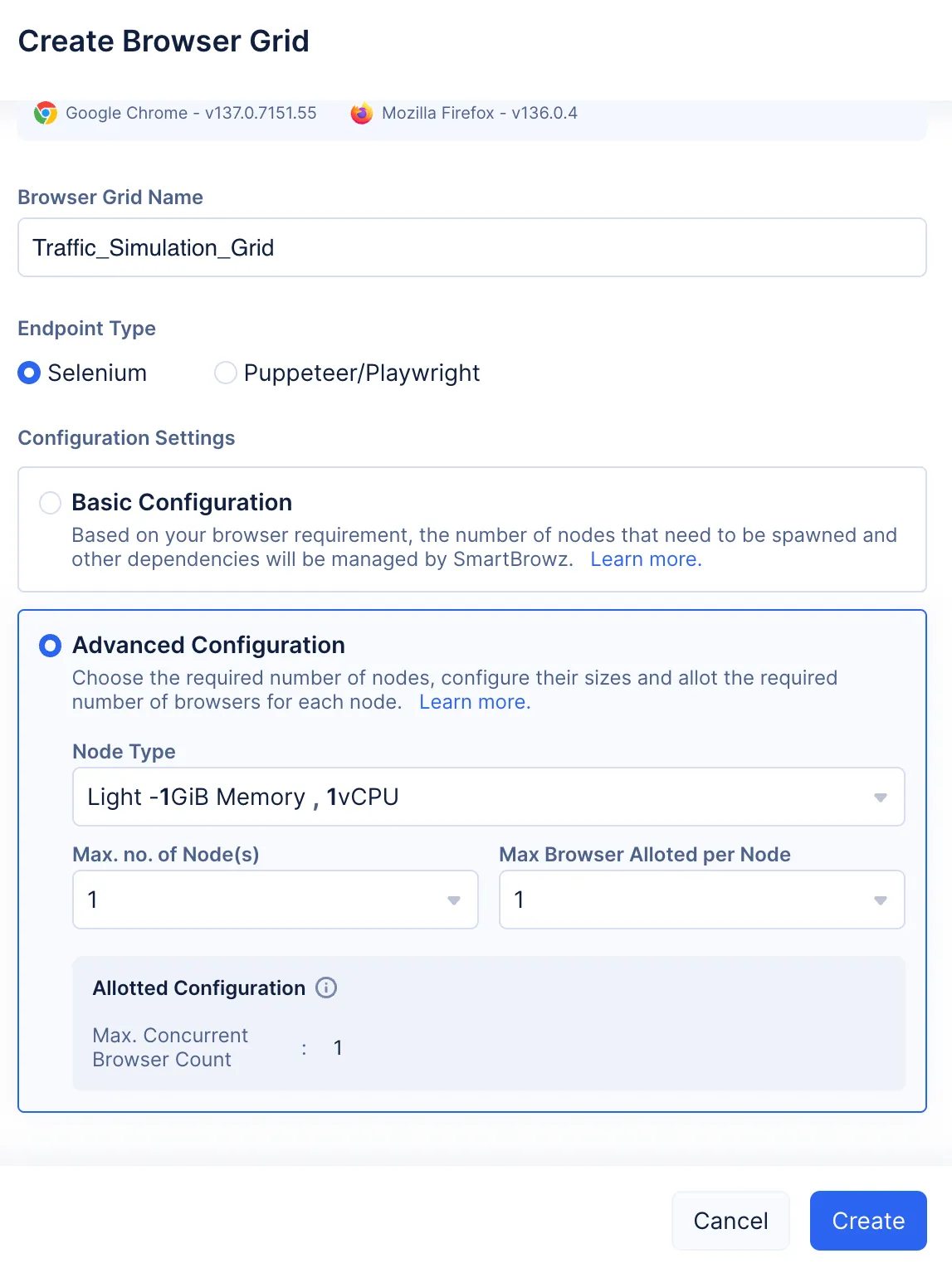
Based on the load of the requests that you need to process, you will have further options to choose and configure your ideal browser grid.
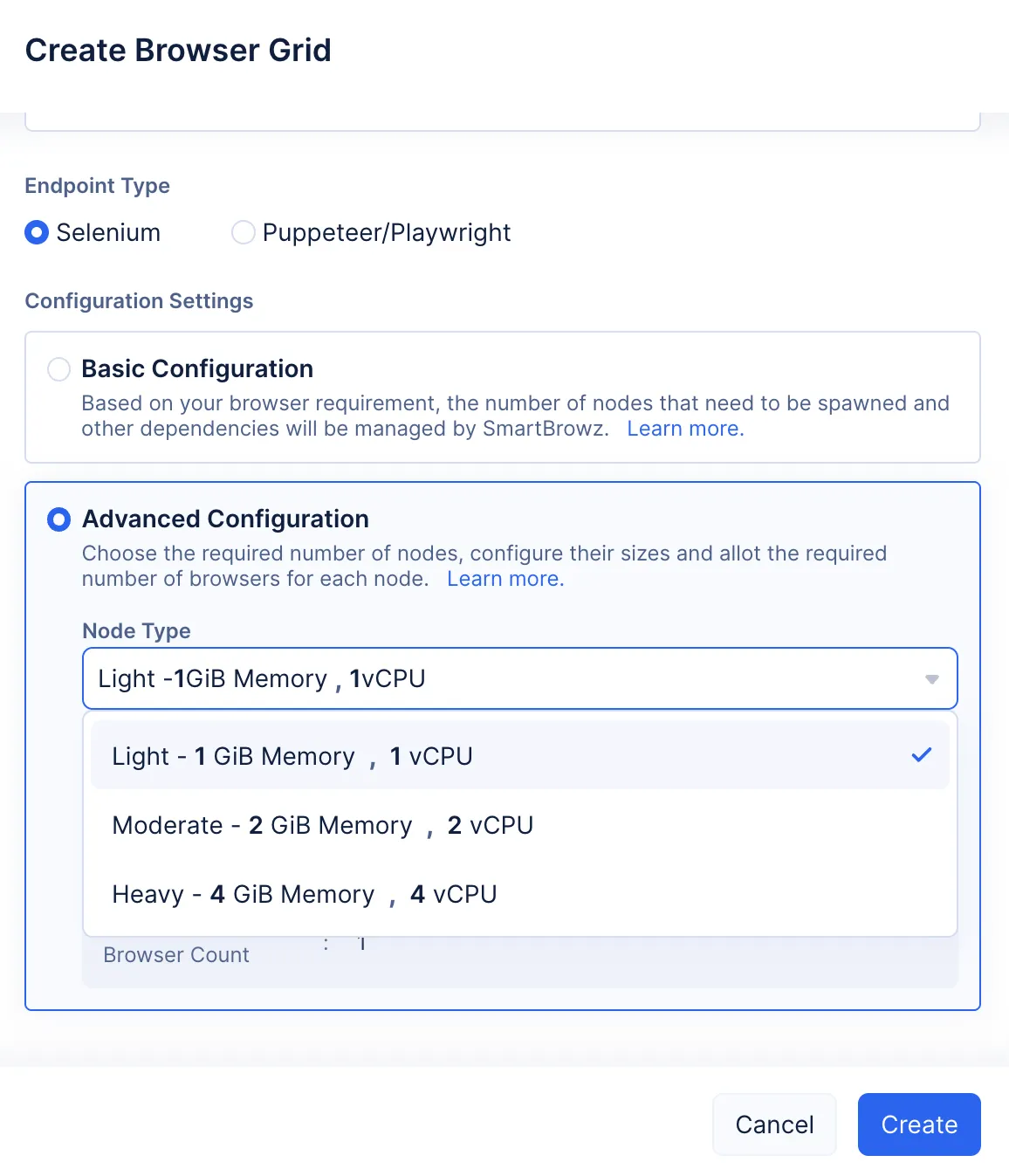
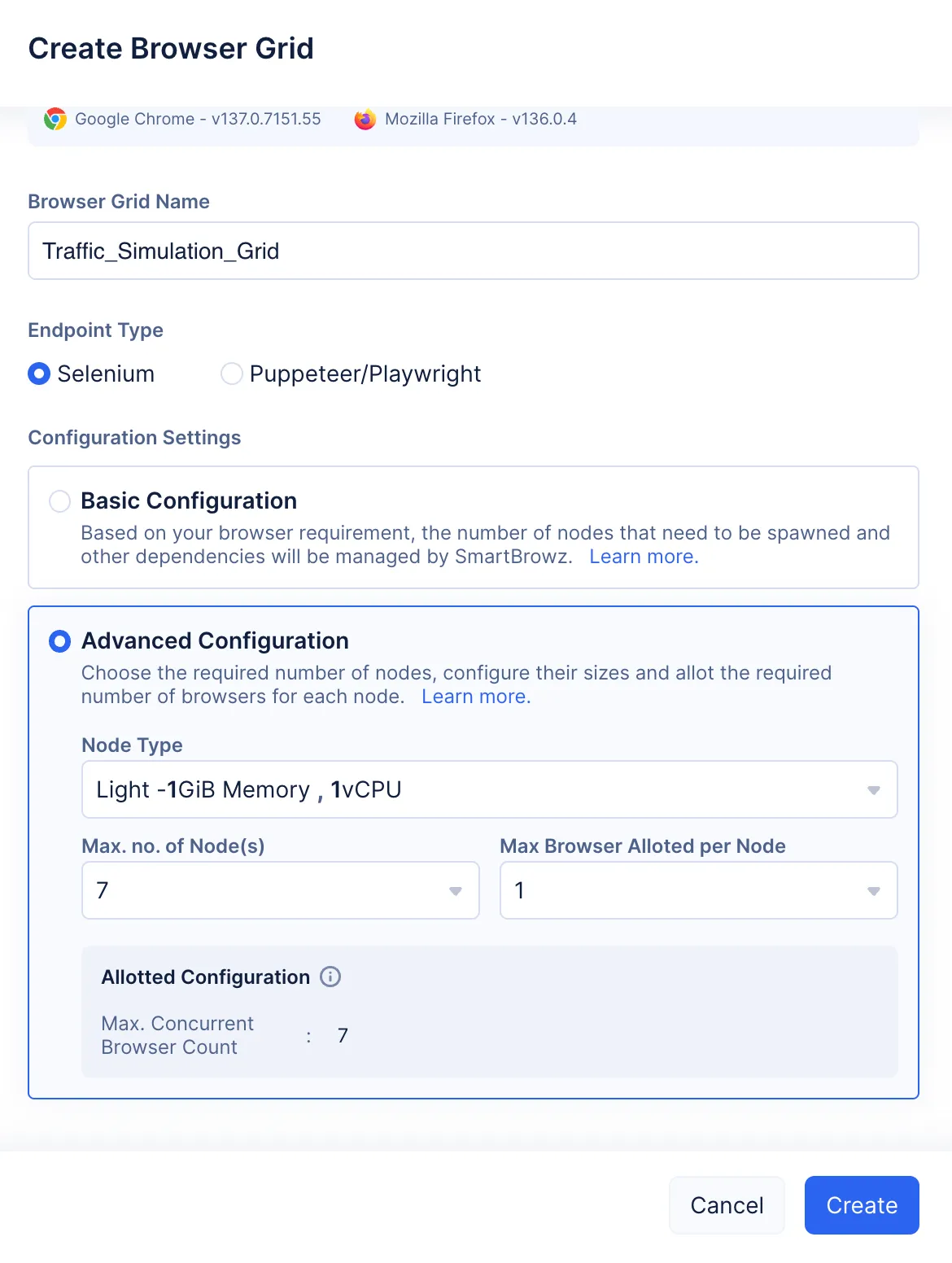
Light - 1GiB Memory, 1vCPU
The Light node type allots up to a maximum of 10 nodes, each allocated with 1 GiB of virtual memory and one vCPU core. Each node will run one browser in them, and the grid can run a maximum of 10 browsers concurrently.
This node type is best used when you need to process requests that do not demand much time.
| Criteria | Light Node Types' Offerings |
|---|---|
| Configuration | Light -1 GiB memory, 1vCPU |
| Cores per node | 1 |
| Maximum number of cores possible | 10 |
| Memory allotted per node | 1 GiB |
| Maximum memory that can be allotted to the browser grid | 10 GiB |
| Maximum number of browsers that can be allotted to a single node | 1 |
| Maximum number of concurrent browser processes possible | 10 |
-
Use the Max. no. of Node(s) drop-down to allot the required number of nodes for your grid.
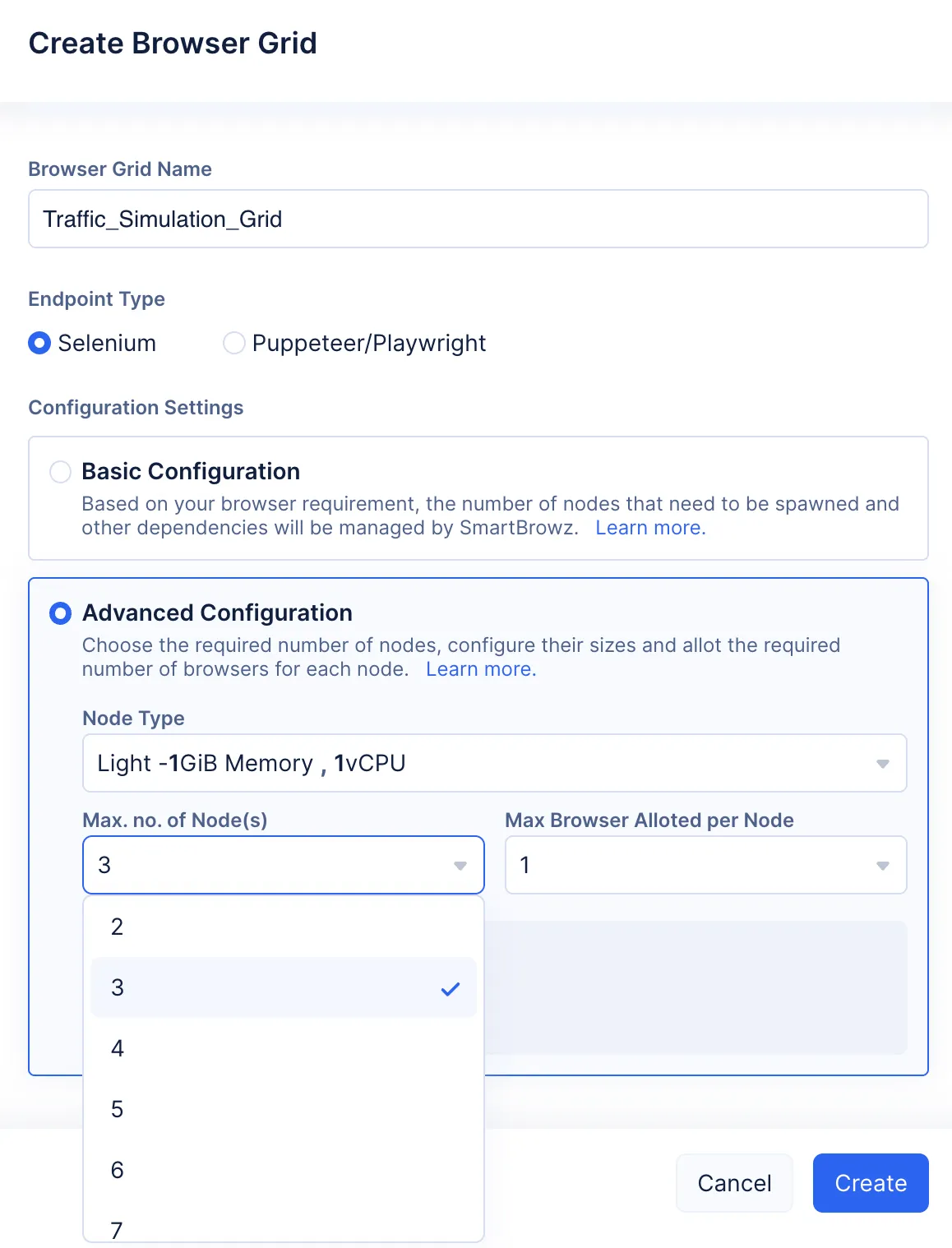
-
The Light node type only allows for 1 browser to be allotted per node.
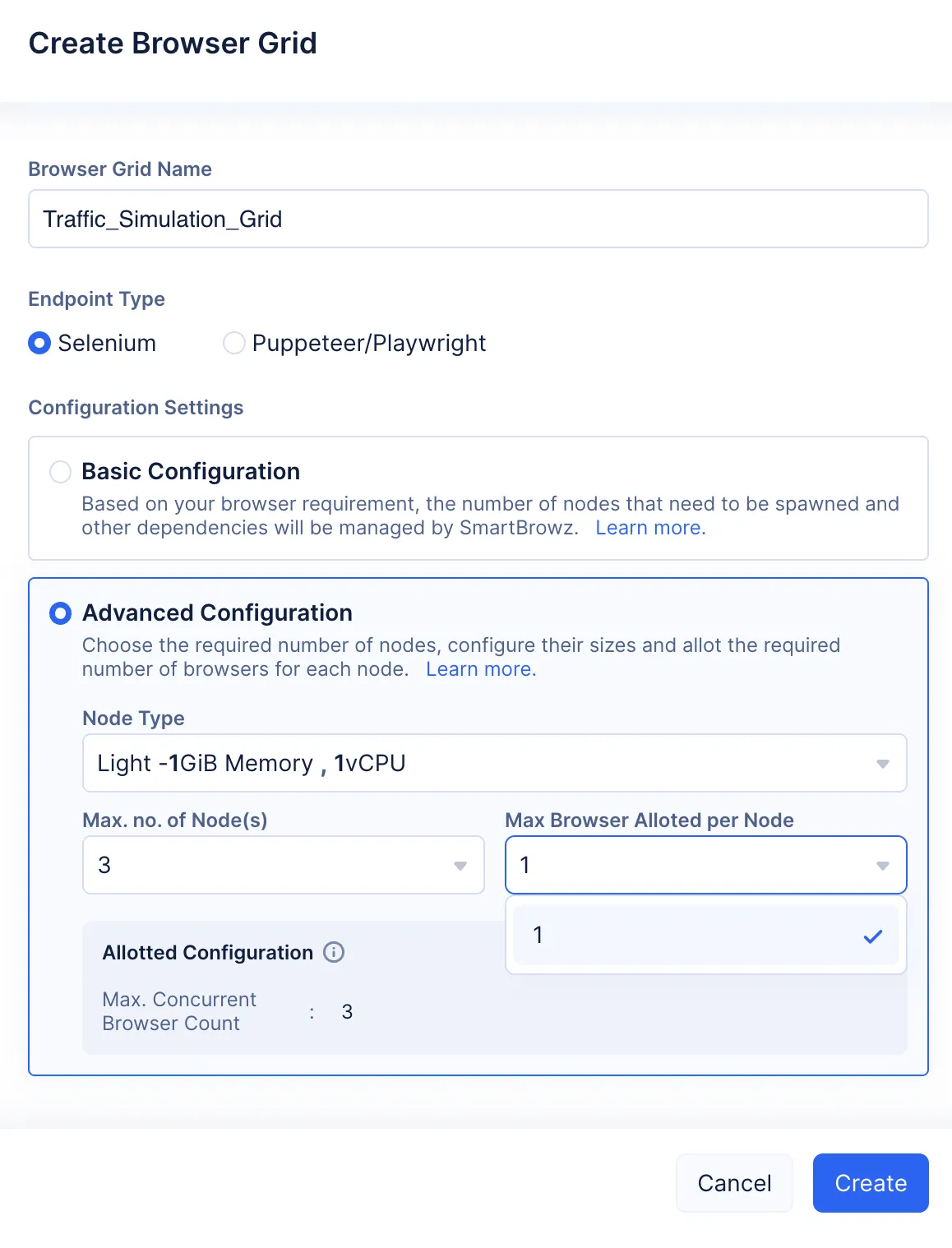
You can view the definition of your configuration in the Allotted Configuration section once you’ve made your selection.
Moderate - 2GiB Memory, 2vCPU
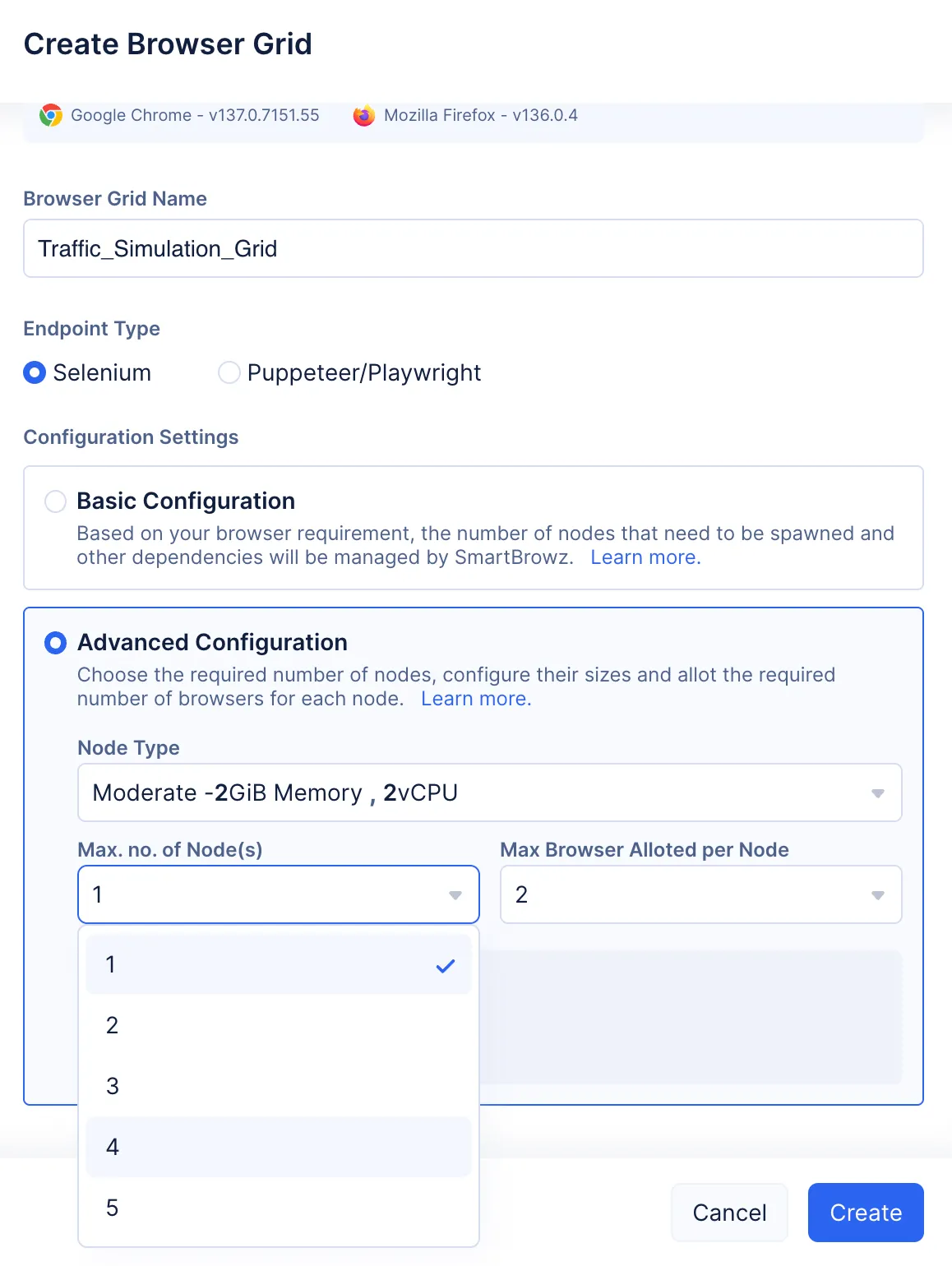
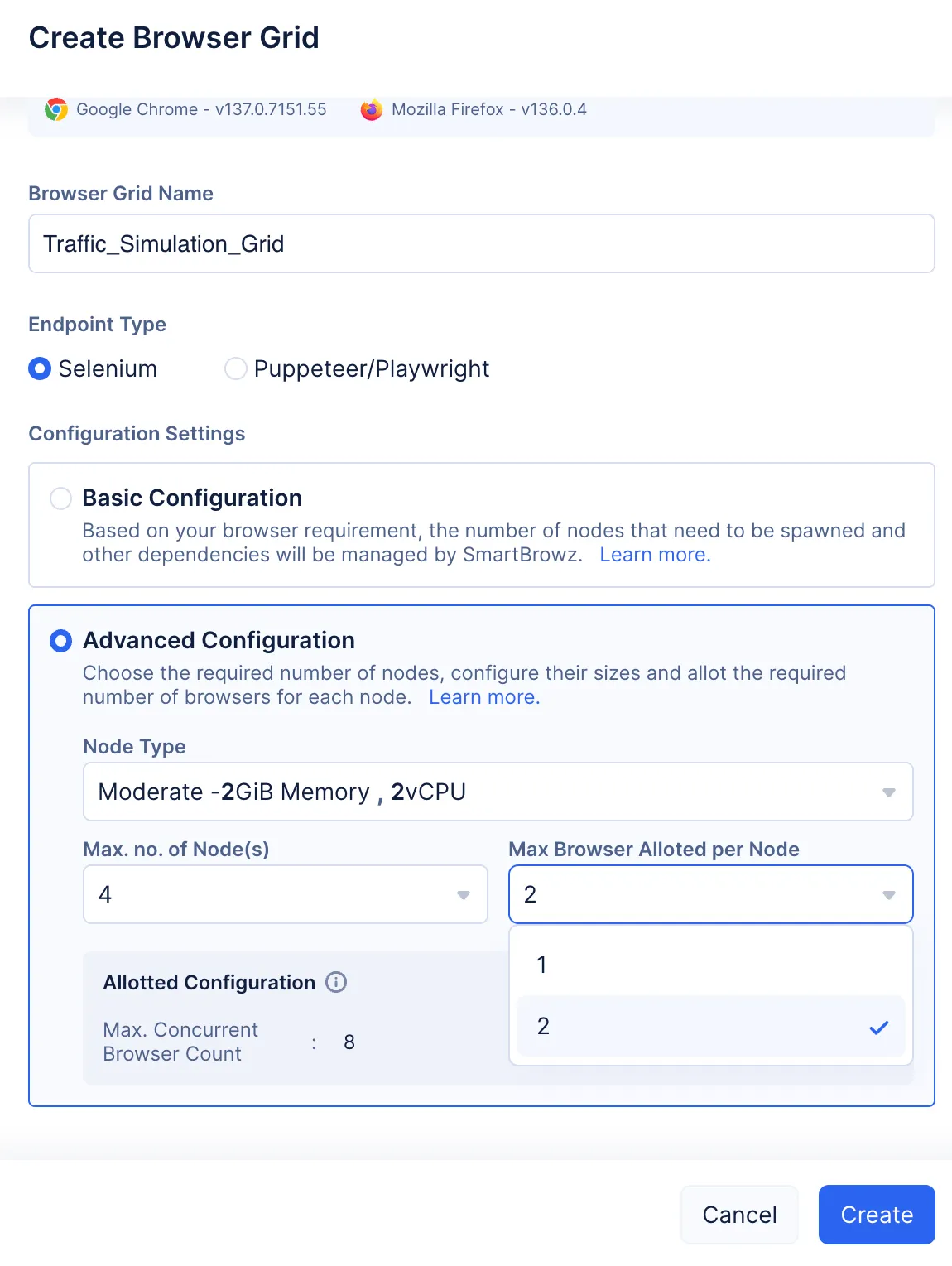
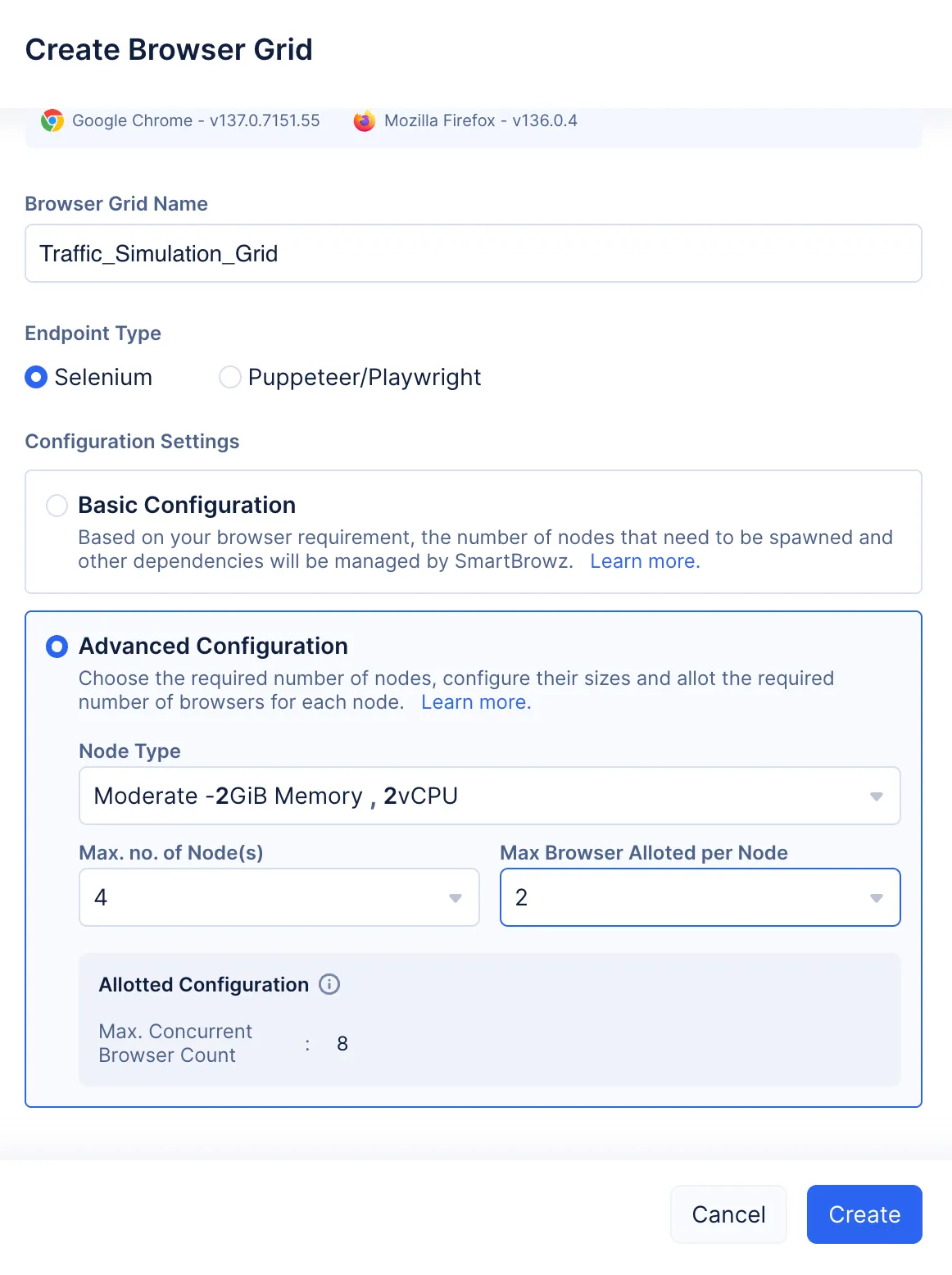
The Moderate node type allots up to a maximum of 5 nodes, each allocated with 2 GiB of virtual memory and 2 vCPU cores. Each node can run two browsers in them, and the grid can run a maximum of 10 browsers concurrently.
| Criteria | Moderate Node Types' Offerings |
|---|---|
| Configuration | Moderate - 2GiB memory, 2vCPU |
| Cores per node | 2 |
| Maximum number of cores possible | 10 |
| Memory allotted per node | 2 GiB |
| Maximum memory that can be allotted to the browser grid | 10 GiB |
| Maximum number of browsers that can be allotted to a single node | 2 |
| Maximum number of concurrent browser processes possible | 10 |
-
Use the Max. no. of Node(s) drop-down to allot the required number of nodes for your grid.
-
Use the Max Browser Allotted per Node drop-down to choose the number of browsers allotted per node.
You can view the definition of your configuration in the Allotted Configuration section once you’ve made your selection.
Heavy - 4GiB Memory, 4vCPU
The Heavy node type allots up to a maximum of 2 nodes, each allocated with 4 GiB of virtual memory and 4 vCPU cores. Each node can run four browsers in them, and the grid can run a maximum of 8 browsers concurrently.
This node type is best used when you have massive amounts of requests that need to be processed, where each request demands a lot of processing time.
| Criteria | Heavy Node Types' Offerings |
|---|---|
| Configuration | Heavy - 4GiB memory, 4vCPU |
| Cores per node | 4 |
| Maximum number of cores possible | 8 |
| Memory allotted per node | 4 GiB |
| Maximum memory that can be allotted to the browser grid | 8 GiB |
| Maximum number of browsers that can be allotted to a single node | 4 |
| Maximum number of concurrent browser processes possible | 8 |
-
Use the Max. no. of Node(s) drop-down, to allot the required number of nodes for your grid.
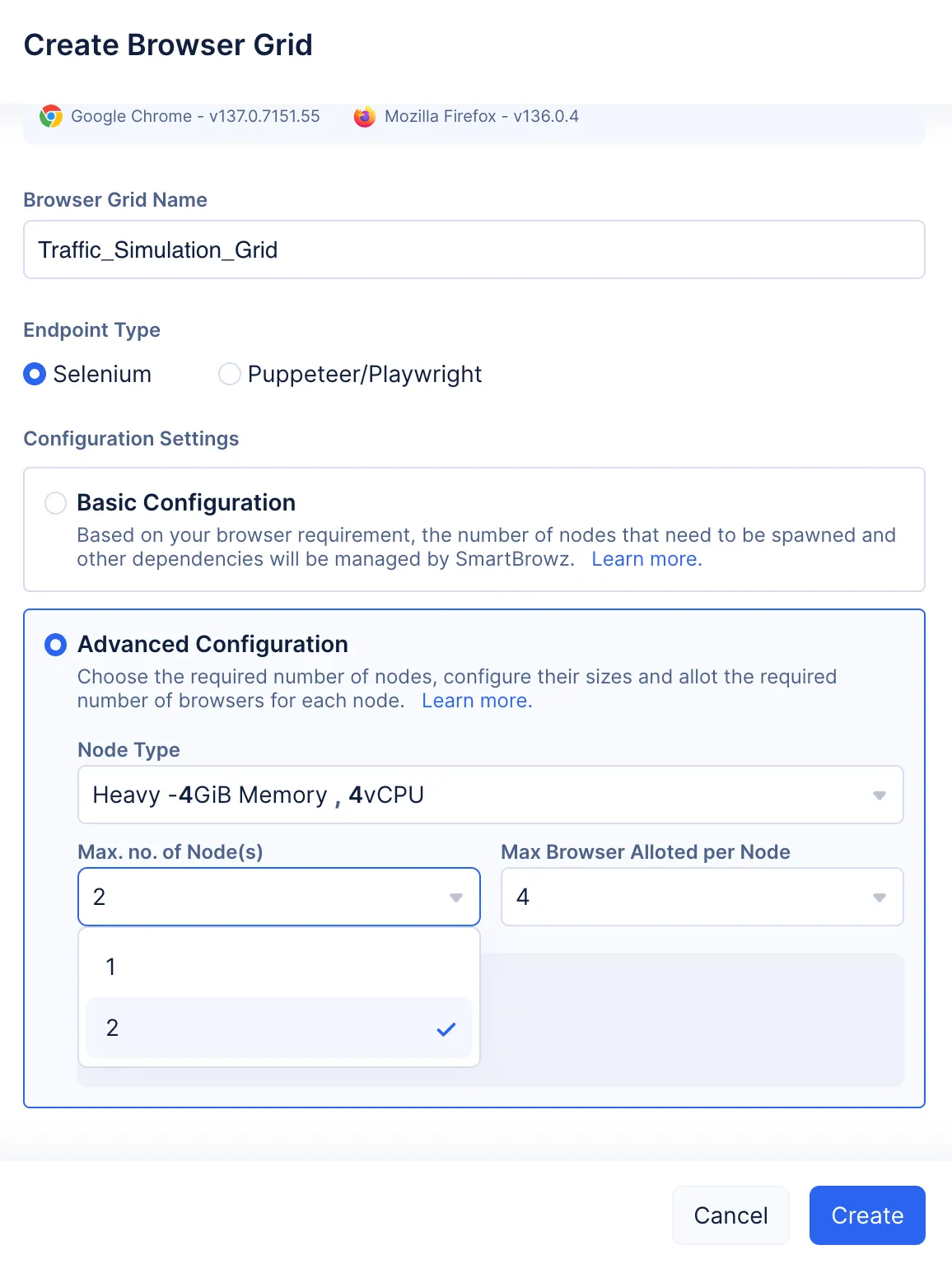
-
Use the Max Browser Allotted per Node drop-down to choose the number of browsers allotted per node.
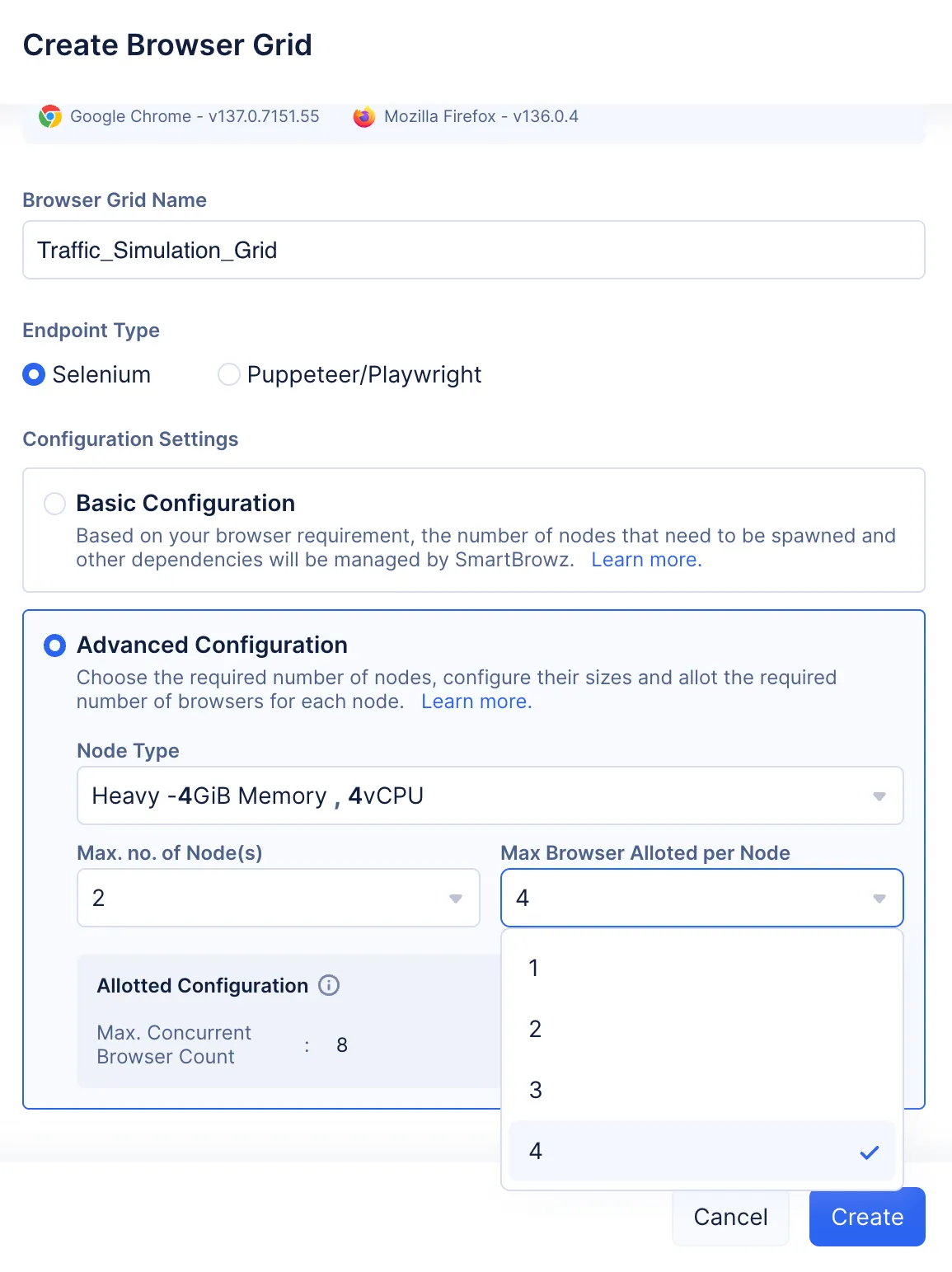
You can view the definition of your configuration in the Allotted Configuration section once you’ve made your selection.

-
While you can choose the number of nodes and the number of browsers to process your requests, you will not have the option to completely customize the setup. You will be provided with a set range of allotment options that you can choose to create your Browser Grid with. If your requirement demands you bypass this restriction, please follow the steps detailed in this help section to ensure you can create a browser grid that is truly custom.
-
Learn more about ideal practices for implementing browser grids.
- Click Create.
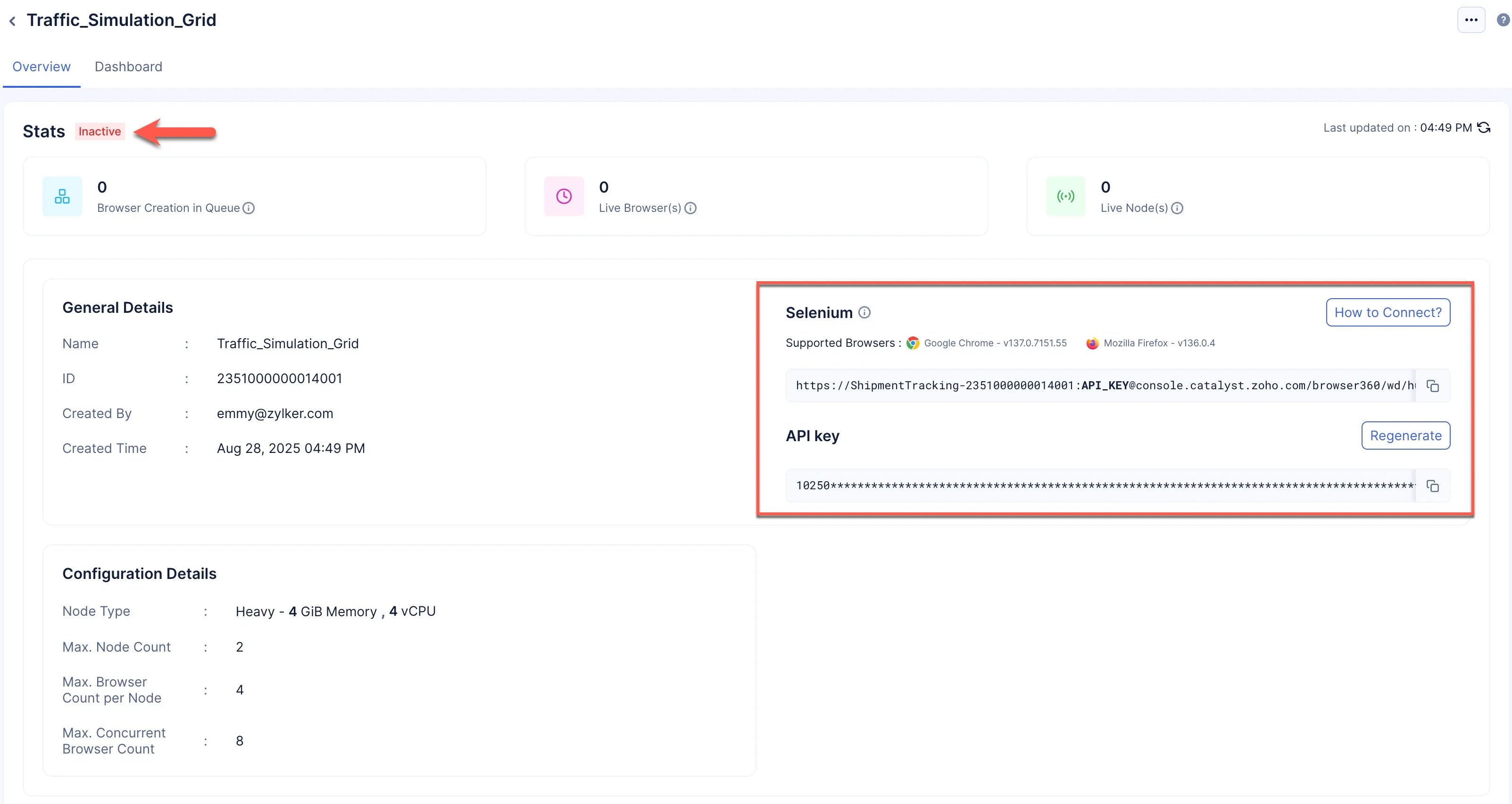
The required browser grid will be created.
You will be directed to the Overview section, and you will be able to view the following details:
-
The status of the Browser Grid will be “Inactive”. You need to connect to the headless browser through code to activate the browser grid.
-
You will be able to view the general details about the browser grid.
-
The Configuration Details section will detail the configuration used to create the browser grid.
-
The required CDP/Webdriver endpoint to connect to the headless browser will be generated by SmartBrowz and ready to use.
-
You will also have the option to view your API key or regenerate it when required.
-
You will also be provided with information on the automation library you have chosen to connect and use the headless browser with, and on the supported browser versions.
Last Updated 2025-12-19 11:24:47 +0530 IST
Yes
No
Send your feedback to us