Execute LLM Endpoint
LLM Serving
QuickML now provides Generative AI services by hosting Large Language Models and Vision Language Models (VLMs) under the Generative AI section in the console. LLM Serving is equipped with Chat instance with a set of parameters for each model to provide additional control over its responses.
LLM serving is equipped with two interaction modes with language models. The only difference between these two is keeping the context of prior messages while responding to the query. Let’s take a quick look at the explanation.
- Single-shot mode: Each prompt request to the model is treated independently while generating the response, with no memory of previous turns.
- Conversation mode: Maintains context throughout the session. Prior turns are passed as context, allowing multi-turn conversations.
Execute LLM Endpoint
With Catalyst QuickML, you can tune the responses of available large language models according to your needs and access them from your application using authenticated endpoints. An LLM Endpoint is created from a saved parameter configuration, so the model used, tools, Instructions, system prompt, and generation parameters you tested in the console are exactly what your application calls.
-
You will need to have the LLM endpoint created and published in your project using the Catalyst console, before you execute the code snippets below.
-
The model and its parameters are fixed at the time of endpoint creation and cannot be overridden through the SDK.
-
QuickML is currently available to Catalyst users accessing from the US, IN, & EU data centers.
The SDK method you call depends on the interaction mode configured for the endpoint:
| Interaction Mode | SDK Method |
|---|---|
| Conversation mode OFF (Single-shot mode) | askLlm(endpointKey, prompt) |
| Conversation mode ON | converseWithLlm(endpointKey, prompt, conversationId) |
a. Generate an LLM Response
Single-shot interaction with a language model requires an input prompt and a valid endpoint key. The endpoint key is generated when the LLM endpoint is created.
The askLlm(endpointKey, prompt) method sends a single prompt to the published LLM endpoint and returns the generated response. Each request is processed independently, and no conversation context is retained between requests.
Parameters Used
| Parameter | Description | Value |
|---|---|---|
| endpointKey | The unique ID of the LLM endpoint published in your project. | String |
| prompt | The message sent to the language model. | String |
Sample Code Snippet
ZCQuickML quickMlInstance = ZCQuickML.getInstance();
// Replace with the endpoint key copied from the Catalyst console.
String endpointKey = “<ENDPOINT_KEY>”;
// Enter the prompt to send to the LLM.
String prompt = “<YOUR_PROMPT>”;
ZCQuickMLDetail result = quickMlInstance.askLlm(endpointKey, prompt);
System.out.println(result.getResponse());
The syntax of the model response received is shown below:
{
  "status": "success",
  "result": [
    {
      "content": "The generated response text from the model.",
      "finish_reason": "stop",
      "usage": {
        "input_tokens": 42,
        "output_tokens": 128,
        "total_tokens": 170
      }
    }
  ]
}
Use this method for single-shot interaction tasks such as summarization, classification, content generation, or extraction.
b. Converse with an LLM
Conversation mode allows you to interact with a language model while retaining the context of previous interactions within the same conversation. To use conversation mode, you must provide a valid endpointKey, prompt, and conversationId.
The endpoint key is generated when the LLM endpoint is created. The converseWithLlm(endpointKey, prompt, conversationId) method sends a prompt to a published LLM endpoint while retaining the context of previous interactions in the same conversation.
Parameters Used
| Parameter | Description | Value |
|---|---|---|
| endpointKey | Mandatory parameter. The unique ID of the LLM endpoint published in your project. | String |
| prompt | Mandatory parameter. The message sent to the model. | String |
| conversationId | Optional parameter. Identifies the conversation thread the message belongs to. | String |
Sample Code Snippet
ZCQuickML quickMlInstance = ZCQuickML.getInstance();
// Replace with the endpoint key copied from the Catalyst console.
String endpointKey = “<ENDPOINT_KEY>”;
// Enter your message.
String prompt = “<YOUR_PROMPT>”;
/*
- For the first request, set the conversation ID to “-1”.
- For subsequent requests, use the conversation ID returned
- in the previous response.
*/
String conversationId = “<CONVERSATION_ID>”;
ZCQuickMLDetail result = quickMlInstance.converseWithLlm(
endpointKey, prompt, conversationId
);
System.out.println(result.getResponse());
The syntax of the model response received is shown below:
{
   "status": "success",
  "result": [
    {
      "conversationId": "55663000000288001",
      "content": "The generated response text from the model.",
      "finish_reason": "stop",
      "usage": {
        "input_tokens": 310,
        "output_tokens": 96,
        "total_tokens": 406
      }
    }
  ]
}
Use this method to build chat experiences where the model must remember what was discussed earlier.
Where to Find the Endpoint Information?
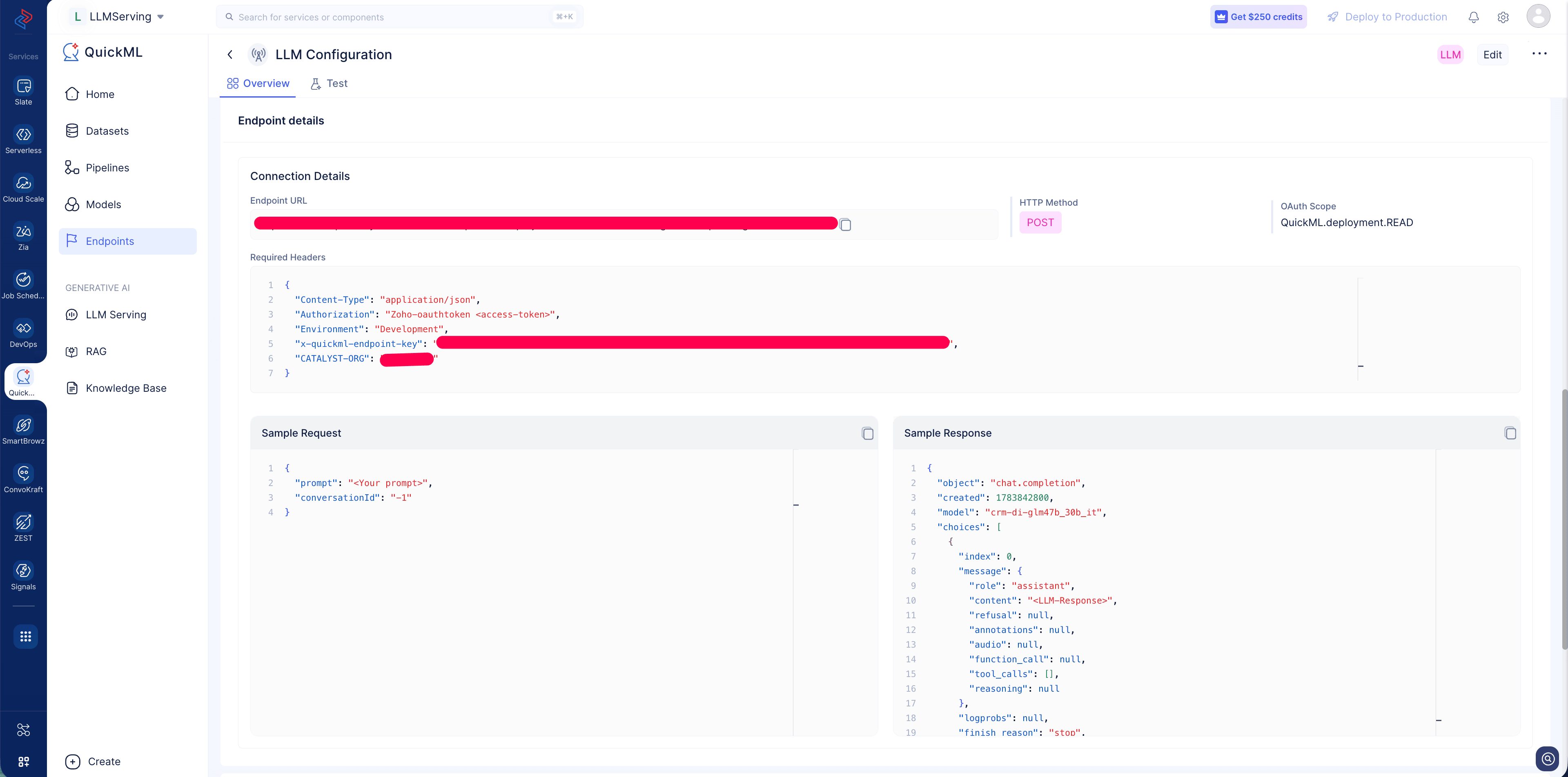
Create an endpoint for your Saved LLM configuration and access the endpoint details page to view the Endpoint URL, required headers and a sample request response.
Last Updated 2026-09-09 16:31:45 +0530 IST
Yes
No
Send your feedback to us
 Ask ChatGPT
 Ask Claude
 Ask Perplexity