Upload the Dataset
Let’s begin by uploading the dataset in Catalyst QuickML using the available dataset connectors .
-
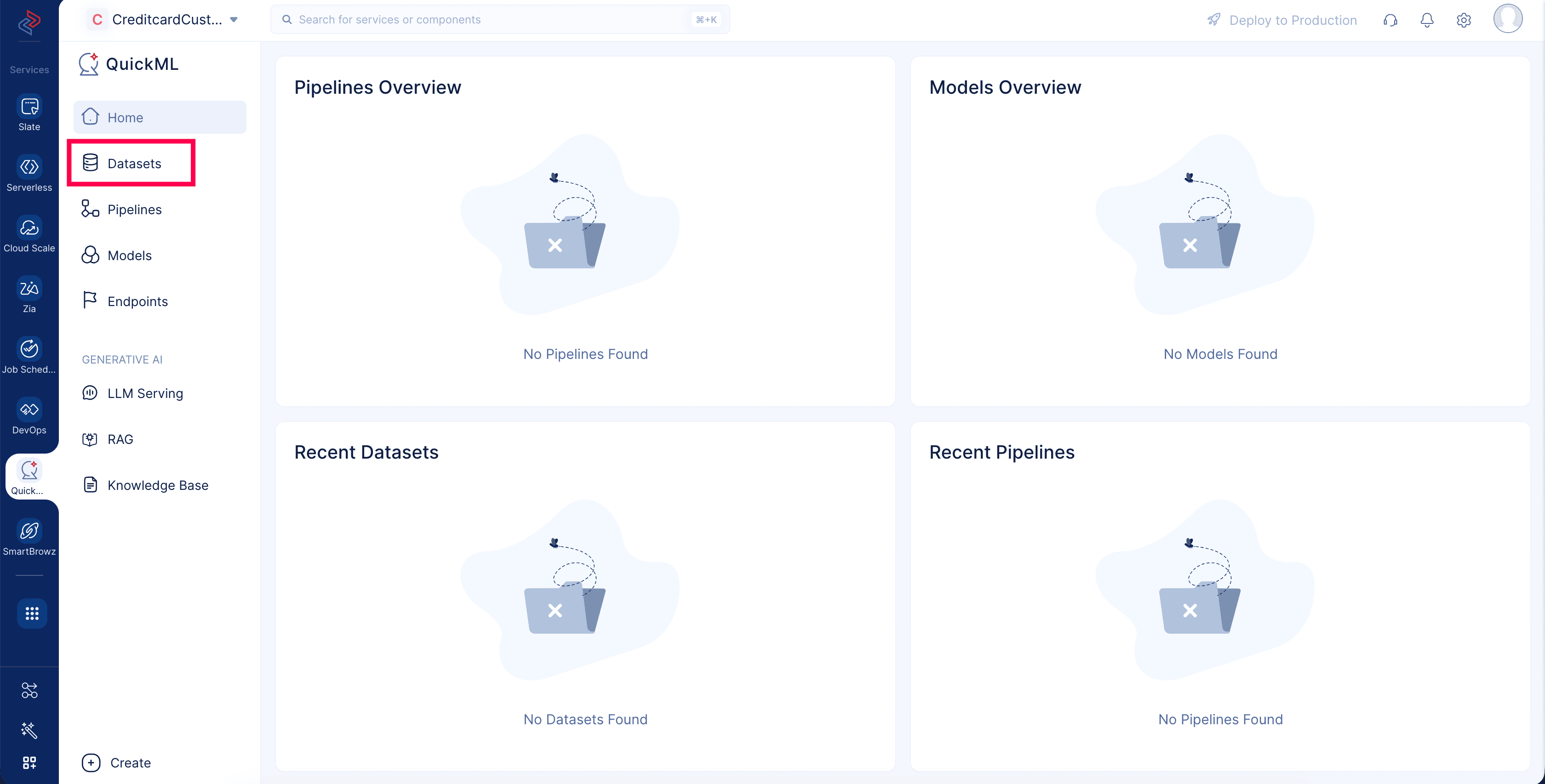
Click Datasets to get started .
-
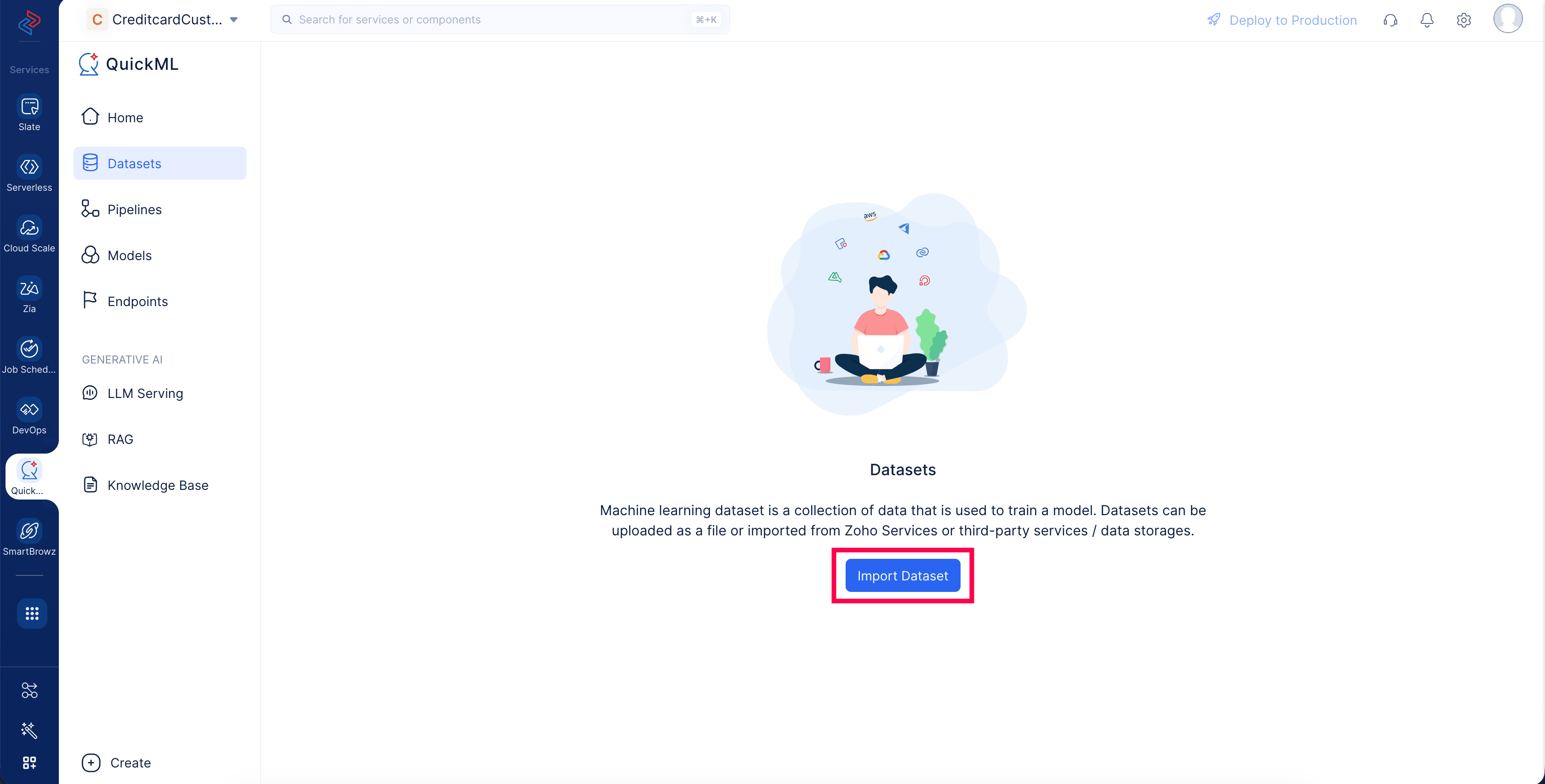
Click Import Dataset . A pop-up will be displayed.
-
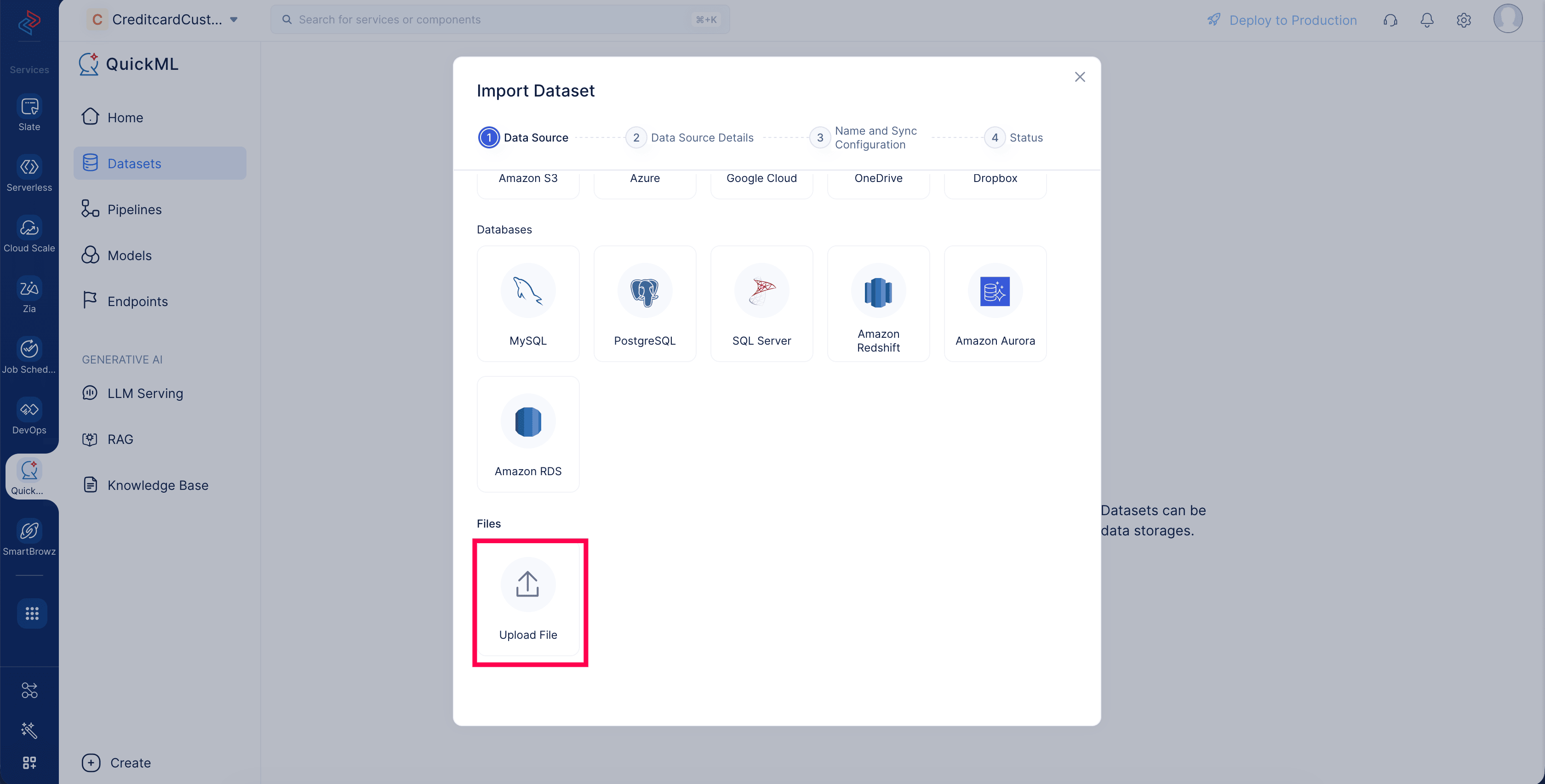
We have the dataset downloaded locally, so , in the Import Dataset window , navigate to Files and click Upload File .
-
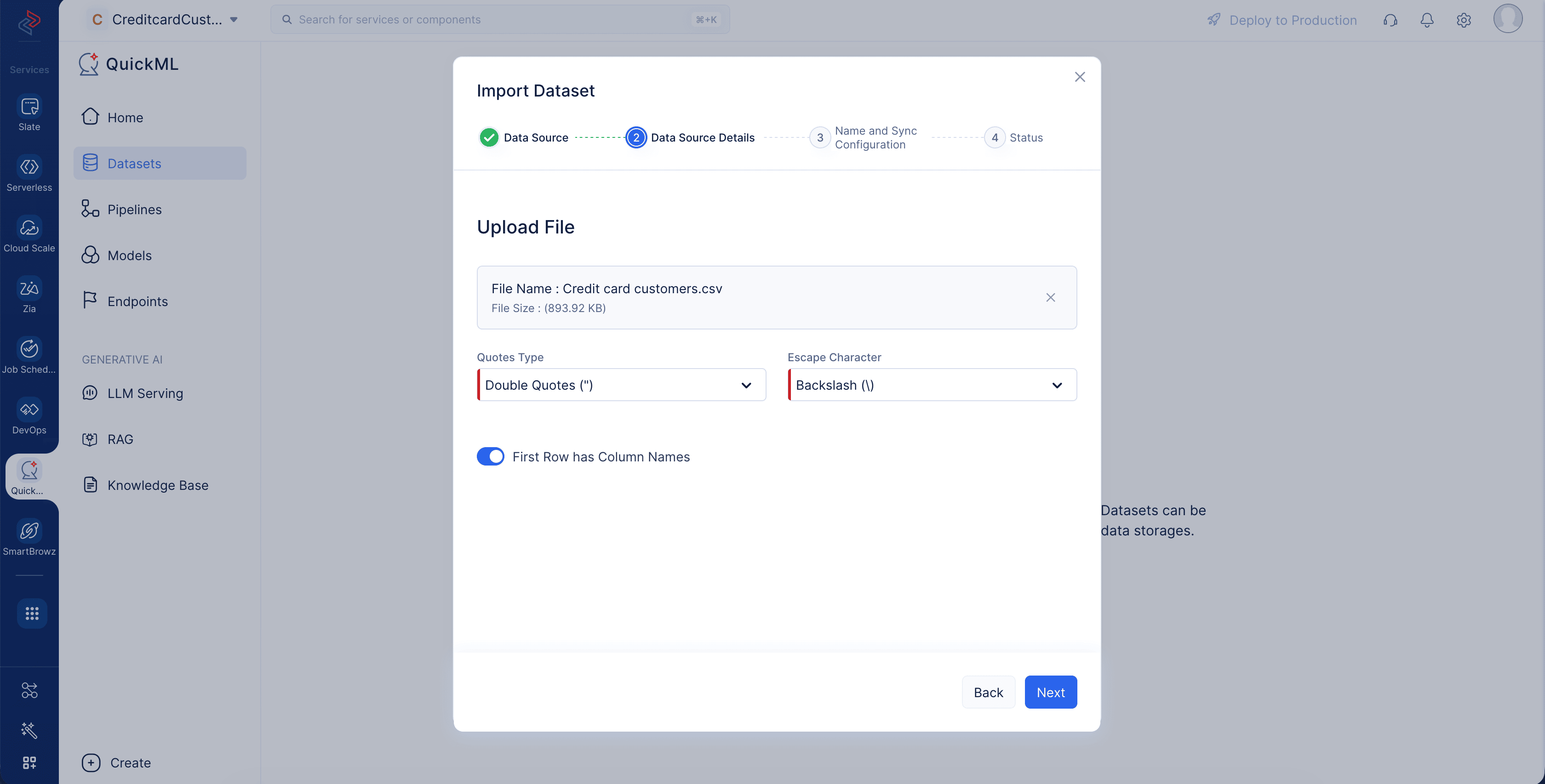
Upload the Credit card customers dataset that you have downloaded already.
-
Set the Quotes Type as Double Quotes (") and Escape Character as Backslash (\), and click Next .
-
The name of the dataset will be auto-populated based on the name of the uploaded file. Edit it if required, and click Upload .
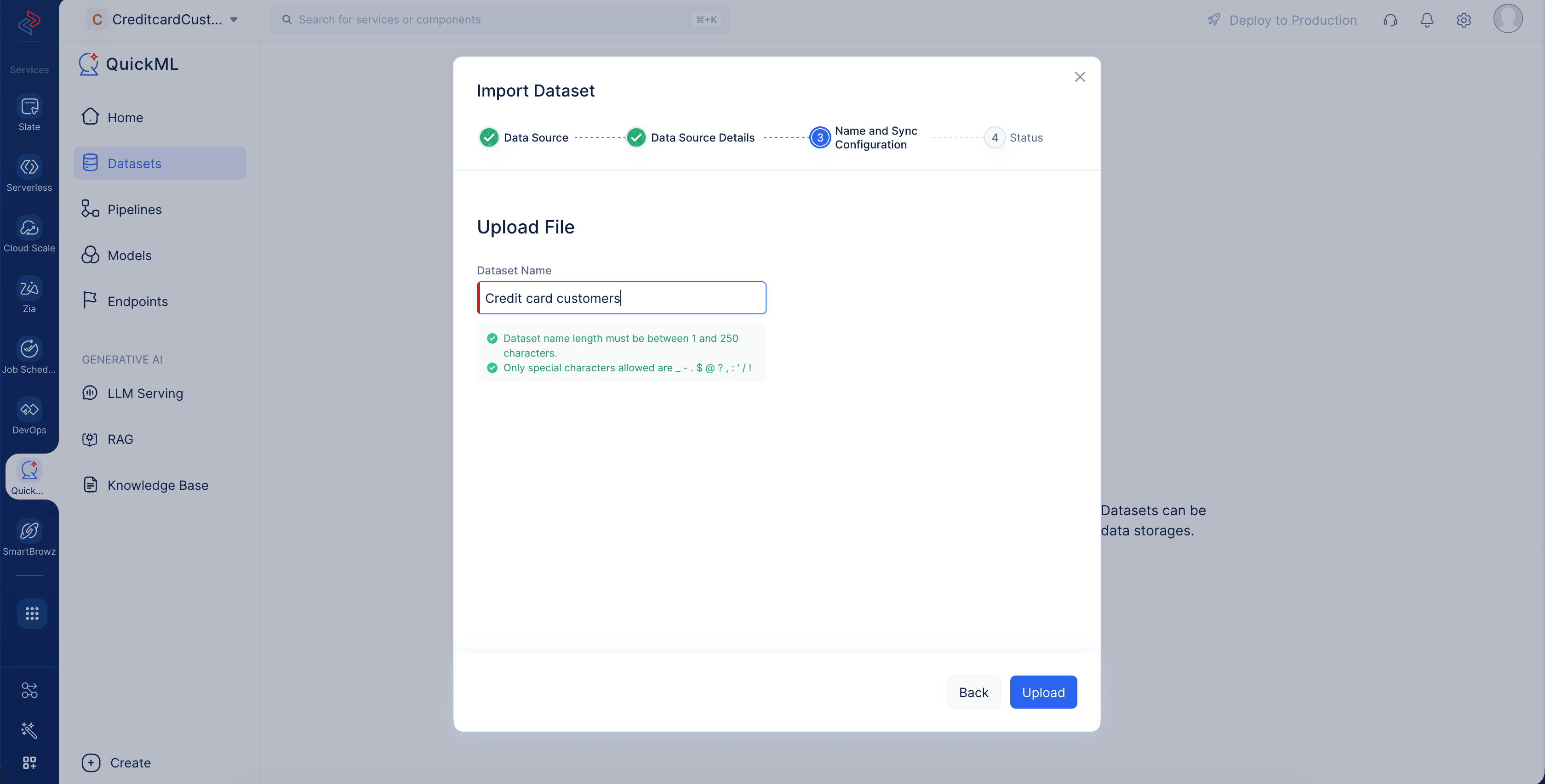
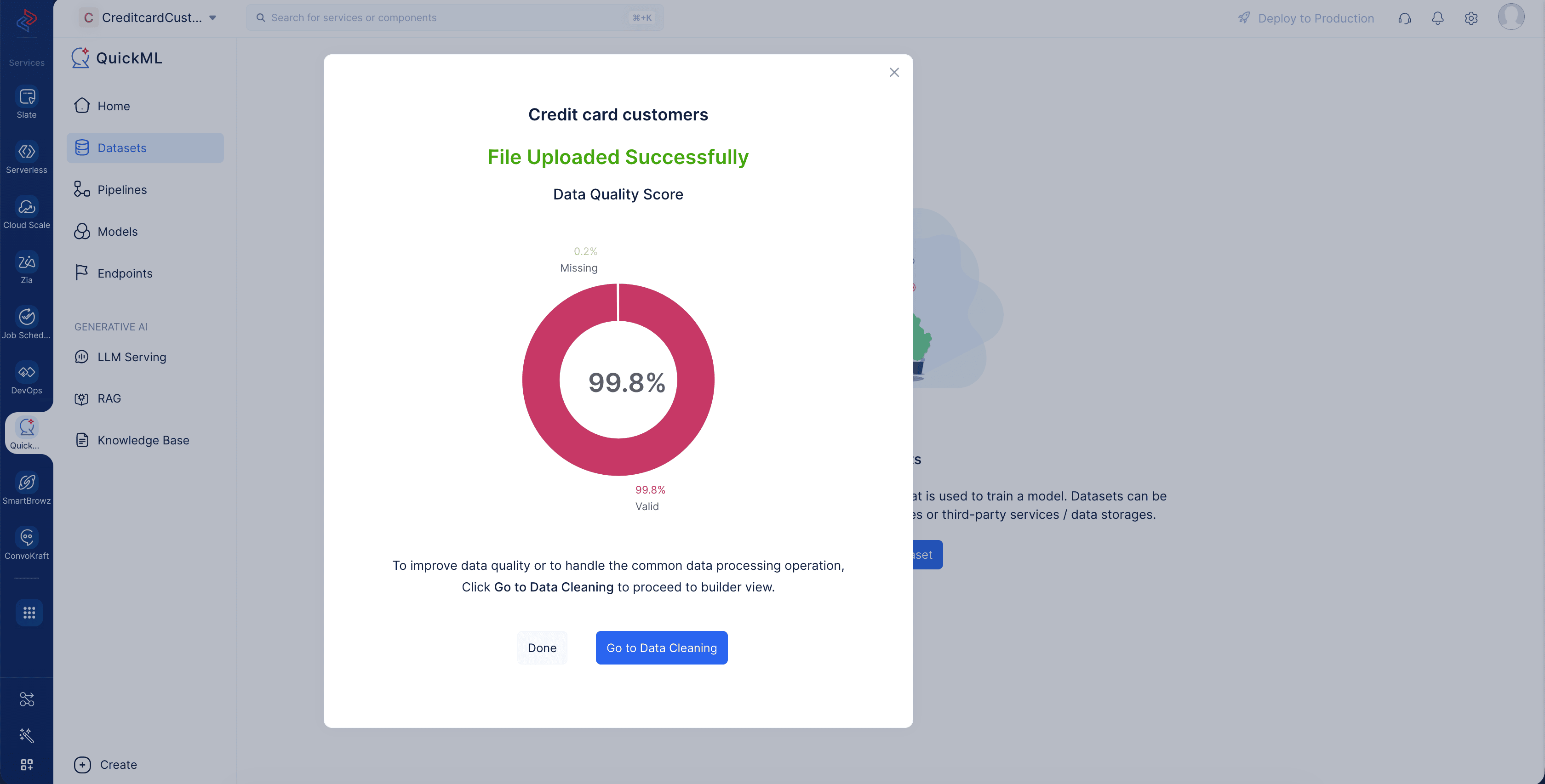 Note: The dataset contains missing values, and these gaps can affect the overall quality score . The score will improve once we address this during the pre processing configuration step in the tutorial.
The dataset will be displayed in the All Datasets section. You can click on a dataset name to view its details .
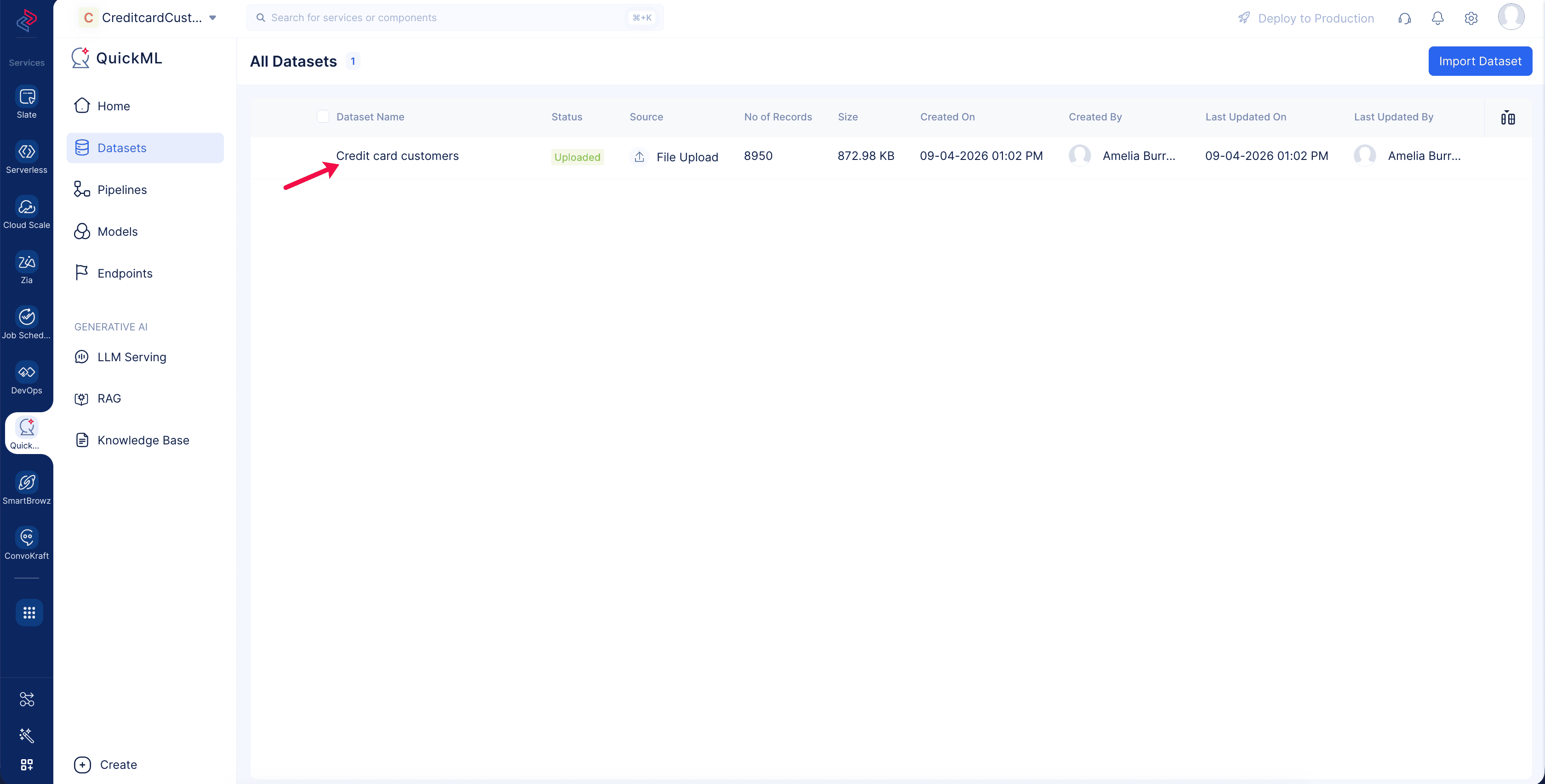
Click on the Credit card customers dataset in the list . You’ll be redirected to the Dataset Details page.
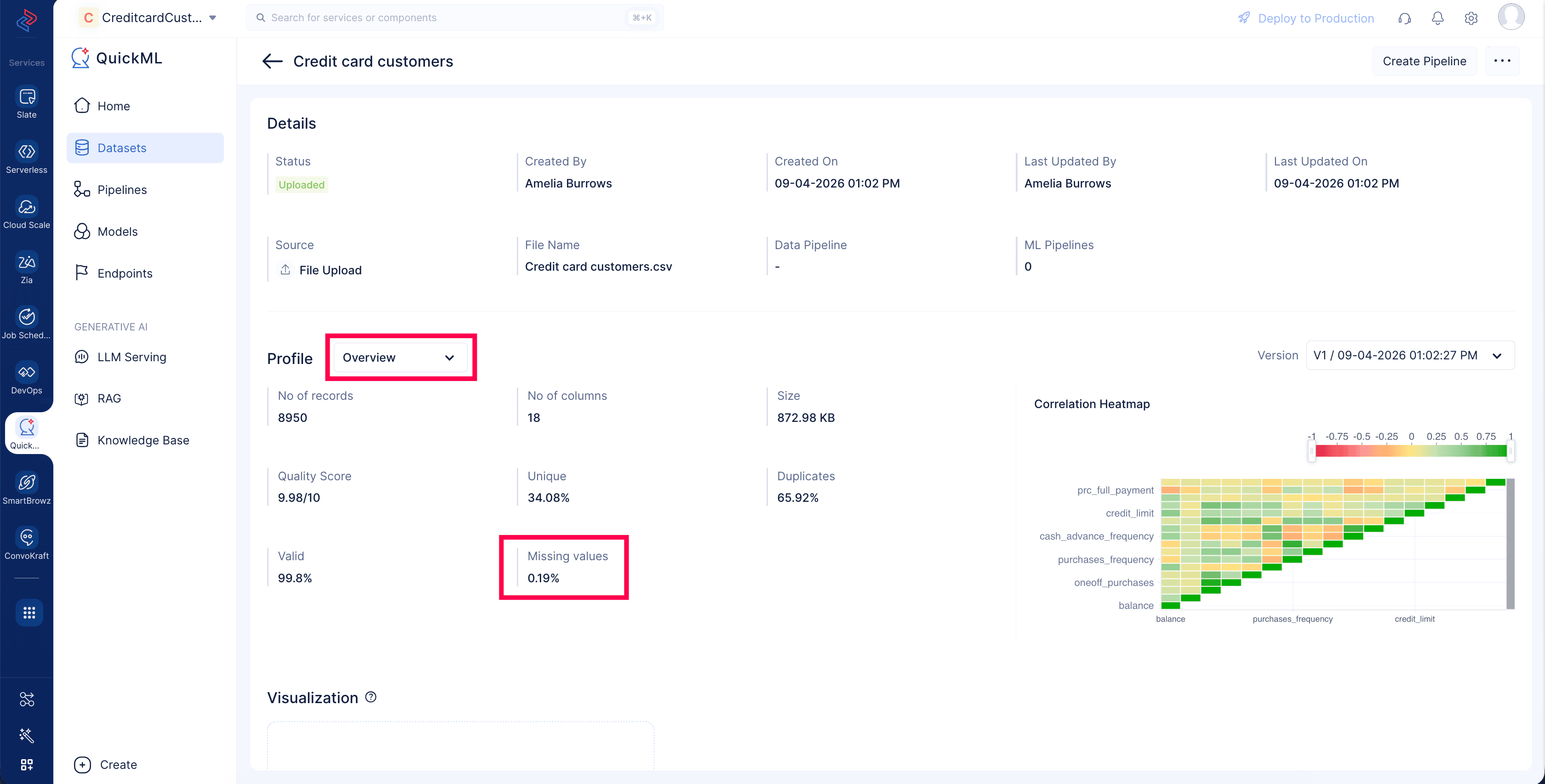
The dataset’s Statistical profile overview, sample preview , and visualization chart are shown below.
-
Click to the Overview drop-down button and select the minimum_payments column.
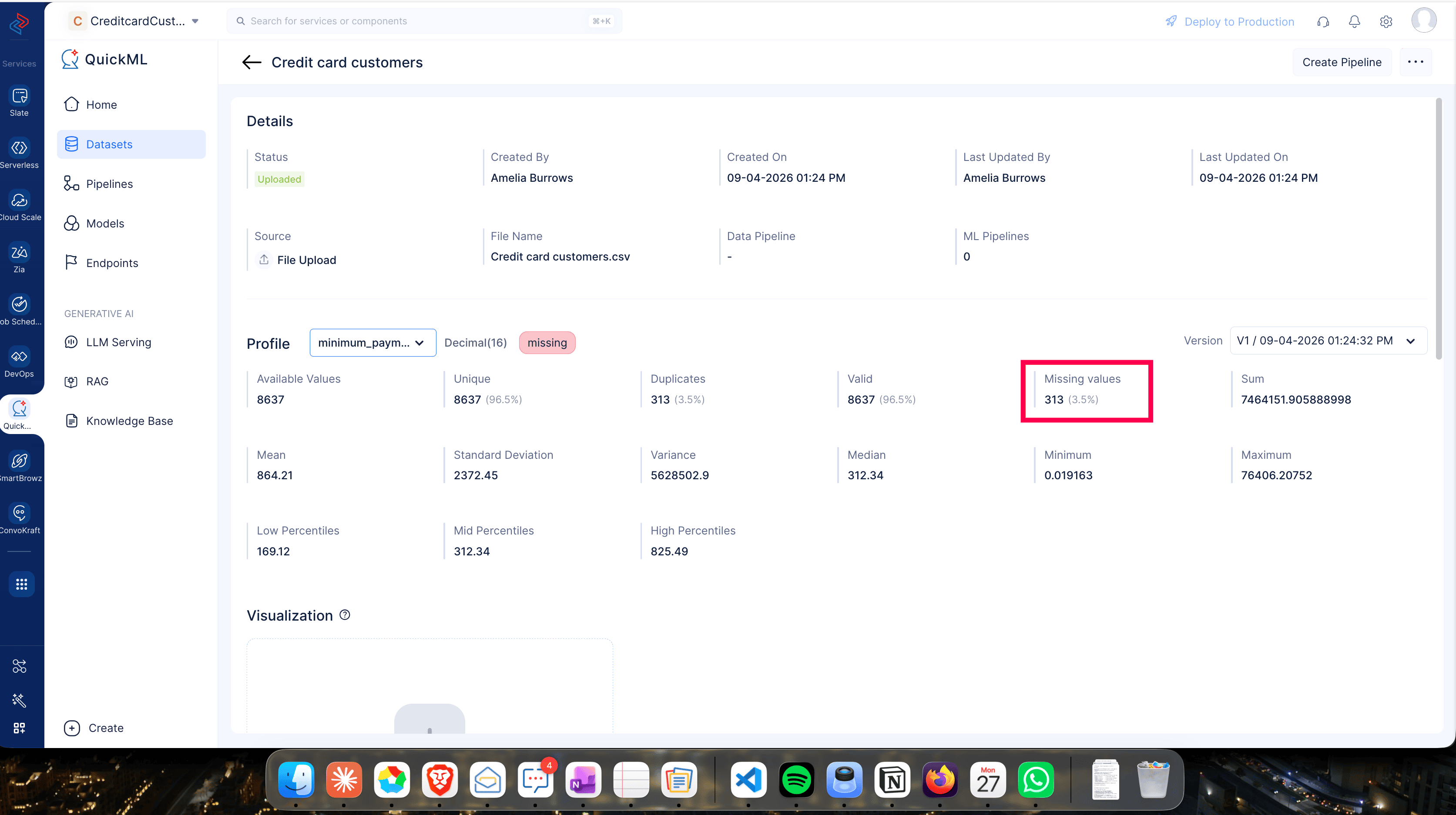
In the minimum_payments column (313 missing values out of 8,637 available). These will be handled in the preprocessing stage.
Last Updated 2026-08-20 12:42:54 +0530 IST