Pipeline Configuration
To build any ML model, the pipeline should involve data cleaning, preprocessing stages , and choosing the right model .
1. Fill columns
From the dataset profile generated during the upload stage, it’s clear that there are missing values in the dataset , and they need to be handled .
The fill columns stage is used in the pipeline to fill in cells that are empty or null.
We’ll drag and drop the fill columns node by navigating to Data Cleaning then Fill Columns and connecting it to the source node.
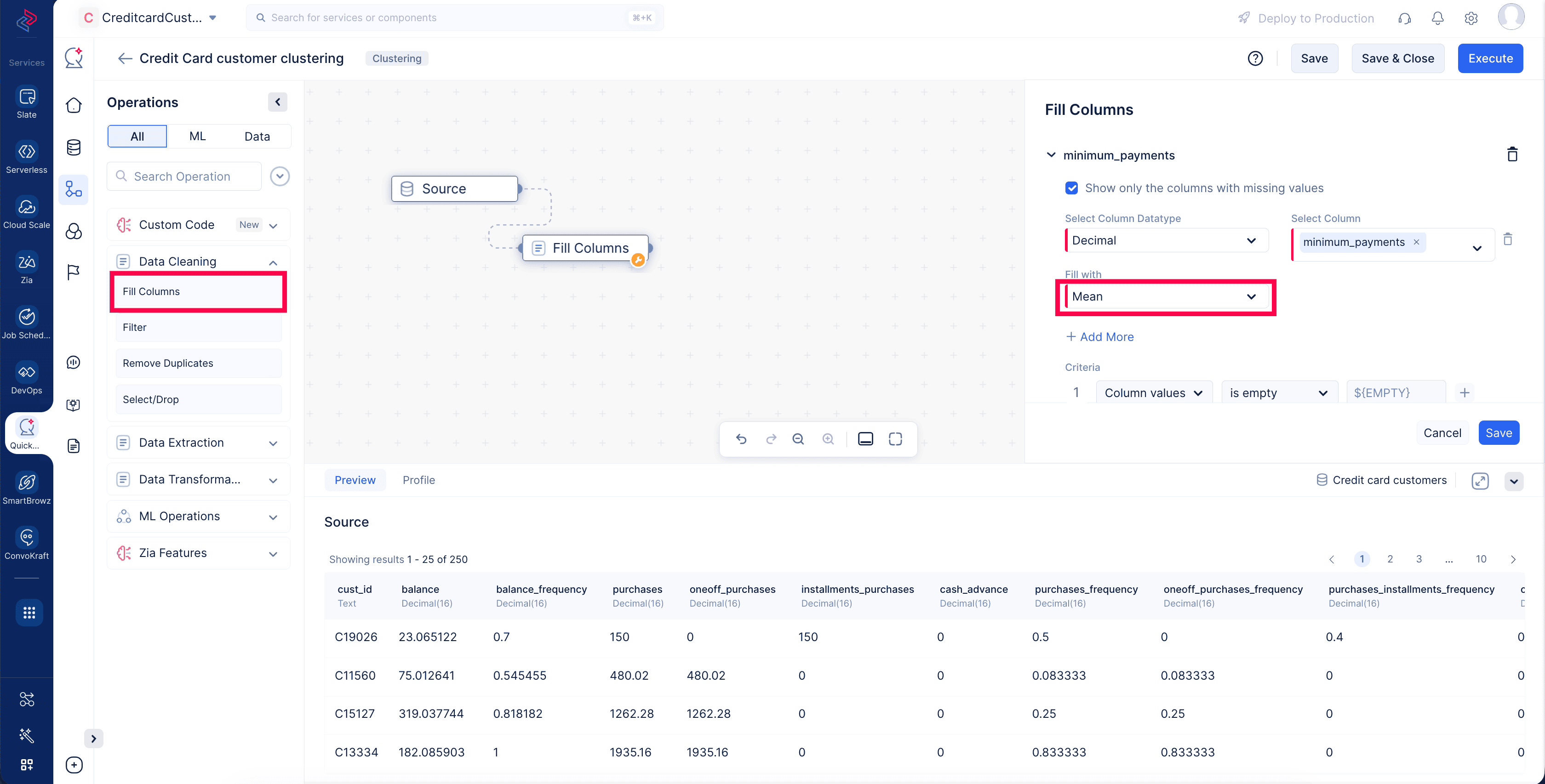
From the dataset profile page, we found the missing values in minimum_payments . In the fill columns configuration page, we’ll substitute them with Mean values. This will update missing values with the column mean.
Click Save to save the pipeline.
2. Select/Drop
Now we have to drop the cust_id column, since ID columns aren’t useful during the clustering model training process.
We’ll drag and drop the Select/Drop node by navigating to Data Cleaning and Select/Drop in the pipeline builder. Connect it to the previous node to open the node configuration panel.
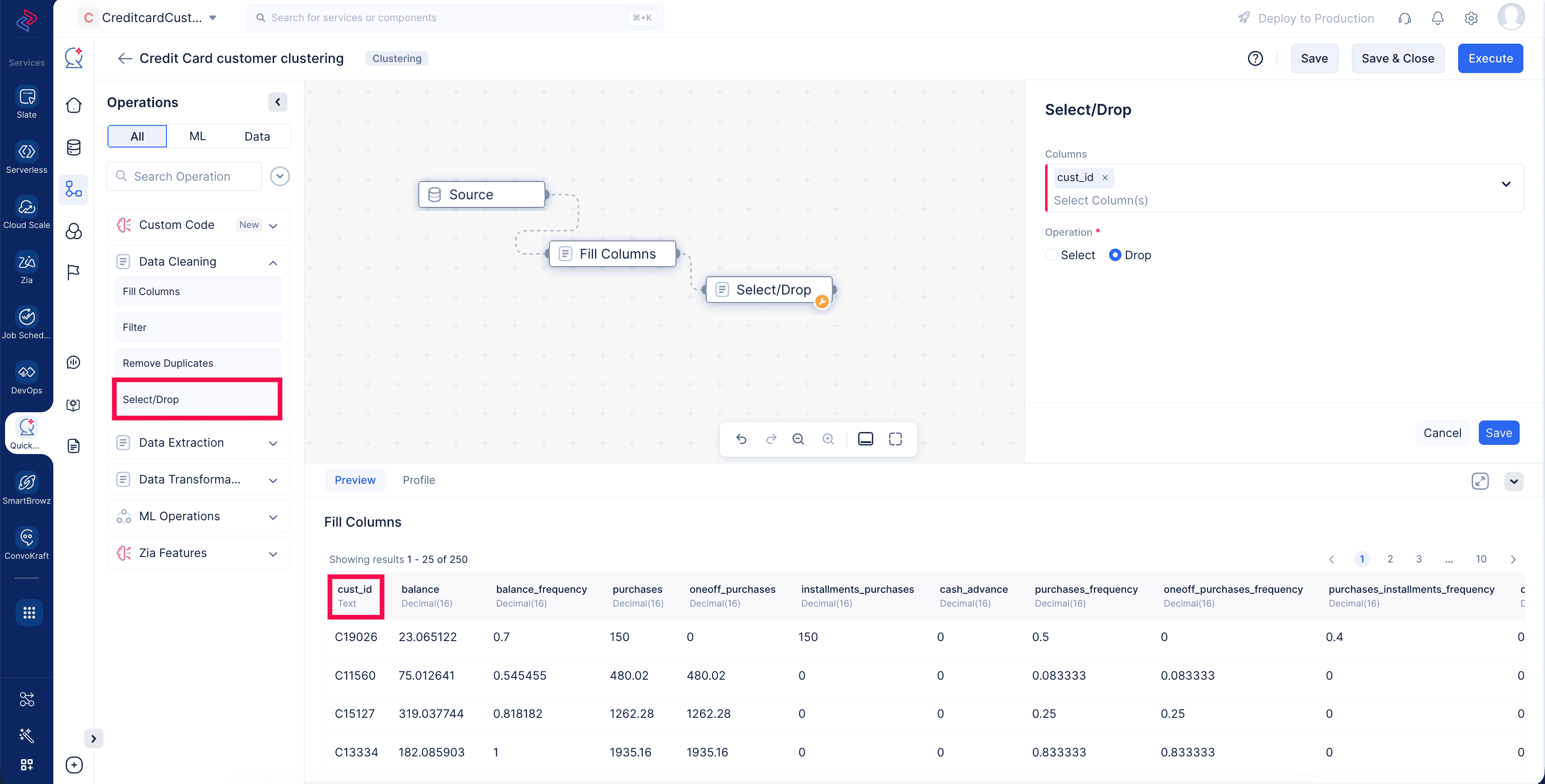
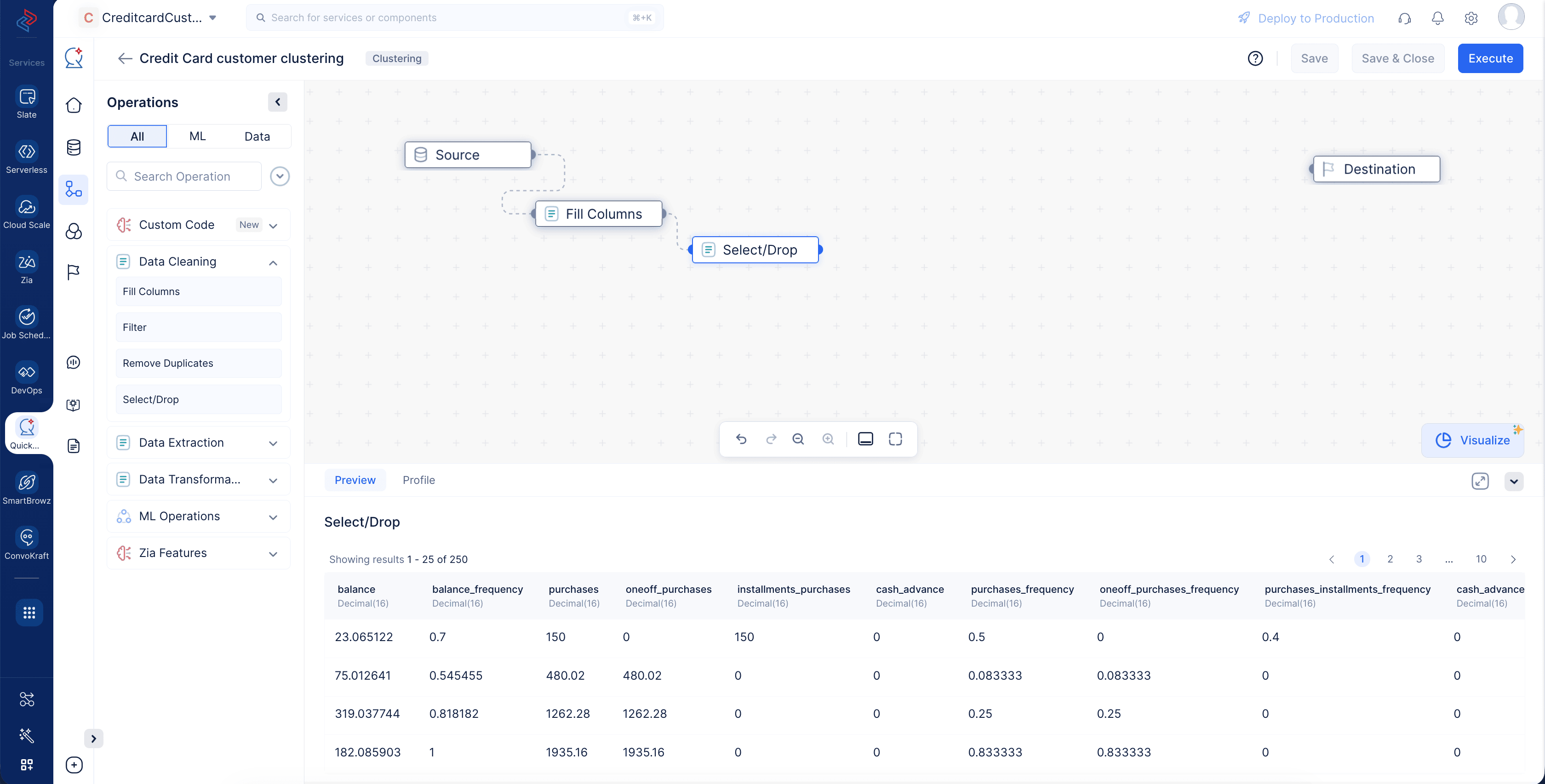
Choose cust_id in the columns dropdown as shown above, select drop as the operation to execute , and click Save to save the stage. The selected column has been dropped from the training dataset , which you can see in the preview section.
3. Mean normalization
Now we have the full training dataset ready with the required columns and without any missing values. Check the value ranges from all the columns : each column has values across various ranges. We’ll use the normalization technique to bring all the data to a common scale.
Learn more about normalization in our documentation .
This keeps the model’s training process from getting dominated by data with a higher magnitude. For our case, we’ll use mean normalization.
Let’s drag and drop the Mean Normalisation node by navigating to ML Operations, Normalisation, and Mean Normalisation in the pipeline builder.
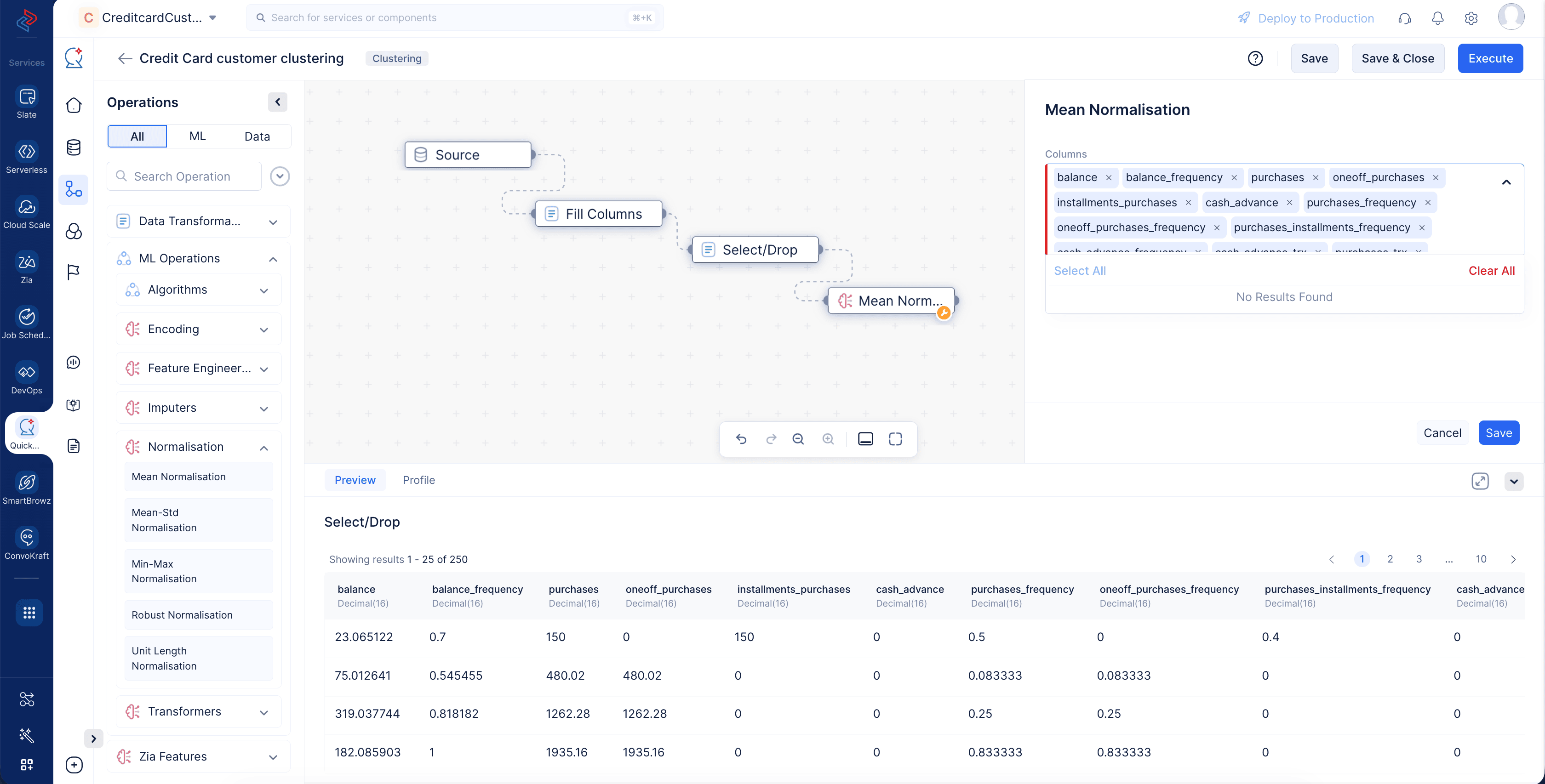
Connect the node to the previous stage to open the configuration panel. Select all the available columns using the Select all button and click Save .
With this, the preprocessing of the dataset is completed, and the dataset is ready.
4. K-means algorithm
The final step in the pipeline building process is to select the appropriate algorithm, configure it with the required number of clusters, and execute it.
Let’s use the K-means algorithm. We’ll provide the number of clusters in the algorithm configuration panel, so the model must create only K clusters using our training dataset.
Let’s drag and drop the algorithm node by navigating to ML Operations , Algorithms, and KMeans in the pipeline builder.
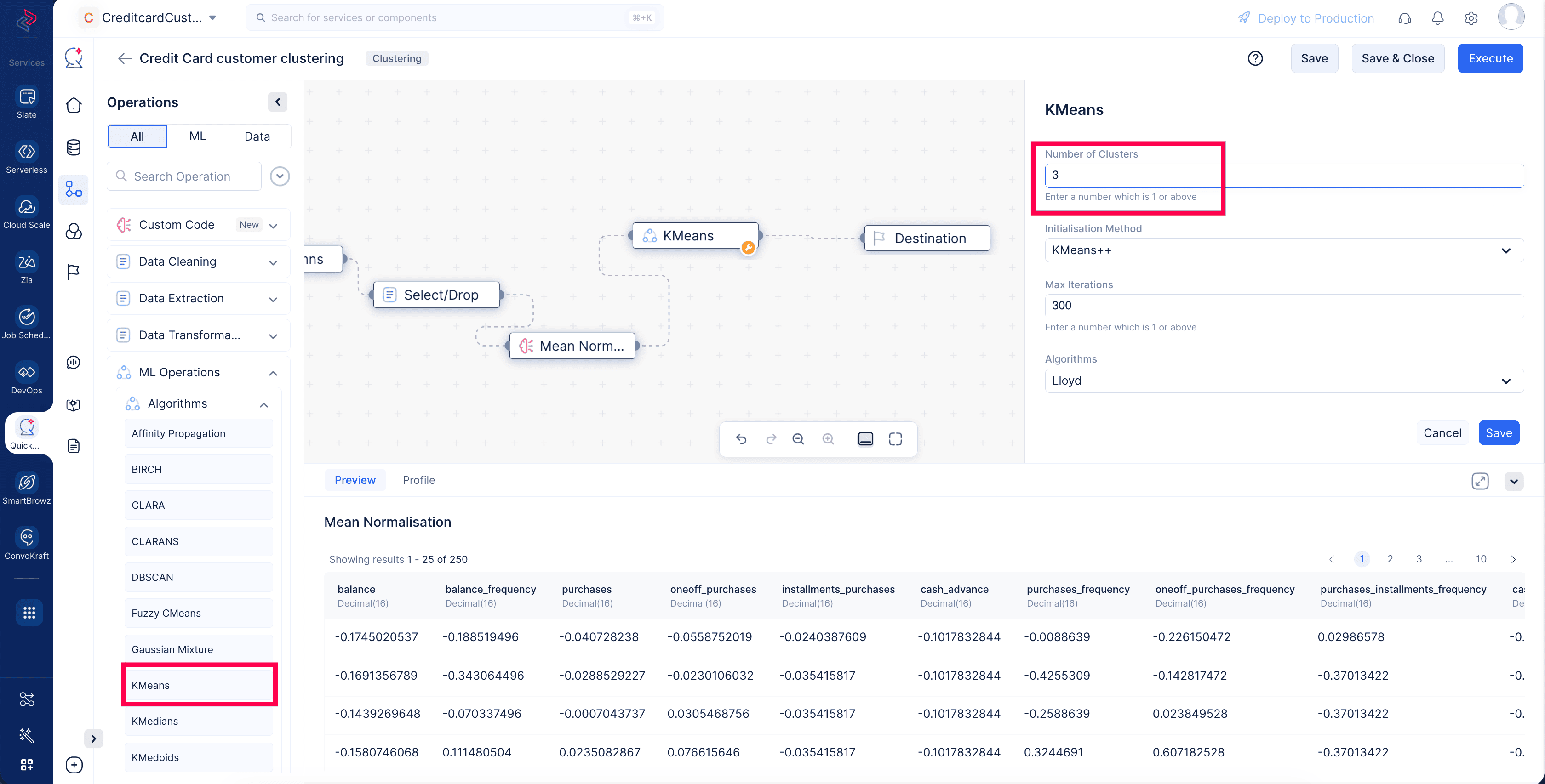
Connect it to the previous stage to open the configuration panel, and the other end will be automatically connected to destination. This finishes the pipeline building.
Update the Number of clusters parameter to 3 and click Save .
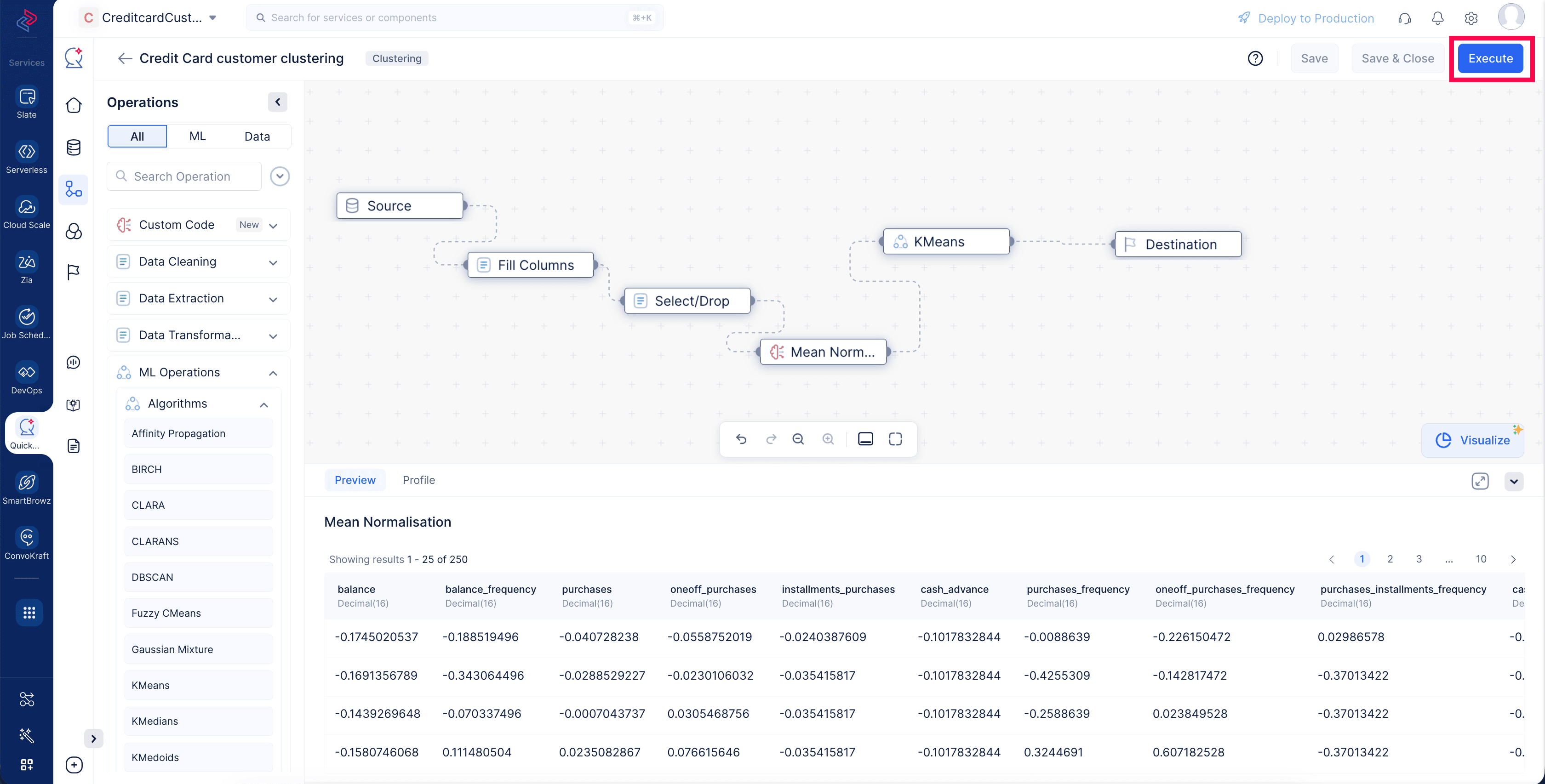
Now that the entire clustering pipeline is built and saved, click the Execute button at the top-right corner of the pipeline builder page to start executing the pipeline.
This will redirect you to the pipeline details page shown below, which provides details about the executed pipeline with execution status.
You can see that the pipeline execution is successful.
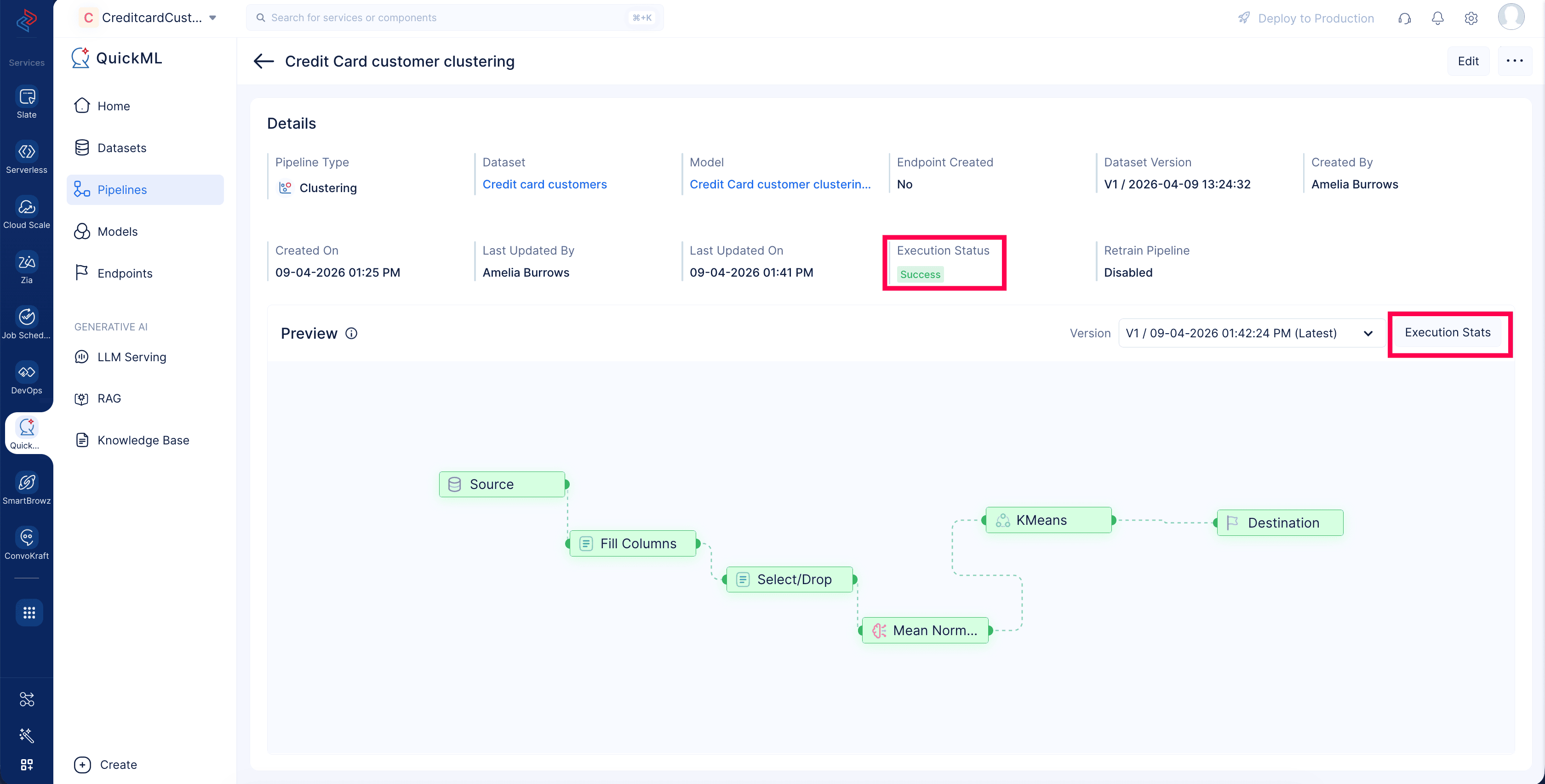
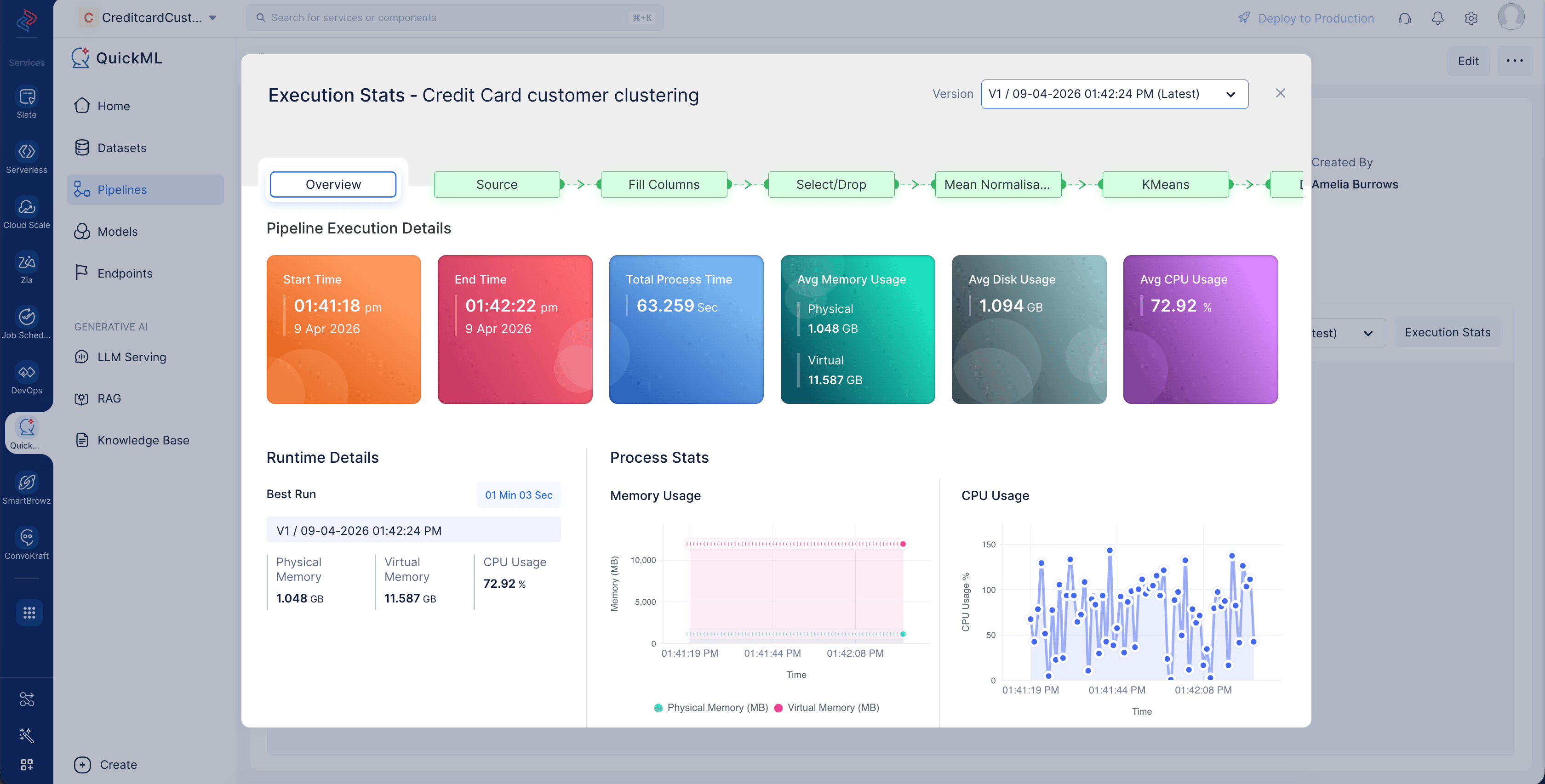
Click Execution Stats to view compute usage details about each stage of the model execution.
Now the model Credit Card customer clustering model is generated after training , and it’s ready for evaluation.
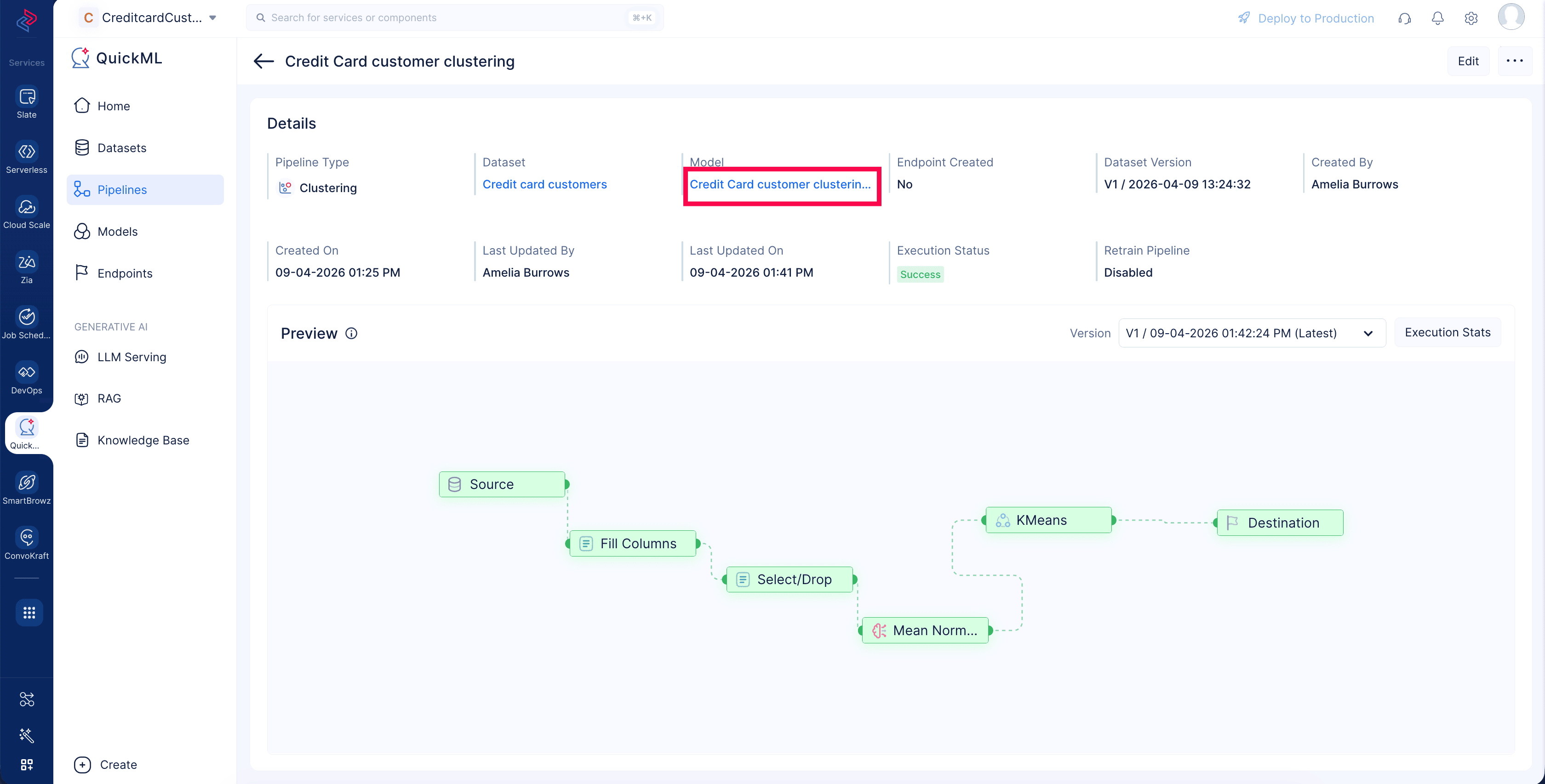
Click the model hyperlink Credit Card customer clustering model to open the model details page and see necessary information about model details, evaluation metrics, clustering visualizations , and versioning details.
Last Updated 2026-08-20 12:42:54 +0530 IST