Upload the Dataset
Begin by uploading the dataset in Catalyst QuickML using the available dataset connectors.
-
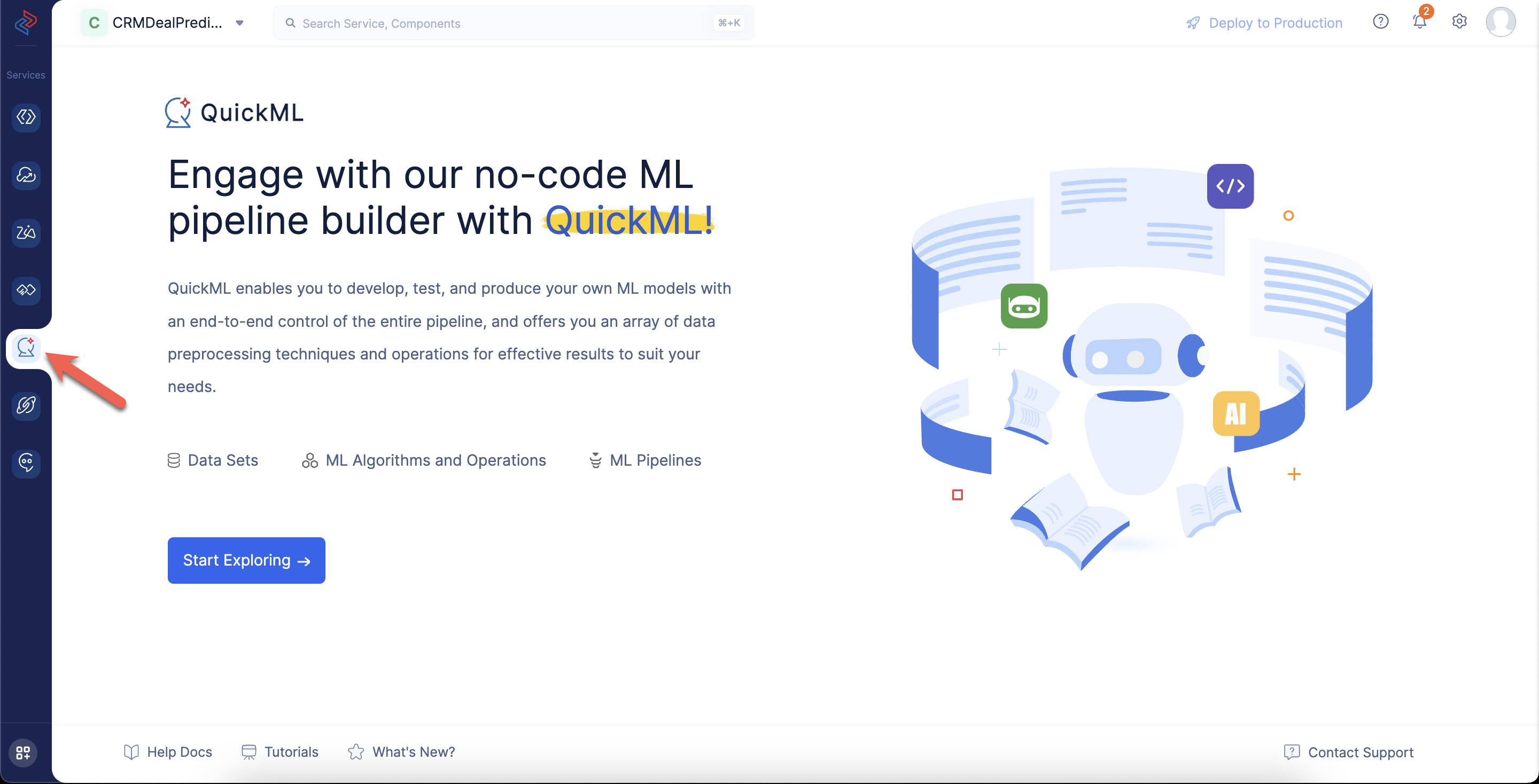
Navigate to the QuickML service in the Catalyst console and click Start Exploring.
-
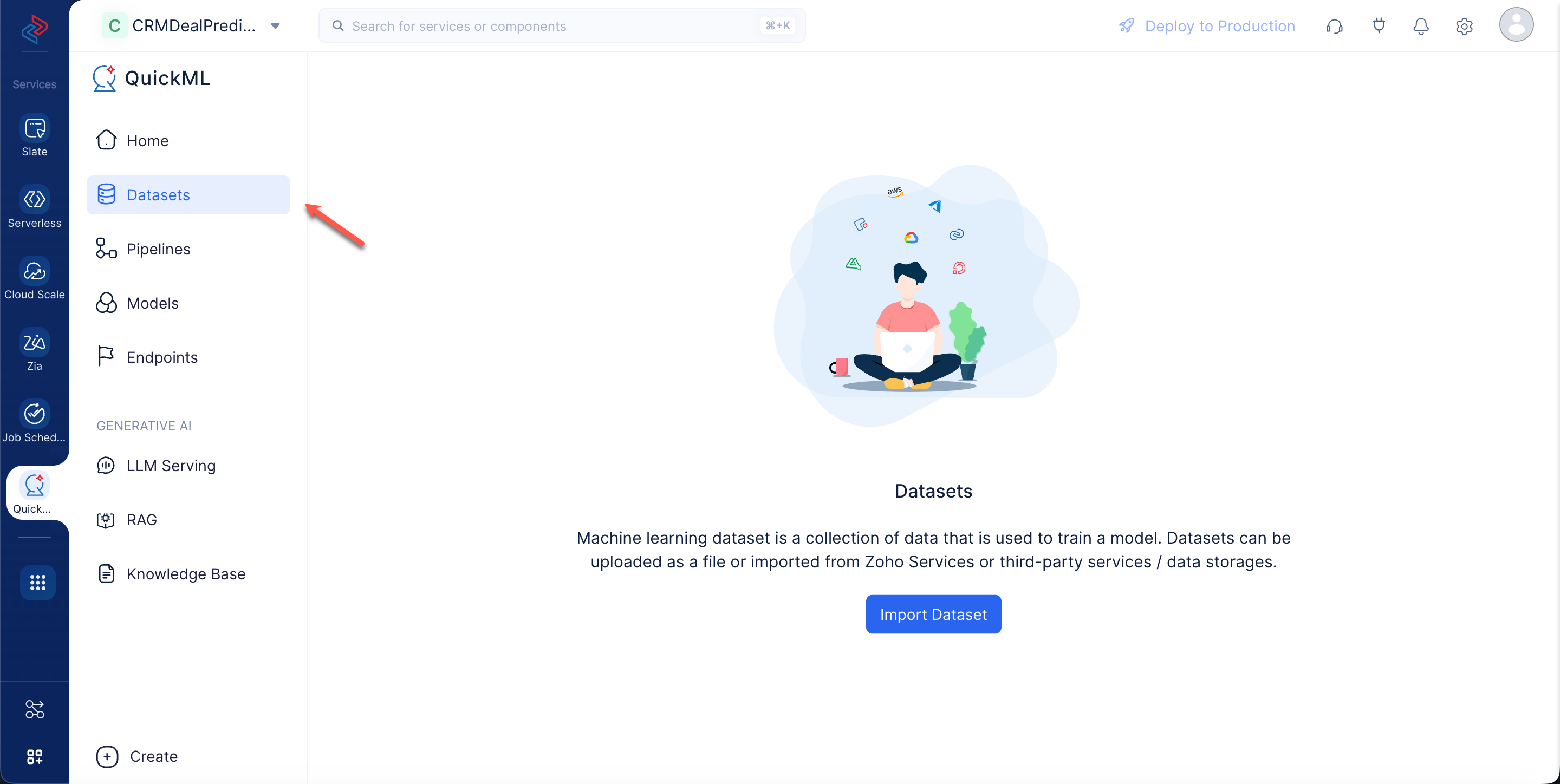
Navigate to the Datasets component and click Import Dataset. An Import Dataset pop-up will be displayed.
-
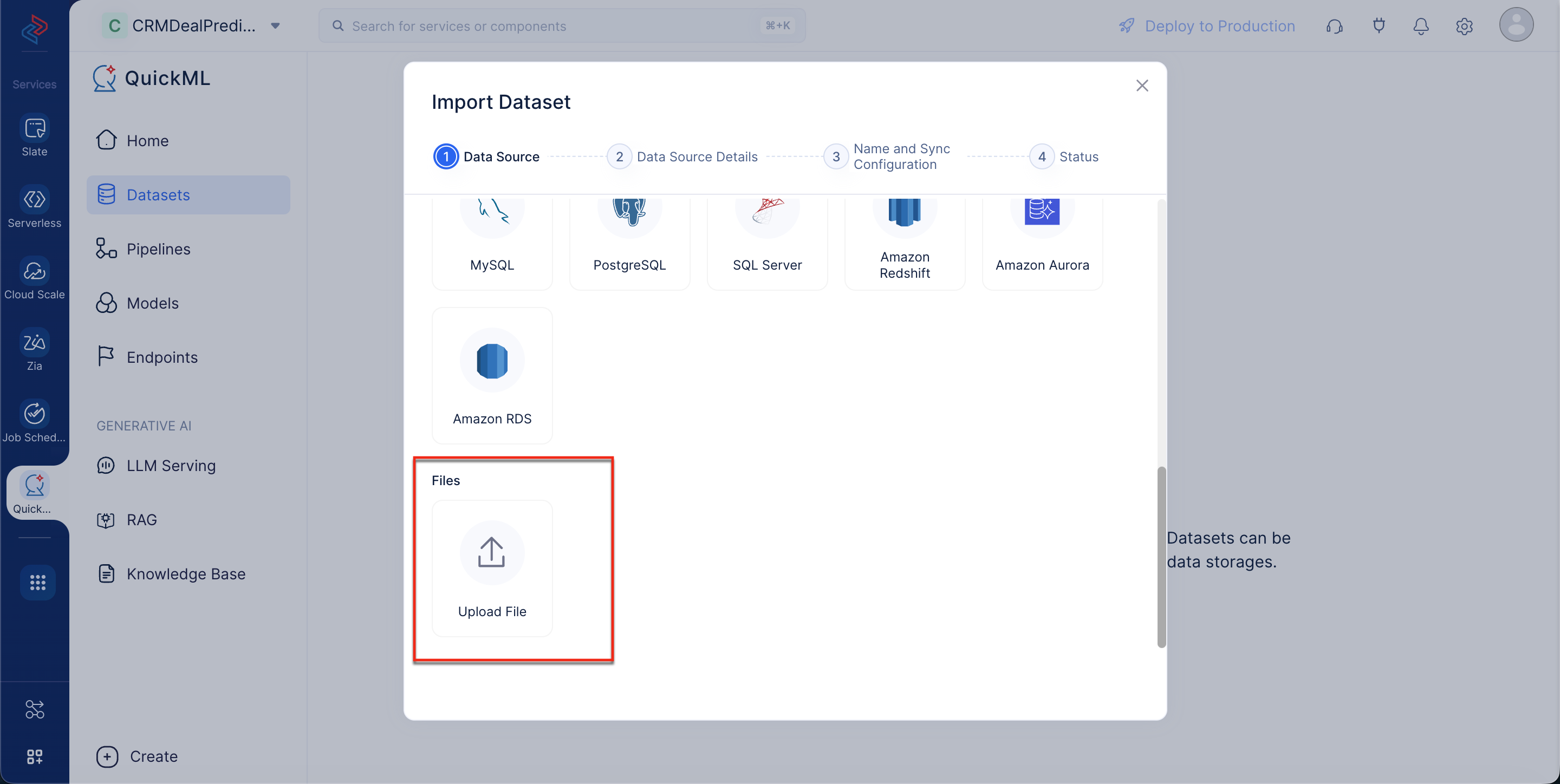
In the Import Dataset pop-up window, scroll down to Files and click Upload File.
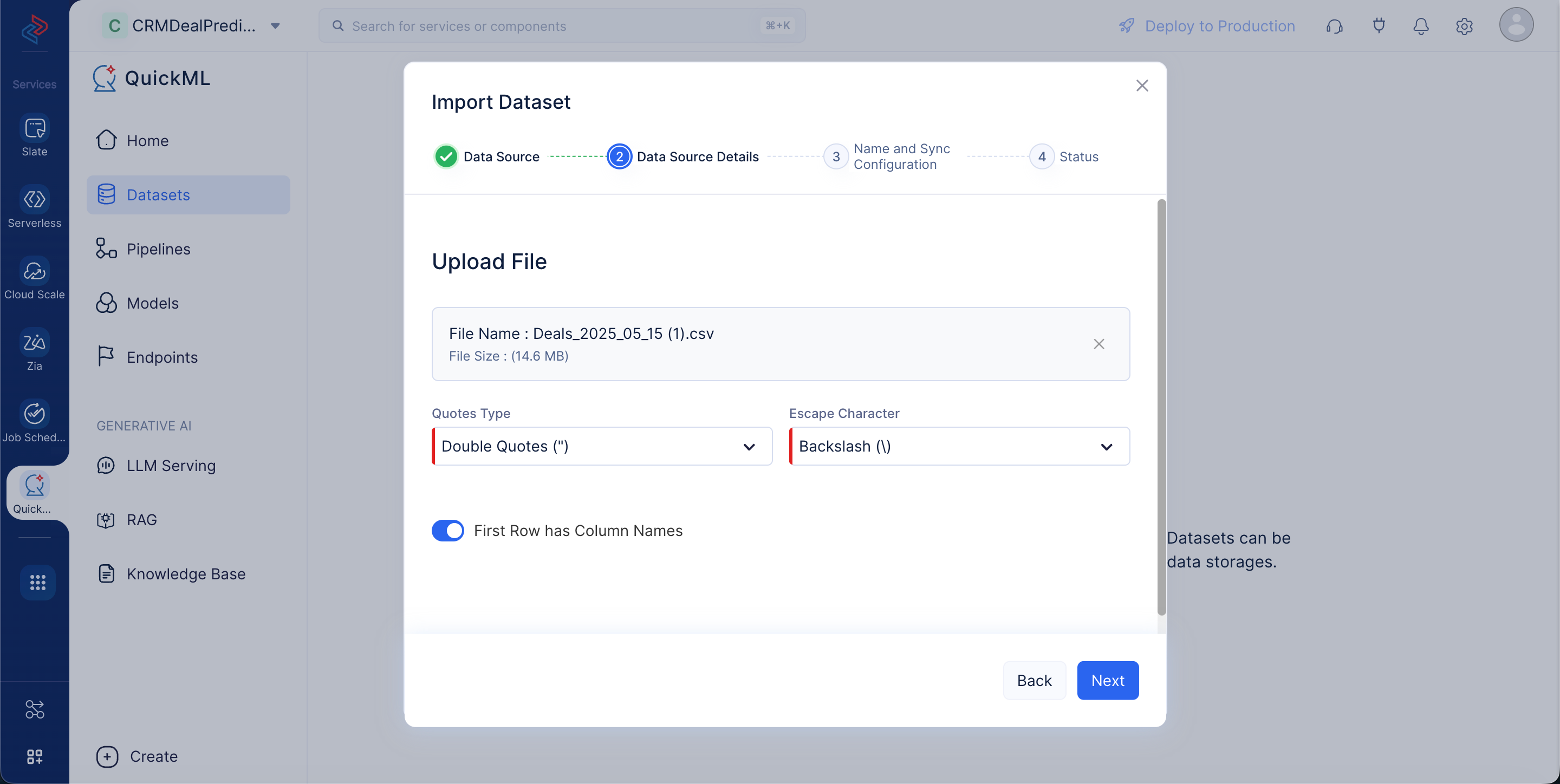
Upload the Zoho_CRM_Deal_Prediction_Sample dataset that you have downloaded already. Mention the Quotes Type as “Double Quotes (”)" and Escape Character as “Backslash ()” and click Next.
The name of the dataset will be auto-populated based on the uploaded file. You can edit it, if required, and click Upload.
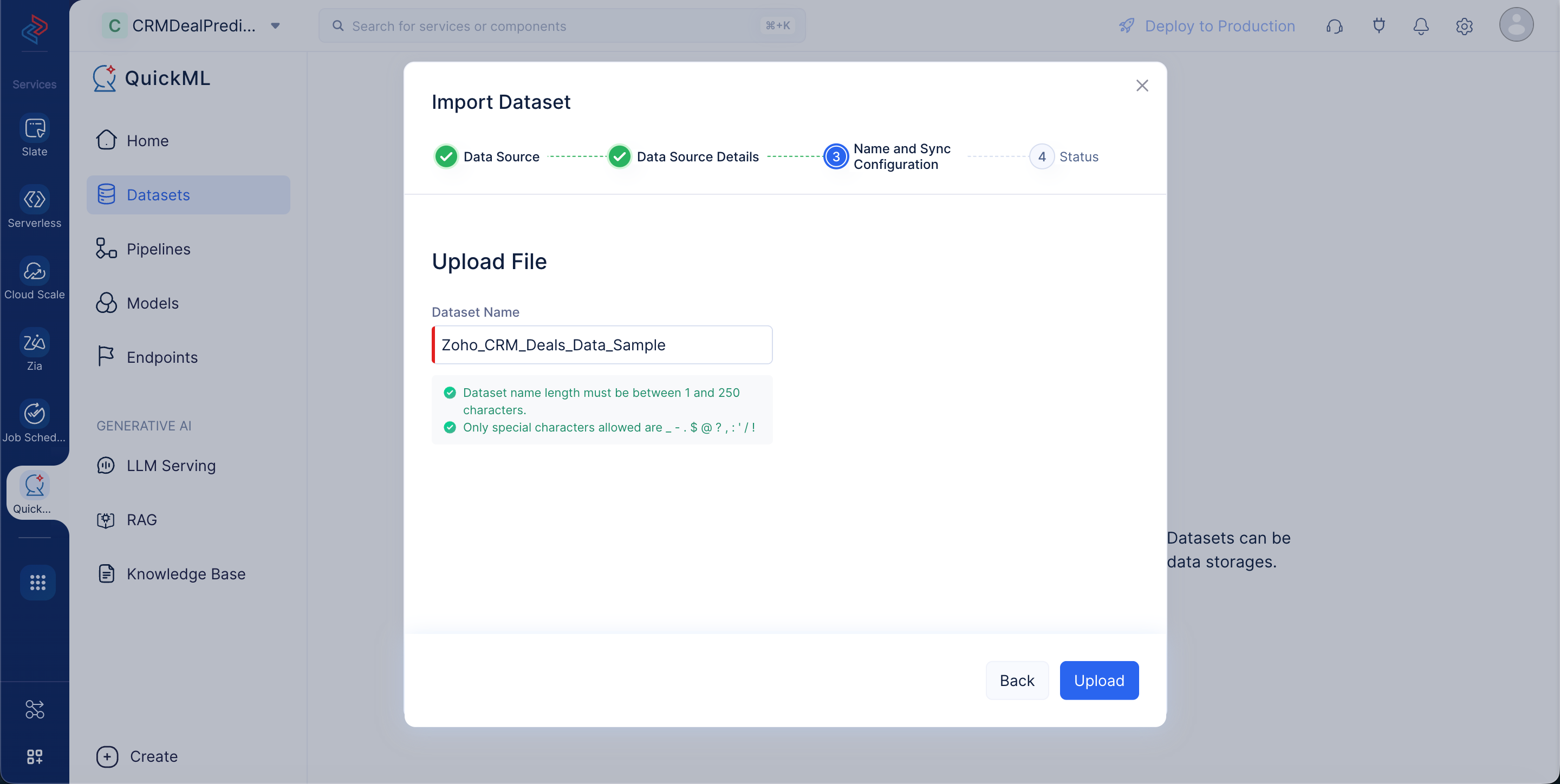
The dataset is now uploaded successfully.
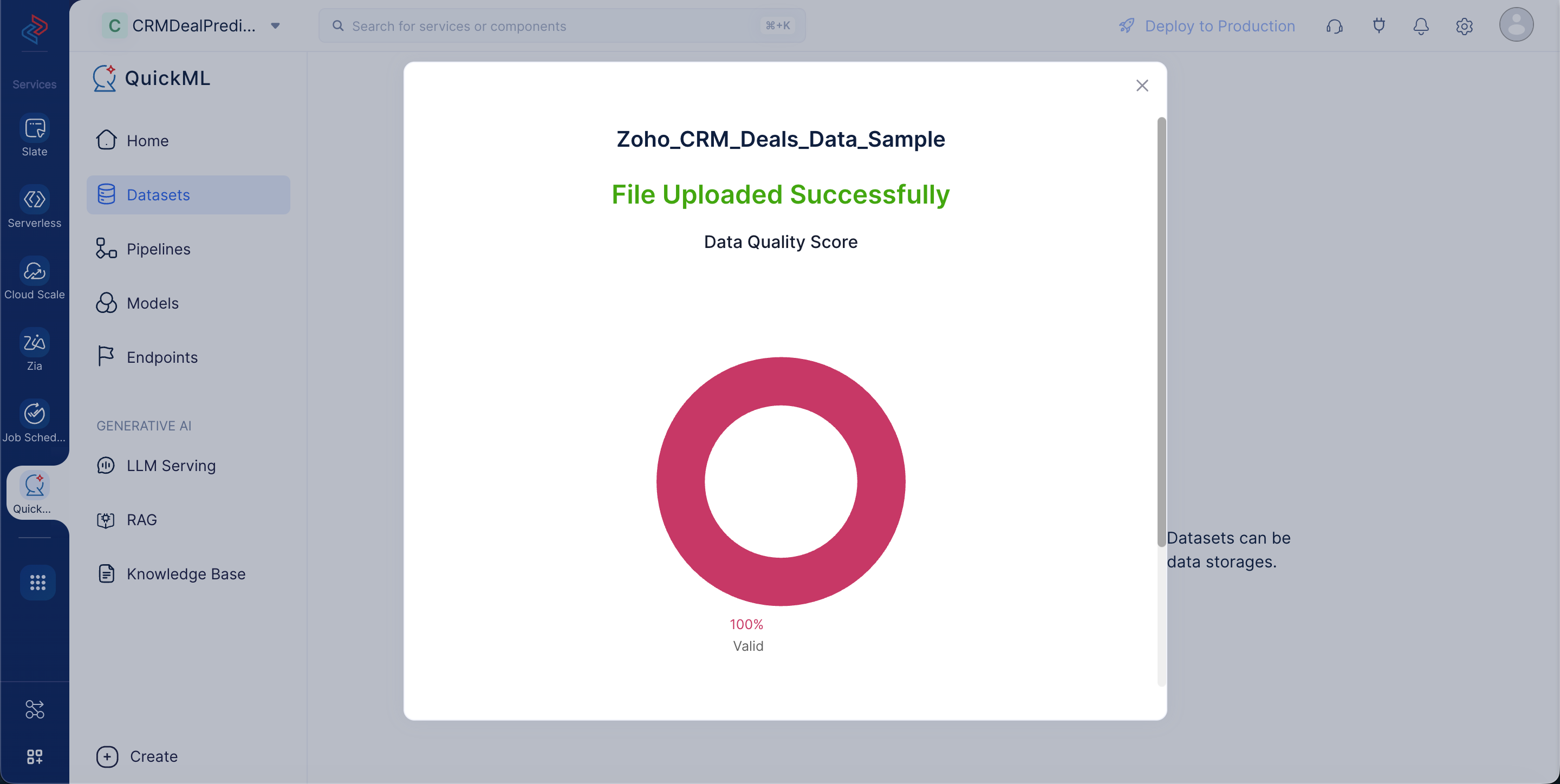
The dataset will be displayed in the All Datasets section. You can click on the dataset name to view the dataset’s details.
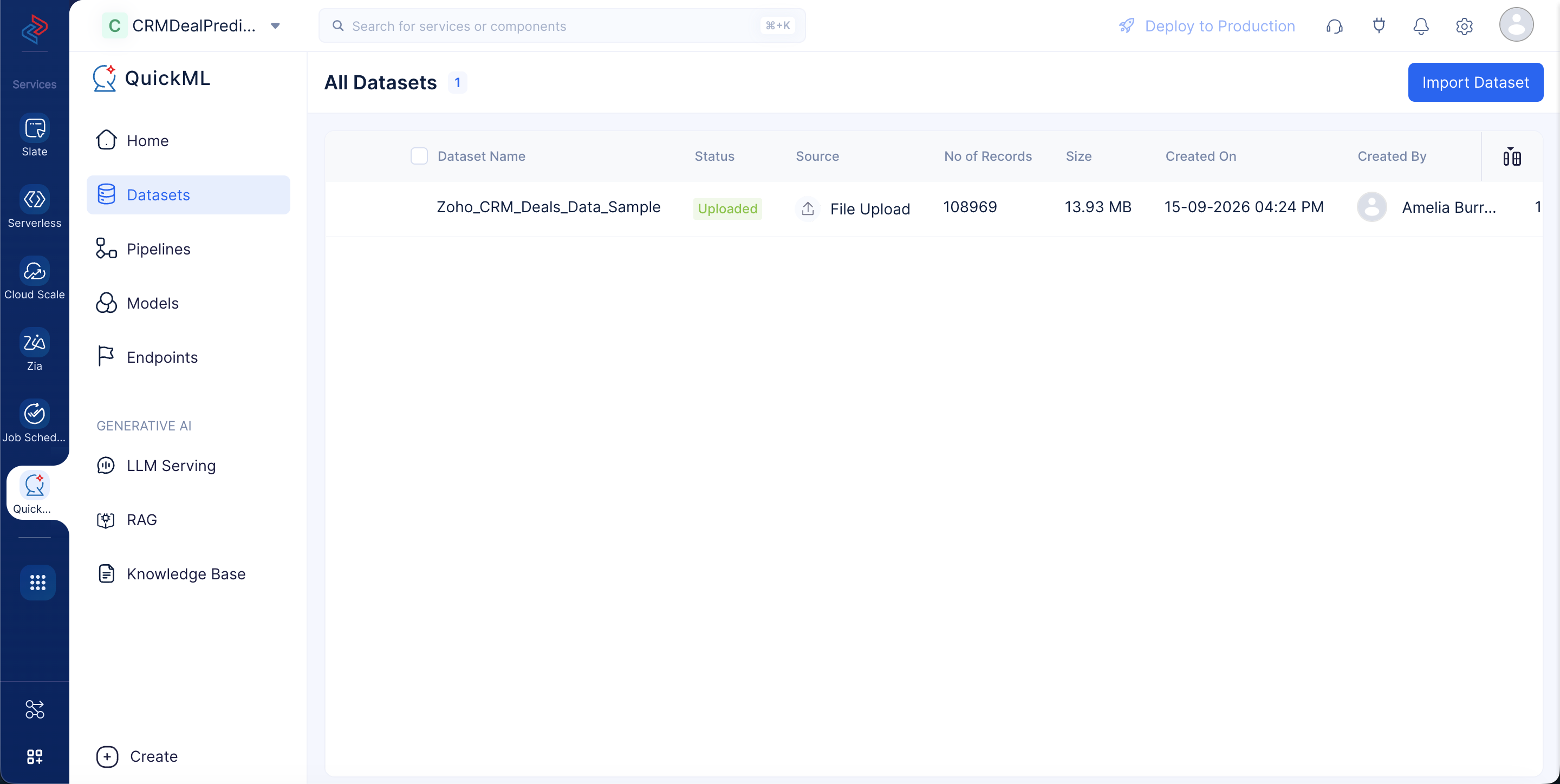
On the dataset Details page, you can view the profile, preview and visualization chart of the dataset.
The dataset’s details and its profile can be seen in the below screenshot.
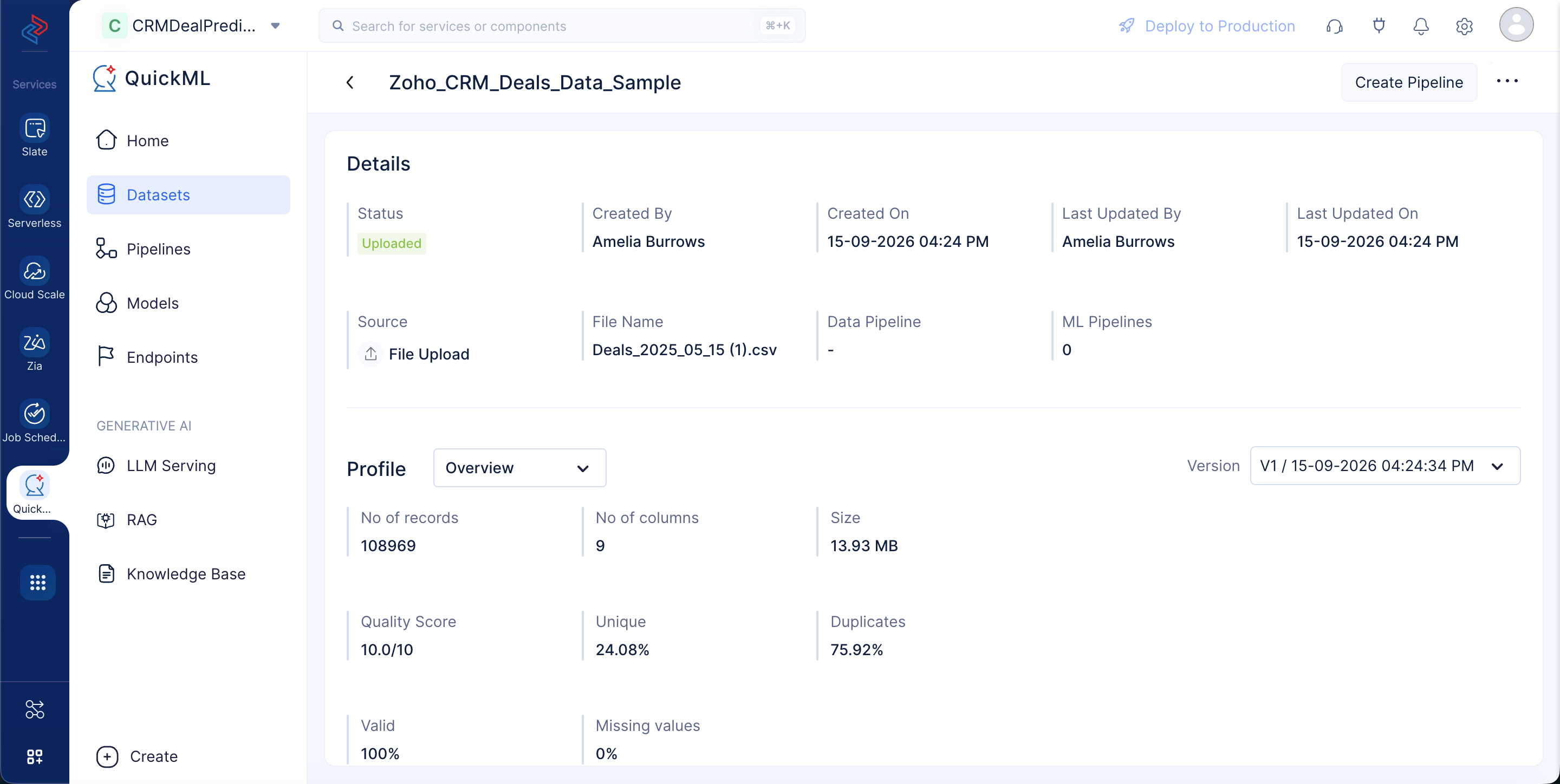
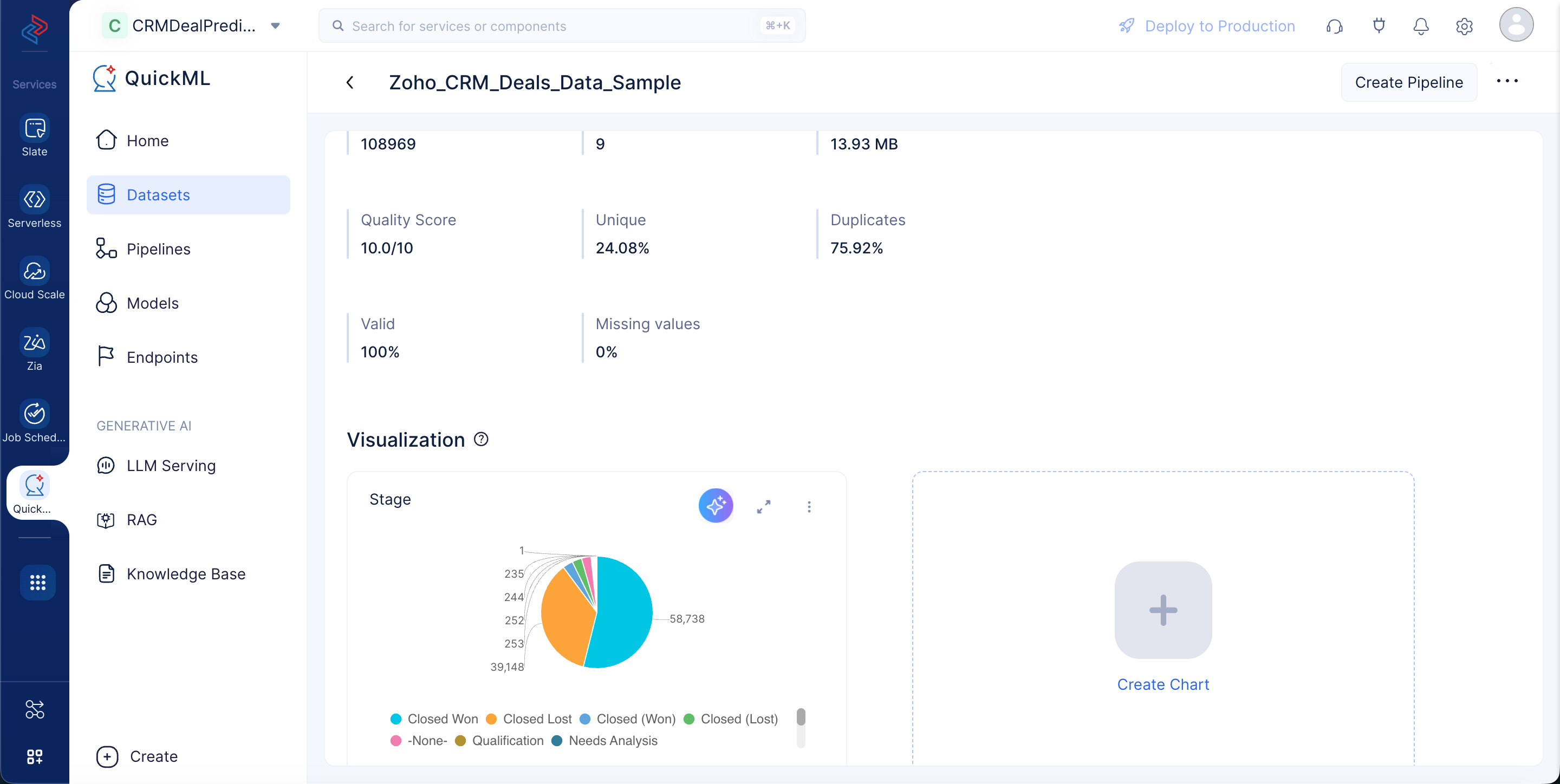
You can create a sample pie chart with stage as an X-axis. The data visualization with a sample pie chart and preview of the dataset can be seen below.
Last Updated 2026-10-01 12:33:46 +0530 IST