Create an ML pipeline
In this section, we will be building a prediction ML model using the preprocessed dataset from the previous section. This dataset will be the input to the ML pipeline builder, which enables you to define the model’s architecture and select a target column for prediction.
To create an ML pipeline, make sure to follow the steps below:
-
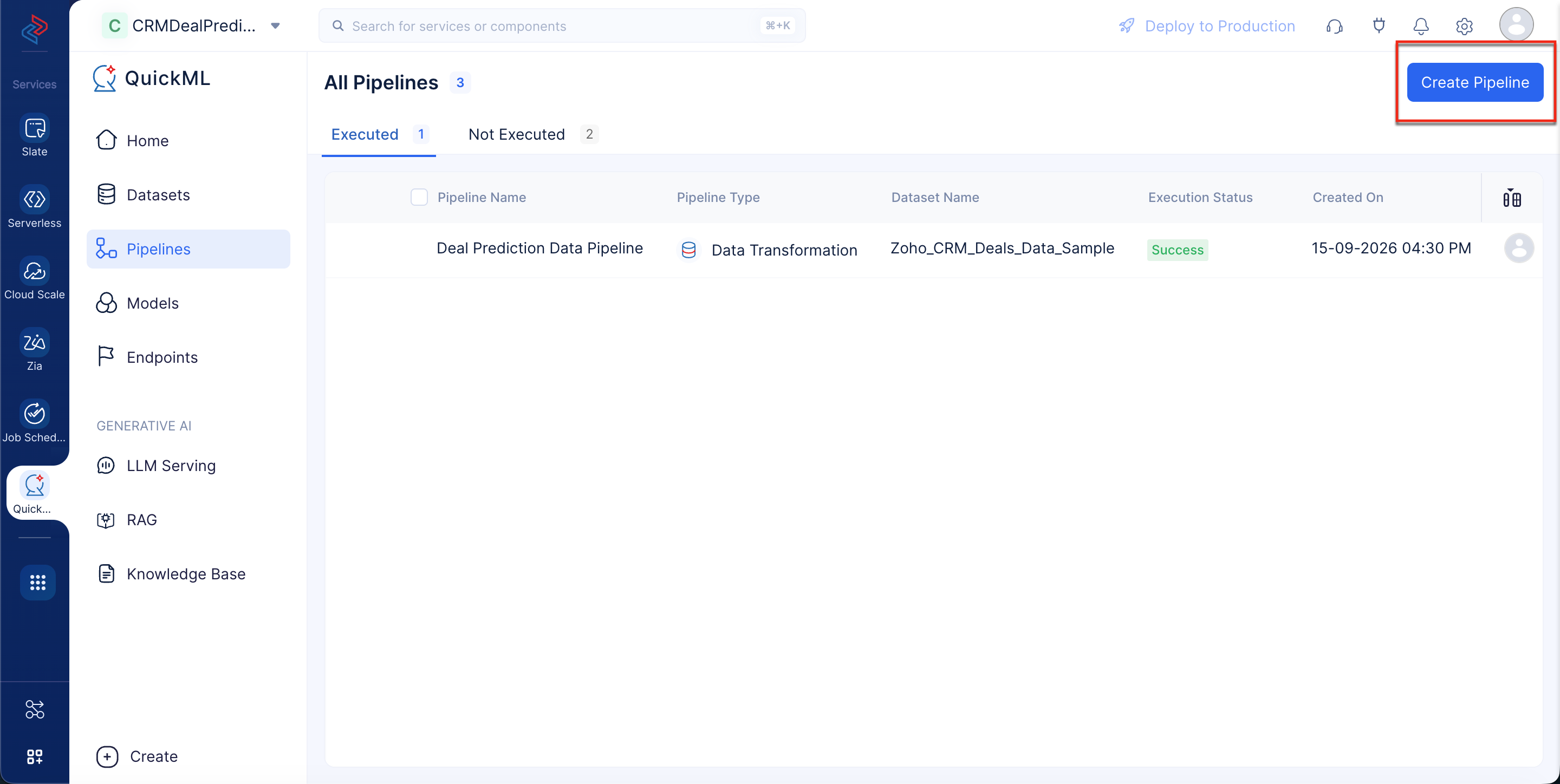
Navigate to the Pipelines component in the left menu and click Create Pipeline.
-
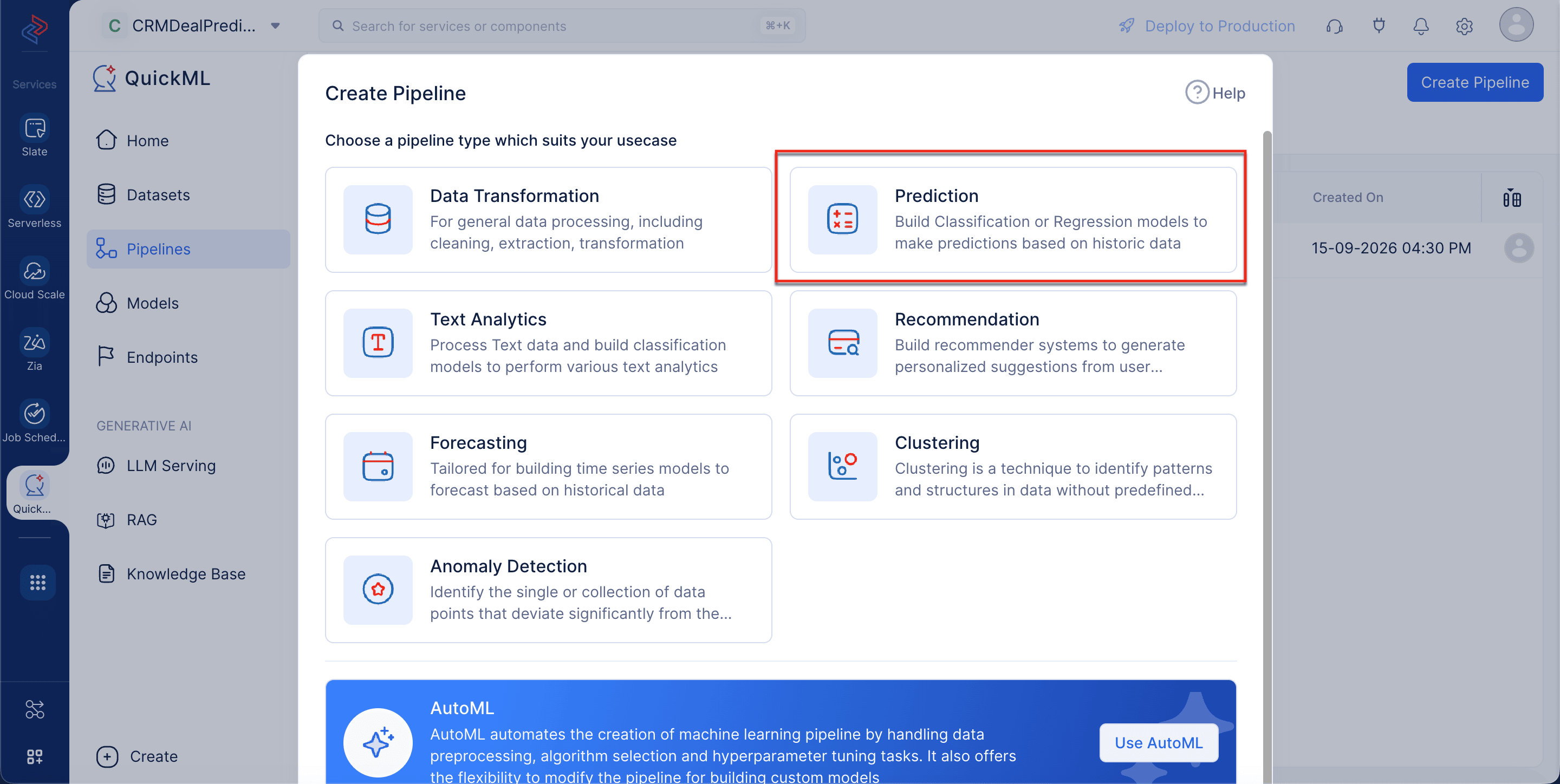
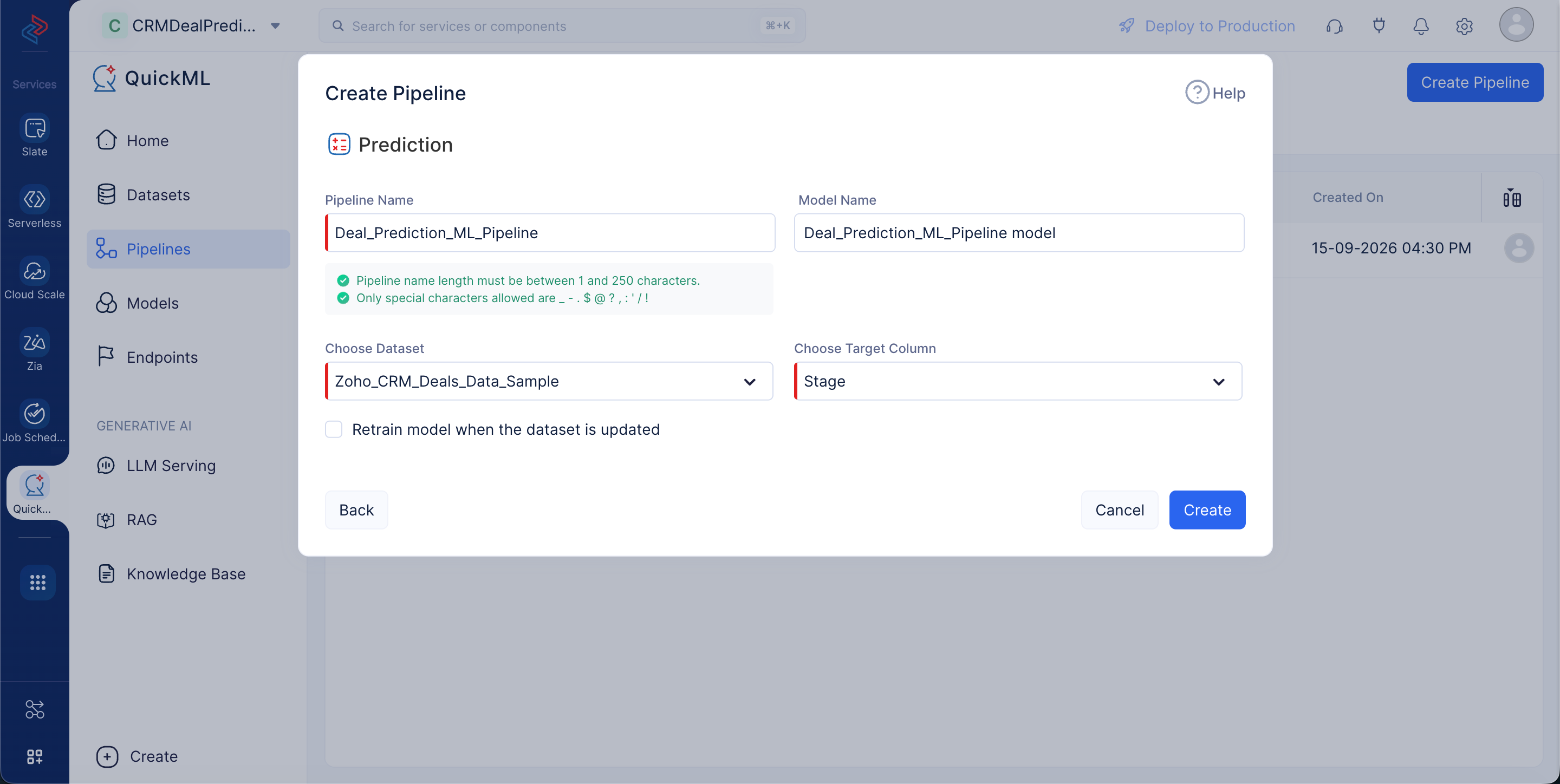
In the pop-up that appears, select “Prediction” as the pipeline type, name the pipeline as “Deal Prediction ML Pipeline”, and choose the input dataset as Zoho_CRM_Deal_Prediction_Sample. In our case, the target column should be “Stage”. The model name will be auto-populated based on the pipeline name. Click Create.
-
The pipeline Details page will be displayed as shown in the screenshot below.
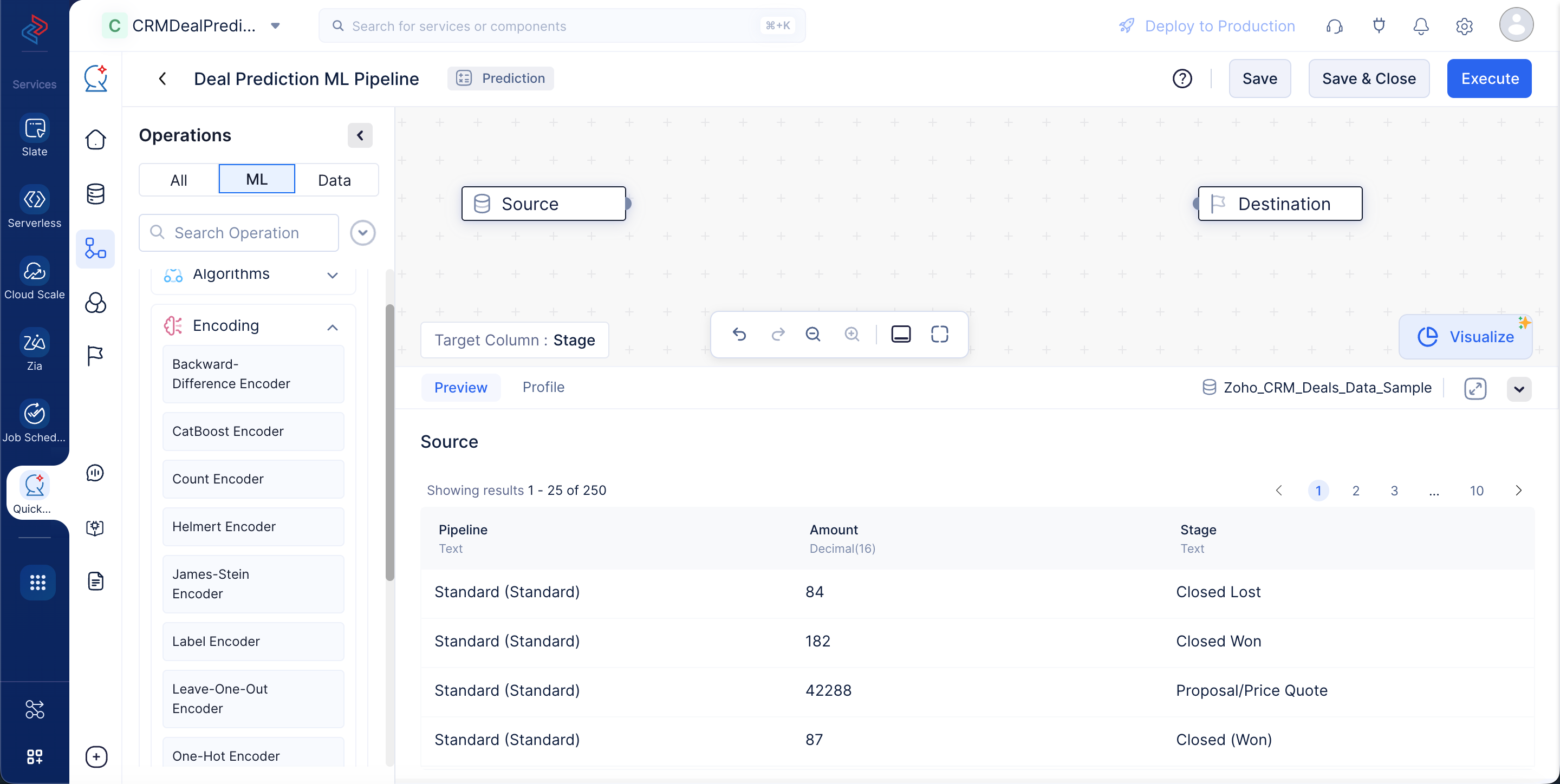
Now that we have created our ML pipeline, we will proceed to configure the pipeline by defining the nodes in the ML pipeline builder interface.
Encoding categorical columns
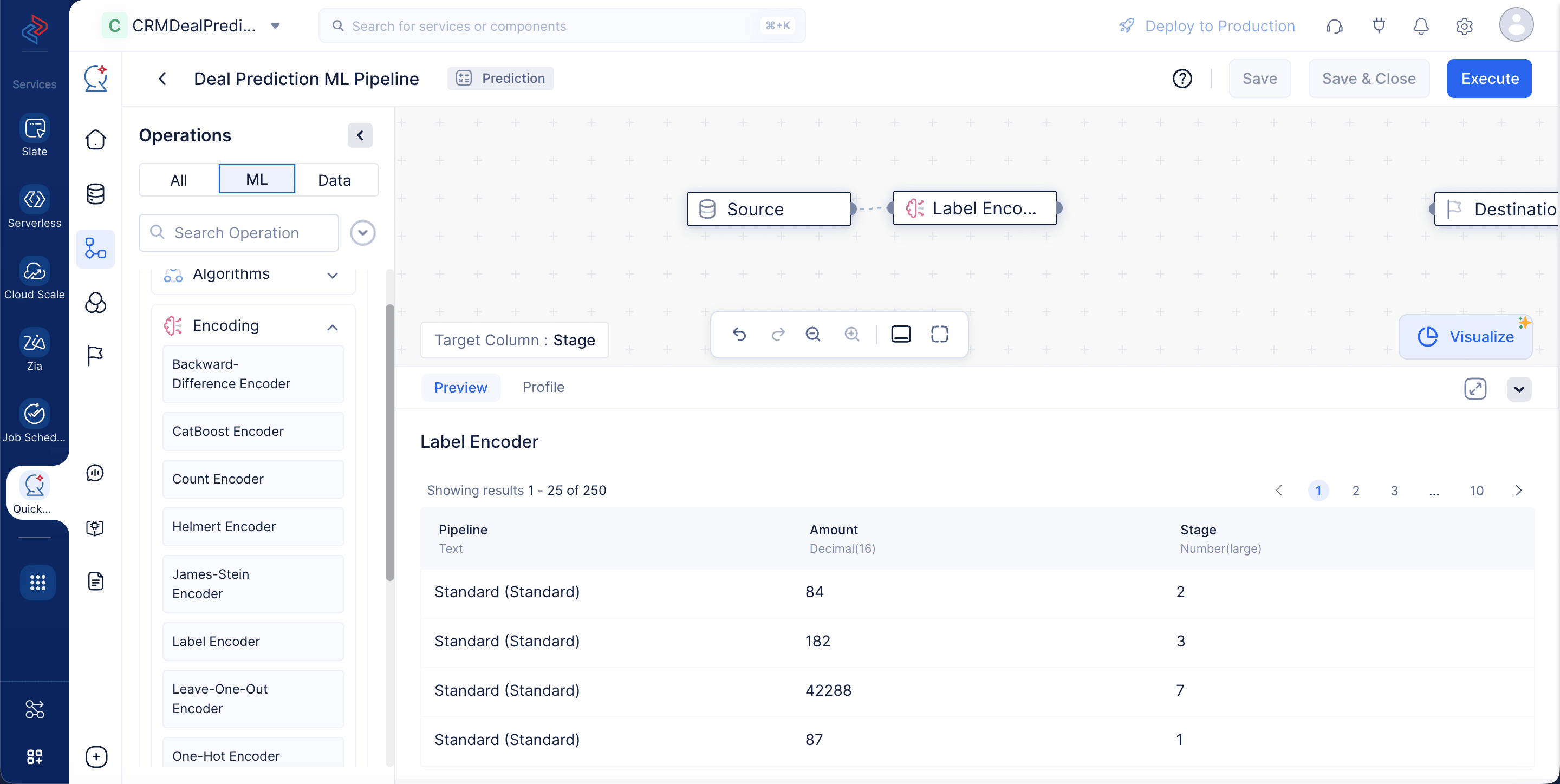
Because our target column “Stage”, contains categorical data of type String, we will encode them for further ML training standards. Please make sure to follow the below steps to encode the columns.
-
In the Operations menu, navigate to ML tab > ML operations > Encoding > Label Encoder. Drag and drop the Label Encoder node to the ML pipeline builder interface.
-
Navigate to ML tab > ML operations > Encoding > One-Hot Encoder. Drag and drop the One-Hot encoder node to the ML pipeline builder interface. In the configuration section on the right panel, choose the columns as “Pipeline” and click Save.
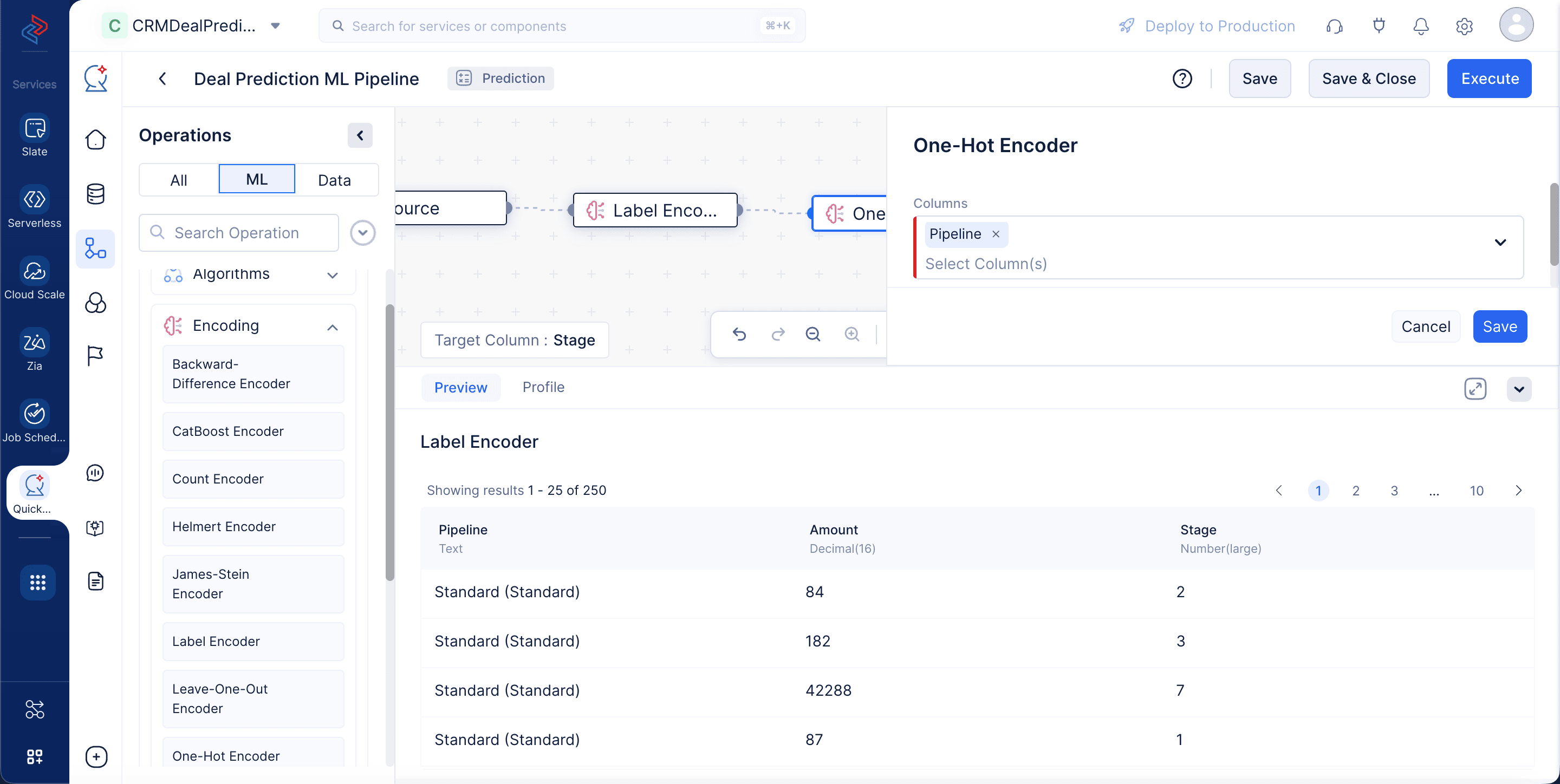
These encoding operations will convert the column values of type String to Integer, while maintaining the order and preserving data accuracy.
Normalize the columns
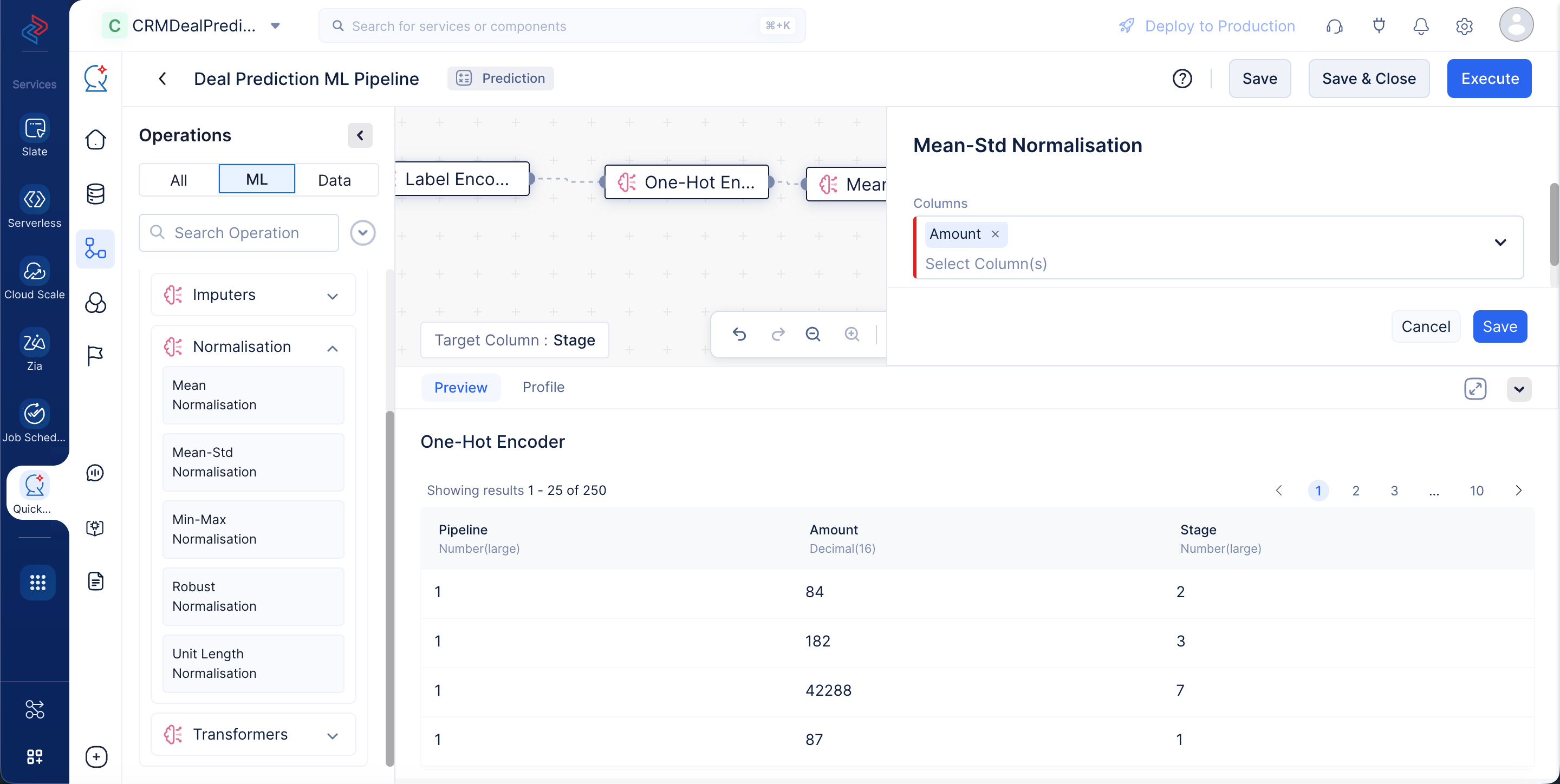
Because the values of all the features are in various ranges, we will use the Mean-Std Normalization component to scale down the values of the features to a common range, typically between 0 and 1.
Navigate to ML tab > ML operations > Normalization. Drag and drop the Mean-Std Normalization node to the ML pipeline builder interface. In the configuration box on the right panel, choose “Amount” and click Save.
Once normalization is applied, the ML pipeline builder page will be displayed as below:
ML algorithm and hyperparameter tuning
For any ML model, it’s necessary to implement an ML algorithm based on which the model will be trained. In this tutorial, we will be implementing the Random-Forest Classification algorithm to configure the tuning parameters for the ML model to ensure it is optimized for our pre-processed dataset.
-
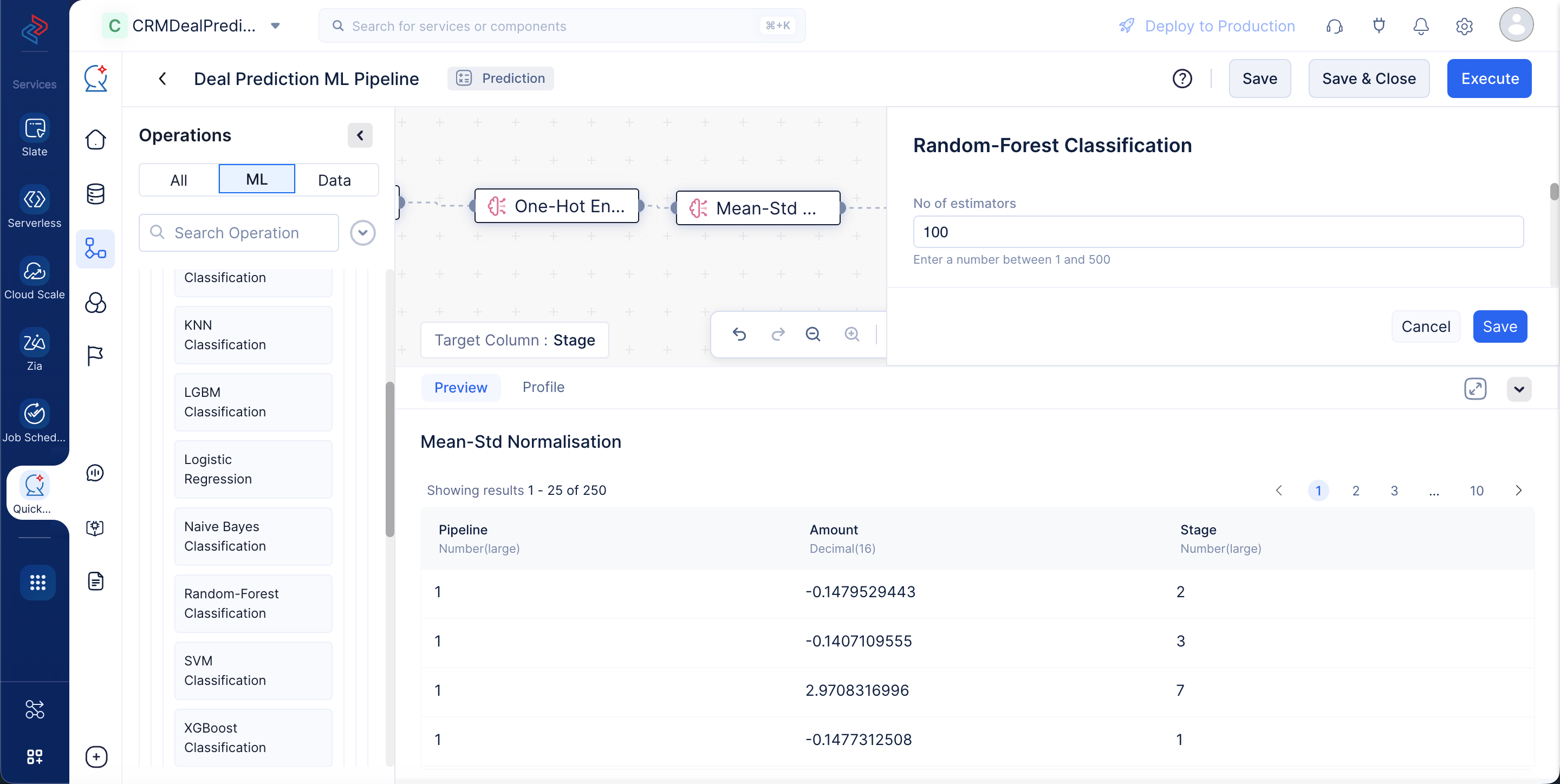
In the Operations menu, navigate to* ML tab > ML operations > Algorithm > Classification*. Drag and drop the Random-Forest Classification node into the pipeline builder. The node will be automatically connected to the Destination node. Make an input connection with the Mean-Std Normalization and the Random-Forest Classification node.
-
For the Random-Forest Classification node, we will go with the default configuration and click Save.
Now, we have completed making the required node connections and configurations. Proceed to execute the pipeline by clicking Execute for further evaluation and deployment.
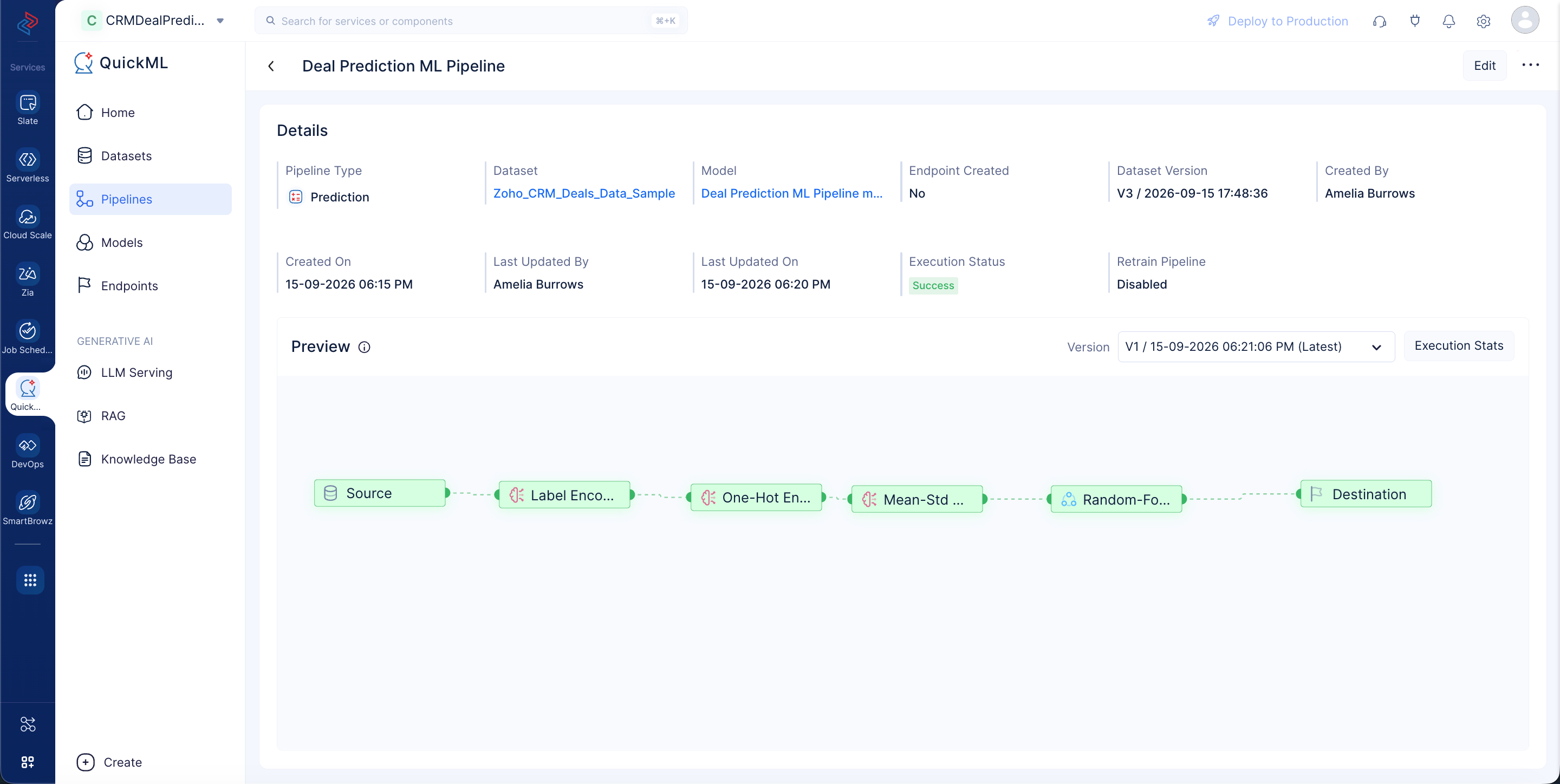
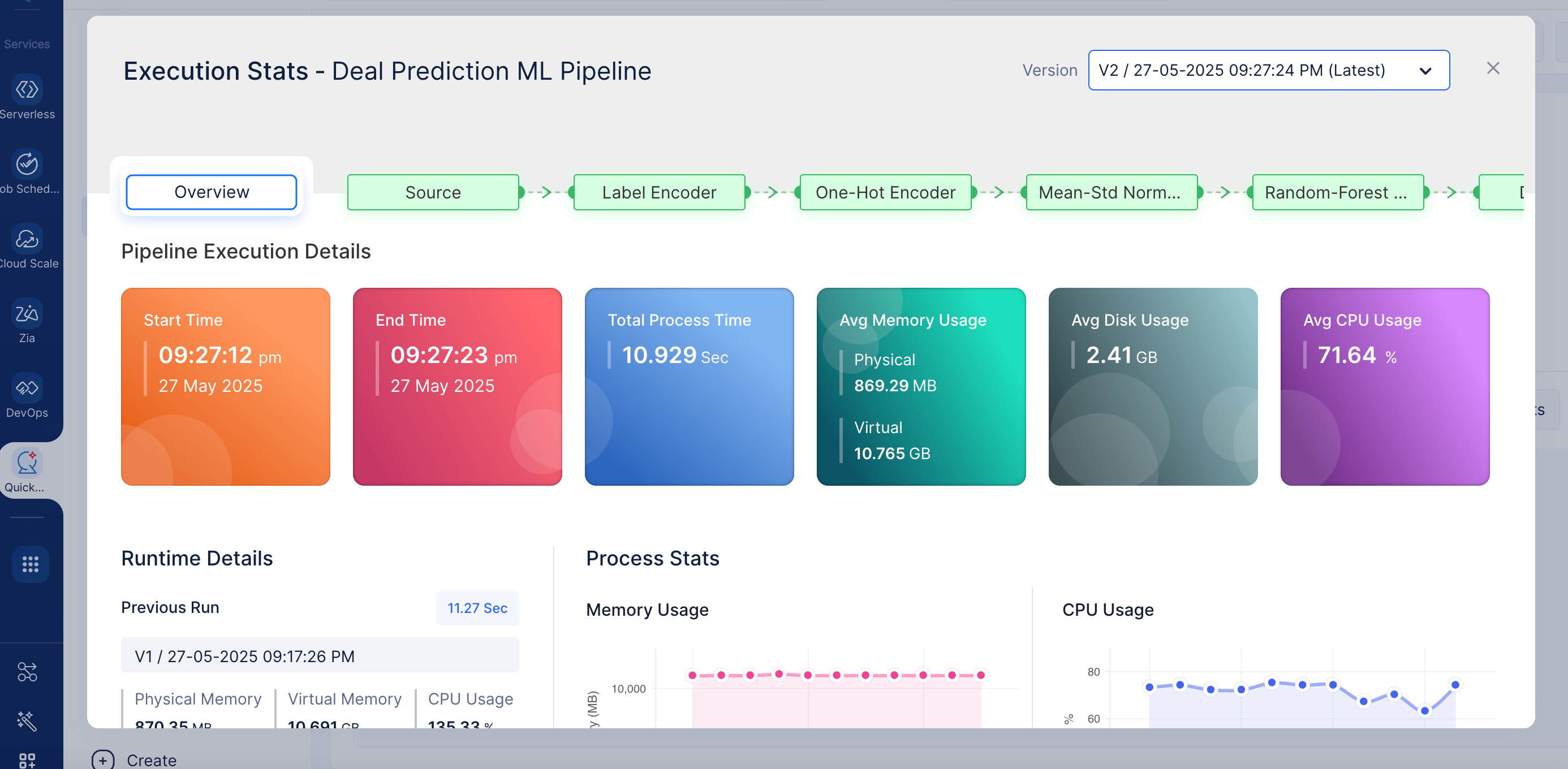
Click Execution Stats to view more details about each stage of the execution in detail.
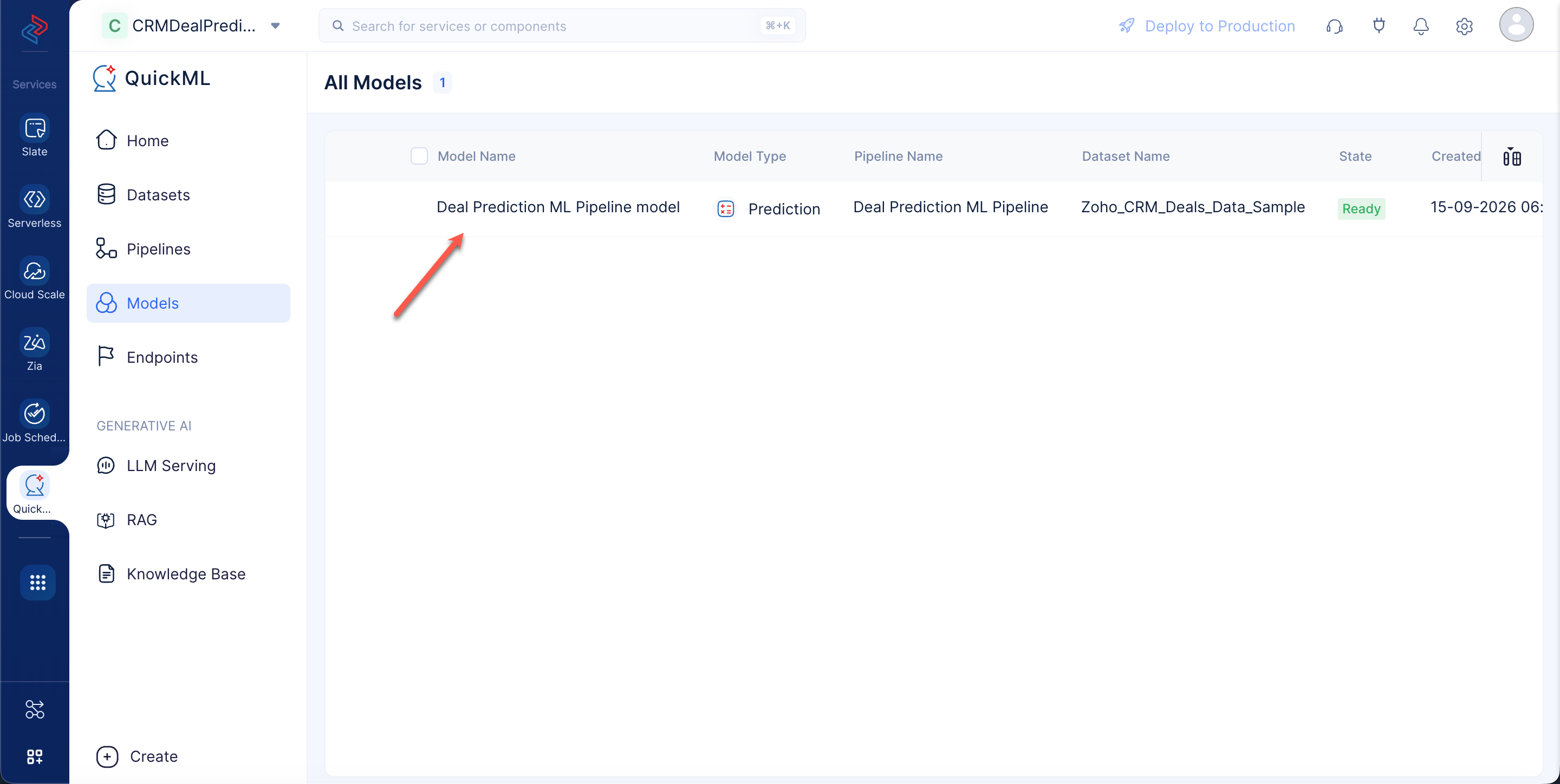
Upon successful execution of the ML pipeline, the Deal Prediction model is created and will be displayed under the Models section.
You can view the details of the model on the model’s Details page by clicking on the model name.
Last Updated 2026-10-01 12:33:46 +0530 IST