Create a data pipeline
Since the dataset is uploaded, proceed with creating a data pipeline with the dataset.
-
Navigate to the Datasets component in the left menu and click the Zoho_CRM_Deal_Prediction_Sample dataset.
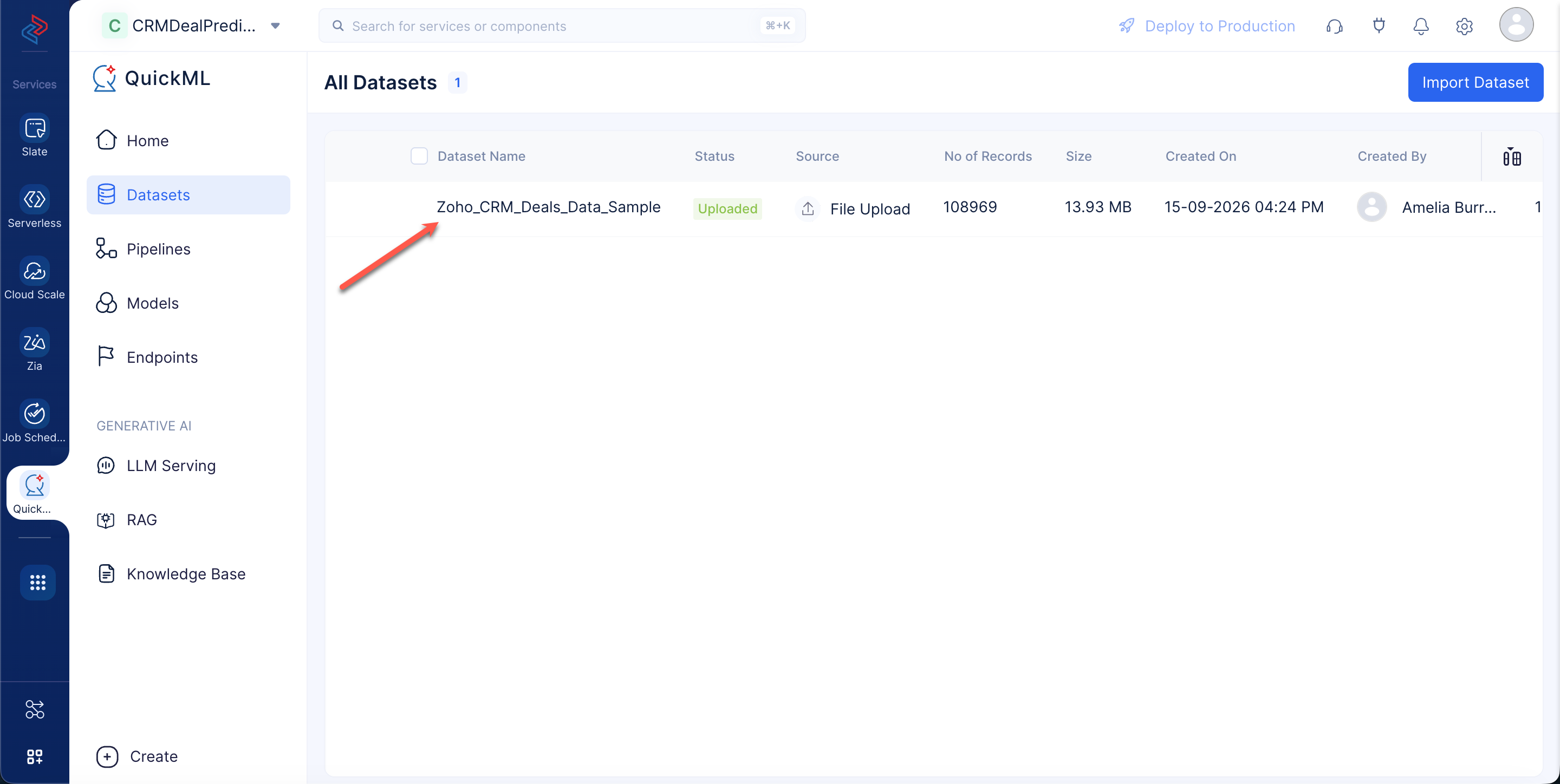
-
In the Dataset Details page, click on Create Pipeline in the top-right corner of the page.
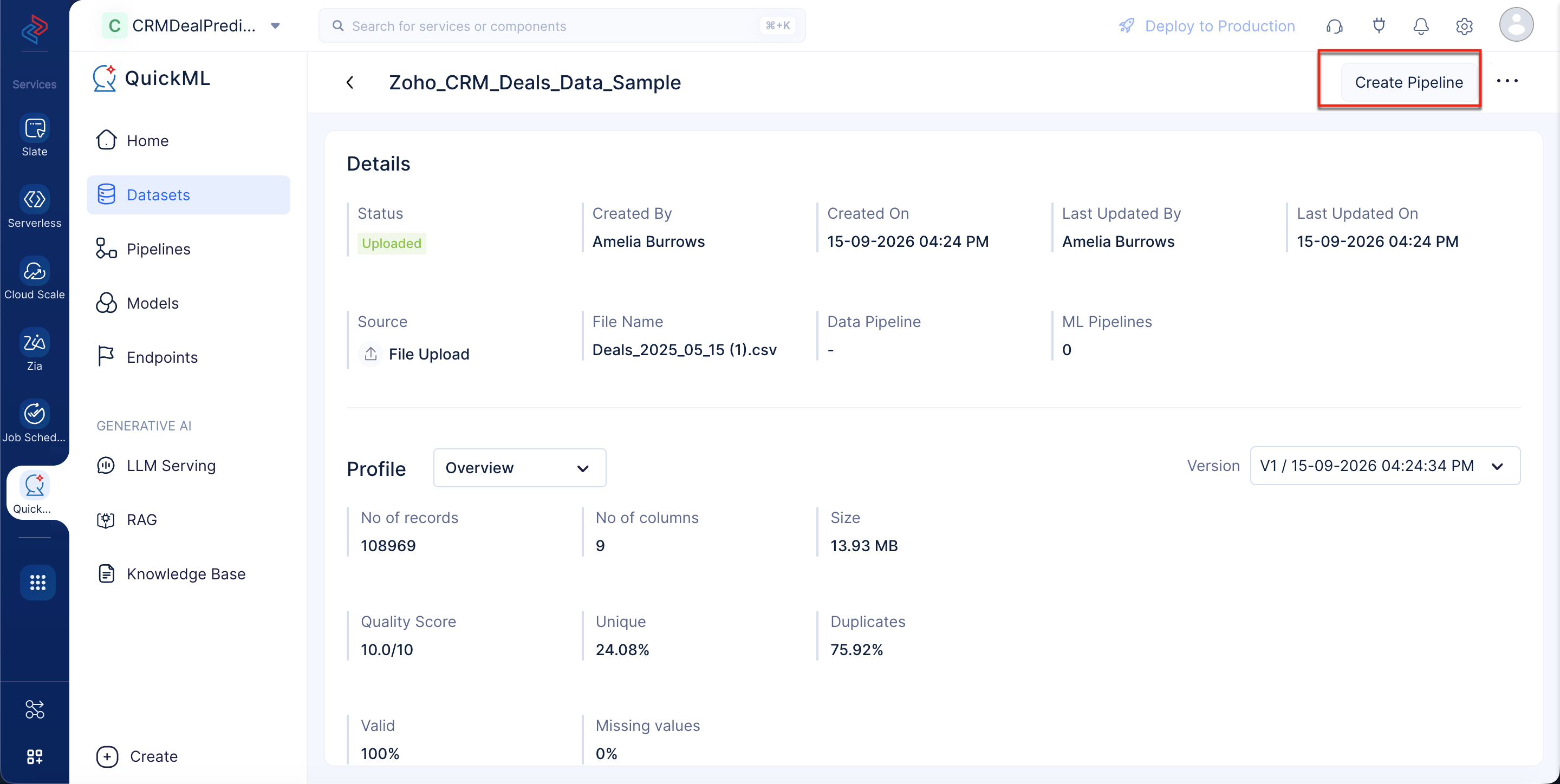
-
Enter the pipeline name as “Deal Prediction Data Pipeline” and click Create Pipeline.
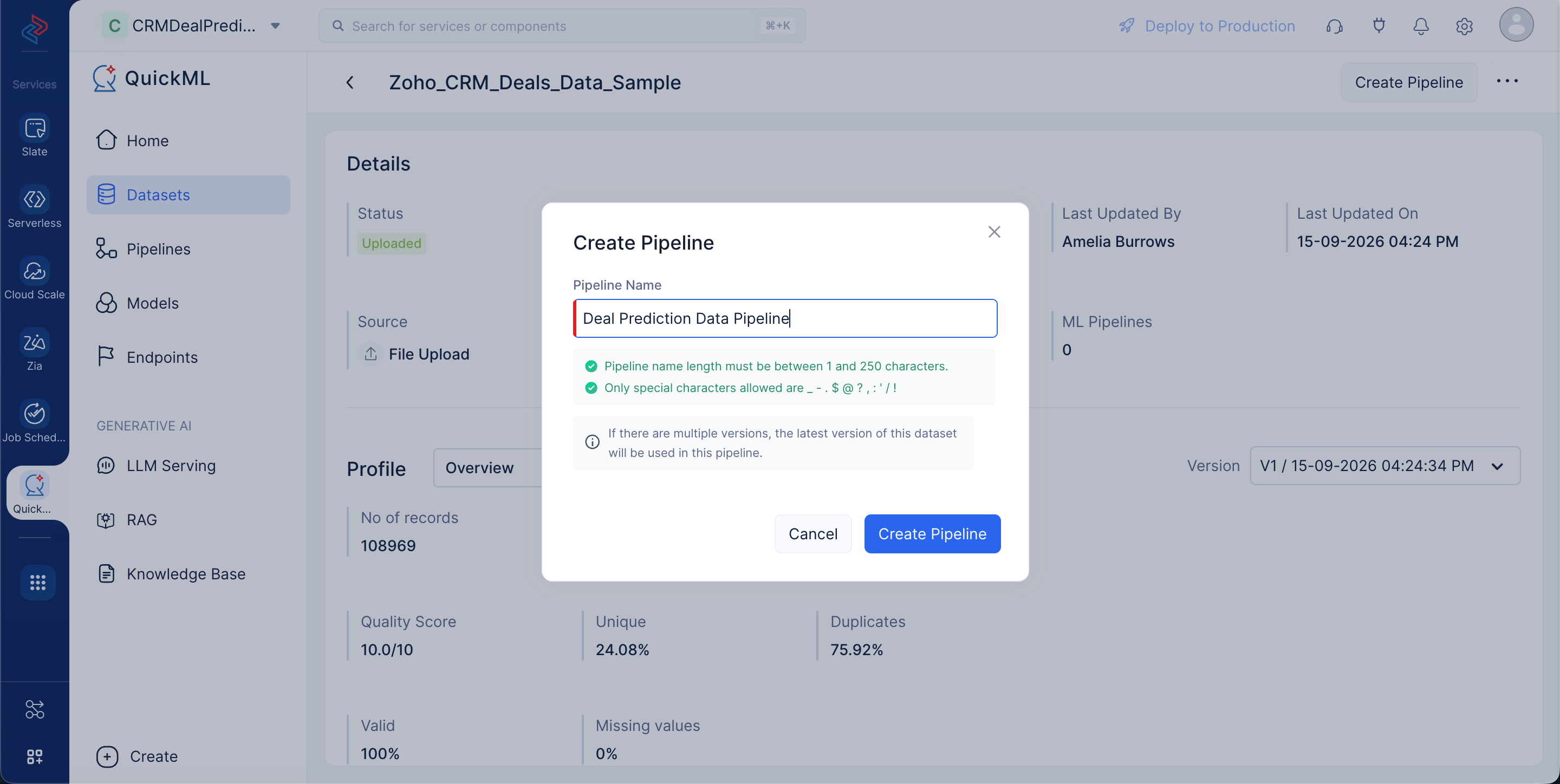
The pipeline builder interface will be opened as shown in the screenshot below.
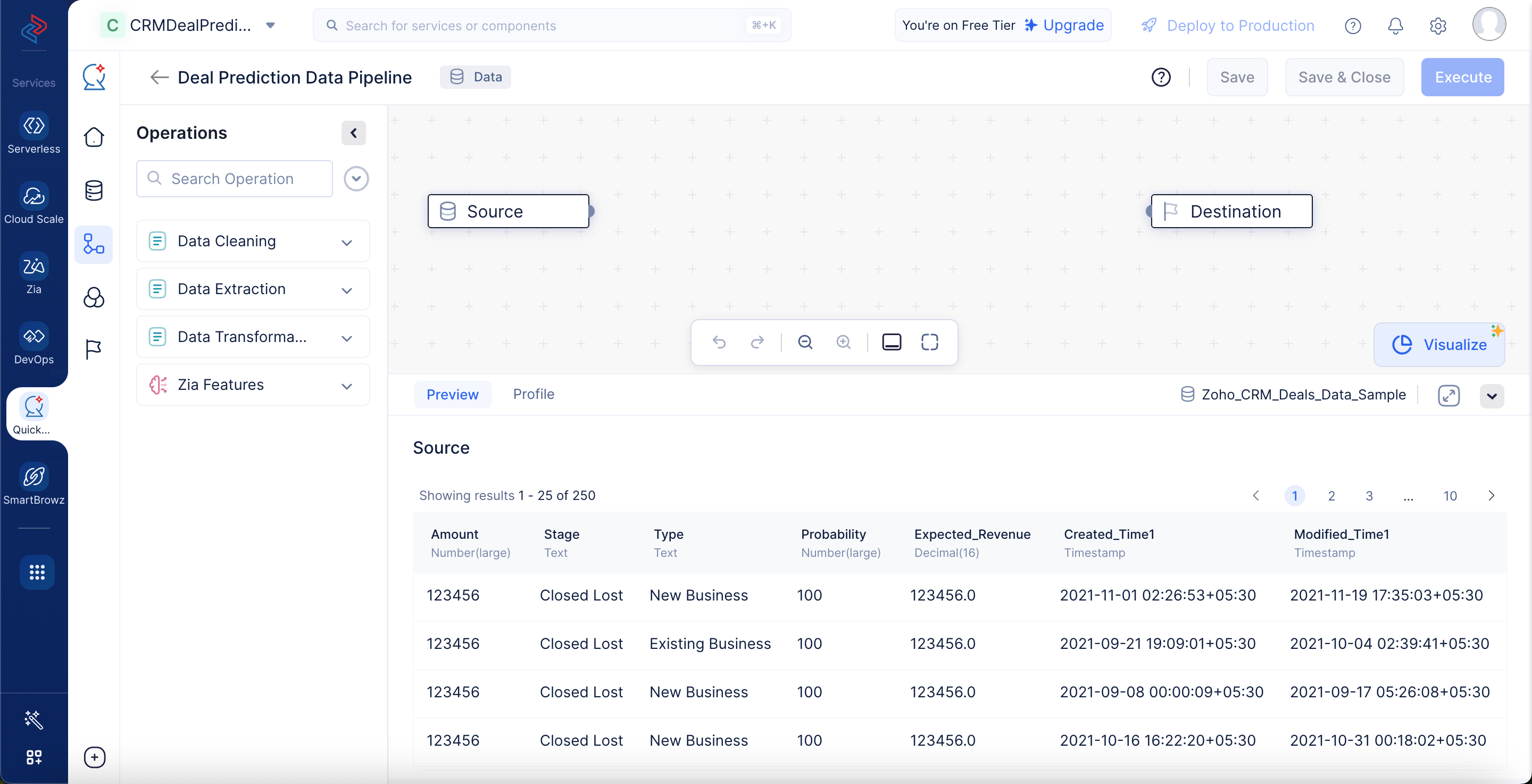
You will be performing the following set of data pre-processing operations in order to clean, refine, and transform the datasets, and then execute the data pipeline. Each of these operations involve individual data nodes that are used to construct the pipeline.
Select fields for data pre-processing
First, select the required fields in the dataset to modify them further.
-
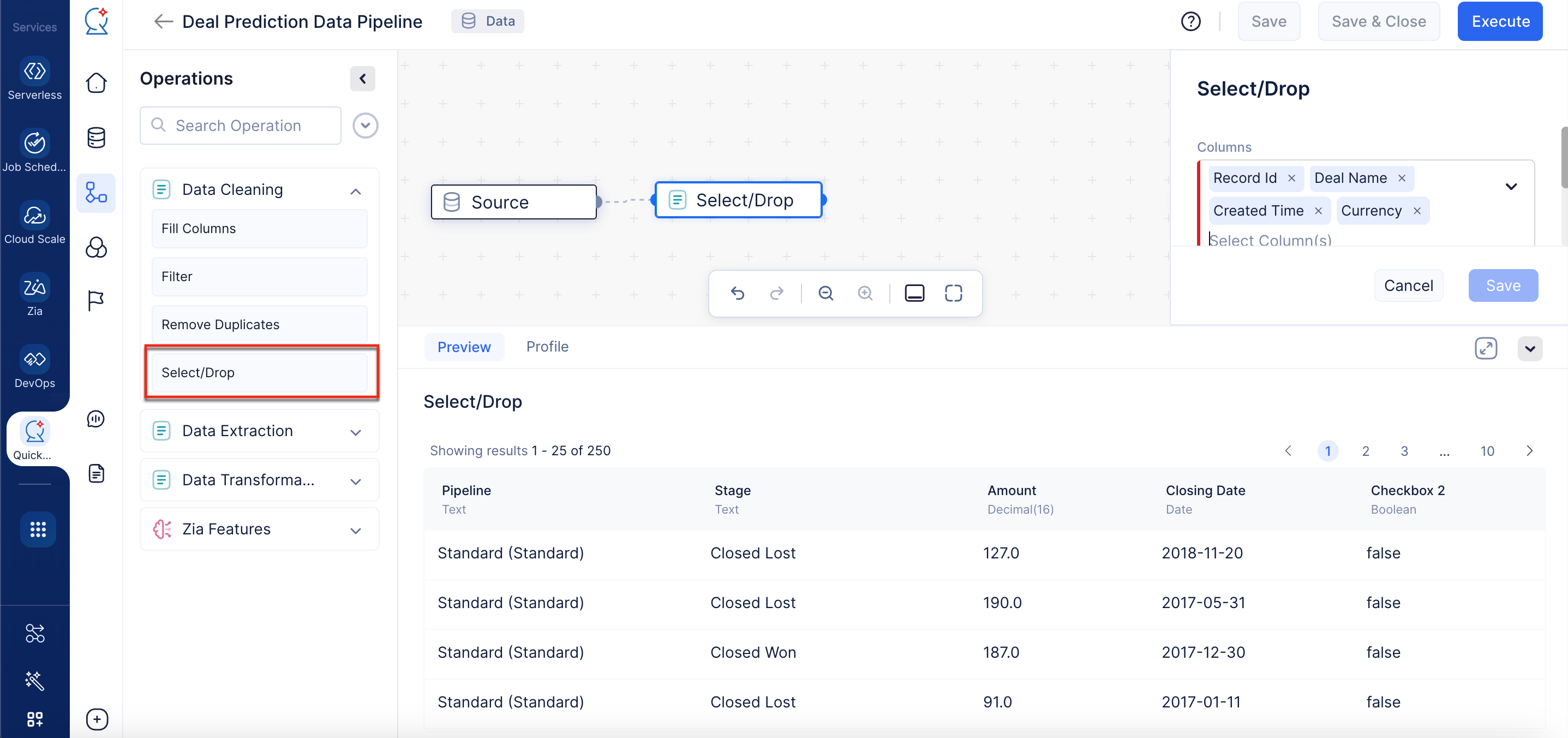
Expand the Data Cleaning component in the Operations menu. Drag and drop the Select/Drop node in the pipeline builder and make a connection with the Source node.
-
In the Select/Drop section in the right panel, select the columns “Record ID,” " Closing Date", “Deal Name,” “Currency,” “Checkbox2"and “Created Time”, and choose the operation “Drop” to drop the columns from the dataset, then click Save. In our case, these columns are generic, serving no purpose to be used further so we are removing them.
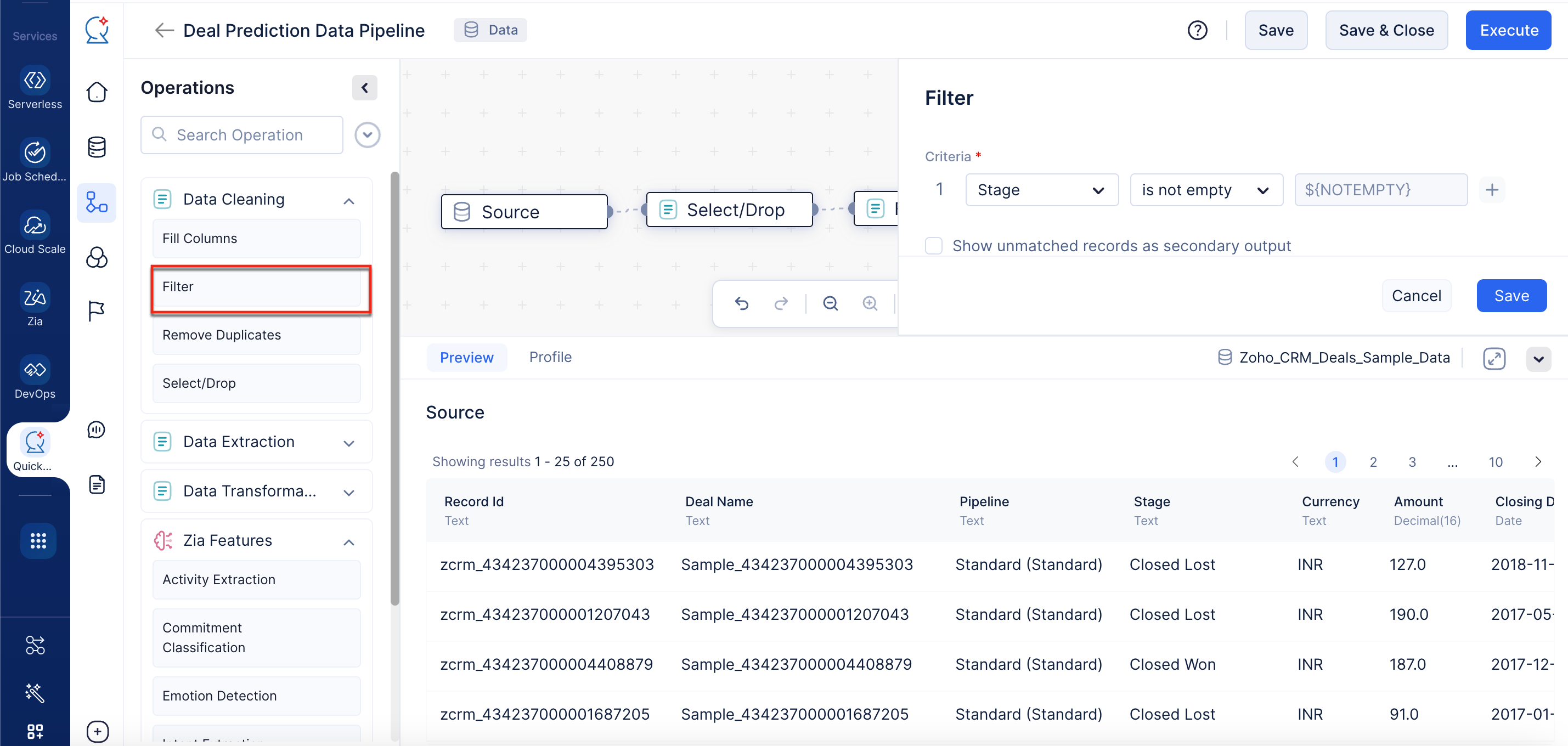
To enhance the quality of the data used for training, you will filter out the non-empty data for the required columns using the Filter nodes . This process eliminates irrelevant or incomplete data, ensuring that only valuable information is used for model development.
Because the Stage is one of the key columns for our model training, you will be adding a filter to that column to avoid empty cells in it. If you want to process the unmatched data from the filter, choose Show unmatched records as a secondary output so you will get another output for unmatched data.
Fill columns
As a part of data pre-processing, we will need to check if there are missing values in any of the columns in the datasets and fill them. We will be using the Fill Columns node for executing this operation.
-
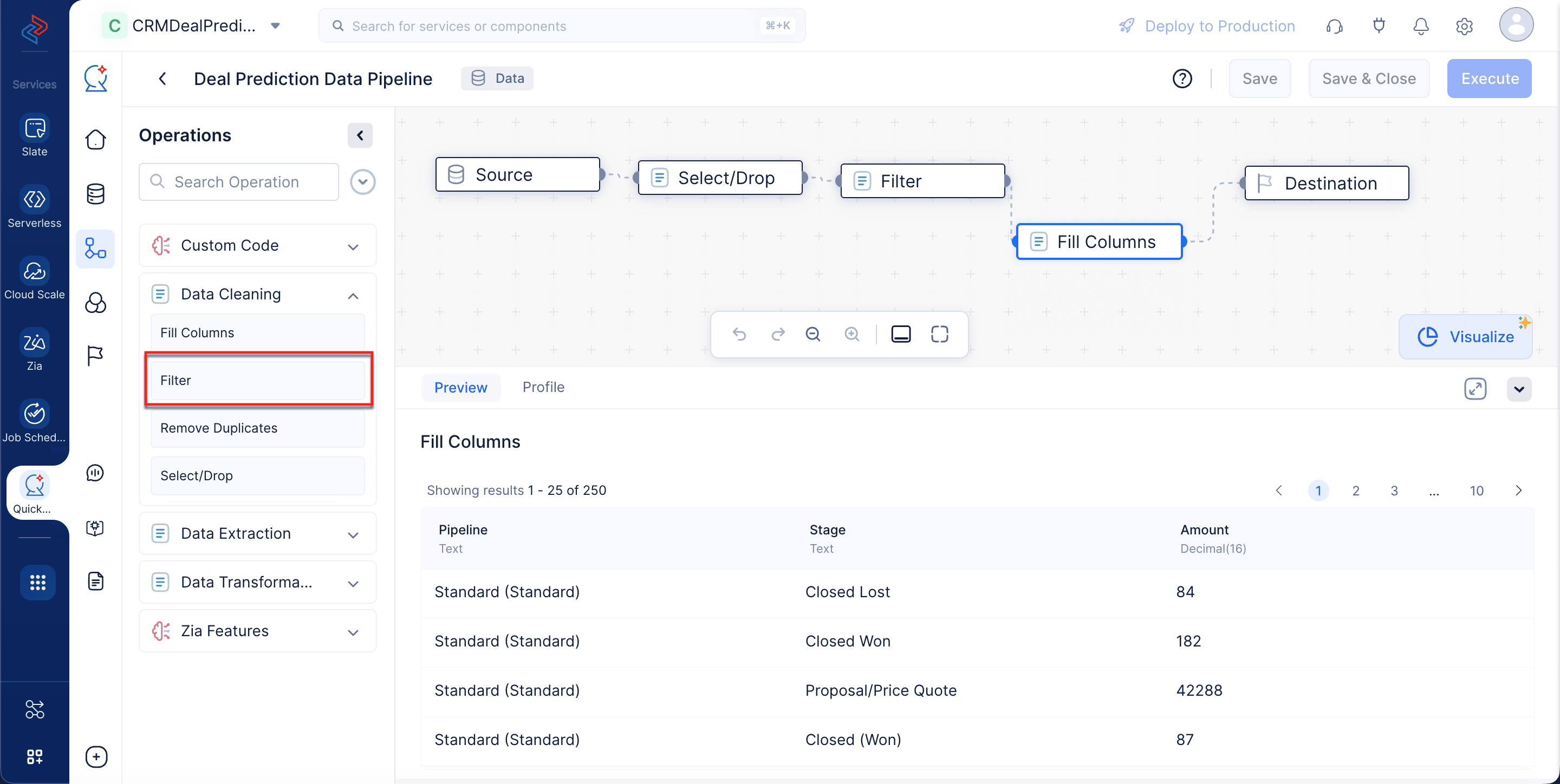
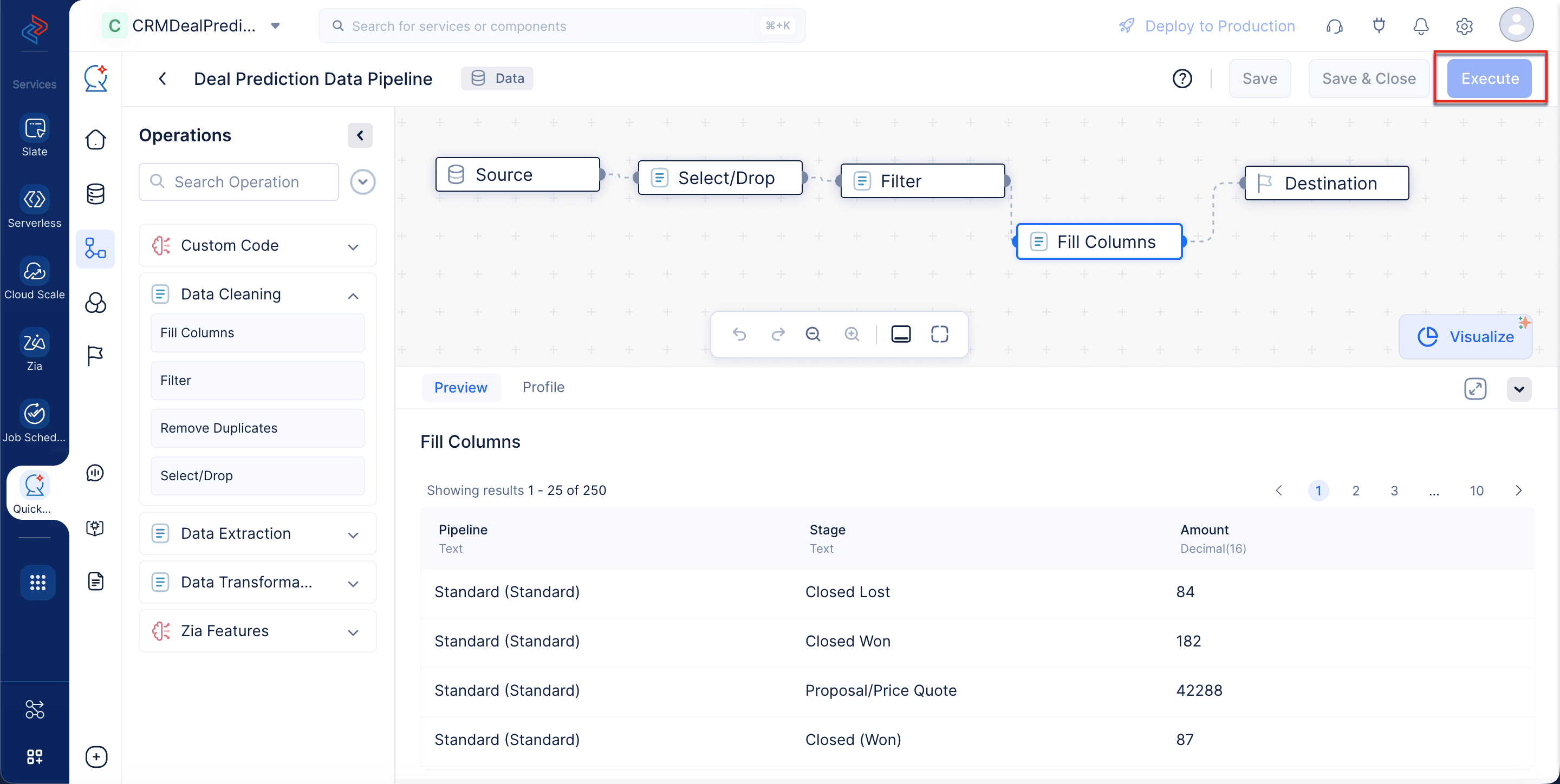
Expand the Data Cleaning component in the Operations menu. Drag and drop the Fill Columns node into the pipeline builder and make a connection with the previous Filter node as shown below.
-
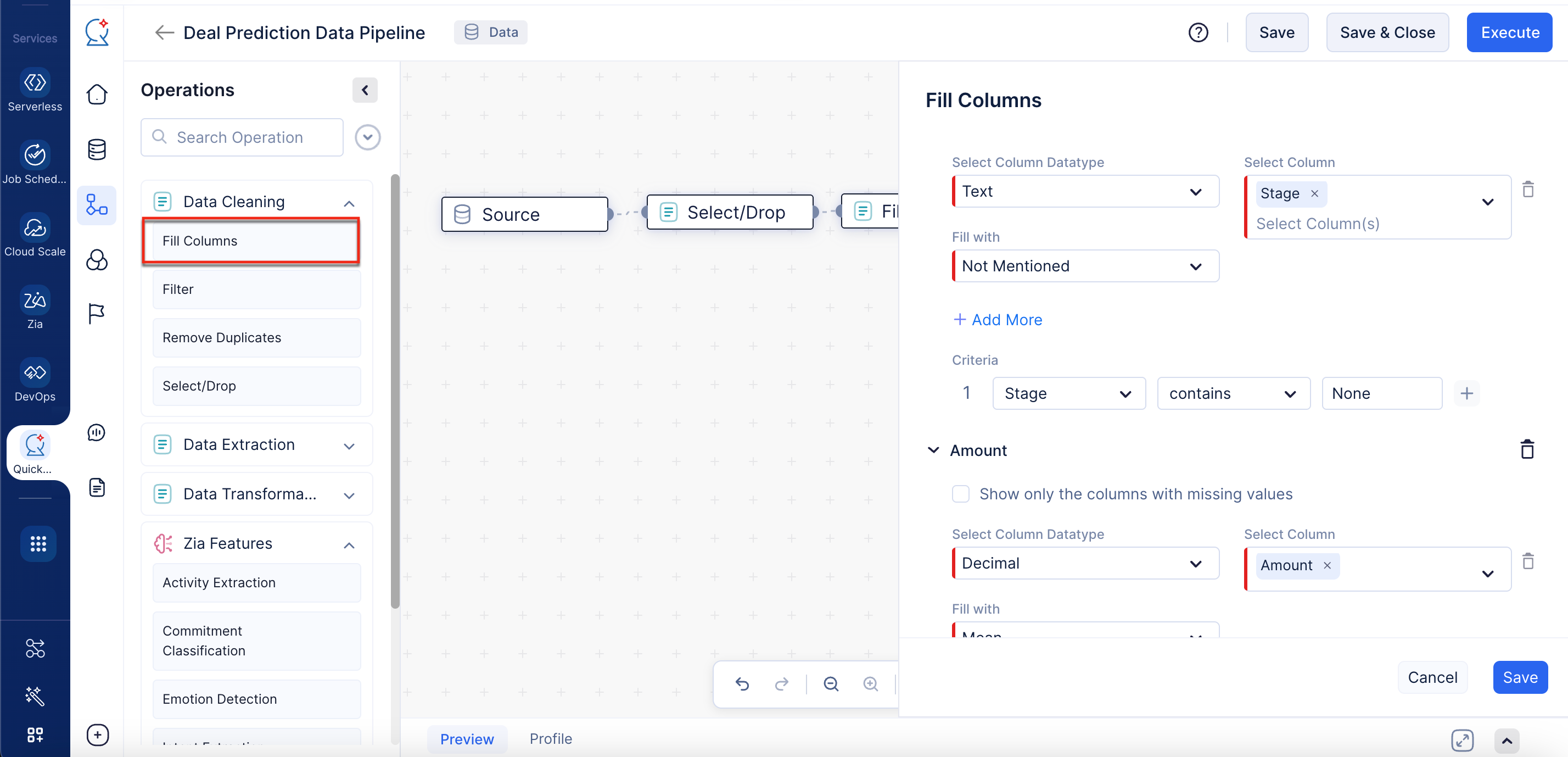
From the drop-down named Select Column, choose Stage. In the Select Column Datatype field, choose Text Update the Fill with field as Not mentioned, and select the criteria as Stage, and Contains is None in the dropdown, then click Save. Likewise, fill the column for the " Pipeline” and Amount" field with “Is empty” criteria, then click Save.
As of now, the dataset is prepared, and we have configured the required nodes for this tutorial. Finally, make a connection between the last configured node (Fill Columns) and the Destination node.
Click Execute.
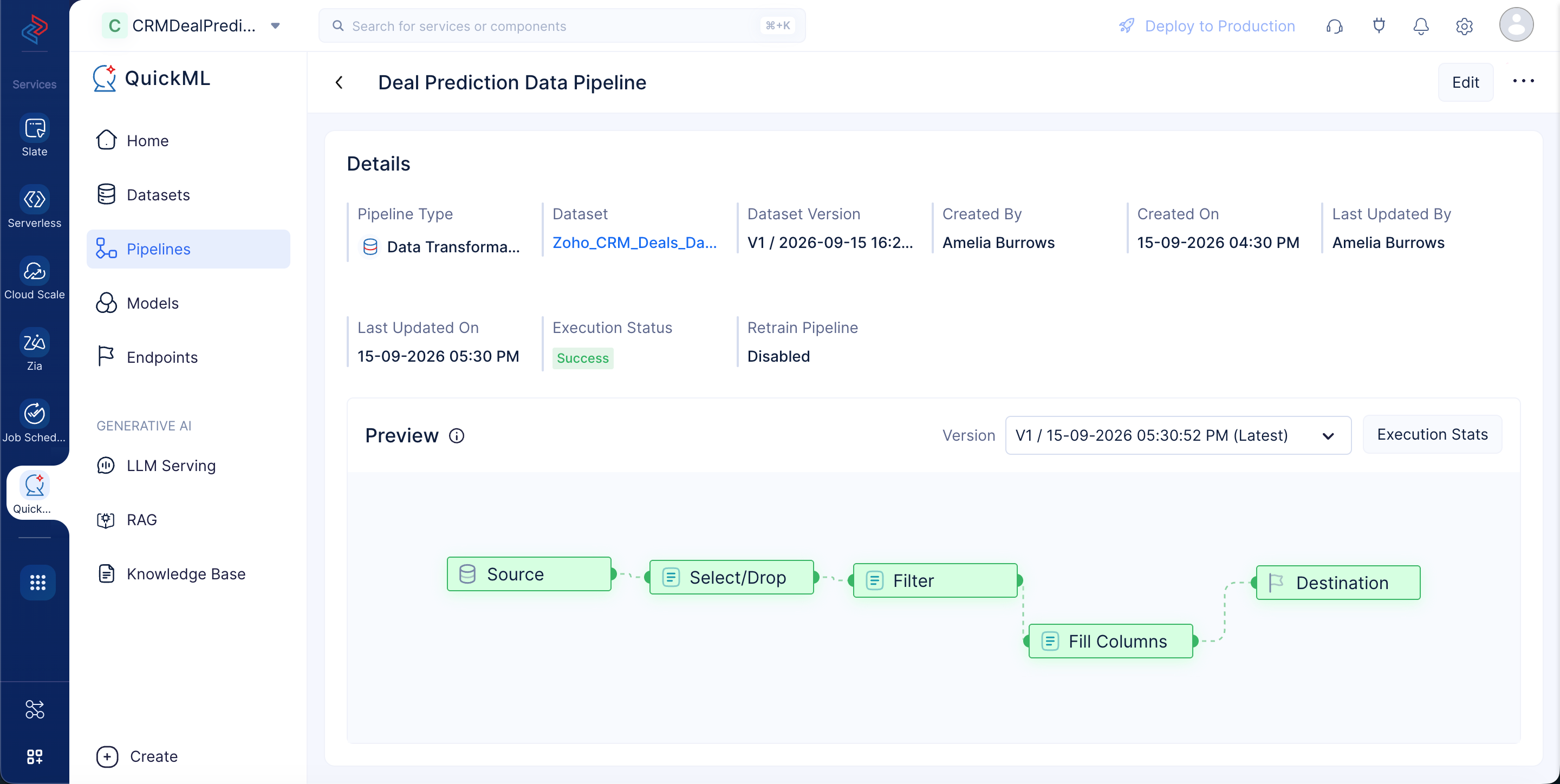
The data pipeline will start the execution and the status of the execution will be displayed on the pipeline Details page as shown in the screenshot below. Once the pipeline has completed the execution, the execution status will display “Success”.
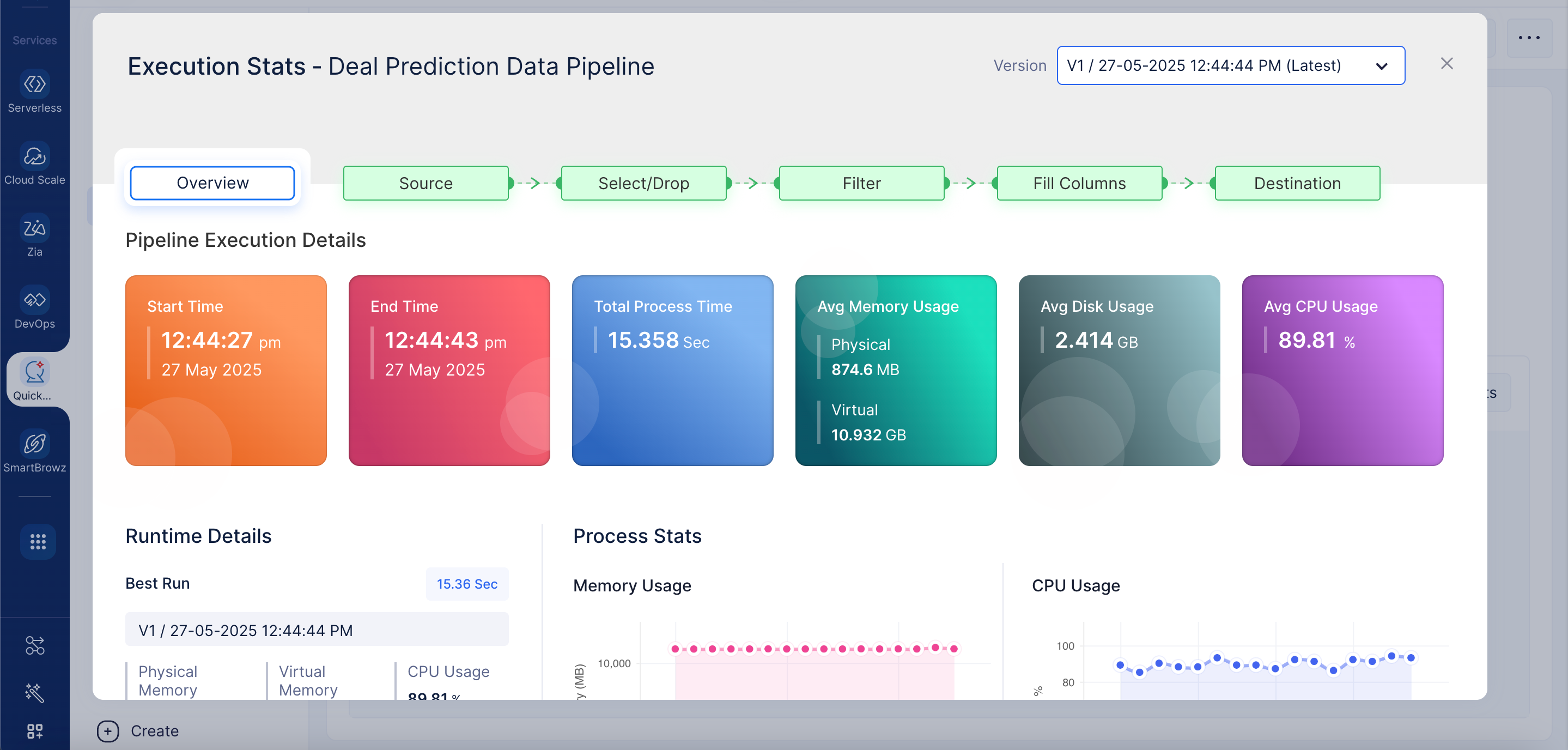
Click on Execution Stats to view more details about each stage of the execution in detail.
Now, we have prepared our dataset, which can be used to develop the ML model. We will be discussing more about the ML pipeline creation in the next section.
Last Updated 2026-10-01 12:33:46 +0530 IST