How do I access Catalyst Java functions in my Eclipse editor?
If you have created functions in the Catalyst remote console, you must download them to your local machine before you can access them in your editor. If you created functions on your local machine, you can skip to step 3.
To access Catalyst Java functions in your Eclipse editor:
-
Download your function’s code from the remote console by executing the following Catalyst CLI command:
$ catalyst pull
You can refer to the Pull Resources help page for a detailed explanation.
This will automatically create a functions directory in your project home containing your functions.
-
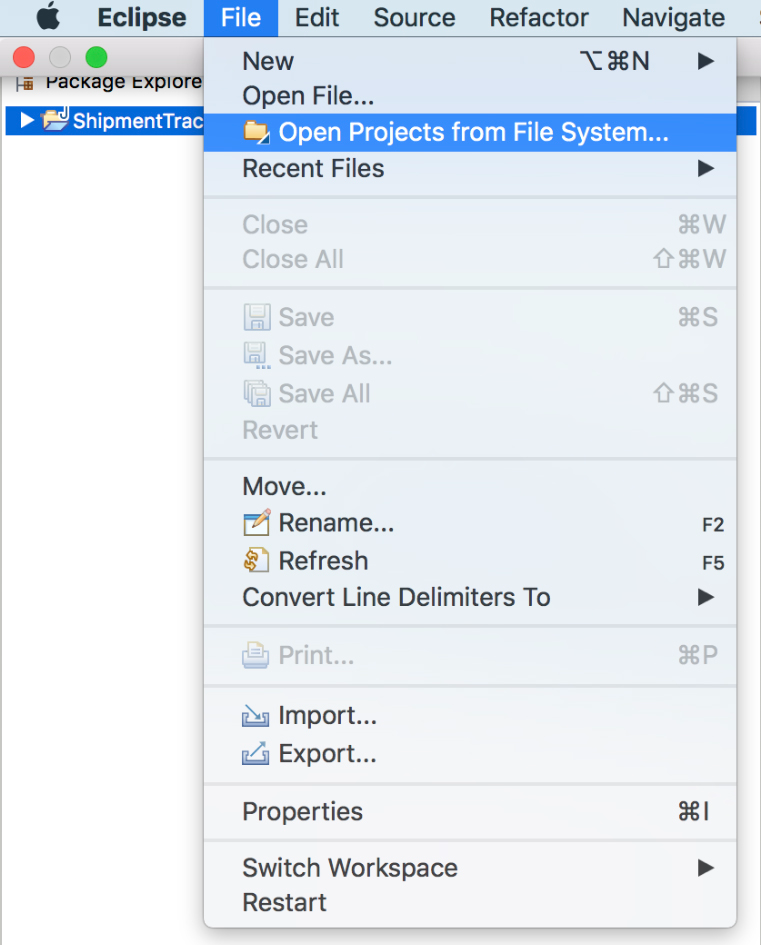
Open your Eclipse editor. Navigate to File and then Open Projects From File System.
-
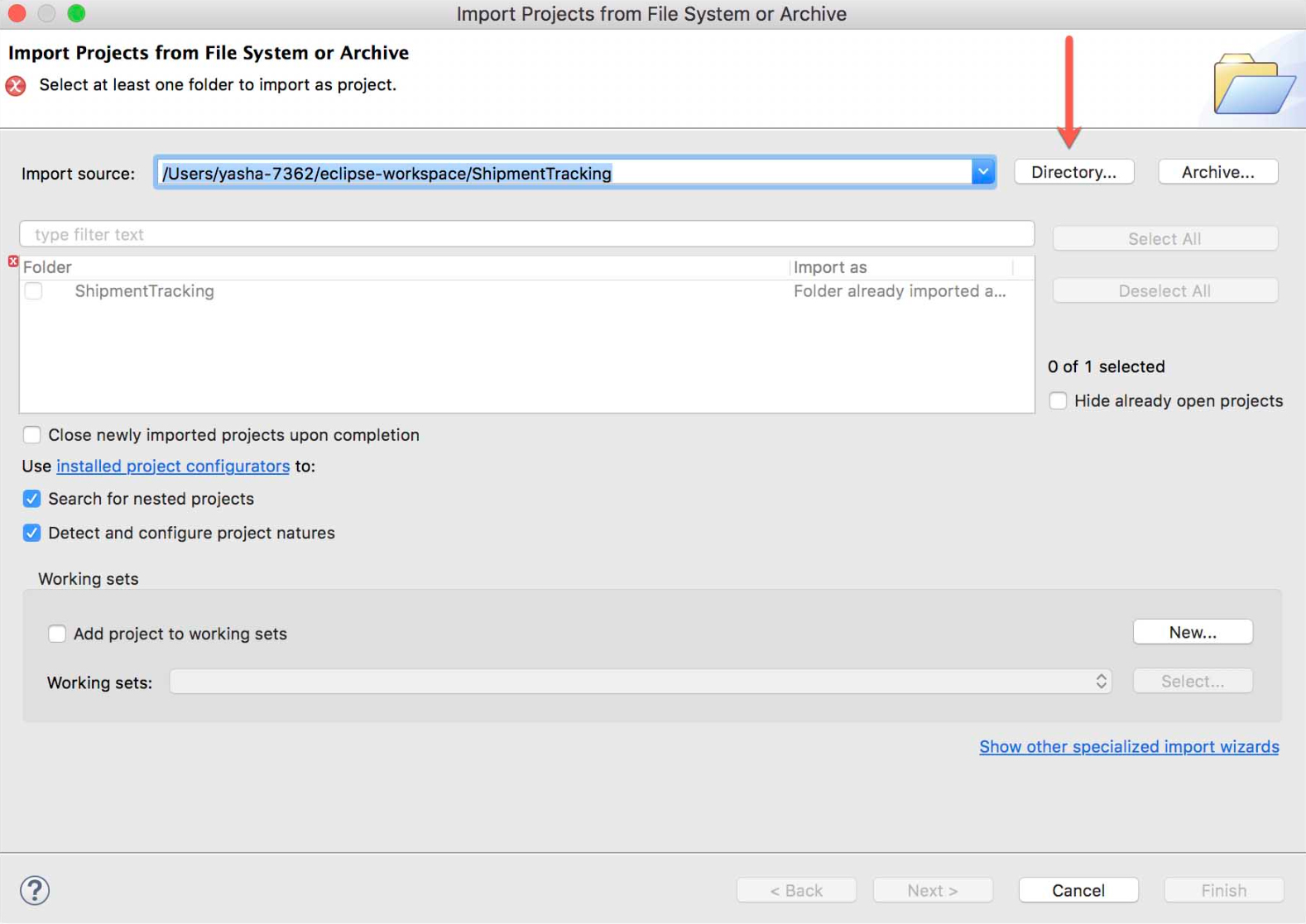
Click Directory next to Input Source in the pop-up.
-
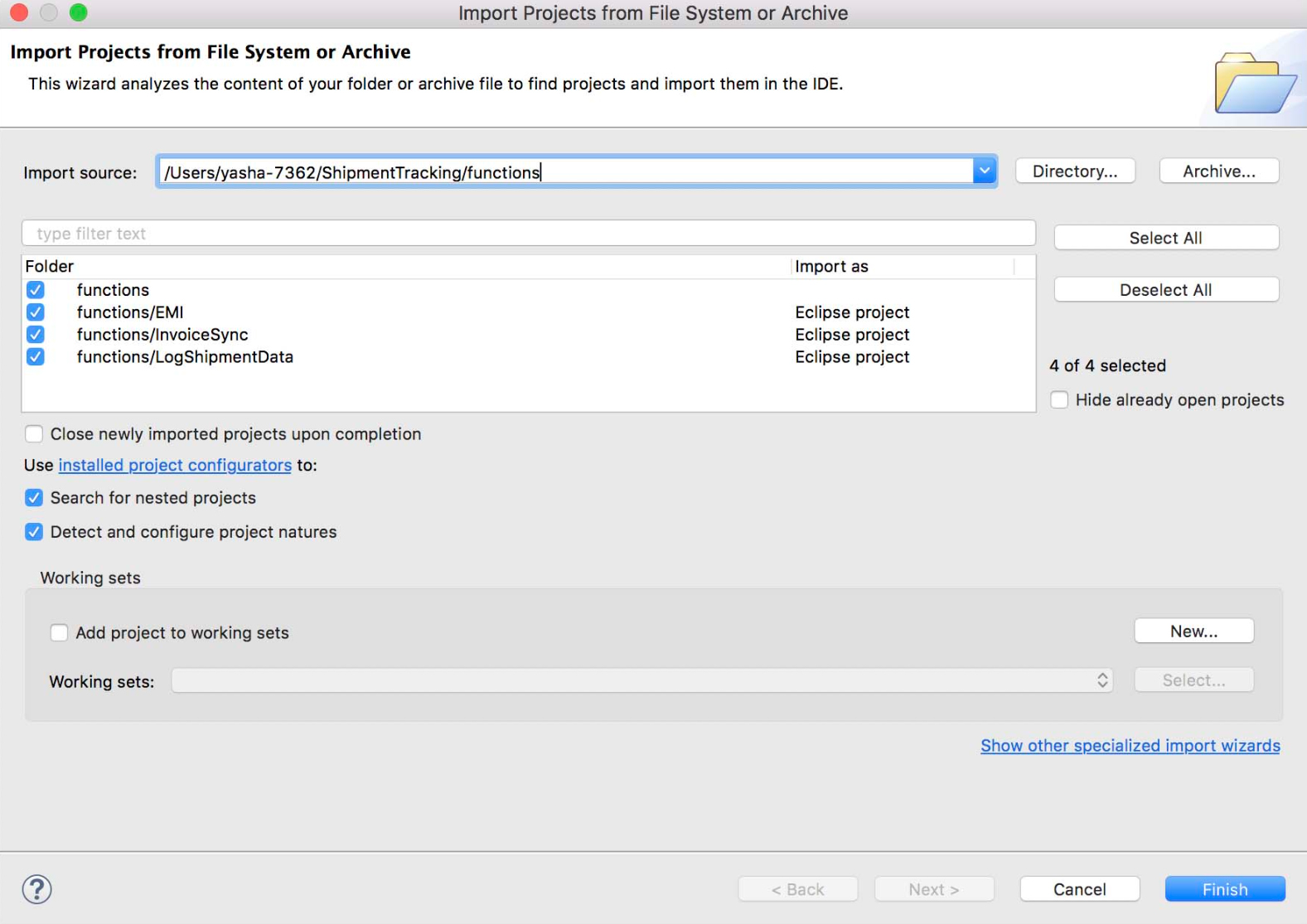
Select the functions folder that was created using the CLI and click OK.
-
Ensure that Add project to working sets is unchecked.
-
Eclipse auto detects the Java functions in that folder. Select the functions you need from the list.
-
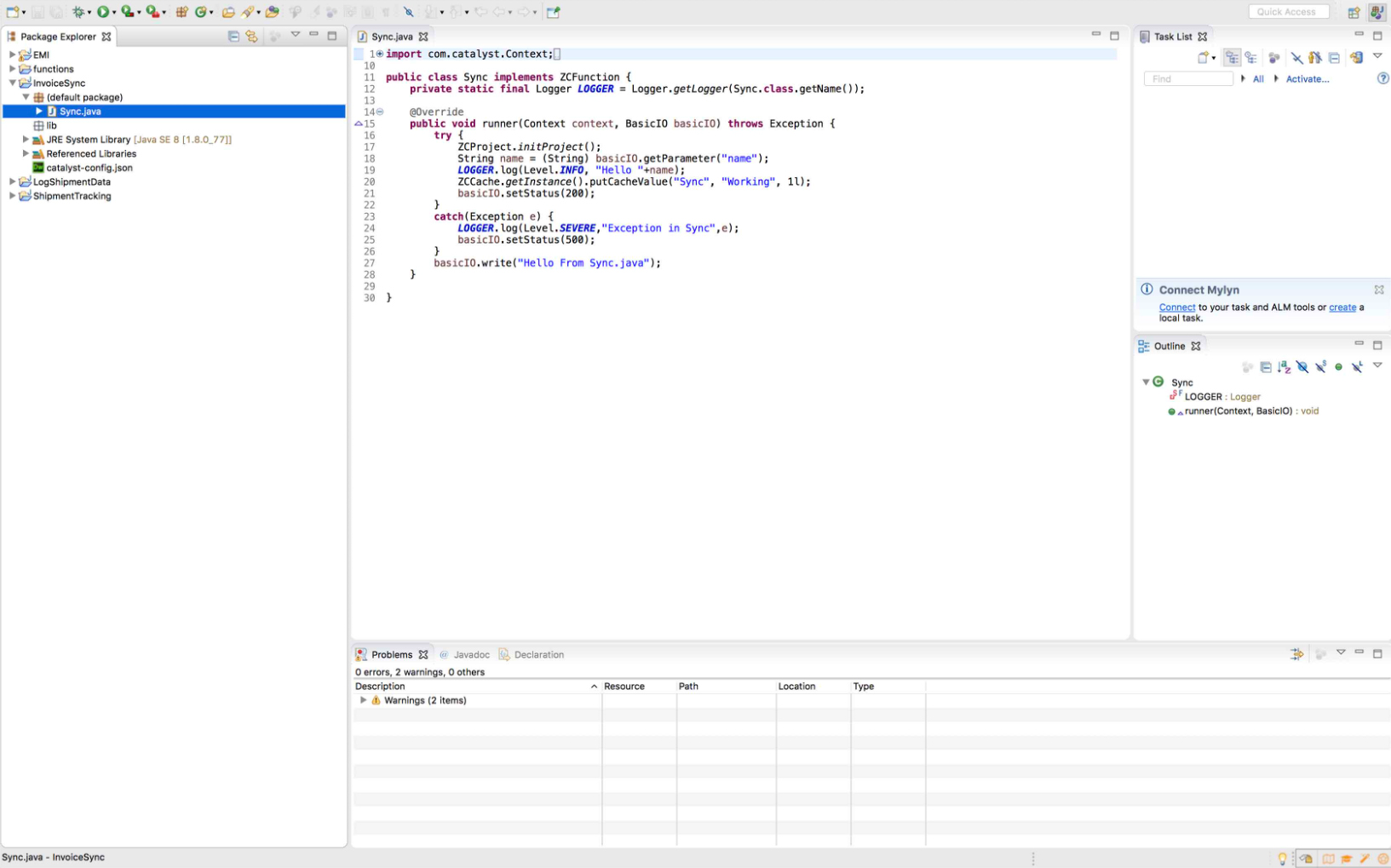
Click Finish.
Your Catalyst functions are now accessible in Eclipse.
Updated
Yes
No
Send your feedback to us
Ask AI about this answer
 Ask ChatGPT
 Ask Claude
 Ask Perplexity