# FAQ
> Answers to common questions about Catalyst by Zoho: billing and the free tier, project setup and deployment, each Catalyst service, the CLI, SDKs and APIs.
--------------------------------------------------------------------------------
title: "General"
description: "This section covers common questions related to setting up your Catalyst project, using the console, and project deployments."
last_updated: "2026-11-13T05:00:22.000Z"
source: "https://docs.catalyst.zoho.com/en/faq/general/"
service: "All Services"
--------------------------------------------------------------------------------
# Settings
### How do I delete an existing project in Catalyst?
You can delete a Catalyst project in the following way:
1. Open the project from the Catalyst console.
2. Navigate to Settings and click General under Project Settings.

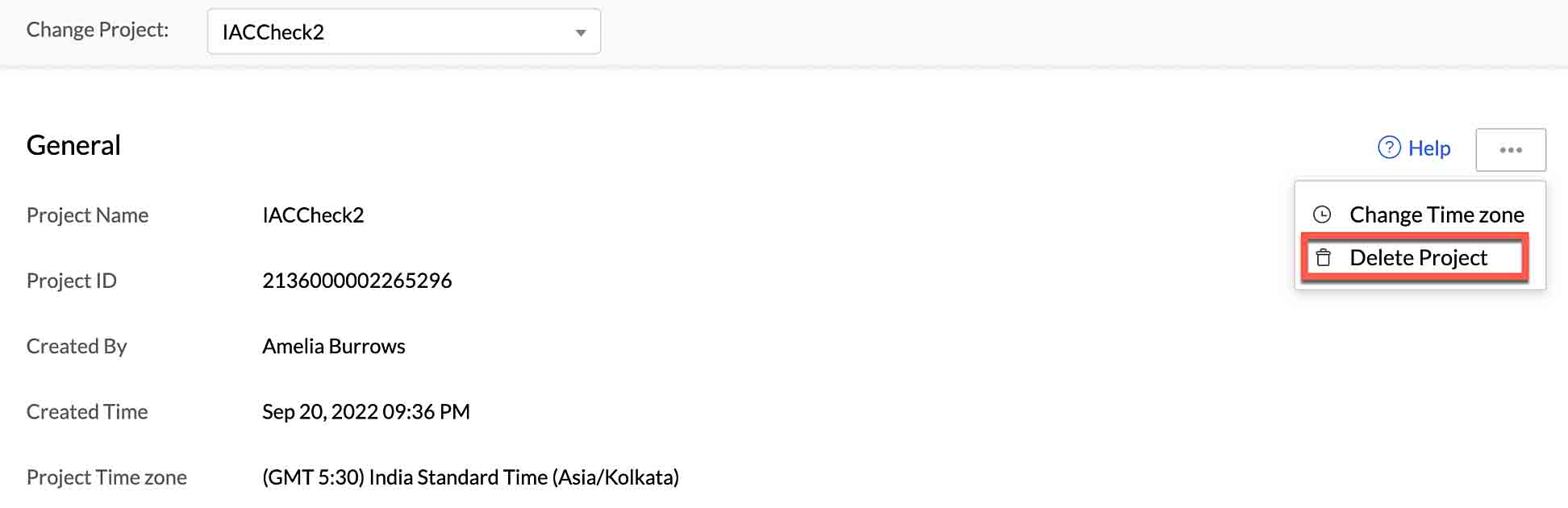
3. You can delete your project permanently from the General project settings page by clicking the ellipsis icon, then clicking Delete Project.
4. Type "DELETE" in the pop-up window for confirmation, then click Confirm.
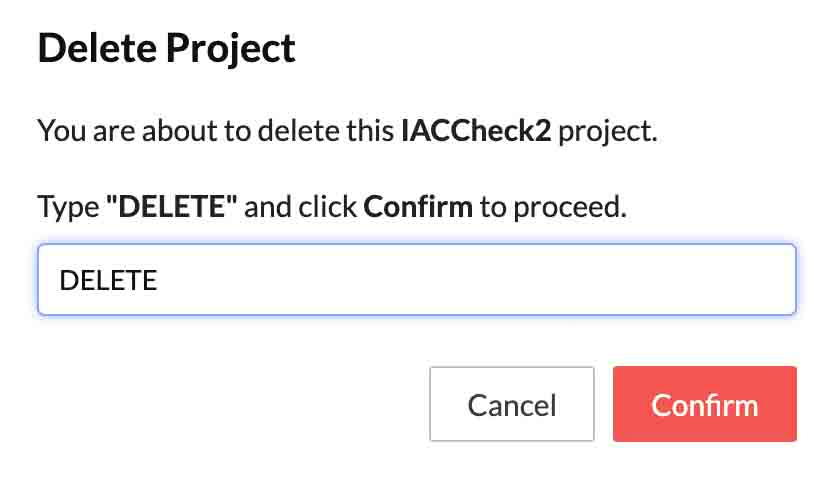
Your project and its resources will be permanently deleted from the console. You will not be able to initialize this project from the CLI once it has been deleted.
### How do I take ownership of the projects in a different Catalyst account, such as one an employee set up?
Only the current Super Admin of that Catalyst account can hand it over: they invite you as an Admin, then change you to Super Admin. A Catalyst account isn't tied to your company's email domain or to your other Zoho subscriptions, such as Zoho CRM, so a company administrator can't take it over without the Super Admin.
1. The current Super Admin opens **Settings** → **Collaborators**, clicks **Add or Assign**, selects **Admin for the Whole Account**, enters your email address and clicks **Confirm**.
2. Accept the invitation with that exact email address.
3. The Super Admin opens your details in the **Admins** list and clicks **Change to Super Admin**. They become an Admin, and from then on only you can delete the account or change the Super Admin.
4. If the previous owner should leave, open their details, click the ellipsis icon, click **Delete**, type `DELETE` and click **Confirm**.
If you need access rather than ownership, an Admin can add you as an Admin or a Project Member instead. To move a single project into your company's own account, export it and import it with Infrastructure as Code (IaC); its data isn't included.
Refer to the [Collaborators help page](https://docs.catalyst.zoho.com/en/getting-started/set-up-a-catalyst-project/collaborators/) for details.
### Why do I get the error 'You cannot perform this operation. User exists in another data center' when I try to add collaborators to my Catalyst project?
This issue occurs when the email address you are trying to add exists in an account from a different data center. You can try deleting the collaborator's original Catalyst account, and then add the account again in the DC that you require. You can also try adding a different email address of the collaborator.
Note: You must take a backup of all the data in the collaborator’s Catalyst account. We will not be able to retrieve data of a Catalyst account, if it is deleted.
### My Catalyst session login expires within a day. How do I maintain the session time until I log out manually?
Your active session is set to expire after a day by default, for security reasons. You can log in again if a session expires.
### How do I export a Catalyst project from a different Catalyst account and import it into another Catalyst account?
You can export and import your Catalyst project under Settings-> Infrastructure as a Code(IaC) in Catalyst console. You can also perform these IaC operations from the CLI. The CLI enables you to export a project into your local directory, import a new project in the remote console and/or the local environment, or generate an import-ready ZIP file of any project.
Note: Your Catalyst project will alone get exported, and not the data from within the project. You can export and import data present in your Data Store, using the bulk read/write APIs, or from the Catalyst CLI.
### Why was my Data Store data not imported into my Catalyst project when I exported it from a different account?
Whenever you perform an export, only your Catalyst project will get exported and the data associated with your project will never be exported. To export and import the data in your Data Store, you can use our bulk read/write API or using our Catalyst CLI.
# Deployment
### How do I deploy a project to the Catalyst remote console?
Once you create and test your application in your local machine using the CLI or any other tool, you can deploy the project to the Catalyst remote console in three ways:
1. Using Catalyst CLI:
You can deploy your project from the Catalyst CLI by executing the `catalyst deploy` command from the project's root directory. Refer to the [**Deploy Resources help page**](https://docs.catalyst.zoho.com/en/cli/v1/deploy-resources/introduction/) for more information.
2. Uploading the files manually:
* Client component: You can upload your project's client package manually to the Catalyst console and host the client component. Refer to the [**Web Client Hosting help page**](https://docs.catalyst.zoho.com/en/cloud-scale/help/web-client-hosting/introduction) for a detailed explanation.
* Functions: You can create functions in your project directly from the Catalyst remote console, instead of creating them in your local machine. You can learn more about this from the [**Functions help page**](https://docs.catalyst.zoho.com/en/serverless/help/functions/introduction).
* Android, iOS, or Flutter applications: You can upload the source files of your Android, iOS, or Flutter applications in Device Management in the Catalyst console. Refer to the [**Device Management help page**](https://docs.catalyst.zoho.com/en/cloud-scale/help/mobile-device-management/introduction) for a detailed explanation.
3. Downloading your project files from a GitHub repository:
You can deploy the client and functions together or individually from your GitHub repository. You can learn more about this from the [**GitHub Integration help page**](https://docs.catalyst.zoho.com/en/devops/help/github-integration/introduction).
### What does the 'Deploy to Production' button in the Catalyst console do?

You can use the Development environment to work with and test your Catalyst application during the development phase, and deploy it to the Production environment once it is ready to be made live. When you create a project, it will be created in the Development environment by default.
Once you deploy it to the Production environment, you will be able to switch between both environments in the Catalyst console and migrate your data between both environments.
Refer to the [**Environments help page**](https://docs.catalyst.zoho.com/en/deployment-and-billing/environments/introduction) for detailed help.
### Why do I get a 'You cannot perform this action. Diff generation is already in progress' error when I try to deploy my app from development to production?
In Catalyst, this issue will occur if you initiate the Development to Production deployment of a project while one of your other project's migration status is already in progress or hasn't been completed yet. You can try deploying your application again after all the other project migrations are completed.
### Why are the data from the Data Store tables not available in production after I migrate my app from development to production?
Catalyst only deploys the metadata of the services and components, along with the project code from one environment to the other. The data from the Data Store, or Cache will not be migrated to the production environment. You can use the bulk read or bulk write APIs to export and import your table data from development to production.
### Why am I not able to create folders, tables, or cache segments in the production directly?
You will not be able to create tables, cache segments, or functions directly in production environment as those operations are restricted. You will need to create these components in the development environment and then migrate them to production.
### My Development to Production deployment is stuck at 'Migration Running' or 'Cloning in Progress', or failed with no reason. What should I do?
First reload the **Deployments** page, because the status in the Catalyst console may not update on its own. If the deployment is still stuck or has failed, or Production shows errors after a deployment marked Completed, only Catalyst support can clear or repair it. Until it is cleared, a stuck deployment can block new deployments and deleting the project.
1. Open **Settings** → **Environments** → **Deployments** and open the deployment to see its current status and details.
2. If it stopped after the diff was generated, click **Begin Deployment** to continue or **Abort** to cancel it.
3. Check the other projects in the same organization for an unfinished deployment.
4. If it is still stuck or failed, contact Catalyst support. Include your data center, the Org ID and Project ID, the deployment's commit message, status and start time, the features it included, any error text, a screenshot of the deployment's details, and whether your live app is affected.
5. After support confirms it is cleared, create a new deployment.
Note: If a deployment keeps failing on one feature, unselect that feature, deploy the rest, and report the failing feature to support.
Refer to the [Deploying Features after the First Time help page](https://docs.catalyst.zoho.com/en/deployment-and-billing/environments/subsequent-deployment/) for details.
### Can I deploy my project to the Production environment from the CLI, an API or a CI/CD pipeline?
No, in Catalyst, actions you perform from the Catalyst CLI or the APIs, including `catalyst deploy` and Catalyst Pipelines jobs that run it, reach only the Development environment. Deployments from Development to Production are made in the Catalyst console, and Catalyst doesn't provide a CLI command, public API or status API to start or track them.
You can automate everything up to that step:
1. Deploy to Development from your pipeline with `catalyst deploy`, using a Catalyst CLI token (`--token`) and the `--project` and `--org` options.
2. Run your checks against the Development URLs.
3. In the console, open **Settings** → **Environments** → **Deployments**, click **Create Deployment**, enter a commit message, choose Development to Production, select the features, review the diff and click **Begin Deployment**. For the first deployment, click **Deploy to Production** instead.
Each deployment is listed in the **Deployments** tab with its details, which you can keep as the record of what was promoted and when. Note: Production needs a payment method on the account, and every service you use must have been opened once in the console with **Start Exploring**.
Refer to the [Deploying Features after the First Time help page](https://docs.catalyst.zoho.com/en/deployment-and-billing/environments/subsequent-deployment/) for details.
### I build one Catalyst app for many clients. How do I deploy it into each client's own project and roll out updates to all of them?
Deploy it to each client's project separately: Catalyst doesn't push one update to many projects at once, but you can script the deployments with the Catalyst CLI. When each client owns the project in their own Catalyst account, their data and usage bill stay with them.
1. Ask each client to invite you from **Settings** → **Collaborators** → **Add or Assign**, as an Admin for the whole account or as a Project Member of the project.
2. Create the client's project from your app: export your project with Infrastructure as Code (IaC) from the console or the CLI, and import the ZIP into the client's account. The ZIP carries the configuration and code, not the data, and the imported project is a new project with its own IDs, so update any IDs your code uses.
3. To ship an update, generate a Catalyst CLI token and run `catalyst deploy --project --org --token ` for each client project, from a script or a Catalyst Pipelines job. This updates each project's Development environment.
4. Deploy each project from Development to Production in its console, from **Settings** → **Environments** → **Deployments**.
Refer to the [CLI Options help page](https://docs.catalyst.zoho.com/en/cli/v1/cli-options/) and the [IaC Settings help page](https://docs.catalyst.zoho.com/en/getting-started/set-up-a-catalyst-project/iac-settings/) for details.
# Collaborators and Roles
### What happens to our Catalyst apps if we deactivate the Zoho account of the employee who owns them?
Transfer that employee's Catalyst roles to an active colleague before you deactivate or delete their Zoho account. If they are the Super Admin of the Catalyst account, which by default is the person who signed up, only they can transfer the role, and deleting a Catalyst account permanently deletes every project in it, including live apps.
1. If the employee is the Super Admin, have them invite the new owner as an Admin for the whole account from **Settings** → **Collaborators**, then click **Change to Super Admin** on that Admin's details.
2. If the employee holds the **Project Owner** profile in a project, give that profile to another project member with **Change Profile**.
3. Once the roles are moved, an Admin can delete the employee from **Settings** → **Collaborators**. They lose access to the organization's projects from the console and the CLI, and their Zoho account itself isn't deleted.
4. Check that your apps still respond in the Production environment.
Note: Make the transfer while the employee can still sign in, so the Catalyst account always has an active Super Admin.
Refer to the [Collaborators help page](https://docs.catalyst.zoho.com/en/getting-started/set-up-a-catalyst-project/collaborators/) for details.
# Data Centers
### Which data center is my Catalyst project's data in, and how do I get a written data residency statement?
Your Catalyst account and its projects are in the data center of the Zoho account you use with Catalyst. Catalyst is hosted in eight data centers, US, EU, IN, AU, CA, JP, SA and UAE, and each has its own console, API domain and Zoho Accounts server.
To see your data center, check the Zoho Accounts domain you sign in to: for example, `accounts.zoho.in` is the IN data center and `accounts.zoho.eu` is the EU data center. Your Catalyst API domain shows it too, for example `api.catalyst.zoho.in`.
For a written statement of where each component you use processes, stores and backs up data, for example for a GDPR or DPDP Act review, ask Catalyst support. Name your data center, the components you use (such as Data Store, Stratus, Functions, Zia Services or QuickML), the regulation, and whether you need a signed document.
Note: To move a project to another data center, export it with Infrastructure as Code (IaC) and import it into an account in that data center; the export doesn't include your data.
Refer to the [Multi-DC Support help page](https://docs.catalyst.zoho.com/en/api/introduction/multi-dc-support/) for each data center's domains.
# Getting Support
### How do I get a higher concurrency or rate limit for my Catalyst project before a launch or a large event?
Contact Catalyst support as early as you can before the event, because limit increases are reviewed case by case. Some limits, such as the AppSail instance count and concurrent requests per instance, are documented as increasable on request. To avoid a back-and-forth, include in your first request:
1. Your project ID, the environment (Development or Production) and the data center.
2. The component and the exact error, for example 'Concurrency limit reached for the feature FUNCTIONS', 'Concurrency limit reached for the feature APP_COMPUTE' or 'Number of API requests exceeded the threshold limit'.
3. Your expected peak, as simultaneous requests or requests per minute, the expected requests per day, and the payload size.
4. The event date and how long the peak lasts.
5. A short description of your use case and architecture, and the results of any load test.
Support reviews the request and tells you which limit it can set for your project.
Note: Until an increase is confirmed, design for the current limit: shorten executions, batch requests and retry refused requests with a growing delay.
Refer to the [AppSail Basics help page](https://docs.catalyst.zoho.com/en/serverless/help/appsail/appsail-basics/) for details.
# Security and Compliance
### Which Catalyst components are covered for HIPAA when my app stores protected health information (PHI)?
The Catalyst HIPAA Compliance help page names Catalyst CloudScale Data Store as the component upgraded to store ePHI, with Catalyst DevOps Logs included by extension, and CloudScale Stratus buckets have a **PII/ePHI** setting for storing sensitive data in compliance with HIPAA. The Profiles and Permissions and Audit Logs settings were upgraded to restrict and record access to that data.
Other components aren't described there as HIPAA features. What your own code does with PHI, for example in Serverless Functions, AppSail or Job Scheduling, is your responsibility: Catalyst requires developers to use its HIPAA features and to follow all applicable privacy and data protection laws.
Before you send PHI to any other component, such as Zia Services or QuickML, or to confirm what a Business Associate Agreement (BAA) covers, contact Catalyst support. Include the components you use, your data center, your pricing model and whether a BAA is already in place, so one answer covers all of them.
Refer to the [HIPAA Compliance help page](https://docs.catalyst.zoho.com/en/compliance/hipaa/) for details.
### How do I store protected health information (PHI) in Catalyst Data Store and Stratus in a HIPAA-compliant way?
Turn on the PII/ePHI controls in each component that holds the data, and limit who can see it.
1. In Catalyst CloudScale Data Store, enable the **PII/ePHI** validator on each column that holds PHI, when you create the column or by editing it later. For long-form protected text, use the **Encrypted text** data type. Only Admins and project members with the required permissions can view data in these columns.
2. In CloudScale Stratus, open the bucket's **Configurations** tab, expand **General Settings**, and enable **PII/ePHI**, and **Data Encryption** if you need it. Every access to the bucket's objects is then logged.
3. In **Settings** → **Profiles & Permissions**, grant access to Data Store, Logs and Audit Logs only to the profiles that need it.
4. Review **Settings** → **Audit Logs** → **Application Logs**, which records each creation, update and deletion of rows in PII/ePHI columns and the activity on PII/ePHI buckets. The console shows the last year, and Admins can click **Export Logs** to download up to six years.
Note: Stratus bucket settings are off by default, so enable them before you upload PHI.
Refer to the [HIPAA Compliance help page](https://docs.catalyst.zoho.com/en/compliance/hipaa/) for details.
# Choosing Catalyst Services
### Which Catalyst services should I use to host a full-stack application?
You can host each part of a typical full-stack application on a Catalyst service, in one project. Host the frontend on Catalyst Slate, which deploys front-end web apps from a Git repository or an uploaded build. Build the backend as Catalyst Serverless Functions, for HTTP APIs, event-driven flows and integrations, or as Catalyst AppSail services, for independent web services in Java, Node.js, Python or a container image.
Store relational data in Catalyst CloudScale Data Store, which you query with ZCQL, and unstructured data in CloudScale NoSQL. Keep files in CloudScale Stratus and frequently read data in CloudScale Cache. Sign users in with CloudScale Authentication. Run scheduled and background work with Catalyst Job Scheduling, and pass events between services with Catalyst Signals. Automate builds and deployments with Catalyst Pipelines, and monitor executions with Catalyst DevOps. For AI features, use Catalyst QuickML or Zia Services.
You build and test in the project's Development environment, then deploy to Production from the Catalyst console. Note: Each service has its own limits, such as the 30-second request limit in AppSail, and not every service is available in every data center, so check each service's help page before you commit to a design.
Refer to the [AppSail Basics help page](https://docs.catalyst.zoho.com/en/serverless/help/appsail/appsail-basics/) to choose between Functions and AppSail, and the [Components of Catalyst CloudScale help page](https://docs.catalyst.zoho.com/en/cloud-scale/getting-started/components-of-cloud-scale/) for details.
### Can I run a virtual machine, VPS or GPU server on Catalyst, with root access and a static IP address?
No. Catalyst is a serverless platform. It doesn't offer virtual machines, VPS or dedicated servers, root or SSH access, GPU instances or a static IP address for your project. The nearest fit for software you would run on your own server is Catalyst AppSail, a fully managed platform for web services.
With AppSail you deploy your app as a Java, Node.js or Python build, or as a container image (an OCI image built for Linux AMD64) for any other runtime, such as PHP or Go. Catalyst spawns and scales the instances. You set the memory, disk size, port, startup command and environment variables, but you don't manage the infrastructure. Check AppSail's limits first: each request must complete within 30 seconds, and inactive instances are scaled down, so a process that must run around the clock, such as a blockchain node or a long-running worker, doesn't fit.
For relational data, use Catalyst CloudScale Data Store instead of your own database server. For AI features, Catalyst QuickML LLM Serving gives you large language models served by Catalyst; Catalyst doesn't provide GPU capacity to train or host your own model.
Refer to the [AppSail Basics help page](https://docs.catalyst.zoho.com/en/serverless/help/appsail/appsail-basics/) for details.
--------------------------------------------------------------------------------
title: "Billing"
description: "This section covers common questions about Catalyst pricing and your bill, the free tier and credits, and payments and subscriptions."
last_updated: "2026-11-13T05:00:22.000Z"
source: "https://docs.catalyst.zoho.com/en/faq/billing/"
service: "All Services"
--------------------------------------------------------------------------------
# Billing and Pricing
### How is the pricing calculated in Catalyst?
Catalyst bills you in two different ways based on the pricing model you opt for.
* **Pay-as-you-go:** This model requires you to pay only for the resources you consume, post the consumption. This is a postpaid model in which the price is calculated for each billable resource usage, and the bill is generated on a monthly basis.
* **Subscription:** This requires you to pay a fixed subscription fee in advance on a monthly basis, and purchase Catalyst resources worth that amount as determined by the pricing. This is a prepaid model in which a fixed set of resources are allocated for each subscription amount tier.
You can refer to the [Pricing Calculations help section](https://docs.catalyst.zoho.com/en/deployment-and-billing/billing/pricing-calculations/) for more details.
### How do I estimate what a small Catalyst app will cost each month?
Estimate it from the usage you expect for each component, because Catalyst bills each operation, such as a Data Store insert, a function's execution time or an email sent, at its own unit price.
1. List the components your app will use and how much of each it needs in a month, for example Data Store reads and writes, function executions with their memory size, and storage.
2. Look up each operation's unit price on the Catalyst Pricing page, and its free allowance on the Free Tier page.
3. On the pay-as-you-go model, subtract the free tier allowance, which is shared across your projects. Once your usage exceeds the free tier for any resource, each project with billable activity is billed at least USD 5 for the month.
4. On a subscription plan, choose a plan whose amount, plus the extra USD 5 that Catalyst adds in each billing cycle, covers your estimate.
5. When your app has run for a month, compare your estimate with **Forecast** in **Settings** → **Billing** → **Overview**.
Note: Catalyst Serverless Functions are priced per second of execution by memory size, and AppSail per minute of instance running time by memory size.
Refer to the [Pricing Calculations help page](https://docs.catalyst.zoho.com/en/deployment-and-billing/billing/pricing-calculations/) and the [Pay-As-You-Go Pricing Model help page](https://docs.catalyst.zoho.com/en/deployment-and-billing/billing/pay-as-you-go-model/) for details.
### Why is each of my Catalyst projects billed the USD 5 minimum, even projects I don't use?
On the Catalyst pay-as-you-go model, once your usage exceeds the free tier allowance for any resource, Catalyst bills a minimum of USD 5 for every project in which at least one billable action has occurred, even if that project's own usage was lower. Only completely empty projects, where no resources have been created or used, are exempt. The minimum is part of each monthly bill. For accounts billed in another currency, it is USD 5 converted into the local currency.
The free tier is shared across your projects, but the minimum applies to each project. For example, three projects with usage worth USD 6, USD 3 and USD 2 are billed USD 6, USD 5 and USD 5, a total of USD 16, before the free tier allowance left is subtracted.
1. Go to **Settings** → **Billing** → **Breakdown** → **Project Usage Stats** to see which projects are billed.
2. Delete the projects you no longer need: open the project, go to **Settings** → **General** under Project Settings, click the ellipsis icon, click **Delete Project**, type DELETE and click **Confirm**. This permanently deletes the project and its resources.
3. Keep experiments in as few projects as possible.
Refer to the [Pay-As-You-Go Pricing Model help page](https://docs.catalyst.zoho.com/en/deployment-and-billing/billing/pay-as-you-go-model/) for more information.
### Is my usage in the Catalyst Development environment billed, or only usage in Production?
Under the current pay-as-you-go and subscription models, usage in both the Development and the Production environment counts toward your free tier allowance, your plan amount and your bill. The Development environment is free only within the shared free tier: once you go past it, Development usage is billed like Production usage, and a project that exists only in Development can carry the pay-as-you-go minimum. Catalyst's deprecated pricing system, which applied until 1 April 2024, billed only the Production environment.
To keep Development costs down:
1. Go to **Settings** → **Billing** → **Breakdown** → **Project Usage Stats** to see which projects use the most.
2. Stop test workloads you no longer need, such as scripts or scheduled jobs that keep calling your functions or Data Store.
3. Delete projects you don't use: open the project, go to **Settings** → **General** under Project Settings, click the ellipsis icon, click **Delete Project**, type DELETE and click **Confirm**.
Refer to the [Pay-As-You-Go Pricing Model help page](https://docs.catalyst.zoho.com/en/deployment-and-billing/billing/pay-as-you-go-model/) and the [Deprecated Pricing System help page](https://docs.catalyst.zoho.com/en/deployment-and-billing/billing/old-pricing-model/) for details.
### How do I find out which project or component is driving my Catalyst bill?
You can see the usage and cost of each project and each component in the Billing settings of the Catalyst console.
1. Go to **Settings** → **Billing** → **Breakdown**.
2. Select **Project Usage Stats** and a time period to see the usage and cost of each project. Click a project name to open its detailed breakdown.
3. Switch to **Component Usage Stats** to see each service and component across all projects, with the calls made, the unit price, the total count and the gross amount.
4. Go to **Settings** → **Billing** → **Report** to chart usage by project and service. Choose a **Group By** option, select **Daywise** or **Monthwise** under **Time Period**, then click **Apply Filter**.
5. In **Settings** → **Billing** → **Overview**, compare **Current Usage**, **Last Billing's Usage**, **Forecast** and the **Cost Trends** graph.
The Breakdown shows the gross amount, which includes usage covered by the free tier or your plan benefit, so it can be higher than the amount you owe. If your card shows a charge you can't match, open **Manage Billing** and click **View Subscriptions** to check your other Zoho subscriptions.
Refer to the [Billing Settings help page](https://docs.catalyst.zoho.com/en/deployment-and-billing/billing/billing-settings/) for more information.
### Can I see Catalyst usage per function or per Data Store table, or get my billing and usage data through an API?
No. The Billing settings of the Catalyst console report usage and cost per project and per component, not per individual function or Catalyst CloudScale Data Store table, and Catalyst has no API that returns billing or usage data.
To get the most detail the console offers:
1. In **Settings** → **Billing** → **Breakdown**, select **Project Usage Stats** and click a project to see each component's usage in that project.
2. In **Settings** → **Billing** → **Report**, filter by **Projects** and services, and select **Daywise** or **Monthwise** to see usage over time.
If you need counts per function or per table, record them in your own application, for example by logging each call with the function or table name, and add them up yourself. To be alerted before costs rise, create a budget with email alert rules in **Settings** → **Billing** → **Budgets**.
Refer to the [Billing Settings help page](https://docs.catalyst.zoho.com/en/deployment-and-billing/billing/billing-settings/) for more information.
# Credits and Free Tier
### Is there a free tier or free usage allowance in Catalyst?
Yes. Catalyst enables you to select between two different pricing models: Pay-as-you-go or Subscription. You can avail a free tier allowance in the pay-as-you-go model, or a plan benefit in the subscription pricing model. Both these benefits provide you with resources for free of cost until you exceed the hard limits imposed for the specific resources, or for the overall amount consumption, depending on the model. Refer to the [Billing help documentation](https://docs.catalyst.zoho.com/en/deployment-and-billing/billing/introduction/) for details.
### Where can I see my Catalyst credits, and how are they used to pay my bill?
You can see the credits available on your Catalyst account in the **Credits Info** section of Manage Billing. Catalyst uses credits, such as the one-time USD 250 credit, to pay for your usage once your pay-as-you-go free tier allowance or your subscription plan benefit is used up, so you don't need to change your payment method to use them. When credits cover a bill or a subscription renewal, no payment is due for it.
1. In the Catalyst console, go to **Settings** → **Billing** → **Manage Billing**. Zoho Store opens in a new tab.
2. Open the drop-down list at the top-right of the **Payments** page, then go to **Billing Details** → **Credits Info**.
3. To see your payments and download invoices, click the **Payment History** link in the **Last Transaction Date** column.
These credits are not the Credits pricing unit of Catalyst's deprecated pricing system, which ended on 1 April 2024. Bills and budgets are now calculated in amounts.
Note: Credits are valid for a limited period, and unused credit expires at the end of it.
Refer to the [Manage Billing help page](https://docs.catalyst.zoho.com/en/deployment-and-billing/billing/manage-billing/) for more information.
### I have Catalyst credits, but I still got a bill or a payment-failed email. Why weren't my credits used?
Catalyst pays a bill from credits only when the credits belong to the Catalyst account being billed and that account's payment setup lets them be applied. The usual causes are:
1. The credits are on a different Catalyst account. Credits stay with the account that claimed them and can't be shared with or merged into another Catalyst account, so keep your projects in the account that holds the credits.
2. They aren't Catalyst credits. Promotional credits from another Zoho product can't pay Catalyst bills. Money in your Zoho Subscription Balance pays Catalyst bills only if you set it as your payment method.
3. The subscription is on an offline, invoice-based payment mode, where credits aren't applied automatically. Catalyst support can switch it.
4. The credits have expired.
Check **Credits Info** in **Settings** → **Billing** → **Manage Billing** while signed in with the account that received the bill. If credits show there and a bill was still raised, contact Catalyst support from the Super Admin's email address with the invoice number and your account's data center.
Refer to the [Manage Billing help page](https://docs.catalyst.zoho.com/en/deployment-and-billing/billing/manage-billing/) for more information.
### Can my unused Catalyst credits be extended, or reinstated after they expire?
No. One-time Catalyst credits, such as the USD 250 credit, are valid for a limited period, and unused credit expires at the end of it. Expired credits can't be extended or reinstated. After they expire, your usage is billed under the pricing model you selected, and on pay-as-you-go the monthly free tier still applies.
To get the most from the credit:
1. Claim it when you are ready to build rather than while you are still evaluating. You can claim it at any time from **Get $250 Credits** in the console.
2. Check the balance in **Settings** → **Billing** → **Manage Billing** → **Credits Info**.
3. Watch your usage in **Settings** → **Billing** → **Overview**.
Note: The credit is a one-time benefit and is not refreshed monthly like the free tier.
Refer to the [Avail 250$ Credits help page](https://docs.catalyst.zoho.com/en/deployment-and-billing/billing/avail-250-credit/) for more information.
# Payments and Subscriptions
### How do I switch my Catalyst account from a subscription plan to pay-as-you-go, and what changes when I switch?
You change your Catalyst pricing model in Zoho Store. Go to **Settings** → **Billing** → **Manage Billing**, open your Catalyst subscription, click **Change Plan** and select **Pay-As-You-Go** or another plan. The pricing model applies to all your Catalyst projects, your projects keep running while you switch, and you can move back to a subscription plan later in the same way.
On pay-as-you-go, you pay after each month for the resources you used, and the monthly free tier applies. Once you exceed the free tier for any resource, every project with billable activity is billed at least USD 5 for the month, so delete the projects you no longer need before you switch. On a subscription plan, you prepay a fixed monthly amount, Catalyst adds USD 5 of usage in each billing cycle, and the account is suspended if usage passes that total before you upgrade. Catalyst is priced by usage, not by the number of developers who work in the account.
Note: Only the admins of a Catalyst account, including the Super Admin, can open Manage Billing.
Refer to the [Pay-As-You-Go Pricing Model help page](https://docs.catalyst.zoho.com/en/deployment-and-billing/billing/pay-as-you-go-model/) and the [Subscription Pricing Model help page](https://docs.catalyst.zoho.com/en/deployment-and-billing/billing/subscription-model/) for details.
### Why was my Catalyst account suspended when my usage went past my subscription plan amount, and how do I resume?
On the Catalyst subscription model, Catalyst temporarily suspends your account activities when your usage in a billing cycle exceeds your plan amount plus the extra USD 5 that Catalyst adds. While the account is suspended, you can't work with any project in any organization or use any Catalyst resource until you upgrade your plan.
1. Go to **Settings** → **Billing** → **Overview**. The **Current Usage** tile shows the amount left on your plan, and **Last Billing's Usage** and the **Cost Trends** graph show how much you use in a month.
2. Go to **Settings** → **Billing** → **Manage Billing** and upgrade in Zoho Store to a higher plan that covers your usage, for example from Basic to Standard.
3. Reload the console and check that your projects work again.
Catalyst creates budgets for you when you subscribe and sends email alerts when your usage reaches 50%, 75%, 90% and 100% of your plan amount, so you can upgrade before the account is suspended.
Refer to the [Subscription Pricing Model help page](https://docs.catalyst.zoho.com/en/deployment-and-billing/billing/subscription-model/) for more information.
--------------------------------------------------------------------------------
title: "Serverless"
description: "This section covers queries related to the components and features of the Catalyst Serverless service, such as Functions, AppSail, and Circuits."
last_updated: "2026-11-13T05:00:22.000Z"
source: "https://docs.catalyst.zoho.com/en/faq/serverless/"
service: "Serverless"
--------------------------------------------------------------------------------
# Functions
### Why do I get the 'Basic I/O execution time exceeded' error while executing my function?
A time out issue will occur if you have not properly caught an exception in your function, or if you haven't closed the context at the end of your function's code. This issue can also occur if you haven't installed all the necessary modules files. To resolve this issue, you must try the following:
* Ensure that your code properly catches and handles exceptions
* Check if context.close( ) is added at the end of your function
* Ensure that you have installed all the necessary modules files based on the stack
### What is the execution time limit for my function?
In Catalyst Serverless, Basic I/O and Advanced I/O functions can run for up to 30 seconds. Event, Cron and [Job functions](https://docs.catalyst.zoho.com/en/serverless/help/functions/job-functions/) can run for up to 15 minutes.
The Cron component is deprecated. Use the [Job Scheduling services](https://docs.catalyst.zoho.com/en/job-scheduling/help/jobpool/introduction/), which run Job functions, for your cron requirements.
### Where should I install the external Node.js, Java, or Python dependencies in my function?
Install the external dependencies of a Catalyst Serverless function in its functions/{function_name} folder on your local machine. Navigate to that folder path, and then install the Node modules if it is a Node.js function, or the JAR dependencies inside the lib folder if it is a Java function. For a Python function, you can install the required Python packages.
### How do I send the request body to my Basic I/O function?
For Basic IO functions, the request data should be sent via the query parameters using the GET method. If you need to make native HTTP requests to your function, then you can try using Advanced I/O functions in Catalyst. Advanced I/O functions can handle native HTTP requests and responses and you can send your request payload as per your requirement.
### Why do I get the error 'Class to be executed could not be found' while executing my Java function?
In Catalyst Serverless, this error occurs only if the .class file for your Java function is missing. If you uploaded the code via the Catalyst console , you will need to ensure that you uploaded it along with the .class files to resolve the issue. However, if you initialized your function via the CLI, you can use the command catalyst deploy. This command will compile the code automatically, create any of the missing dependency files, and upload the code to the Catalyst environment.
### Why do I get an empty request body to my Advanced I/O function when the function URL is hit?
You have to use the appropriate body parser for the input type that you pass, to get the data in the request body in your Catalyst function.
### How do I set the response headers and response type in a Basic I/O function?
Basic I/O functions do not support native HTTP requests and response headers. Therefore, you won't be able to set the response headers and response type in Basic I/O functions. You can instead use Advanced I/O functions, as they support native HTTP requests and response headers.
### Why do I get '(intermediate value).default is not a function' while executing my Node.js function?
This error occurs when your Catalyst Serverless Node.js function doesn't export its code. To rectify this issue, you must export the code in your function to expose it. Ensure that you have added module.exports={module_variable_name} inside of your Node.js function.
### How do I invoke an Event function?
Event Functions can only be invoked when the event configured in Catalyst Signals has occurred. If the event you require has not occurred yet, you can perform an appropriate operation that will trigger Signals to invoke the event function automatically. You can also test event functions from the CLI by passing sample payloads and validating their execution.
### Why do I get 'Concurrency limit reached for the feature FUNCTIONS' (TOO_MANY_REQUESTS) when many users call my function?
This happens when more executions of your Catalyst Serverless functions run at the same moment than the concurrency limit allows. Catalyst refuses the extra requests with HTTP 429 instead of queuing them. The limit counts executions in progress, not requests per day, so a function that waits on a slow external API reaches it with fewer users.
1. Make each execution shorter. Move slow or heavy work into a Job function, where jobs wait in a Job Pool instead of being refused.
2. Retry 429 responses in the client after a short delay that grows with each attempt.
3. For sustained traffic with many simultaneous requests, consider Catalyst AppSail. Each AppSail instance serves up to 100 concurrent requests, and a service runs up to 5 instances by default.
4. If your expected peak is still above the limit, contact Catalyst support before your launch with the environment, the function names, your expected peak number of simultaneous requests and the average execution time.
Note: The limit is lower in the Development environment than in the Production environment.
Refer to the [Error Codes help page](https://docs.catalyst.zoho.com/en/api/introduction/error-codes/) and the [AppSail Basics help page](https://docs.catalyst.zoho.com/en/serverless/help/appsail/appsail-basics/) for details.
### How do I resolve the error 'HTTP Error: 409 - The given function_name already exists'?
If you encounter HTTP Error: 409, it means that a function with the same name already exists in the Catalyst console.
You can either change the name in the `catalyst-config.json` file or delete the existing function in the remote console [**using the CLI**](https://docs.catalyst.zoho.com/en/cli/v1/working-with-functions/introduction/) or [**directly from the console**](https://docs.catalyst.zoho.com/en/serverless/help/functions/introduction)
### How do I access Catalyst Java functions in my Eclipse editor?
If you have created functions in the Catalyst remote console, you must download them to your local machine before you can access them in your editor. If you created functions on your local machine, you can skip to step 3.
To access Catalyst Java functions in your Eclipse editor:
1. Download your function's code from the remote console by executing the following Catalyst CLI command:
`$ catalyst pull`
You can refer to the [Pull Resources help page](https://docs.catalyst.zoho.com/en/cli/v1/pull-resources/introduction/) for a detailed explanation.
This will automatically create a functions directory in your project home containing your functions.
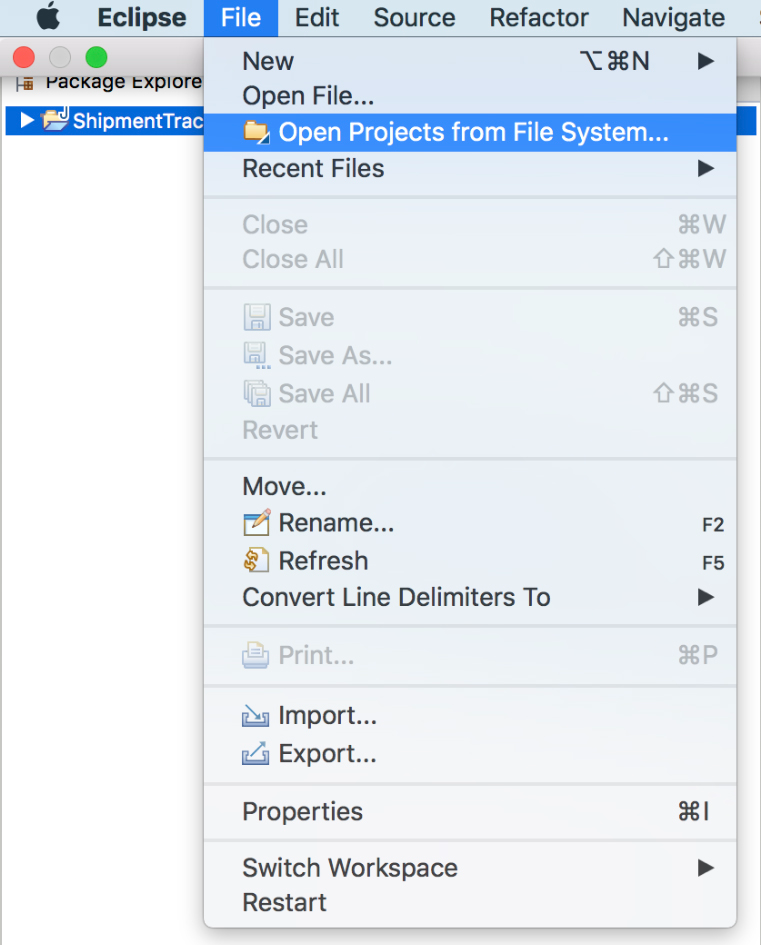
2. Open your Eclipse editor. Navigate to **File** and then **Open Projects From File System**.
3. Click **Directory** next to *Input Source* in the pop-up.
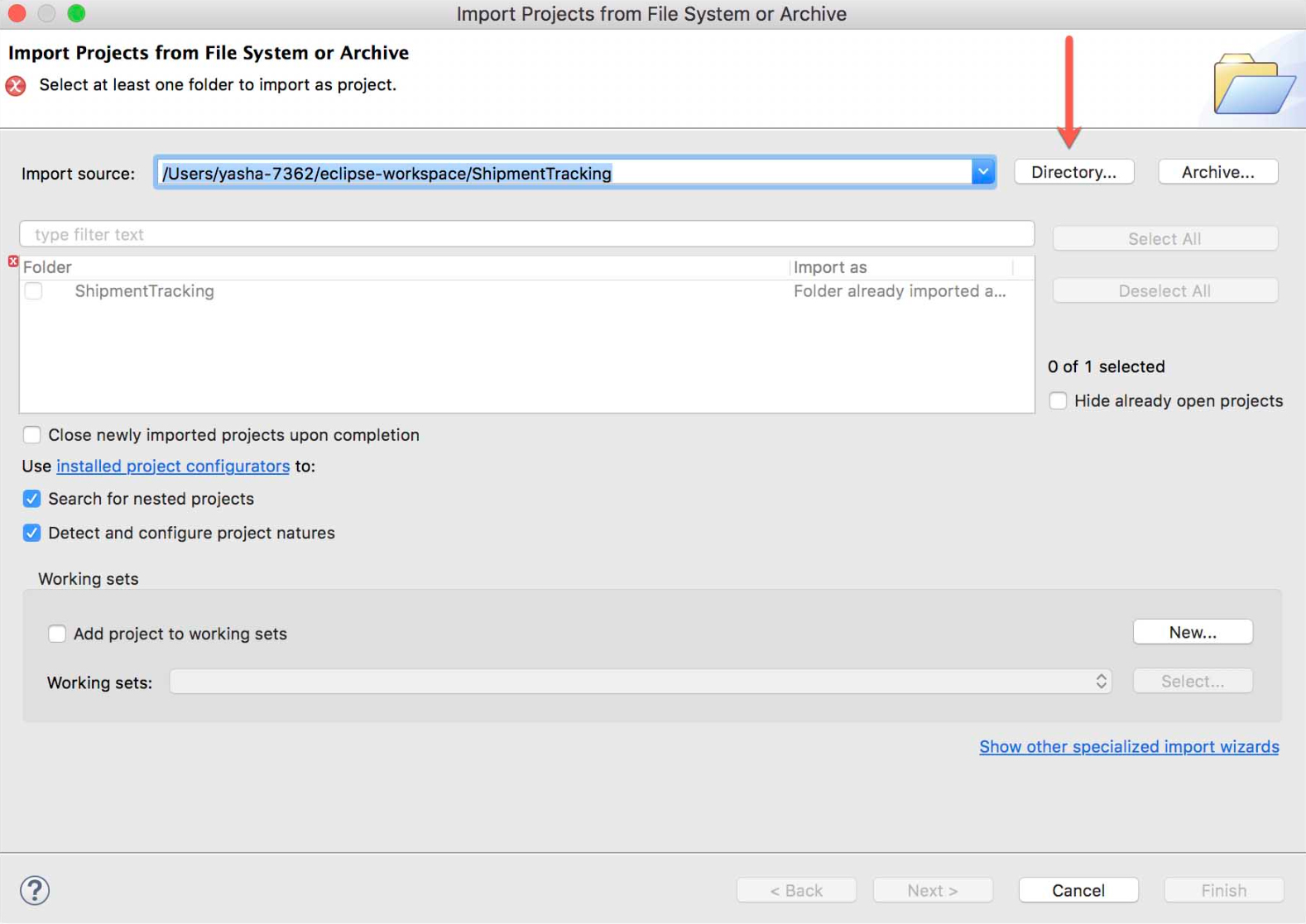
4. Select the functions folder that was created using the CLI and click **OK**.
5. Ensure that *Add project* to *working sets* is unchecked.
6. Eclipse auto detects the Java functions in that folder. Select the functions you need from the list.
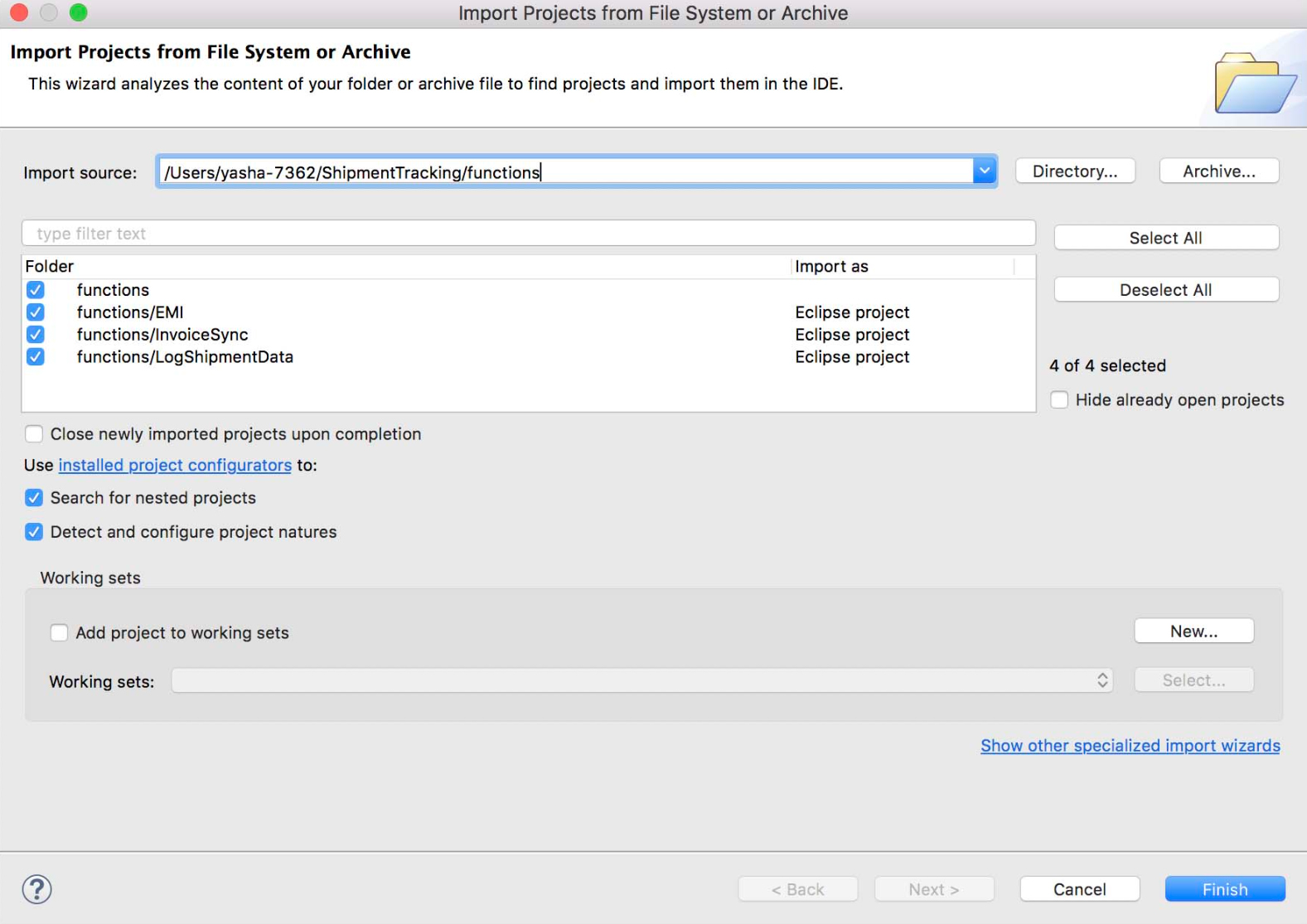
7. Click **Finish**.
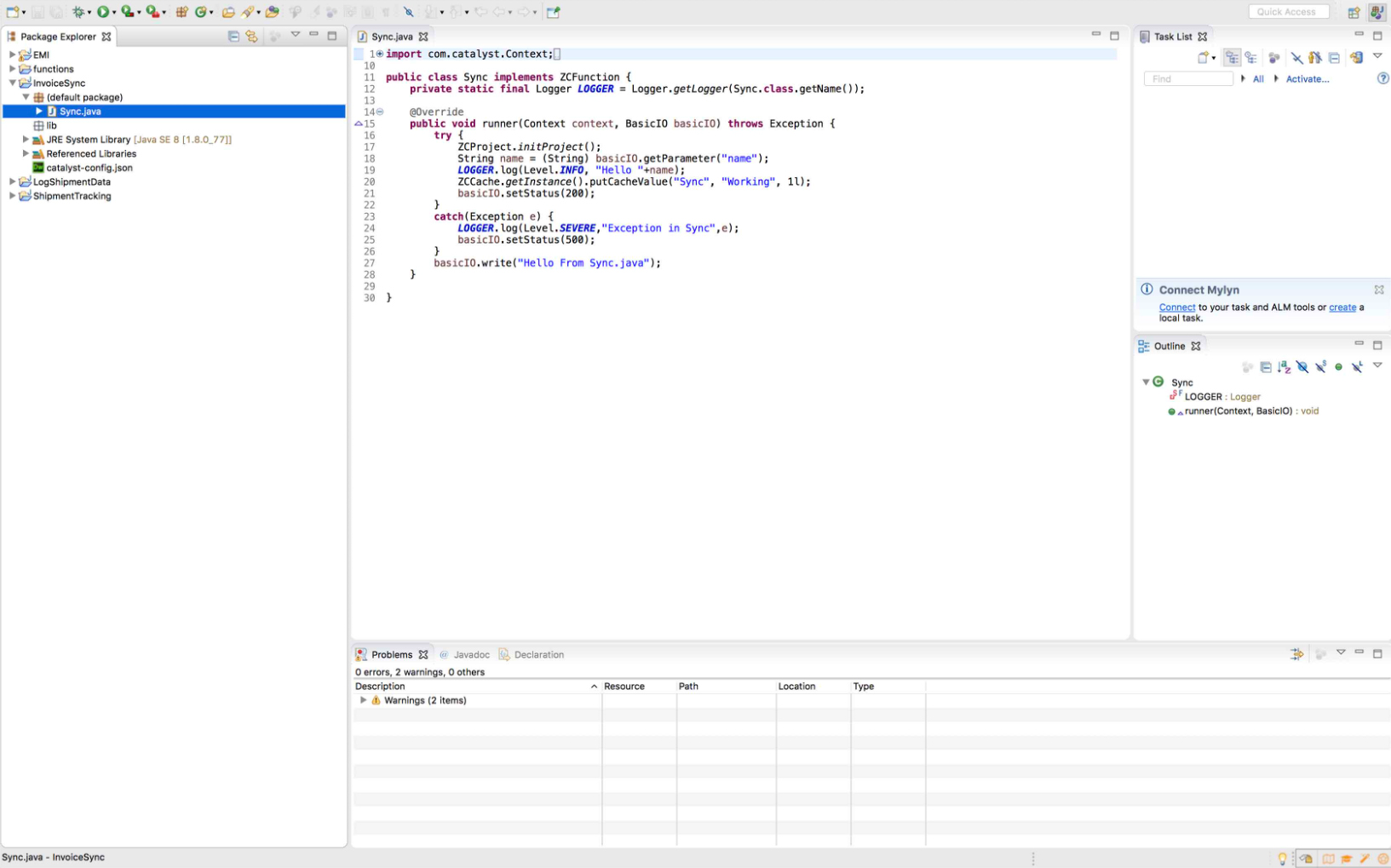
Your Catalyst functions are now accessible in Eclipse.
### How can I include an external JAR in a Java function and bundle it along with the Catalyst Java functions?
1. Open your Java functions in Eclipse as described in the previous answer.
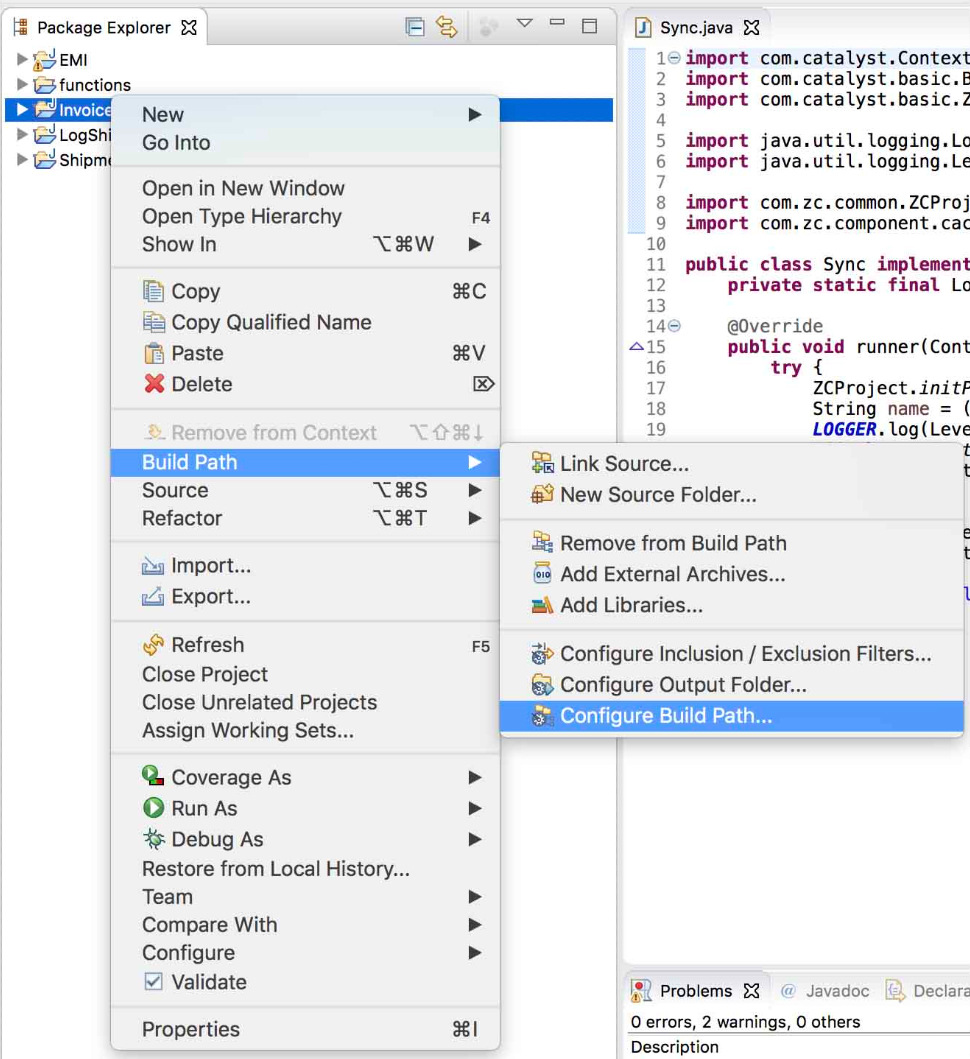
2. Right click on your project from the package explorer and click **Build Path** and then **Configure Build Path...**
3. Click the **Libraries** tab and select **Add External JARs**
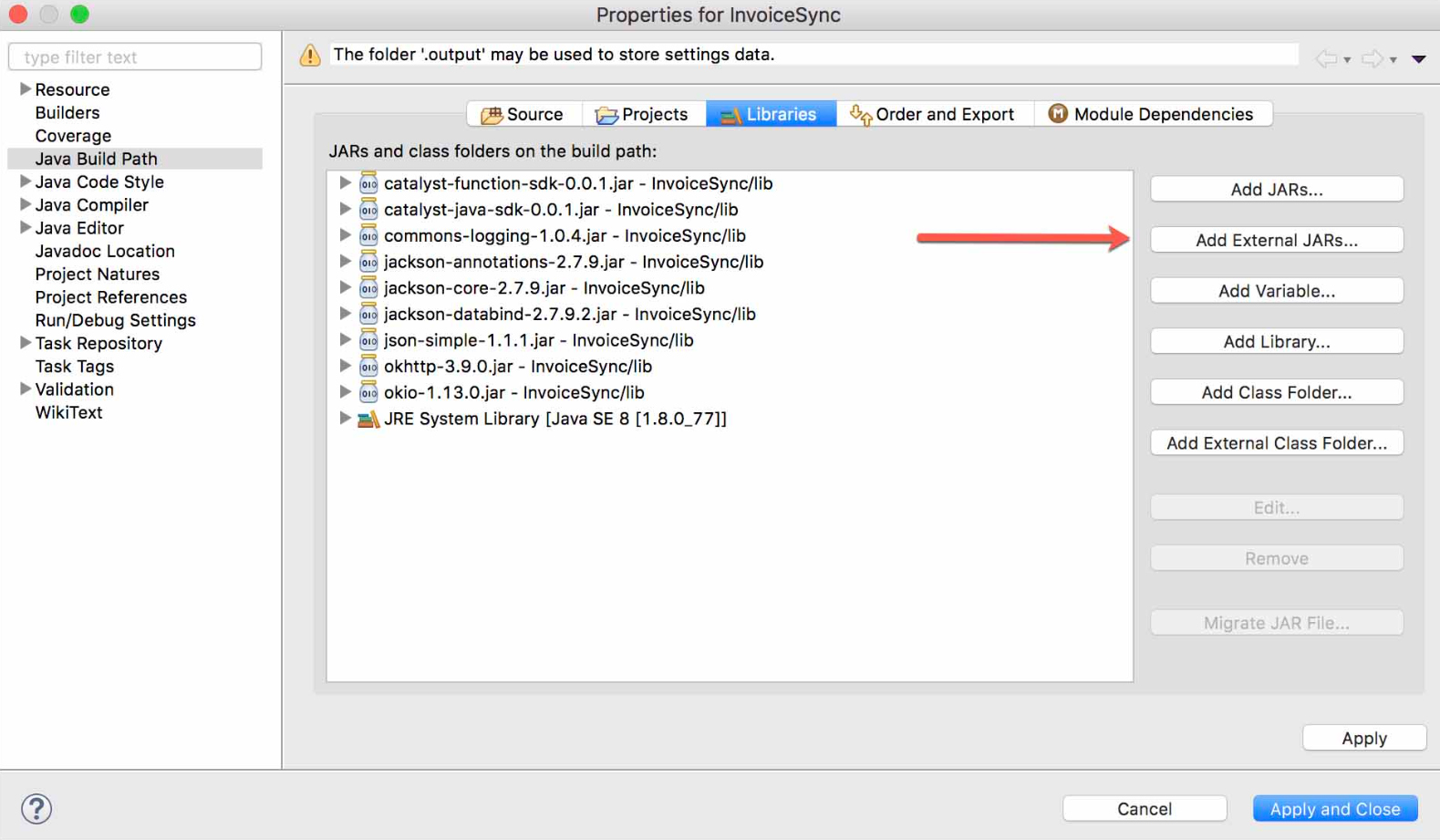
4. Select the JAR to be included in the pop-up window and click **Open**.
5. The selected JAR will be included in *JARs and class folders on the build path*. Click **Apply and Close**
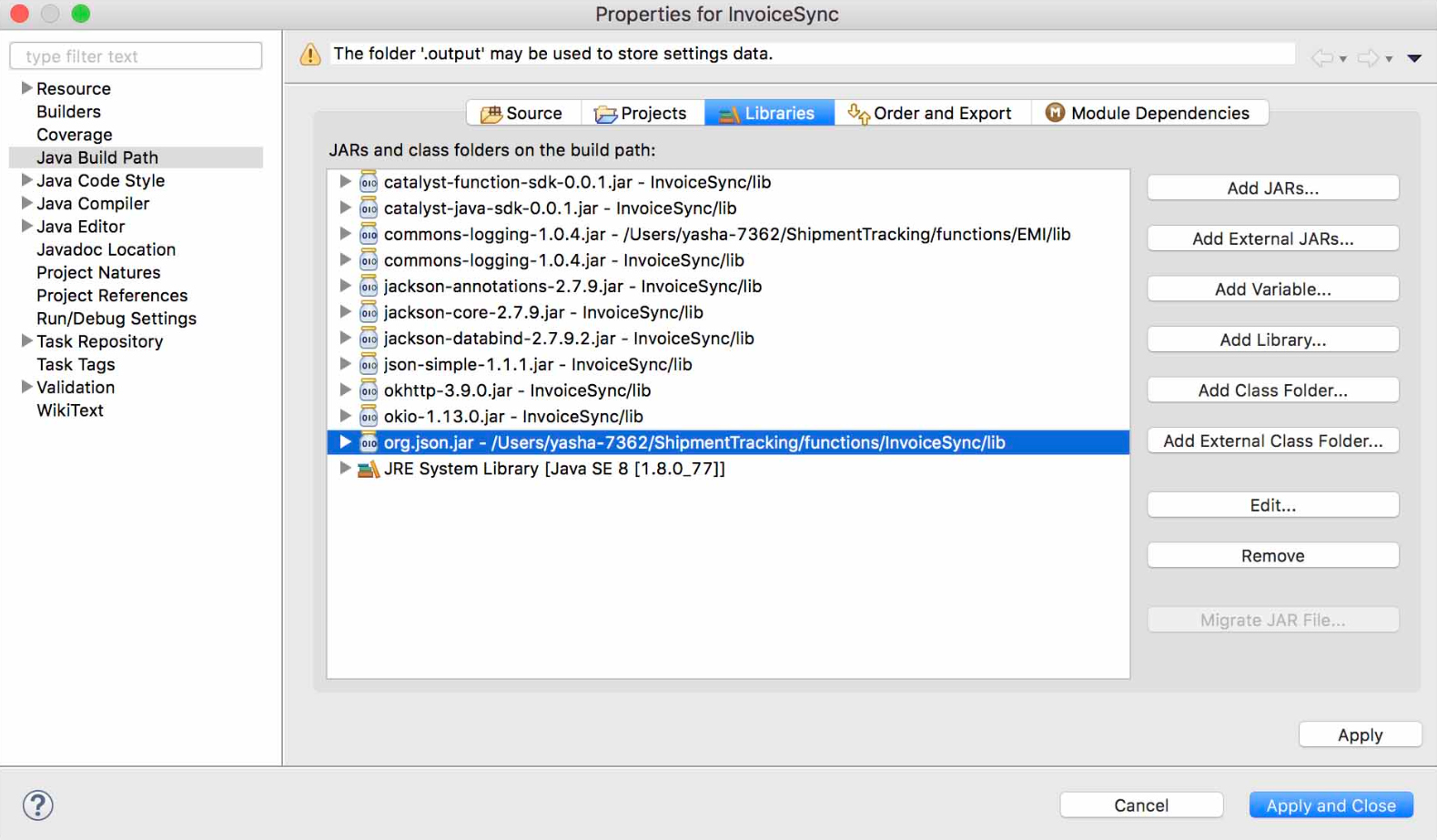
6. Code your function with the JAR included and test the code by executing the following command from the CLI:
`catalyst serve`
You can learn about this command in detail from the [Serve Resources help page](https://docs.catalyst.zoho.com/en/cli/v1/serve-resources/introduction/).
7. You can then directly deploy the function from the CLI without worrying about the additional JAR file. Execute the following CLI command to deploy the Java functions to the remote console along with the external JAR:
`catalyst deploy --only functions`
You can learn about this command in detail from the [Deploy Resources help page](https://docs.catalyst.zoho.com/en/cli/v1/deploy-resources/deploy-options/).
8. After the function has been deployed, you can verify whether the JAR has been added to your function group from the [Catalyst console](https://docs.catalyst.zoho.com/en/serverless/help/functions/implementation).
### Can I allocate more than 512 MB of memory to my Catalyst function?
No. In Catalyst Serverless Functions, you can choose a memory between 128 MB and 512 MB for each function, and the default is 256 MB. CPU is allocated automatically based on the memory you choose, and you can't set it separately.
To change a function's memory, open the function in the Catalyst console, go to the **Configuration** tab, click the edit icon in **Allocated Memory**, select the memory and click the check icon. From the CLI, run `catalyst functions:config --memory 512MB `.
If the function needs more memory:
1. Process data in smaller pieces: stream large files instead of loading them whole, and handle records in batches.
2. Split the work across several Job function runs, in a Function Job Pool with more memory than the function.
3. Move the workload to Catalyst AppSail, where you can allocate up to 2048 MB to a service.
Note: A function with more memory costs more per second of execution.
Refer to the [Configure Function Memory help page](https://docs.catalyst.zoho.com/en/cli/v1/working-with-functions/configure-function-memory/) and the [Cost and Performance Optimization help page](https://docs.catalyst.zoho.com/en/serverless/help/functions/optimization/) for details.
# Circuits
### How do I invoke my circuit using the Circuit URL?
You can invoke or execute a circuit in Catalyst Circuits through the API with a POST request using the Circuit URL as the request URL, and by passing the input through the request body in the JSON format along with the access token for the authorization of the request. You can also invoke your circuit inside your business logic using the Execute Circuit SDK method for the platform you require. The Catalyst console also enables you to test your circuit by passing input JSON and verifying the output.
# AppSail
## Deploying and Troubleshooting
### How do I find out why my AppSail service shows 'Execution failed. Please check the startup command or port.'?
This error means Catalyst AppSail found no process listening on your app's port, so the instance never started serving. The reason is usually in your service's application logs: open your project in the Catalyst console, go to **DevOps** → **Logs**, set **Log Type** to **Application** and select your AppSail service. You can also open **Serverless** → **AppSail** → your service → **Instances** → **History** and click an instance's logs icon.
Then check these, in order:
1. Your code listens on the port in the `X_ZOHO_CATALYST_LISTEN_PORT` environment variable, on all interfaces (`0.0.0.0`), not on a hard-coded port or `localhost`.
2. The startup command in **Configuration** is the command that starts your server locally. AppSail runs it without a shell, so a command that uses the variable must be wrapped, for example `sh -c 'python3 -m http.server ${X_ZOHO_CATALYST_LISTEN_PORT}'`.
3. Your app starts listening within 10 seconds. Open the port first and load large files or models afterwards.
4. Every dependency and environment variable your app needs at startup is in the deployment.
Refer to the [AppSail Configurations help page](https://docs.catalyst.zoho.com/en/serverless/help/appsail/appsail-configurations/) for details.
## Limits and Scaling
### What are the resource limits of a Catalyst AppSail service, and which of them can be raised?
Each Catalyst AppSail service has these limits: memory of 128, 256, 512, 1024 or 2048 MB (512 MB by default), a disk size of 256 MB by default, 100 concurrent requests per instance with a new instance started at 80, at most 5 instances, 30 seconds to complete each request, and 10 seconds for your app to start listening on its port. Inactive instances are scaled down after 5 minutes of uptime, and a project can have 5 AppSail services.
You can change memory and disk size yourself: open the service in the Catalyst console, go to **Configuration** → **App Execution Settings**, click **Edit**, select the values and click **Save**. If a deployment fails with 'No space left on device', your app or container image doesn't fit the disk size, so raise it there.
The instance count, the concurrent requests per instance and the 5-minute instance uptime can be increased case by case. Contact Catalyst support with your requirements.
Note: AppSail offers no memory above 2048 MB and no GPUs; move work longer than 30 seconds to a Job function, and keep large files in Catalyst CloudScale Stratus.
Refer to the [AppSail Basics help page](https://docs.catalyst.zoho.com/en/serverless/help/appsail/appsail-basics/) and the [AppSail Configurations help page](https://docs.catalyst.zoho.com/en/serverless/help/appsail/appsail-configurations/) for details.
### Why do I get 'You have reached the max limit of your current API Limit for AppSail' or API_LIMIT_REACHED when I deploy a new AppSail service?
This error means your Catalyst project already has 5 AppSail services, which is the number a project can have by default. It refers to the count of services, not to how often you deploy.
1. Open your project in the Catalyst console, go to **Serverless** → **AppSail** and check which services exist. Delete any you no longer need.
2. Put further services in another Catalyst project, if they don't need to share one.
3. If you need more services in one project, contact Catalyst support with your project ID, the number of services you need and why they must be separate, for example isolation between tenants or brands. Support can raise the limit for the project, and the new limit covers both the Development and Production environments.
Refer to the [AppSail Basics help page](https://docs.catalyst.zoho.com/en/serverless/help/appsail/appsail-basics/) for details.
--------------------------------------------------------------------------------
title: "CloudScale"
description: "This section covers queries related to the components of the Catalyst CloudScale service, such as Authentication, Cache, Data Store, and API Gateway."
last_updated: "2026-11-13T05:00:22.000Z"
source: "https://docs.catalyst.zoho.com/en/faq/cloud-scale/"
service: "CloudScale"
--------------------------------------------------------------------------------
# Authentication
### How do I add my users to my Catalyst application?
You can add users to your application by sending them email invites directly from the console using the User Management feature present in the Authentication component. Your users will then be authenticated based on the authentication type of your preference. You can also add users to your application through code using the Web SDK, Java SDK, Node SDK, Python SDK, or the API, and embed a sign up form in your client application.
### How do I implement a Sign in option for my Catalyst application?
You can implement user sign in by first ensuring you enable the Public Sign Up option. This allows the user of your application to sign in to it using the login element that you configure while setting up the authentication. You can also enable Social Logins to let your end users sign in to your application using popular social logins.
### How do I create roles for my Catalyst application users?
You can create new roles by navigating to the Roles section of User Management in Authentication. Roles currently apply only to the Data Store.
### Why do I receive a CORS error when I try to access my Catalyst application that is embedded as an iFrame?
You will receive this error if necessary authorization is not provided. To avoid encountering a CORS error, you will need to authorize the domain and enable CORS and iFrame access. You can learn about adding and authorizing domains from this help section.
### Why am I getting Invalid Client error when they try to sign in using Zoho?
When the Zoho Social Login has been enabled, a client will be added for your application in the API Console. This issue will occur if the client gets deleted in the API console. To resolve this issue, you must navigate to the Social Login section under Authentication Types in the Authentication component of Catalyst CloudScale, and then disable and re-enable the Zoho Social Login.
### Can I sign my users in to my Catalyst app using Java or Node SDK?
Because user sign-in is a client side operation, we do not support it through the Java or Node SDK. However, it is available exclusively in the Web SDK.
### Why do I get the error 'No privileges to perform this action' when I click on the invite email?
In Catalyst Authentication, this error occurs when you have already logged in to the application with a different account and try to confirm the password for another account from the invite email in the same browser window. The invite email contains a URL that opens a sign-up form where the invited user sets up their password. To resolve this issue, open the invite URL again in a different browser or with a different browser profile.
Refer to the [Authentication Users Implementation help page](https://docs.catalyst.zoho.com/en/cloud-scale/help/authentication/user-management/users/implementation/) for details on inviting users.
### Can I set up single sign-on so users sign in once across several Catalyst apps or projects?
No. Catalyst CloudScale Authentication doesn't offer single sign-on across Catalyst applications. Each application keeps its own users: a person who signs up to two of your applications gets a separate identity, with its own ZUID and Org ID, in each one, and signs in to each separately. A user's sign-in token from one project can't call another project's protected functions.
What you can do instead:
1. Put apps that must share their users in one Catalyst project, so they use one set of users.
2. Enable the same social login, such as Zoho, Google or Microsoft 365, in every application, so users sign in everywhere with the same provider account instead of a separate password.
3. Use Third-party Authentication with an identity provider that offers single sign-on. The provider verifies the user, and your function in each project creates the Catalyst session with a custom token (`generateCustomToken()`).
Note: Social logins and Third-party Authentication require **Public Signup** to be enabled.
Refer to the [Users help page](https://docs.catalyst.zoho.com/en/cloud-scale/help/authentication/user-management/users/introduction/) for how user identities work across applications.
### Can my employees sign in to my Catalyst app with their existing Zoho accounts while Public Signup is turned off?
No. In Catalyst CloudScale Authentication, social logins, including Zoho, are available only while **Public Signup** is enabled, and so is Custom User Validation. With Public Signup off, you add users yourself from **User Management**, and they sign in with the password they set for your app.
To let only named employees in with their Zoho accounts:
1. Enable **Public Signup** and the Zoho social login in **CloudScale** → **Authentication**.
2. Write a Basic I/O function that reads the sign-up request and returns `status: "failure"` for any email address that isn't on your allow-list.
3. In **Authentication** → **Whitelisting**, turn on **Custom User Validation**, select the function and click **Configure**.
4. To remove someone's access later, disable or delete them in **User Management** → **Users**, because Custom User Validation runs only when a user signs up, not at each sign-in.
Note: Catalyst doesn't offer a sign-in limited to one company's Zoho organization, and a Zoho sign-in creates a new app user rather than linking to a user you invited with the same email address.
Refer to the [Custom User Validation help page](https://docs.catalyst.zoho.com/en/cloud-scale/help/authentication/whitelisting/custom-user-validation/introduction/) for details.
# Data Store
### What is the character limit for the Text data type in Catalyst Data Store?
The permitted character limit for the Text data type in Catalyst Data Store is 10,000 characters. Text is a long-form data type for values longer than the 255-character maximum of Var Char, and the Encrypted text data type has the same 10,000-character limit. Text columns don't support the Search Index constraint or a Default Value. You choose the data type when you click **+New Column** in the table's Schema View.
Refer to the [Data Store Columns help page](https://docs.catalyst.zoho.com/en/cloud-scale/help/data-store/columns/) for details.
### Why do I get only 300 rows when I fetch data using the SELECT query in ZCQL?
SELECT *, UPDATE *, INSERT *, DELETE * allow you to fetch a maximum of 300 rows in one query in adherence with the industry standards. If you require more records to be fetched, you can use the LIMIT clause to iterate the query and specify the offset and value accordingly.
### Why is my data not inserted into the Data Store when I try to make a POST call to the Insert Row API?
To resolve this issue, you must ensure that you set the content-type as application/json while making the POST call to the Insert a New Row In a Table API.
### How many columns can I create in a single Data Store table, and can the limit be raised?
Catalyst CloudScale Data Store allows up to 100 columns in each table by default. Catalyst support can raise this for a table on request, case by case and up to a maximum. When a table reaches its limit, creating a column fails with an API limit error, which can mention the table limit even though the column limit was reached.
1. Check whether the table needs that many columns. Repeating groups of fields often work better as a child table linked by a Foreign Key column.
2. To ask for more, contact Catalyst support with your project, the Table ID of each table, how many columns you need and what the table is for.
3. A raise applies to the tables you name. Ask again for tables you create later.
4. When Support confirms the raise, refresh the console and add the columns.
Note: Text, Var Char and Encrypted Text columns also have a combined limit per table, which a raise of the total column limit doesn't change.
Refer to the [Columns help page](https://docs.catalyst.zoho.com/en/cloud-scale/help/data-store/columns/) for more information.
### Why am I getting an error 'Cannot access Data Store before initialization' when I try to insert a row into my table using the Node.js SDK?
You will encounter this error if you have not initialized the Catalyst Node.js SDK properly in your function. Use the following code to ensure you have initialized the Node.js SDK and Catalyst Data Store properly.
```javascript
const catalyst = require("zcatalyst-sdk-node");
const datastore = catalystApp.datastore(); //Initializing catalystApp variable differs with each function type
```
### Why do my Data Store or NoSQL calls fail with 'Concurrency limit reached for the feature COMPONENT' when many users use my app at once?
This happens when too many requests to a Catalyst CloudScale component, such as Data Store (including ZCQL queries) or NoSQL, run at the same moment. Catalyst returns HTTP 429 TOO_MANY_REQUESTS for the requests above the limit. It can appear even when your functions or AppSail service handle the load, because the component has its own concurrency limit.
1. Send fewer requests at once: combine lookups into one ZCQL query, insert several rows in one `insertRows()` call, and avoid one query per record inside a loop.
2. Keep values you read often in Catalyst CloudScale Cache instead of querying them each time.
3. Retry refused requests after a short delay that grows with each attempt.
4. If you still need more simultaneous operations, contact Catalyst support with the environment, the component, the error text and time, and your expected peak number of simultaneous operations.
Refer to the [Error Codes help page](https://docs.catalyst.zoho.com/en/api/introduction/error-codes/) for details.
# Cache
### What is the maximum length of a cache value?
In Catalyst Cache, the maximum length of a cache value is 16,000 characters. A cache item is a key-value pair stored in a cache segment, with a keyname, a value and an expiration time in hours. The Insert and Update Key-Value APIs also list 16,000 characters as the maximum size of `cache_value`. You can see the total size of each segment under Cache in DevOps Metrics.
Refer to the [Cache Key Concepts help page](https://docs.catalyst.zoho.com/en/cloud-scale/help/cache/key-concepts/) and the [Insert Key-Value in Cache Segment API page](https://docs.catalyst.zoho.com/en/api/code-reference/cloud-scale/cache/insert-key-value-in-segment/#InsertKeyValueinCacheSegment) for details.
### How do I create a cache segment?
You can only create a cache segment from the Catalyst console. It cannot be done using the APIs. Catalyst also provides an auto-created default segment that you can use.
### How do I insert or retrieve a value from a cache segment?
You can add a key-value pair to a cache segment from the Catalyst console, or using the Java SDK, Node SDK, Python SDK or the Insert a Key-Value Pair In a Cache Segment API.
You can retrieve a value from the cache segment using the Get the Value of a Cache Key API, and Java SDK, Node SDK, and Python SDK.
# Cron
### How do I get notified about cron or scheduled job failures?
Create an application alert for the job pool that runs your jobs in Catalyst Job Scheduling, which replaces CloudScale Cron: Cron reached its sunset on October 1, 2026. The alert emails you when a job fails:
* Jobs in a **Function** job pool: on a failure, a code exception or a timeout.
* Jobs in an **AppSail**, **Webhook** or **Circuit** job pool: on a 3xx, 4xx or 5xx execution error.
* Any job pool: on an exception or an unintentional termination.
You set it up from the **Job Pool** console, without opening the Application Alerts component. Refer to the [Create Application Alerts for a Job Pool help page](https://docs.catalyst.zoho.com/en/job-scheduling/help/implementation/create-app-alert/) for the steps, and to the [Cron sunset announcement](https://docs.catalyst.zoho.com/en/announcements/2026/cron-sunset/) to move your crons to Job Scheduling.
# Search
### How do I incorporate CloudScale Search into my application?
You must enable the search index toggle when you create a column in the Data Store to incorporate CloudScale search. You can also enable it later for your column by editing it. The search index feature will not be available for columns with the datatype Text and Encrypted Text. The list of all columns with the search index enabled, and the code snippet to incorporate search in your application will be available in your Catalyst console under section Storage -> Search for all development environments.
# API Gateway
### How do I make sure my function endpoints are not directly exposed?
You can use the API gateway component to solve this purpose. API gateway is an intermediate layer between the client and the server. It acts as a reverse proxy and routes client requests to individual services. After you enable API Gateway for your project, all client requests to access these targets will be handled by this gateway. This helps prevent these components from being directly exposed to the clients by decoupling the clients from services.
### Why do I get an error '404 Invalid URL' when I try to call any of my function endpoints?
You will encounter this error if you enabled the API Gateway component for your project and did not create any APIs for your function endpoints. After you enable the API Gateway, the URLs of your functions and web client will become inaccessible until you create APIs for them. You must therefore immediately create APIs for your functions and client, or disable the API Gateway from the Catalyst console and then access the application URL to resolve the issue.
### I selected the Authentication type as API Key for my rule in API Gateway. But why am I still getting the 'No privileges to perform this action' error?
If you enabled the API Key-based authentication, the authentication is handled by an API key generated by Catalyst for your project automatically. You need to pass the API Key value with the keyname ZCFKEY along with the request header or as a query parameter.
The API Key is the same for all projects in the development environment. When you deploy a Catalyst project to the production environment, Catalyst will provide you a different API key for production. You will therefore have individual API keys for each project in the production environment.
### The API gateway rules created in my project in the console get deleted when I deploy my project from the CLI. Why does this happen?
You might face this issue if you do not have the latest API Gateway rules in your local system. When you deploy your entire project from your local system through the CLI, the API Gateway rules are also deployed. If the updated configurations are not present in your local system, the latest rules from the remote console get replaced with the deployed configurations. To resolve this issue, you can perform a catalyst pull to pull all the latest API Gateway rules to your system first, and then deploy your project.
# Domain Mappings
### Does Catalyst provide SSL certificates for my domains for free of cost?
Yes, Catalyst enables security for all the domains that you map with your application by providing Group SSL certificates for them for free of cost.
### Why do I get an error 'The given domain cannot be verified. HOST_NOT_FOUND' when I add a domain under Domain Mapping?
To resolve this error, check if the domain that you want to map with a Catalyst application is already hosted live in your domain provider's hosting site and then follow these steps:
Step 1:
Create a CNAME record for your domain in your DNS configuration by adding your subdomain's value as the Host Name/Alias/CNAME.
For example, if your domain address is "portal.zylker.com", you must add "portal" as the Host Name/Alias/CNAME value and "catalyst.cs.zohohost.com" as the Destination/Points To value.
Add the domain name in the Catalyst console. Now the process will move to the next step -> Verify Ownership.
Step 2:
Catalyst will now generate a unique hash key value for the specific mapping.
Create a new CNAME record for your domain in your DNS configuration and add the following values:
hash_key.subdomain as Host Name/Alias/CNAME
For example, if the hash key generated by Catalyst is "c12to00001x11pl1234h9e33w44h6789", and the subdomain is "portal", you must enter the Host Name as "c12to00001x11pl1234h9e33w44h6789.portal".
Note: Ensure that you specify the subdomain "catalyst.cs.zohohost.com" as the Destination/Points To value. The changes might take some time to reflect on the DNS server. After the changes are reflected, this will verify your ownership of the domain in Catalyst. Refer to the [Domain Mappings Implementation help page](https://docs.catalyst.zoho.com/en/cloud-scale/help/domain-mappings/implementation/#add-a-domain-mapping) for the full procedure.
### Why do I get an error 'CNAME not mapped correctly' when I try to add my domain?
If the CNAME entry has not been created and mapped to catalyst.cs.zohohost.com, the Catalyst console will display a "CNAME not mapped correctly" error when you attempt to add your domain under Domain Mappings. You can resolve this error by creating a CNAME entry pointing to Catalyst, following the steps in the Add a Domain Mapping section of the [Domain Mappings Implementation help page](https://docs.catalyst.zoho.com/en/cloud-scale/help/domain-mappings/implementation/#add-a-domain-mapping).
### Can I map my root domain, such as zylker.com without www, to my Catalyst application?
No. Catalyst CloudScale Domain Mappings maps only subdomains, such as `www.zylker.com` or `app.zylker.com`, because a mapping works through CNAME records and Catalyst does not support mapping a base domain directly to an application URL. Catalyst also does not give you IP addresses to use in A or AAAA records. Map a subdomain, then redirect the root domain to it at your DNS provider.
1. If you added the root domain in **Domain Mappings**, delete that mapping.
2. Switch to the Production environment, open **Domain Mappings** under **Host and Manage** and click **Add Mapping**. Enter a subdomain such as `www.zylker.com`. For an AppSail app, select AppSail as the domain type.
3. Add the two CNAME records the console shows, with the subdomain as the host name, and click **Verify**.
4. At your DNS provider, set up domain forwarding from `zylker.com` to `www.zylker.com` over HTTPS.
Note: Requests to the root domain never reach Catalyst, so your DNS provider serves the redirect and any certificate for the root domain. If it cannot forward over HTTPS, ask the provider which option it offers.
Refer to the [Domain Mappings: Implementation help page](https://docs.catalyst.zoho.com/en/cloud-scale/help/domain-mappings/implementation/) for more information.
# Connections
### Why do I get 'User validation error: This field can not be edited' when I change the scopes of an existing Connection?
You can't edit the scopes of a Catalyst CloudScale Connection once it is created, and you can't edit its Connection Link Name either. To use different scopes, create a new Connection:
1. Open your project in the Catalyst console, go to **CloudScale** → **Connections** and click **Create Connection**.
2. Choose the same service, enter a name, select every scope your code needs, click **Create And Connect** and authorize the connection.
3. Update your code to use the new Connection Link Name, and deploy it.
4. Delete the old Connection: click its ellipsis icon, click **Delete**, then **Yes, Delete**.
If you delete the old Connection first, you can create the new one with the same name so your code doesn't change, but calls that use it fail until the new Connection is authorized.
Note: Only the developer who established a Connection can edit or delete it; anyone else must revoke it and establish it again first.
Refer to the [Manage Connections help page](https://docs.catalyst.zoho.com/en/cloud-scale/help/connections/manage-connections/) for details.
# Mail
### Why does my domain stay at Authentication Pending in Catalyst Mail after I add the SPF and DKIM records?
In Catalyst CloudScale Mail, a domain is authenticated only when Catalyst finds both the SPF and the DKIM record it generated for that domain in public DNS, exactly as the console shows them. The usual causes are a DKIM record with the wrong host name or value, a second SPF record on the domain, or an SPF value typed by hand.
1. In the Catalyst CloudScale console, go to **Notify** → **Mail** → **Domain** and click **Validate** for the domain to see its SPF and DKIM codes.
2. Add the DKIM record exactly as shown.
3. Copy the SPF value from the console, not from an example, because it can differ by data center.
4. A domain can have only one SPF record. If one exists for another mail service, add the Catalyst `include:` value to it instead of adding a second record, keeping one `all` term at the end. SPF also limits DNS lookups per record, so remove includes you no longer use.
5. Check both records with a public DNS lookup tool, wait for them to propagate, then click **Authenticate** in the **Authenticate Domain** pop-up.
Note: If both records are publicly visible and match the console but the domain stays pending, contact Catalyst support with the domain, the project and your data center.
Refer to the [Domains help page](https://docs.catalyst.zoho.com/en/cloud-scale/help/mail/domains/) for more information.
### Why does sending email with Catalyst Mail fail with a verification pending error even though I added my sender address?
Catalyst CloudScale Mail sends email only after both the sender email address and its domain are verified, and the domain is authenticated with its SPF and DKIM records. Sending before then throws an exception, and no email is sent. A domain that shows pending has not finished one of these steps.
1. Go to **Notify** → **Mail** in the Catalyst CloudScale console and open the **Domain** tab. If your domain isn't listed, click **Add Domain**, enter an email address on that domain and click **Create**.
2. Click **Verify Code**, enter the code sent to that address and click **Confirm**.
3. Click **Validate**, add the SPF and DKIM record codes shown to your domain host's DNS settings, then click **Authenticate**.
4. In **Email Configuration**, click **Click to confirm** for the sender address, enter the confirmation code and click **Confirm**.
5. Send again once the domain shows as authenticated and the sender address shows **Verified**.
Refer to the [Domains help page](https://docs.catalyst.zoho.com/en/cloud-scale/help/mail/domains/) and the [Send Emails help page](https://docs.catalyst.zoho.com/en/cloud-scale/help/mail/send-emails/) for more information.
# NoSQL
### Why does a conditional update in Catalyst NoSQL return HTTP 200 when the condition is not met?
In Catalyst CloudScale NoSQL, HTTP 200 only means the request was processed. Whether a conditional write was applied is reported for each item in the response: the status is `Success` when the item was written, and `ConditionMismatch` or `CriteriaMismatch` when the condition was not met and nothing changed.
1. After a conditional update, read each item's status in the result, for example `data.update[0].status` from `updateItems()`, instead of the HTTP status code.
2. Treat a mismatch as "the item is no longer in the state I expected", for example because another request changed it first. Don't retry the same write blindly.
3. Build the condition on values you read, such as a version attribute, so that only one of several concurrent writers succeeds. A conditional write to a single item is applied atomically.
4. To check the item afterwards, read it with `consistent_read` set to true, which reads from the master. A key that doesn't exist returns a successful response with no items.
Note: Conditions apply to one item at a time. NoSQL has no transactions across items, and a write that times out on the client has no confirmed outcome until you read the item again.
Refer to the [Update Item help page](https://docs.catalyst.zoho.com/en/api/code-reference/cloud-scale/nosql/update-item/) and the [Query Table help page](https://docs.catalyst.zoho.com/en/api/code-reference/cloud-scale/nosql/query-table/) for more information.
# Web Client Hosting
### Can I serve my Web Client Hosting app from the root of my domain, without /app/ in the URL?
Not directly: Catalyst CloudScale Web Client Hosting serves your web client under the `/app/` path, also on a mapped custom domain. To serve it from the root, including files such as `robots.txt` or a sitemap, route requests through Catalyst CloudScale API Gateway:
1. Plan first: when you enable API Gateway, Security Rules are disabled and all your function and web client URLs are inaccessible until you create APIs for them. API Gateway is a paid component.
2. Open **CloudScale** → **API Gateway** (under **Security & Identity**), click **Enable Now**, then **Proceed**.
3. Create APIs for all your functions. Auto-create is available only until you create your first API.
4. Click **Create API**, select **GET**, enter the request URL `/{path:(.*)}`, select the web client as the target, append `{path}` to its target URL `/app/`, and click **Create**.
5. Test the default application URL and your custom domain.
Alternatively, host the site on Catalyst Slate, Catalyst's frontend hosting service.
Refer to the [API Gateway Key Concepts help page](https://docs.catalyst.zoho.com/en/cloud-scale/help/api-gateway/key-concepts/) and the [Web Client Hosting Introduction help page](https://docs.catalyst.zoho.com/en/cloud-scale/help/web-client-hosting/introduction/) for details.
--------------------------------------------------------------------------------
title: "Zia Services"
description: "This section covers queries related to the Catalyst Zia Services, such as OCR, Object Recognition, Image Moderation, Face Analytics, and more."
last_updated: "2026-11-13T05:00:22.000Z"
source: "https://docs.catalyst.zoho.com/en/faq/zia-services/"
service: "Zia Services"
--------------------------------------------------------------------------------
# General
### What are the components under Catalyst Zia Services?
Catalyst Zia Services includes a wide set of AI/ML powered components used for processing, analyzing, and fetching valuable insights from both textual and visual content such as documents and images. It includes the Face Analytics, Optical Character Recognition, Identity Scanner, Image Moderation, Object Recognition, Barcode Scanner, AutoML and Text Analytics. You can integrate the functionalities of the Zia components in your application seamlessly by incorporating the readily available sample SDK code templates in Java, Node.js and Python. You can also access these components through their API endpoints.
### Does Catalyst store my data for training purposes?
No, your data will not be used for ML model training purposes. Catalyst does not store any of the files you upload in its systems. The files you upload are used for one-time processing only. Catalyst components are fully compliant with all applicable data protection and privacy laws.
# OCR
### What are the supported languages in Catalyst OCR?
Catalyst Zia Optical Character Recognition (OCR) supports 9 international languages and 10 Indian languages. You can find the entire list of supported languages in the [Supported Languages section of the Catalyst OCR Key Concepts help page](https://docs.catalyst.zoho.com/en/zia-services/help/optical-character-recognition/key-concepts/#supported-languages).
# AutoML
### Do I have a service to train my data set and predict an outcome based on the trained dataset?
You can train the powerful Zia AI using your own dataset and analyze a set of training data to predict the outcome of a subset of that data. You can build and train Binary Classification, Multi-Class Classification, and Regression Models, and obtain insightful evaluation reports.
### What is the difference between AutoML and QuickML?
AutoML is now a way to build a pipeline inside Catalyst QuickML, not a separate service. The separate AutoML component of Catalyst Zia Services was removed in June 2026, and its users moved to QuickML's AutoML.
* **AutoML in QuickML:** when you create a pipeline, select **Create an Auto-generated pipeline using AutoML**. QuickML runs data preprocessing, feature engineering, algorithm selection, hyperparameter tuning and model evaluation for you, and finalizes the best-performing model with its evaluation metrics.
* **A pipeline you build yourself in QuickML:** you choose the data preprocessing and transformation steps and the ML algorithms to train, and design the pipeline as you need, with no coding.
Refer to the [Create AutoML Pipeline help page](https://docs.catalyst.zoho.com/en/quickml/help/create-automl-pipeline/) for the steps.
# Identity Scanner
### Why am I unable to view or access the Identity Scanner component?
Catalyst Zia Identity Scanner is currently not available to users accessing from the EU, AU, US, JP, SA, or CA data centers. This document processing feature is only relevant to Indian users and is only available in the IN DC (Indian Data Center). Users outside of India from the other DCs can access the general OCR component to read and process textual content.
# Text Analytics
### How do I perform a sentiment analysis on a given sentence to identify my application user's feedback on our service?
You can make use of our Catalyst Zia Text analysis to identify the sentiment on a given text. You can access it via Catalyst API's or through our SDK methods by passing the text as input. The AI will identify the emotion and give the sentiment with an accuracy level.
# Facial Comparison
### I want to verify the identity of a user by comparing their display picture against their ID proof. How do I achieve this in Catalyst?
You can use our facial comparison API and provide your source and identity image to check the results of the face comparison. You will get the response of the prediction with a confidence score.
# Image Moderation
### I will collect pictures from my app users. How to analyze the image is safe/unsafe and to identify the type of category the content belongs to?
You can use the Catalyst Zia Image Moderation API or SDK method to identify the category of the content in the image. It recognizes inappropriate content in images and returns it in the response. The response also contains the probability of each criteria(racy, weapon, nudity, gore, drug) with their confidence scores, and the prediction of the image being safe_to_use or unsafe_to_use.
# Barcode Scanner
### I have a lot of barcode images which contain the specific details of certain products. I need to decode and extract the details from the barcode images.How do I achieve this in Catalyst?
You can make use of the zia barcode scanner SDK method or catalyst API in order to extract the content embedded in the barcode image.
--------------------------------------------------------------------------------
title: "DevOps"
description: "This section covers queries related to the Catalyst DevOps service, such as APM, Logs, Metrics, Automation Testing, and Application Alerts."
last_updated: "2026-11-13T05:00:22.000Z"
source: "https://docs.catalyst.zoho.com/en/faq/devops/"
service: "DevOps"
--------------------------------------------------------------------------------
# General
### What is Catalyst DevOps?
Catalyst DevOps is a Catalyst service that allows you to implement a DevOps model in your application building process, and it provides components you can use to perform automated iterative testing, application monitoring and other debugging tools. You can familiarize yourself with Catalyst DevOps and its components from this help section.
# Logs
### What is the key difference between Catalyst Logs and Catalyst Application Performance Monitoring?
Both Catalyst Logs and Catalyst Application Performance Monitoring are similar, but the Logs component provides basic information about your function executions while Application Performance Monitoring component gives you detailed information and enables you to monitor your functions more efficiently.
### Can I filter logs based on a particular user's function invocation?
To filter Catalyst DevOps Logs by a particular user's function invocations, you have to store the current logged in user's ID in the log so that you can apply filter for the same. You can then search for that ID with the **Keyword** filter, which finds log messages that include a keyword. Refer to the [Access Logs help page](https://docs.catalyst.zoho.com/en/devops/help/logs/access-logs/#access-log-filters) for the available filters.
### How long does Catalyst keep my function logs, and what do they record?
Catalyst DevOps Logs keeps the logs of function executions for seven days in the Development environment and fourteen days in the Production environment.
Logs are of two types. Access logs cover Basic I/O, Advanced I/O, Integration and Browser Logic functions, and record the function name, the User ID of the caller, the invocation URL, the time of execution, the request method, the host address, and the response status and time. Application logs cover every function type and record what happens inside the execution, including the messages your code writes to the logs, up to 1,500 characters per write. Anything your code logs, such as form content, is kept for the same period, so log only what you need.
Project activity is kept separately and for longer: **Settings** → **Audit Logs** shows the last year of configuration changes and sensitive-data activity, and Admins can export up to six years.
Note: To keep function logs beyond the retention period, write the events you need to storage you control, such as a CloudScale Data Store table or a Stratus bucket.
Refer to the [Logs help page](https://docs.catalyst.zoho.com/en/devops/help/logs/introduction/) for details.
# Application Performance Monitoring
### What insights can I get from APM?
You will be able to monitor your application performance from APM. You will get the details about each of your function calls which you can use to optimize your function code. If you have accessed many of the Catalyst components and want to know where it takes more time to execute, you will be able to identify each of the Catalyst component calls in a graphical format so that it would be helpful to optimize your logic in order to improve your overall application performance.
### Why do I get 'You cannot perform this operation since you or one of your collaborator is a part of a different Organisation account' error while enabling APM?
You will face this error if you have any of the collaborators joined in your project is from a different Catalyst org. You have to remove the collaborator who is in different org in order to enable APM. Once enabled, you can add back the collaborator to your project.
# Automation Testing
### Is there a way to test my function from the console by storing the test suite and testcase information?
You can make use of the automation testing available in catalyst console. You will be able to test your function end to end for all the HTTP request method types and you can also create and store diff test suite and testcase information for future use.
### What will happen when I exhaust 500 free runs in Automation Testing component?
In Catalyst DevOps Automation Testing, after you have exhausted the 500 free runs, automatically you will get charged for the further runs. For this reason, you will be asked to setup Catalyst payments mandatorily when you deploy your application to production.
# Application Alerts
### How do I get notified if I face any run time errors in my background running functions such as Cron or an event functions?
You can create an application Alert for your Cron functions or specific logtype written to the application logs for any code breakage, or unhandled exception or function timeout which has been occured. You can also specify the threshold for the exception count. When the result of the alert condition has crossed the threshold, all the emails which have been configured for alerts will receive an email to notify the code breakage.
### Is there any limit for the number of Application alerts for a project?
Yes, in Catalyst DevOps you can create up to 20 Application Alerts.
To create an alert, navigate to **DevOps** → **Application Alerts** in the Catalyst console and click **Create Alert**. A single alert can be associated with multiple entities of Cron, Event Listener or Logs, and can notify up to 10 email addresses. You can disable an alert and enable it again later.
Refer to the [Application Alerts implementation help page](https://docs.catalyst.zoho.com/en/devops/help/application-alerts/implementation/) for details.
### What can Catalyst Application Alerts notify me about?
Catalyst Application Alerts, a DevOps component, emails you when failures or specific events occur in the component you attach an alert to:
* **Logs:** the alert runs a log search on a schedule (the log type, the functions and a keyword) and emails the matching results.
* **Job Scheduling:** an alert on a job pool emails you when its jobs fail, from the **Job Pool** console. See [Create Application Alerts for a Job Pool](https://docs.catalyst.zoho.com/en/job-scheduling/help/implementation/create-app-alert/).
For each alert you set a criterion, such as more than 5 failures, and a frequency, such as every 15 minutes or a set time each day, and you add up to 10 recipients. A project can have up to 20 application alerts. Refer to the [Application Alerts key concepts](https://docs.catalyst.zoho.com/en/devops/help/application-alerts/key-concepts/) for the details.
# Metrics
### What is Metrics?
You can get the usage information on various catalyst components from Metrics. You can be able to quickly have a look at the number of segments created in your cache, no of rows created each day in datastore etc. By this way , you will be able to roughly calculate your monthly billing on the resources utilized and identify your application demand on when the resources have been utilized maximum and minimum by the application.
# GitHub Integration
### Can I deploy my code directly from github to catalyst without the need for CLI?
Yes, you can integrate your github account with your catalyst account. Once integrated, catalyst will list all your github hosted repositories. You can deploy your code from github to catalyst development environment with a click of a button eliminating the need for running commands or to configure a CICD to sync the code.
--------------------------------------------------------------------------------
title: "SmartBrowz"
description: "This section covers queries related to the Catalyst SmartBrowz service, such as Headless, Browser Logic, PDF & Screenshot, and Templates."
last_updated: "2026-11-13T05:00:22.000Z"
source: "https://docs.catalyst.zoho.com/en/faq/smartbrowz/"
service: "SmartBrowz"
--------------------------------------------------------------------------------
# Headless
### How do I connect to headless browser from other Catalyst function types?
You will need to use the CDP endpoint from the console and use it to initialize the browser instance in order to connect to headless browser from a function.
### What is the maximum timeout of the browser instance created using CDP endpoint?
A browser instance created using the Catalyst SmartBrowz Headless CDP endpoint can be alive for up to 2 minutes. However, the functions will have a max timeout of up to 30 secs. Your browser instance will be killed if your function has faced a timeout.
### How do I configure the browser headless memory?
You can modify the Catalyst SmartBrowz Headless remote browser's memory from the console, up to 1024 MB. By default, the memory is set at 512 MB. To change it, click the **Remote Browser Options** icon, click **Update Memory**, choose your memory preference from the drop-down, and click **Update**. The updated value appears in the **Memory** section of the console. Refer to the [Headless Implementation help page](https://docs.catalyst.zoho.com/en/smartbrowz/help/headless/implementation/implementation/#change-the-remote-browser-settings) for more information.
# Browser Logic
### What is the use of Browser Logic function over the other function types?
You will have to create the browser instance using its CDP endpoint from other type of functions to connect to headless. Whereas, the browser object is supplied to you directly in the browserlogic functions. You can directly use that. Browser will not have a timeout in a browserlogic function in local debugging. However, browser logic function will have a max timeout of 30 sec.
### How do I test a Browser Logic function in local?
You can test Browser Logic function using catalyst serve command in CLI. A function URL will get generated and served in localhost to test
# PDF & Screenshot
### How do I create a PDF from a HTML page with placeholder values supplied dynamically?
You can create a template from the Catalyst console. You have to design your template by using HTML, CSS, and JS. You can then pass the placeholders as a JSON and supply the data to the Smartbrowz Java, Node.js, or Python SDK in order to generate PDF from the HTML templates.
### How do I take a screenshot of a publicly accessible webpage?
You can use the smartbrowz sdk to take a screenshot of a publicly accessible webpage by passing the Webpage URL to the SDK method.
--------------------------------------------------------------------------------
title: "ConvoKraft"
description: "This section covers queries related to the components and features of the Catalyst ConvoKraft service, such as Bots, Actions, and Handlers."
last_updated: "2026-11-13T05:00:22.000Z"
source: "https://docs.catalyst.zoho.com/en/faq/convokraft/"
service: "ConvoKraft"
--------------------------------------------------------------------------------
# General
### What is Catalyst ConvoKraft?
Catalyst ConvoKraft is an AI-driven service used to build conversational bots that can be configured to comprehend user's message, its intent and respond back conversationally in English. You can configure the backend logic of the ConvoKraft bots using Catalyst Integration Functions or Deluge. You can also code it any programming language of your choice, store it in any publicly accessible external servers and access them in ConvoKraft using Webhooks.
### Can I get the current session logged in user's details from my catalyst application to my bot?
Bots created in convokraft are unauthenticated and you will not be able to get the current logged in user's details from your catalyst application.
# Bots
### How do I embed the ConvoKraft bot in my application?
Catalyst ConvoKraft provides a JavaScript Client SDK package that allows you to embed the ConvoKraft bot in your application at ease. It contains elements to customize the chat window such as the header, title, alignment etc. Refer to the [ConvoKraft JavaScript Client SDK help page](https://docs.catalyst.zoho.com/en/convokraft/sdk/js/overview/) and the [Customization of a Bot help page](https://docs.catalyst.zoho.com/en/convokraft/sdk/js/customization-of-a-bot/) to know more about the various elements and their usage.
### Is it mandatory to train the bot every time I make a change to the action configuration?
Yes, in Catalyst ConvoKraft you will need to click the Train button in the console and train the bot every time after you make a change. This will help the bot analyze common invocation patterns and train the Natural Language Processing Models in the backend. These models help in developing strong correlations between different variations of the same user query and respond back to the user intellectually.
### Will I be able to get the usage stats of my convokraft bot?
Yes, you will be able to get the usage statistics of your bot's interaction from the catalyst console in the bot's production environment.
### Will I be able to train the bot based on a business logic, or does it simply query the DB and display the answers to a particular set of questions?
Yes, you will be able to train a Catalyst ConvoKraft bot based on a business logic as well as a direct answer. You need to provide the different sets of sample questions and answers in order to train the bot. Once trained, the bot will answer the queries based on the trained data.
### Is there a way to deactivate my bot temporarily?
Yes, you can activate or deactivate a Catalyst ConvoKraft bot temporarily, directly from the Catalyst console.
To take only some of the bot's abilities offline, you can deactivate individual actions instead: hover over the action's ellipsis icon and click **Deactivate**. A deactivated action is unavailable in the development environment, but stays available for chat in the production environment if you published it before deactivating. Refer to the [Manage an Action help page](https://docs.catalyst.zoho.com/en/convokraft/help/actions/manage-an-action/) for details.
# Actions
### How do I handle failure in my bot's configured actions?
You can code your failure handler either in deluge or integrate a catalyst function in order to handle the failure and also notify you by sending an email on the failure event from your function.
### I prefer Deluge to code the functions and handlers for the bot. To implement some complex logic such as sending an email to the user or an iterative task, I have to code in a java function. Will I be able to call the catalyst java function within the bot's deluge function?
Yes, you can use the invokeURL() deluge function in order to make an API call to catalyst function endpoint and get the response.
# Handlers
### How do I code my bot's associated handlers or integrate an existing catalyst function to the bot created in convokraft?
You can code your various handlers such as welcome handlers, failure handlers from the console using zoho's own scripting language Deluge from the console itself and also test the function. You can also associate a catalyst integration function to the bot to a particular action. Whenever the bot has been accessed for the particular action, your integration function will be automatically called and the response will be returned to the user via the bot.
### How do I use handlers when I'm not developing my bot logic in Deluge?
If you choose to develop the bot logic of your ConvoKraft bots using Catalyst Integration Functions or access the backend logic coded in any external servers using Webhooks, then you can simply enable the required handlers (Welcome Message Handler, Fallback Handler, Failure Handler) and then code the logic in the respective handler functions in your codebase. You can learn more about this from the [Welcome Message Handler](https://docs.catalyst.zoho.com/en/convokraft/help/handlers/welcome-message-handler/), [Fallback Handler](https://docs.catalyst.zoho.com/en/convokraft/help/handlers/fallback-handler/) and [Failure Handler](https://docs.catalyst.zoho.com/en/convokraft/help/handlers/failure-handler/) help pages, which include sample handler code in Java, Node.js and Python.
--------------------------------------------------------------------------------
title: "Slate"
description: "This section covers queries related to the key features of the Catalyst Slate service, such as deployment methods, caching, and environment variables."
last_updated: "2026-11-13T05:00:22.000Z"
source: "https://docs.catalyst.zoho.com/en/faq/slate/"
service: "Slate"
--------------------------------------------------------------------------------
# Slate
### Can I map my custom domain to an application deployed with Catalyst Slate?
Absolutely! Catalyst Slate allows you to easily map [custom domains](https://docs.catalyst.zoho.com/en/slate/help/custom-domains) to your deployed applications, giving you full control over your brand and online presence.
### How can I manage environment variables for my applications on Catalyst Slate?
You can define [environment variables](https://docs.catalyst.zoho.com/en/slate/help/environment-variables) directly in the Catalyst console, where they are encrypted and stored. This gives you secure, centralized access to separate configurations for your Development and Production environments.
### Which front-end frameworks can I deploy in Catalyst Slate?
Catalyst Slate provides native support for all popular JavaScript frameworks, including Next.js, React, Angular, Astro, Vue, SolidJS, Svelte, Vite and [more](https://docs.catalyst.zoho.com/en/slate/help/introduction). Also, you can seamlessly deploy applications built with other front-end frameworks as well.
### Can I preview my deployments on Catalyst Slate before making them live?
Yes, Catalyst Slate allows you to preview every deployment in a sandboxed environment where you can view and test your application before it goes live. This ensures you can catch any issues early and maintain high-quality standards for your applications.
### How does Catalyst Slate ensure the security of my applications?
Catalyst Slate prioritizes security with features like automatic SSL provision and robust infrastructure. Your applications are protected with industry-leading security measures, ensuring peace of mind for you and your users.
### Can I deploy my application to Slate using the CLI, just as I would with other applications?
Yes, you can deploy your application to Slate using our CLI commands. Check out [this help page](https://docs.catalyst.zoho.com/en/slate/help/deploy-from-cli) to learn about the deploy commands and their usage in detail.
### Can I deploy applications that are not hosted in my private Git repository using Slate?
Yes, you will be able to pull code from any public Git repositories, deploy and preview the full working application live using Catalyst Slate. You can check out our public Git integration feature in [Slate help documentation](https://docs.catalyst.zoho.com/en/slate/help/git-integration/deploy-from-public-repository/).
### Why is my application hosted on a custom domain not accessible, and what could be the possible reason?
If you have edited your [Slate access URL](https://docs.catalyst.zoho.com/en/slate/help/slate-access-url) after mapping your custom domain, make sure to redo the mapping with the updated access URL. Note that this may not be the only issue, but it should be verified before troubleshooting other potential problems.
# Domains and SSL
### Can I map a root domain such as zylker.com, without www, to my Catalyst Slate app?
No. Catalyst Slate custom domains work with subdomains, such as `www.zylker.com` or `app.zylker.com`, not with a root domain. The mapping uses CNAME records, and many DNS providers do not allow a CNAME record on a root domain. Map a subdomain, then redirect the root domain to it at your DNS provider.
1. In your Slate app, open the deployment's **Deployment Overview** and click **Add Domain** in the **Domain Mapping** section.
2. Enter a subdomain such as `www.zylker.com` and click **Next**.
3. Add the Step 1 and Step 2 values as CNAME records at your DNS provider, clicking **Verify** after each.
4. Click **Request** to request the Group SSL certificate.
5. At your DNS provider, set up domain forwarding from `zylker.com` to `www.zylker.com` over HTTPS.
Note: The Catalyst certificate covers only the subdomain you mapped, so opening the root domain over HTTPS shows a certificate error unless your DNS provider serves the redirect over HTTPS.
Refer to the [Custom Domains help page](https://docs.catalyst.zoho.com/en/slate/help/custom-domains/) for more information.
### Why does my Slate custom domain fail Step 2 with 'CNAME record of www is not verified' when the record already resolves?
In Catalyst Slate, Step 2 passes only when you click **Verify** and Catalyst finds the second CNAME record with exactly the host name and value shown under Step 2. Catalyst checks the record when you verify, so if your record is correct and resolves publicly, verify Step 2 again.
1. In the deployment's **Deployment Overview**, open the domain in the **Domain Mapping** section.
2. Compare your record with the Step 2 host name and value, character for character. If your DNS provider adds your domain to host names automatically, enter only the part before your domain.
3. Create it as a CNAME record, not an ALIAS, ANAME or URL redirect record. If your provider proxies records, set it to DNS only.
4. Click **Verify** for Step 2. When both steps are verified, click **Next**, then **Request** to request the SSL certificate.
5. If Step 2 still fails, contact Catalyst support with the domain, the app and deployment, the exact error and a screenshot of your DNS records.
Refer to the [Custom Domains help page](https://docs.catalyst.zoho.com/en/slate/help/custom-domains/) for more information.
--------------------------------------------------------------------------------
title: "QuickML"
description: "This section covers queries related to the Catalyst QuickML service, such as Data Connectors and Preprocessing, ML Algorithms, and Pipeline Builders."
last_updated: "2026-11-13T05:00:22.000Z"
source: "https://docs.catalyst.zoho.com/en/faq/quickml/"
service: "QuickML"
--------------------------------------------------------------------------------
# General
### What is the difference between AutoML and QuickML?
AutoML is now a way to build a pipeline inside Catalyst QuickML, not a separate service. The separate AutoML component of Catalyst Zia Services was removed in June 2026, and its users moved to QuickML's AutoML.
* **AutoML in QuickML:** when you create a pipeline, select **Create an Auto-generated pipeline using AutoML**. QuickML runs data preprocessing, feature engineering, algorithm selection, hyperparameter tuning and model evaluation for you, and finalizes the best-performing model with its evaluation metrics.
* **A pipeline you build yourself in QuickML:** you choose the data preprocessing and transformation steps and the ML algorithms to train, and design the pipeline as you need, with no coding.
Refer to the [Create AutoML Pipeline help page](https://docs.catalyst.zoho.com/en/quickml/help/create-automl-pipeline/) for the steps.
### How safe is my data in QuickML? Will the data be used to increase the QuickML platform's quality?
User data is encrypted and stored safely by adhering to all the security measures applied in Zoho. The data uploaded will not be used to improve the accuracy of any of the QuickML Platform's algorithms. It is only used to train the intended customer model that the user configures.
### Is it possible to access a dataset in one Catalyst project from another project?
Catalyst Projects are intended to provide a clear isolation between data that are being handled. It is not possible to access the data from one project from another.
# Datasets
### How is my data quality score calculated?
In Catalyst QuickML, the data quality score is calculated by internal metrics that consider the invalid and missing values present in the dataset. The score is displayed after you import a dataset, and QuickML generates a quality score for each version of the dataset, which you can view using the version option on the **Dataset details** page. The data profiler also reports the count and percentage of missing values, such as blank and null values, so you can fix them. Refer to the [QuickML Data Profiler and Viewer help page](https://docs.catalyst.zoho.com/en/quickml/help/data-profiler-and-viewer/) for more information.
### What is the maximum number of records that will be fetched from Zoho CRM?
By using Zoho CRM Bulk APIs, maximum of six hundred thousand/ six lakh records will be fetched into QuickML even if synchronization is configured.
### Is it possible to pause and resume the synchronization for particular Dataset import?
Yes, in Catalyst QuickML you can stop the synchronization of a particular dataset by choosing the None option in the **Sync Frequency** drop-down on the dataset details page, and choose a sync frequency again to resume it. Refer to the [QuickML Periodic Sync help page](https://docs.catalyst.zoho.com/en/quickml/help/periodic-sync/) for more information.
# Pipelines
### Is it possible to use multiple datasets in single pipeline?
Yes, in Catalyst QuickML you can use multiple datasets in a single pipeline by using the Add Dataset stage and configuring the required dataset in it. Refer to the [QuickML Data Extraction help page](https://docs.catalyst.zoho.com/en/quickml/help/data-preprocessing/data-extraction/) for more information.
### What is the difference between Data Pipeline and ML Pipeline?
In Catalyst QuickML, a data pipeline is intended to do data pre-processing on the original dataset and reuse the dataset for future pipeline creations. Hence, the data pipeline will only have data operations while the ML pipeline will contain both data and ML operations.
### Why is there a statistics difference in dataset details page profile and pipeline source stage profile?
In Catalyst QuickML, the profile on the dataset details page represents details for the whole data, but the profile in the pipeline source stage represents details for sampled data from the original dataset.
### Is it possible to change the target column of the ML pipeline?
No, in Catalyst QuickML once the target column of an ML pipeline is saved, it cannot be changed. You will have to create a new ML pipeline with the new target column to experiment.
### Is Zia features in QuicML Pipeline builder is generated using customer data?
Zia features are in-house ML/DL models that are pre-trained using large open-source dataset to solve common use-cases and integrated into builder to enhance data preprocessing capabilities.
### Why is my current operation processing for long time?
All the pipeline executions are queued and handled asynchronously inside QuickML and based on demand the execution will take place.
In certain cases, the operation might be costlier in terms of computation, so there may be a delay. However, the status of the pipeline execution will be updated respectively once the execution succeeds or fails.
# Models
### How are the models created?
In Catalyst QuickML, a model is created automatically when the ML pipeline executes successfully.
Once the models are created, you can view the details associated with that model and pipeline in the **Models** module. Refer to the [QuickML Model Details help page](https://docs.catalyst.zoho.com/en/quickml/help/models-details/) for more information.
# Endpoints
### Why do I get 'Production Environment is currently unavailable for QuickML service' when I open QuickML in the Production environment?
This is expected. Catalyst QuickML no longer has separate Development and Production environments, so it can't be enabled in Production and nothing needs to be deployed. You build pipelines, publish endpoints and use LLM Serving, RAG and the Knowledge Base from your project's Development environment, and your application running in Production calls those same endpoints.
1. In the Catalyst console, switch your project to the **Development** environment and open QuickML.
2. Publish your model as an endpoint, or set up your LLM Serving or RAG endpoint.
3. Copy the endpoint URL, the required headers and the OAuth scope from the endpoint's details.
4. Call the endpoint from your Production function or application, using an OAuth token that has that scope.
Note: QuickML datasets, pipelines and endpoints don't appear in **Settings** → **Environments** → **Deployments**, because they aren't moved between environments.
Refer to the [QuickML Pipeline Endpoints help page](https://docs.catalyst.zoho.com/en/quickml/help/pipeline-endpoints/) and the [LLM Serving help page](https://docs.catalyst.zoho.com/en/quickml/help/generative-ai/llm-serving/) for more information.
### What are the modes used to integrate QuickML endpoints to external endpoints?
There are two modes available to integrate QuickML endpoints.
**REST API:** Zoho OAuth authenticated [REST API](https://docs.catalyst.zoho.com/en/quickml/help/pipeline-endpoints/) calls.\
**QuickML SDKs:** External calls can be made using [Java](https://docs.catalyst.zoho.com/en/sdk/java/v1/quickml/execute-quickml-endpoints/), [Python](https://docs.catalyst.zoho.com/en/sdk/python/v1/quickml/execute-quickml-endpoints/) and [NodeJs](https://docs.catalyst.zoho.com/en/sdk/nodejs/v2/quickml/execute-quickml-endpoints/) Catalyst SDKs.
--------------------------------------------------------------------------------
title: "Signals"
description: "This section covers queries related to the various features of the Catalyst Signals service, such as Publishers, Targets, Webhooks, Rules and more."
last_updated: "2026-11-13T05:00:22.000Z"
source: "https://docs.catalyst.zoho.com/en/faq/signals/"
service: "Signals"
--------------------------------------------------------------------------------
# Signals
### Publishers
### Do I need to create an event schema for all events in the publisher?
No, Catalyst Signals doesn't require you to create an event schema for every event. Zoho publishers in Signals come with [predefined events](https://docs.catalyst.zoho.com/en/signals/help/publishers/supported-events/zoho-publishers/zoho-bigin/) and their schemas. Even for custom events, you can easily capture the event payload using the [Live Events](https://docs.catalyst.zoho.com/en/signals/help/publishers/create-publisher/custom-publishers/#live) support and generate the schema within seconds.
### What's the maximum size of a Zoho event that Signals can process?
The maximum size for a [Zoho publisher](https://docs.catalyst.zoho.com/en/signals/help/publishers/create-publisher/zoho-publishers/)'s event processed in Signals is **100 KB**, with an array of limitless Zoho events allowed up to **5 MB**.
### Why does my Signals custom event URL return 'Number of API requests exceeded the threshold limit' (TOO_MANY_REQUESTS)?
This happens when your application sends more than 500 requests per minute to the REST API URL of a custom event in Catalyst Signals. Above that threshold, the URL is locked for the next 60 seconds, so requests sent during that time are refused.
1. Send events in batches: one call can carry an array of up to 25 events and 256 KB, with each event up to 64 KB.
2. Spread bursts over time, or queue events in your application and send them at a steady rate.
3. When a request is refused, wait for the lock to end before you retry.
4. If your volume still needs more than 500 requests per minute, contact Catalyst support with your use case, the peak rate per minute, the expected requests per day and the size of each request.
Refer to the [Custom Publishers help page](https://docs.catalyst.zoho.com/en/signals/help/publishers/create-publisher/custom-publishers/) for details.
### Webhooks
### Can I customize webhook headers and parameters using event schema properties?
Yes, Catalyst Signals lets you customize webhook headers and parameters with static or variable values from event payloads using JSON path.
When you create the webhook, enter each header or parameter key with a static value, a dynamic value in the format `{{event_data_key_name}}`, or a placeholder in the format `{{static_value}}`. Then select the webhook as a target in a rule, and assign the values in the **Placeholders** section. For variable values, provide the JSON path of the payload key. Each webhook supports up to 25 unique headers and parameters.
Refer to the [Creating a Webhook help page](https://docs.catalyst.zoho.com/en/signals/help/webhooks/create-webhook/) for details.
### What protocol and methods does Signals support for webhooks?
Catalyst Signals supports only the **HTTPS** protocol and the methods **POST**, **GET**, **PUT**, **PATCH**, **DELETE**, and **OPTIONS** for [webhooks](https://docs.catalyst.zoho.com/en/signals/help/webhooks/key-aspects/).
You select the HTTPS method and enter the endpoint URL when you create the webhook. In the webhook's **Additional Settings**, you can also set a dispatch rate limit between 1 and 300 HTTPS calls per second. The default is 300 per second.
### Rules
### How many events can I add to a rule?
You can add only one event to a rule in Signals. However, you can customize the same [event](https://docs.catalyst.zoho.com/en/signals/help/events/) for each [target](https://docs.catalyst.zoho.com/en/signals/help/targets/key-aspects/) within the [rule](https://docs.catalyst.zoho.com/en/signals/help/rules/key-aspects/).
### Can I add multiple targets to a rule, and what's the maximum limit?
Yes, you can add multiple [targets](https://docs.catalyst.zoho.com/en/signals/help/targets/key-aspects/) to a [rule](https://docs.catalyst.zoho.com/en/signals/help/rules/key-aspects/). The maximum number of targets allowed per rule is **five**.
### Dashboard
### What does the percentage near the Success and Failed status indicate in the Event Statistics element?
In the Catalyst Signals dashboard, these percentages are Key Performance Indicator (KPI) metrics. They reflect the proportion of events in each status compared to the selected time interval on the top-right corner, providing a snapshot of recent performance.
### Logs
### Besides individual log entries, can I assess how an event performs across different rules and targets?
Yes, each [event](https://docs.catalyst.zoho.com/en/signals/help/events/) record in Catalyst Signals offers a comprehensive overview, allowing you to analyze its performance across various [targets](https://docs.catalyst.zoho.com/en/signals/help/targets/key-aspects/) within the same [rule](https://docs.catalyst.zoho.com/en/signals/help/rules/key-aspects/) and across different rules.
--------------------------------------------------------------------------------
title: "Catalyst CLI"
description: "This section addresses questions related to the Catalyst CLI, such as its installation, CLI commands, resolving errors in command executions, and more."
last_updated: "2026-11-13T05:00:22.000Z"
source: "https://docs.catalyst.zoho.com/en/faq/cli/"
service: "All Services"
--------------------------------------------------------------------------------
# General
### How do I work with Catalyst CLI?
You can refer to the [**Installing Catalyst CLI help page**](https://docs.catalyst.zoho.com/en/getting-started/installing-catalyst-cli) for help with installing the Catalyst CLI.
Once you have installed Catalyst CLI using the npm command, you can work with the CLI from your terminal. Catalyst commands begin with the keyword catalyst. You can refer to the [**CLI documentation**](https://docs.catalyst.zoho.com/en/cli/v1/cli-command-reference/) for detailed help with all the CLI commands.
### How will I know when there is a Catalyst CLI update?
When a newer version of the Catalyst CLI is available, your terminal will display a message alerting you of it after you execute a CLI command successfully.
To update your CLI, execute the following command:
```sh
$ npm install -g zcatalyst-cli
```
> **Note:**
- In rare cases, your system's registry values might not reflect the latest version of Catalyst CLI. This might cause your system to retain the older version of the CLI. To avoid this, mention the version number while executing the command. For example, to update to the version 1.14.1, run $ npm install -g zcatalyst-cli @1.14.1
- If you are unable to update Catalyst CLI, execute the command using `sudo`.
Alternatively, you can visit the [NPM website](https://www.npmjs.com/package/zcatalyst-cli) to check whether you are using the latest version.
### How do I report an issue in Catalyst CLI?
If there are any issues or abnormal behaviors detected in the CLI, Catalyst will automatically create a `catalyst-debug.log` file in the directory the command was executed from. You can then contact the Catalyst team through our support email address: support@zohocatalyst.com.
Please provide a brief description of the issue and attach the `catalyst-debug.log` file in the email. The Catalyst team will contact you in less than 24 hours with a solution for the issue.
### Why do I get a 'Catalyst command not found' error in the CLI?
You might encounter this error if Catalyst CLI is not properly installed in your local system. You can try the following steps to rectify this error:
1. You will need to check if you installed the latest stable Node version, and if it is greater than v14, by executing the `node -v` command in your terminal.
2. You must also check if the NPM version is greater than v12 by executing the `npm -v` command in your terminal.
3. Uninstall and [reinstall Catalyst CLI](https://docs.catalyst.zoho.com/en/getting-started/installing-catalyst-cli) with the `sudo` command in MacOS or in the Windows command prompt in the administrator mode.
### How do I resolve the 'SyntaxError: Unexpected token' error while executing Catalyst CLI commands?
Catalyst CLI only supports **Node.js v14 or later**. If you encounter this error, it could mean that you have a lower version of Node.js installed in your system.
You can update the Node.js version to resolve this error by downloading Node.js v14 or higher for your platform from their [official website](https://nodejs.org/en/download), or use a Node version manager like NVM to install Node.js and NPM. NPM comes bundled with Node.js when you install it. For security, we recommend Node.js 22.23.4, 24.22.1 or later. To check if Node.js has been updated successfully, execute the following command in your terminal to verify the version:
```sh
$ node -v
```
### How do I resolve the 'Unable to get local issuer certificate' error when I execute a Catalyst command?
You will encounter this error if strict TLS authorization has been enabled in your system. You can resolve this error by executing the following command in your terminal:
```sh
$ set NODE_TLS_REJECT_UNAUTHORIZED=0
```
You can now retry executing the Catalyst command. If the issue still isn't resolved, contact Catalyst support at support@zohocatalyst.com for further assistance.
### How do I resolve the 'JavaioInvoker has been compiled by a more recent version of the Java runtime' error?
You encounter this error when the version of the Java environment and the `javac` you are using are different, because the Catalyst CLI only compiles the Java classes at runtime.
You can check the Java version by executing the following command in your terminal:
```sh
$ java -version
```
Similarly, you can check the `javac` version by executing the command in your terminal:
```sh
$ javac -version
```
If you have any further queries, you can contact Catalyst support at support@zohocatalyst.com
# Initialize Resources
### Why do I get the error 'HTTP Error: 401. You do not have privileges to access this project. Please contact a project owner or an administrator of this account' when I try to initialize my Catalyst project using catalyst init?
This issue will occur when you try to [initialize your project](https://docs.catalyst.zoho.com/en/cli/v1/initialize-resources/introduction/) in a folder that already contains a Catalyst project from a different account. This issue will also occur when you try to initialize a project in a new folder in a location where another project was previously initialized from a different account.
For example: Assume you initialize a project in this location: *C/windows/system32/catalyst/aliencity*
If the roots of the folders named catalyst, system32, or windows already have a Catalyst project initialized in them, you will encounter this error. However, you can have projects in these directories within their own folders.
To resolve this issue, delete all Catalyst related files including the hidden file named `.catalystrc` from the current folder as well as from the other folders in the path, and then execute the `catalyst init` command again.
# Serve Resources
### Why do I get a 'Cannot understand what targets. Check if you specified valid targets' error when I run catalyst serve?
If you encounter this error while executing `[catalyst serve](https://docs.catalyst.zoho.com/en/cli/v1/serve-resources/introduction/)`, you can resolve it in the following ways:
* Ensure you are in the correct folder path when you serve targets.
* Ensure your project directory is not empty and contains at least one resource that can be served. Catalyst can serve function endpoints of types Basic I/O and Advanced I/O, client, and AppSail resources. You can also pull the latest code of your resources from the Catalyst console to your local system through the `[catalyst pull](https://docs.catalyst.zoho.com/en/cli/v1/pull-resources/introduction/)` command, before you serve it.
### How do I test my functions in a no watch mode locally?
Catalyst will serve your functions in the watch mode by default to ensure you can easily perform hot code replacement. You can execute the CLI command `[catalyst serve --no-watch](https://docs.catalyst.zoho.com/en/cli/v1/working-with-functions/functions-shell/#--no-watch)` to switch to a no watch mode.
### Why do I get 'Changes in file detected' and 'Error: unable to proxy request' error messages while performing file related operations in local debugging using catalyst serve?
This error will occur when you perform file operations using the `catalyst serve` command. To resolve this problem, use the option `[--no-watch](https://docs.catalyst.zoho.com/en/cli/v1/working-with-functions/functions-shell/#--no-watch)` with catalyst serve for local debugging while performing any file related operations. The `--no-watch` command disables hot module replacement.
### Why do I encounter the error 'Javac version is above the compatible version' when I try to run my Catalyst application locally using catalyst serve.
Catalyst only supports the versions Java 8, Java 11, Java 17, Java 21, and Java 25 currently. You must therefore ensure that the installed `java` and `javac` versions are 1.8.x, 11.0.x, 17.0.x, 21.0.x, or 25.0.x before you debug a Java function in the CLI.
# CLI Functions Shell
### How do I test Cron functions locally using the CLI?
You can execute your [cron function](https://docs.catalyst.zoho.com/en/serverless/help/functions/cron-functions/) locally by using the [`catalyst shell`](https://docs.catalyst.zoho.com/en/cli/v1/working-with-functions/functions-shell/) command in the CLI. You can pass a JSON variable as the input to the cron function. The cron function will contain the variable context with all function details, even during local debugging.
### How do I test my event function locally using the CLI?
You can execute your [event function](https://docs.catalyst.zoho.com/en/serverless/help/functions/event-functions/) locally using the [`catalyst shell`](https://docs.catalyst.zoho.com/en/cli/v1/working-with-functions/functions-shell/) command in the Catalyst CLI. You can generate a sample payload for your event function to test it by executing the catalyst event:generate {component} {action} command.
For example: `catalyst event:generate DataStore insert`. This will generate a sample payload for a Data Store insert operation. You can then pass the generated payload as the input to your event function in the CLI.
# Deploy Resources
### Why do I get the error 'We are unable to process the request since there are more than 500 files in the zip provided.' when I try to deploy my client?
You will encounter this error if there are more than 500 files present in your [client folder](https://docs.catalyst.zoho.com/en/cli/v1/project-directory-structure/client-directory/). The maximum number of files allowed in Catalyst web client is 500.
--------------------------------------------------------------------------------
title: "Catalyst SDK"
description: "This section covers common queries related to the Catalyst SDK packages, such as their set up and usage, sample code snippets, resolving errors, and more."
last_updated: "2026-11-13T05:00:22.000Z"
source: "https://docs.catalyst.zoho.com/en/faq/sdk/"
service: "All Services"
--------------------------------------------------------------------------------
# Catalyst SDK
### How do I access Catalyst SDKs?
You can access Catalyst SDKs from two places in the Catalyst console:
1. **From the expanded menu in the project page**:
Open your project in the Catalyst console and click your profile picture. The expanded menu contains the links to download various SDKs that you can use in your application.
2. **From the Developer Tools in Settings**:
The *Developer Tools* in *Settings* also contains the links to access and download the SDKs that are available for your project.
You can refer to the [**Catalyst console help page**](https://docs.catalyst.zoho.com/en/getting-started/navigating-in-the-console/) for detailed help with accessing the SDKs and using the console.
### How do I fix it if the 'getCurrentUser()' method in the User Management SDK returns null?
If the client portal wasn't authenticated before triggering the Basic I/O or Advanced I/O function that contains the [`getCurrentUser()`](https://docs.catalyst.zoho.com/en/api/code-reference/cloud-scale/authentication/get-current-user/#GetCurrentUser) method, then the function will run using the admin authentication. This will cause the method to return a null response.
Therefore, you should ensure that you have authenticated the client portal before executing the `getCurrentUser()` method.
### Why do I get an 'Invalid Client' error when I try to generate a refresh token and provide it as an input to the connectors?
In Catalyst Connectors, this error will occur if you try to generate the token with the auth URL domain for a different data center (DC) other than your Catalyst account's DC. You must ensure that you have generated the grant token (code), refresh_token and access_token for the same DC as your account.
### Why am I getting an 'OAUTH_SCOPE_MISMATCH' error for the POST or for method calls other than GET for my third party application while generating a token through the Connectors?
In Catalyst Connectors, this error will occur if you do not include proper scopes for the POST operation or for other operations while generating the grant token (code) that you use for the connector. Generate the grant token by adding the required scopes for all the operations you are going to perform, and then use the new token for the operations.
### How do I store and manage multiple access tokens in Catalyst connectors?
You can store the access token for multiple users in a cache segment by specifying a unique key name for each user. If the value is present in the cache, it will return the same access token value for all subsequent calls, till it expires. After it expires, Connectors will automatically get a new access token and store it in the cache. The [Lead Manager App tutorial (Java)](https://docs.catalyst.zoho.com/en/tutorials/leadmanager/java/introduction/) implements the logic of handling the access tokens of multiple users via Catalyst Connectors.
--------------------------------------------------------------------------------
title: "Catalyst API"
description: "This section covers common queries related to working with the Catalyst APIs, authenticating your API executions with OAuth, and more."
last_updated: "2026-11-13T05:00:22.000Z"
source: "https://docs.catalyst.zoho.com/en/faq/api/"
service: "All Services"
--------------------------------------------------------------------------------
# OAuth Authentication
### How do I authenticate my Catalyst API requests?
Catalyst adheres to OAuth 2.0 which is an industry-standard protocol for authentication and authorization. The framework enables a host of third-party client applications to gain secure and delegated access to protected resources in Catalyst through APIs. The first step towards obtaining an OAuth authentication token is to register your application with Zoho’s API console and obtain your client_id and client_secret. You must then use them to obtain the Grant token, Access token, and Refresh Token. You can then use the Access Token in the authorization header of your HTTP requests to access Catalyst APIs. Learn about this in detail from the [OAuth help documentation](https://docs.catalyst.zoho.com/en/api/oauth2/overview-and-terminology/#OverviewandTerminology).
--------------------------------------------------------------------------------
title: "Extensions and Libraries"
description: "This section covers common queries related to the Catalyst IDE extensions and toolkits, such as the VS Code extension and Maven tools, and CodeLib."
last_updated: "2026-11-13T05:00:22.000Z"
source: "https://docs.catalyst.zoho.com/en/faq/extensions-and-libraries/"
service: "All Services"
--------------------------------------------------------------------------------
# Catalyst CodeLib
### What is Catalyst CodeLib?
[Catalyst CodeLib solutions](https://docs.catalyst.zoho.com/en/codelib/introduction/) are pre-packaged microservices that you can directly plug in to your application logic to solve certain use cases or to enhance the functionality of your applications with minimal efforts from your end. You can access all Catalyst CodeLib solutions available to be readily implemented from their [GitHub repositories](https://github.com/catalystbyzoho/).
Each package in the repo contains a README file that provides details about the functionality and usage of that solution. You can also access CodeLib in the Catalyst console by navigating to the bottom left corner in your project. Open **CodeLib** and click on the tile of the solution you require to learn about the steps in implementing it.
--------------------------------------------------------------------------------
title: "MCP Server"
description: "This section covers queries related to the Catalyst MCP Server, including Dynamic and Custom MCP Servers, supported clients, and best practices."
last_updated: "2026-11-13T05:00:22.000Z"
source: "https://docs.catalyst.zoho.com/en/faq/mcp-server/"
service: "AI Toolkit"
--------------------------------------------------------------------------------
# MCP Server
### General
### What is the difference between a Catalyst Dynamic MCP Server and a Catalyst Custom MCP Server?
A [Catalyst Dynamic MCP Server](https://docs.catalyst.zoho.com/en/ai-toolkit/catalyst-mcp-server/overview/#catalyst-dynamic-mcp-server) dynamically loads only the tools required to fulfill your prompt, querying its directory at the time of invocation. This means you do not need to manually configure tools beforehand, and all 100+ Catalyst MCP tools remain accessible without hitting LLM tool limits. A [Catalyst Custom MCP Server](https://docs.catalyst.zoho.com/en/ai-toolkit/catalyst-mcp-server/overview/#catalyst-custom-mcp-server), on the other hand, requires you to manually select and configure the exact tools you need via the [MCP console](https://mcp.zoho.in/). Use a Custom MCP server when you have a well-defined, predictable set of operations.
### Do I need to leave my coding environment to perform operations in the Catalyst console?
No. The [Catalyst MCP Server](https://docs.catalyst.zoho.com/en/ai-toolkit/catalyst-mcp-server/overview/) is designed specifically to let your LLM interact with and perform operations in the Catalyst console directly from your coding environment. Once connected and authorized, your LLM receives the context it needs through the configured [MCP tools](https://zoho-mcp-manual-tool-guide.onslate.in/zoho-services/catalyst-by-zoho) and can carry out your prompted actions without switching interfaces.
### Which MCP clients are supported for connecting a Catalyst Custom MCP Server?
You can connect a [Catalyst Custom MCP Server](https://docs.catalyst.zoho.com/en/ai-toolkit/catalyst-mcp-server/connect-catalyst-mcp/connect-custom-mcp/) to [Claude.ai](https://docs.catalyst.zoho.com/en/ai-toolkit/catalyst-mcp-server/connect-catalyst-mcp/dynamic-mcp/connect-dynamic-mcp-claude/), [ChatGPT](https://docs.catalyst.zoho.com/en/ai-toolkit/catalyst-mcp-server/connect-catalyst-mcp/dynamic-mcp/connect-dynamic-mcp-chatgpt/), [Cursor](https://docs.catalyst.zoho.com/en/ai-toolkit/catalyst-mcp-server/connect-catalyst-mcp/dynamic-mcp/connect-dynamic-mcp-cursor/), [GitHub Copilot](https://docs.catalyst.zoho.com/en/ai-toolkit/catalyst-mcp-server/connect-catalyst-mcp/dynamic-mcp/connect-dynamic-mcp-copilot/), and Windsurf. You can also connect it to any [custom MCP client](https://docs.catalyst.zoho.com/en/ai-toolkit/catalyst-mcp-server/connect-catalyst-mcp/dynamic-mcp/connect-dynamic-mcp-custom/), provided it supports remote MCP servers and connects through HTTP or Streamable Transport.
### Why should I use a Catalyst Dynamic MCP Server instead of configuring tools manually?
The [Dynamic MCP Server](https://docs.catalyst.zoho.com/en/ai-toolkit/catalyst-mcp-server/overview/#catalyst-dynamic-mcp-server) removes three common friction points: tool overload that causes hallucinations, the manual effort of selecting tools in the [MCP console](https://mcp.zoho.in/), and tool count limitations imposed by LLMs. Since only the tools relevant to your prompt are loaded at any given time, your LLM operates with focused context, resulting in more accurate and reliable outputs.
### Which Catalyst MCP Server should I use, Dynamic or Custom?
Neither server is inherently better than the other. Each is designed for a specific use case, and the right choice depends on the nature of your operation.
The [Catalyst Dynamic MCP Server](https://docs.catalyst.zoho.com/en/ai-toolkit/catalyst-mcp-server/overview/#catalyst-dynamic-mcp-server) is best suited for exploratory or dynamic workflows where the full scope of required tools is not known in advance. It automatically identifies and loads only the tools needed for your prompt, giving your LLM access to all 100+ [Catalyst MCP tools](https://zoho-mcp-manual-tool-guide.onslate.in/zoho-services/catalyst-by-zoho) without manual configuration or the risk of tool overload causing hallucinations.
The [Catalyst Custom MCP Server](https://docs.catalyst.zoho.com/en/ai-toolkit/catalyst-mcp-server/overview/#catalyst-custom-mcp-server) is best suited for targeted, well-defined operations where you know exactly which tools are required. By configuring only the necessary tools upfront via the [MCP console](https://mcp.zoho.in/), you keep the server lean, predictable, and optimized for that specific workflow.
In short, use the [Dynamic MCP Server](https://docs.catalyst.zoho.com/en/ai-toolkit/catalyst-mcp-server/connect-catalyst-mcp/dynamic-mcp/) when you need flexibility and broad coverage. Use the [Custom MCP Server](https://docs.catalyst.zoho.com/en/ai-toolkit/catalyst-mcp-server/connect-catalyst-mcp/connect-custom-mcp/) when you need precision and control. Evaluate your use case first, and let that guide your choice.