Authenticate Catalyst Apps with Auth0
Introduction
In this tutorial, we will be integrating Auth0’s Single Page Application (SPA) authentication service with applications created or hosted on Catalyst. This integration employs industry standard OpenID Connect and OAuth 2.0 authentication protocols making it possible to add end-users to Catalyst applications using third-party authentication services.
Auth0, much like Catalyst Authentication, is a cloud-based identity and access management platform that offers developers to add end-users to their application through Social Logins, multi-factor authentication, and more.
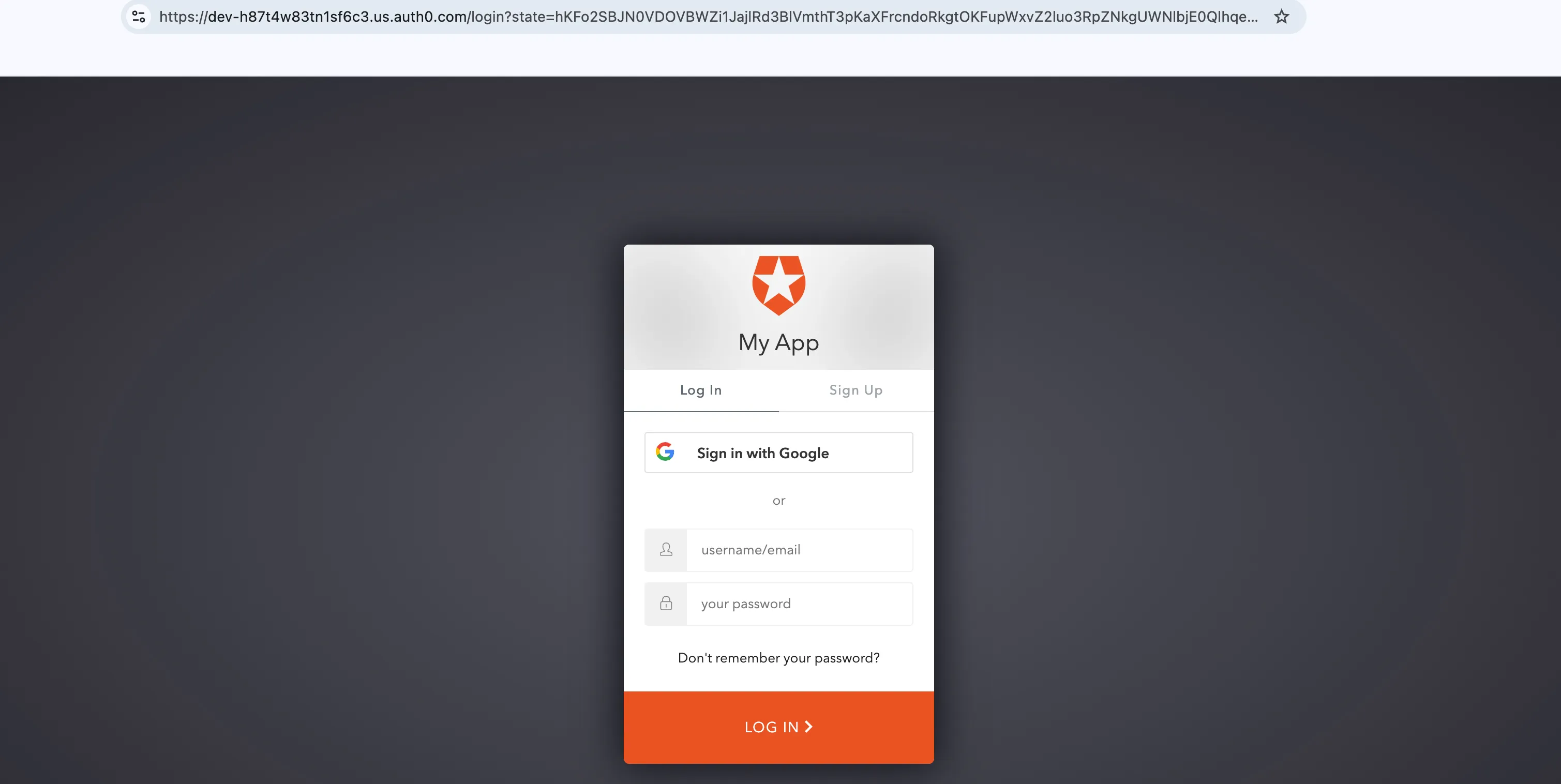
The client of your application will be rendered in the following manner:
The logic of this application is coded by employing the following Catalyst services and its respective components:
-
- AdvancedIO Function: Will contain the logic validate Auth0 access tokens and fetch user details.
-
- Authentication: We will implement Third-party Authentication type to allow third-party (Auth0) service to fulfill the authentication requirement of the Catalyst Application.
- Web Client Hosting: We will host the client of the application using this component.
You will be using the Catalyst web console and the Catalyst Command Line Interface (CLI) to build this application.
Application Workflow
The workflow of how an end-user is authenticated using Auth0 and added as a user to your Catalyst application is detailed below:
- The end-user will be provided the option to log in to the application.
- After the user attempts to log in, they will be directed to the login elements generated by the Auth0 service. Here, the end-user will be provided the option to Signup or Sign using Google social login, or by providing their user information such as their name, email address.
- After the end-user is authenticated by the Auth0 service, the details will be forwarded to the client with an authorization code.
- The authentication logic in the backend function will be triggered and an API call will be made to the Auth0 service using the authorization code.
- After this API call, the required user details will be passed to Catalyst, and a Catalyst custom token will be generated.
- Now, the user details will be made available in the client and in the User Management section of the Catalyst Authentication component. The end-users’ details along with the token information will also be stored in the browser cookie through the Web SDK, to ensure the session is maintained.
- The user will now access your application through its endpoints. The Catalyst Security Engine ensures that all the components associated with the application are accessed securely by end-users.
After the end-user is authenticated and the login session continues to persist, they can securely access all the end points of your application until the token’s expiration time.
Last Updated 2026-03-06 21:49:28 +0530 IST