Enable Third-party Authentication
Next, we will enable the third-party authentication type for the Catalyst project.
To enable the third-party authentication type:
-
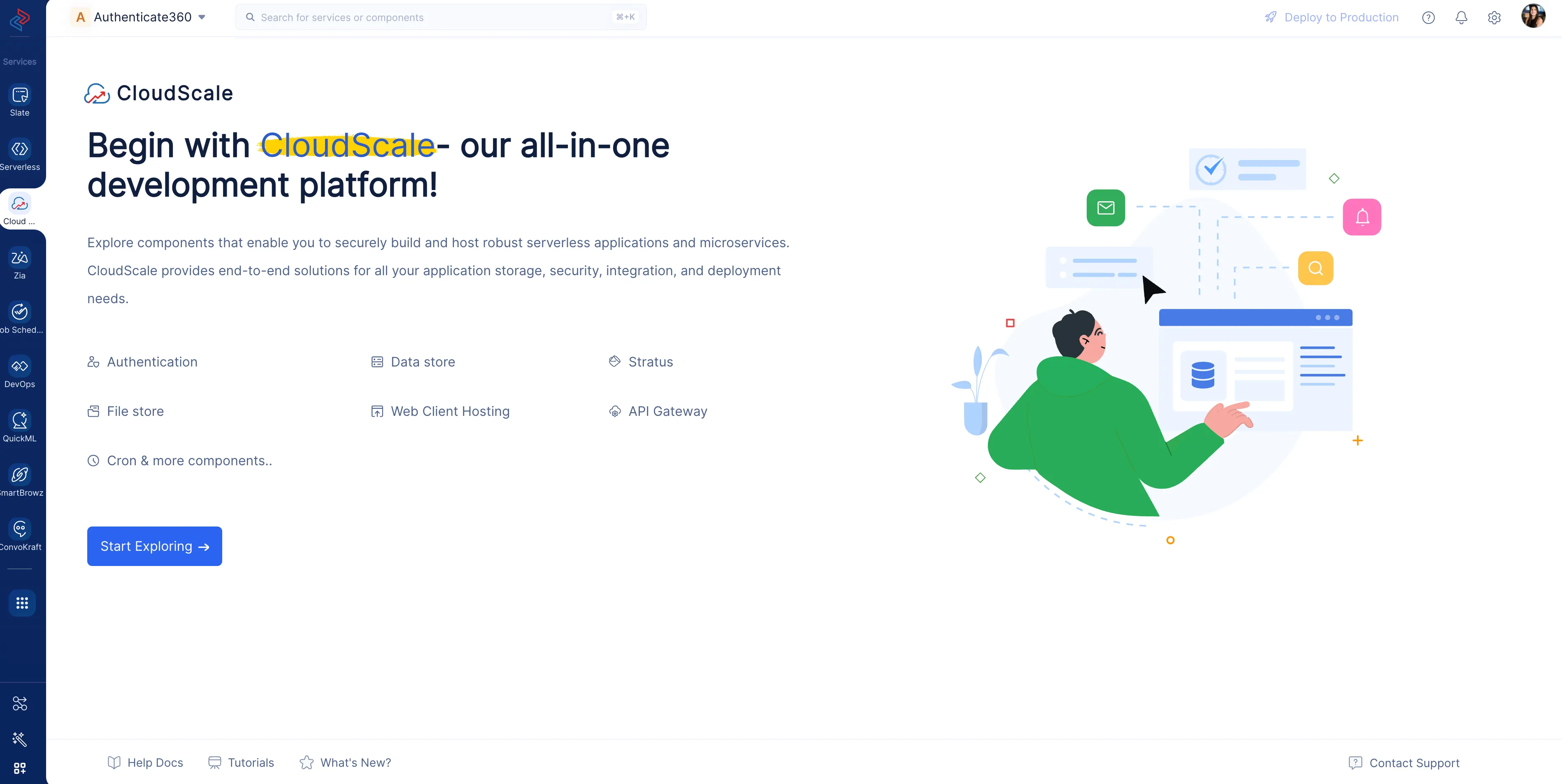
Navigate to the CloudScale service and click Start Exploring.
-
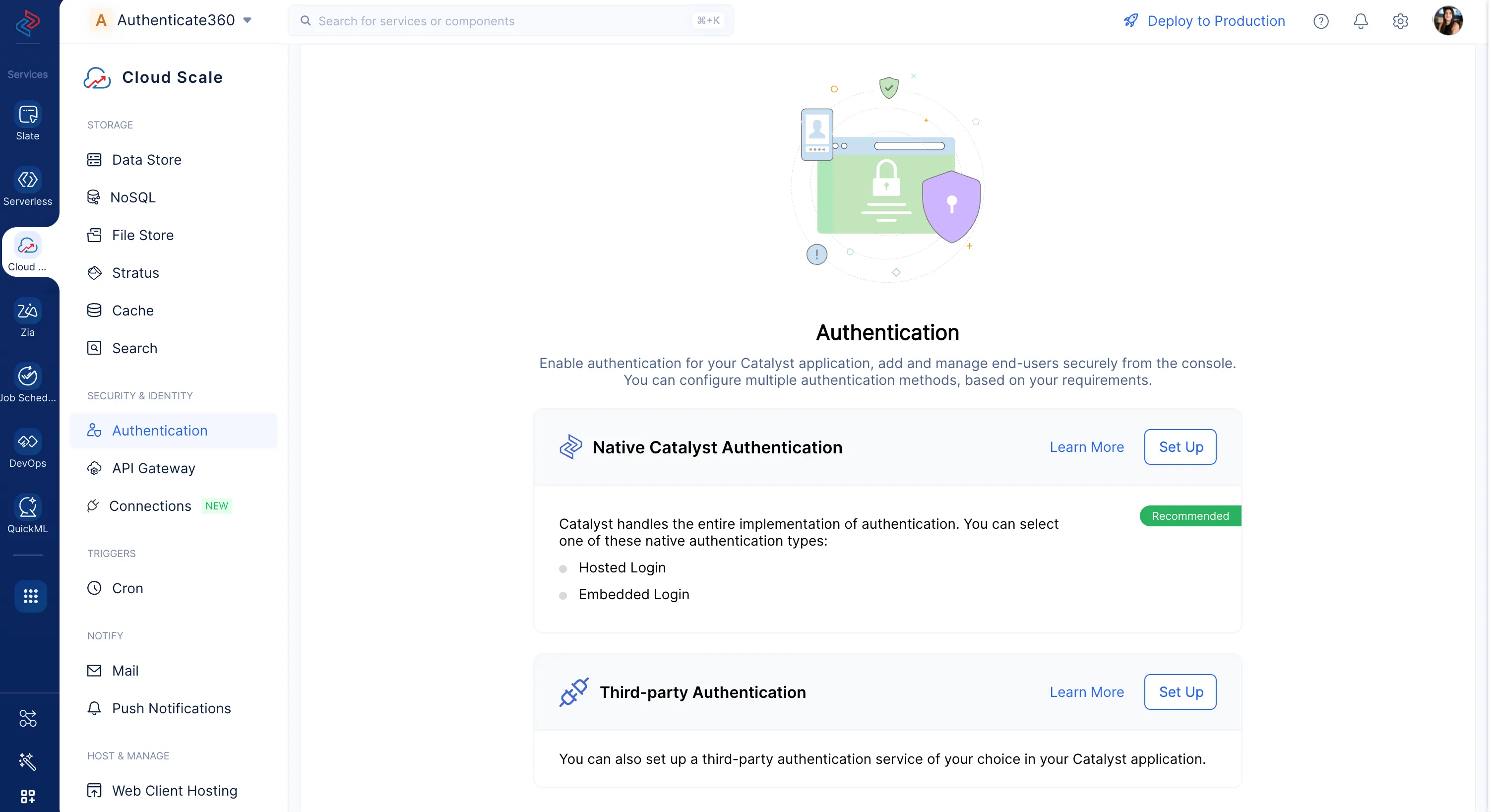
Navigate to the Authentication component and click Set Up next to the Third-party authentication tab.
-
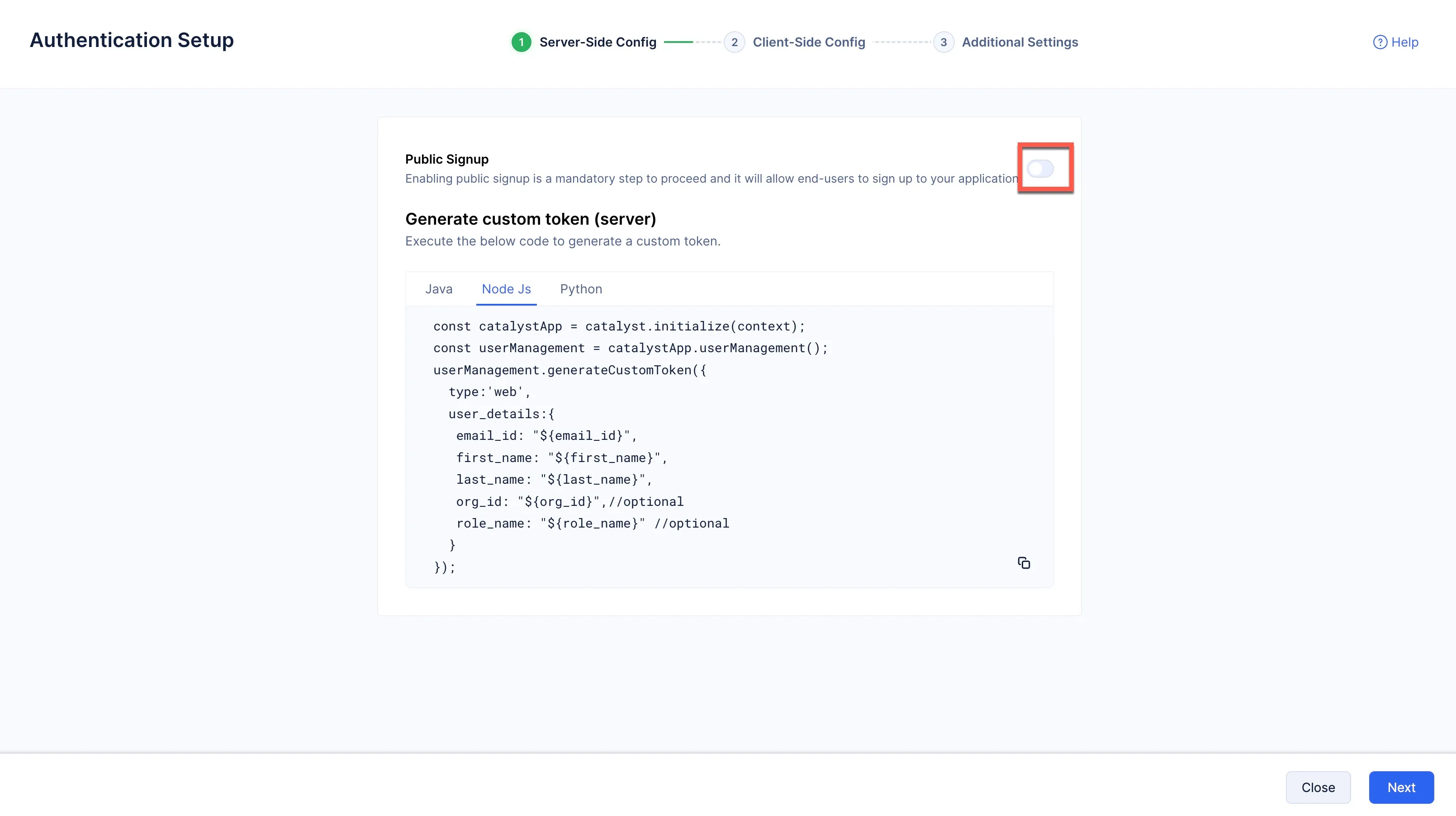
You will be directed to the Server-Side Configuration code snippet. Enable Public Signup by clicking the toggle.
-
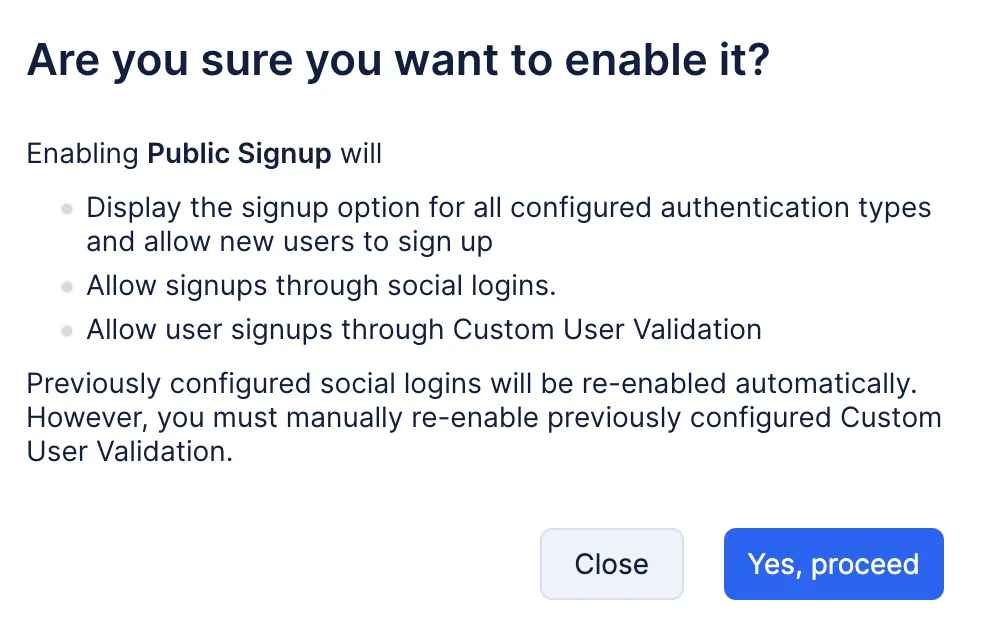
Go through the confirmation pop up and click Yes, Proceed.
-
Click Next. We will be revisiting the server-side configuration, when we code the authentication logic.
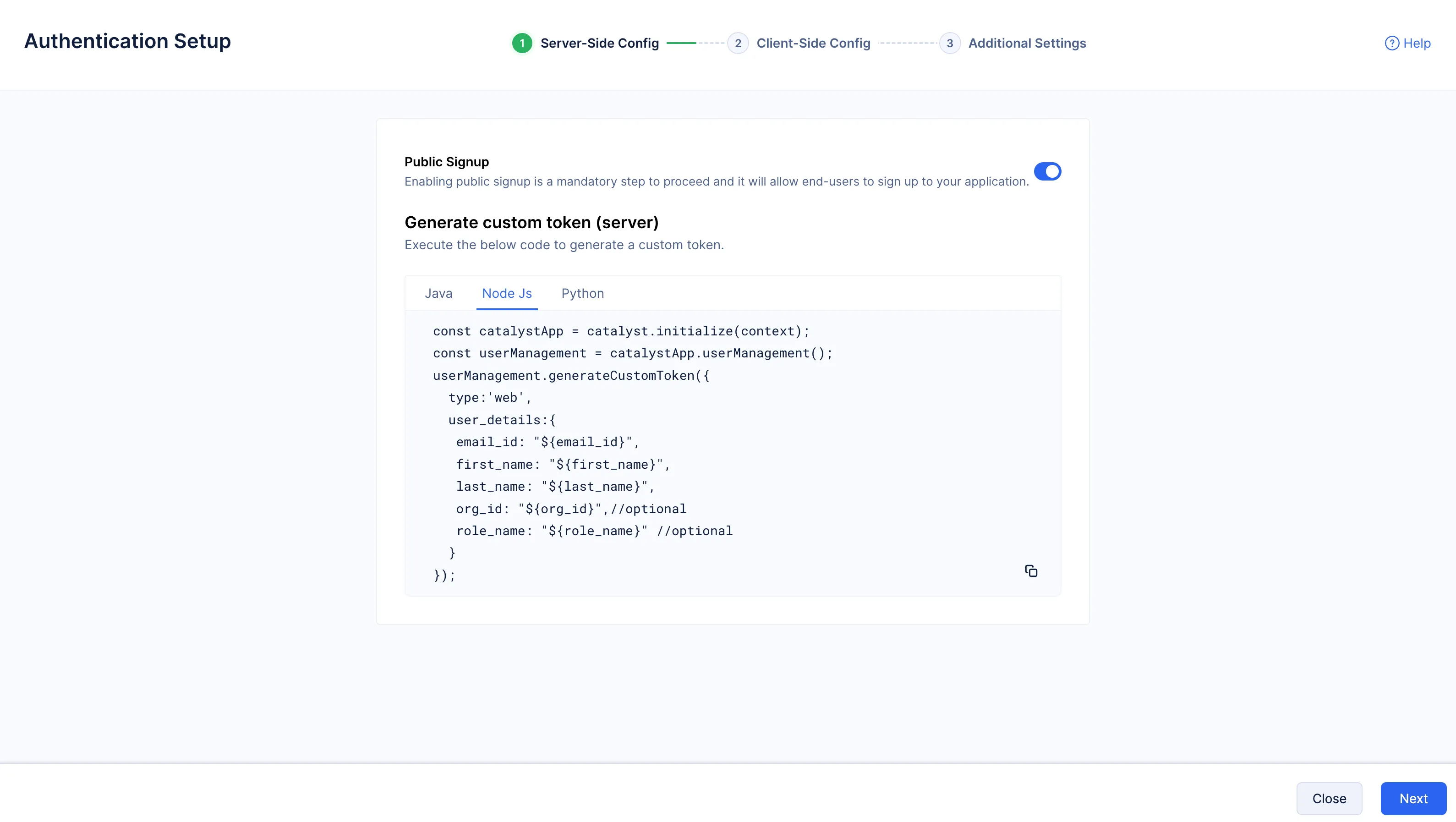
-
Click Next again. We will be revising the client-side configuration, when the front-end of the application is being coded.
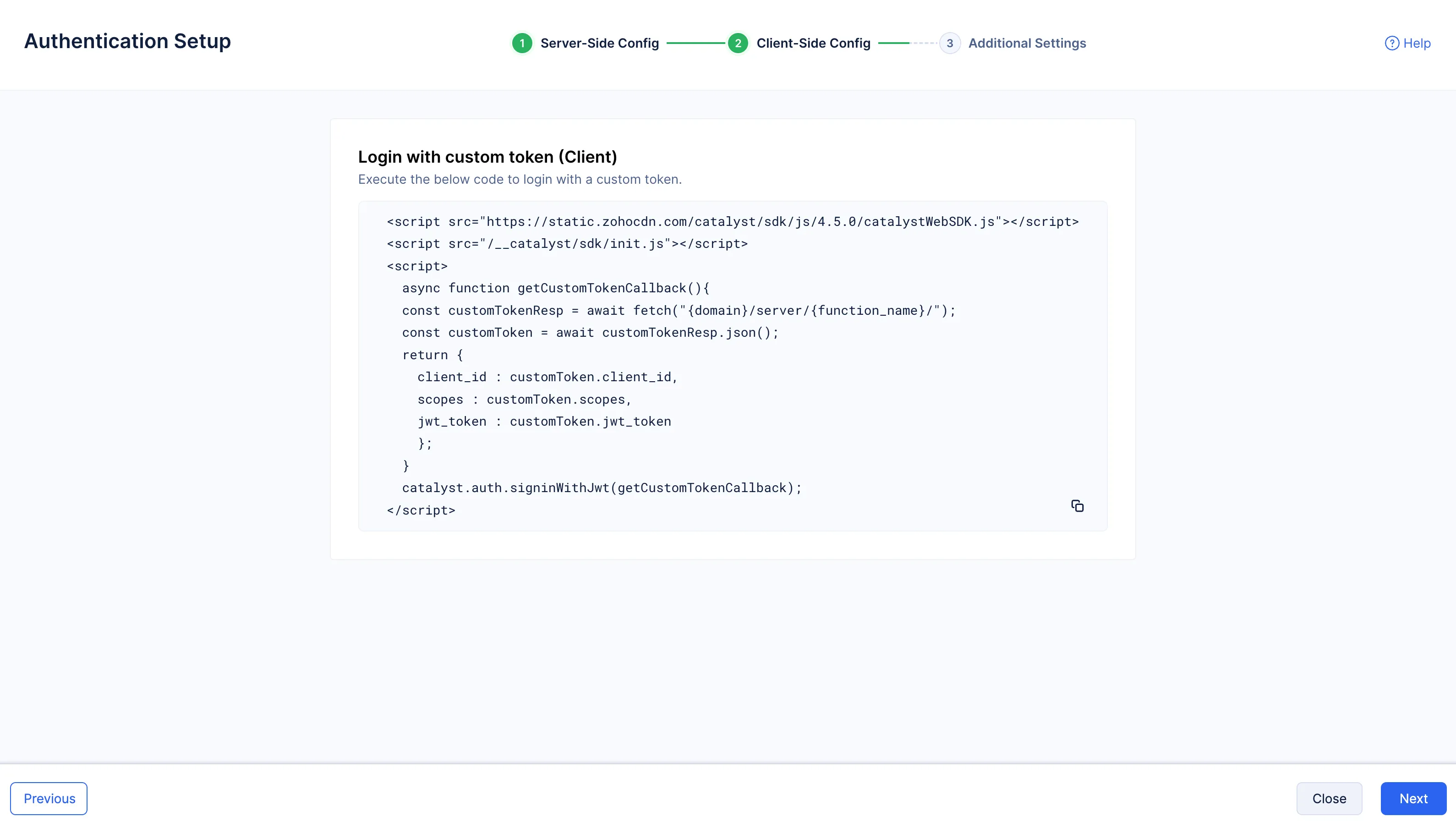
-
For the purposes of this tutorial, we do not require the Custom User Validation or the need to authorize domains. So click Finish.

Third-party authentication has now been enabled for your application.
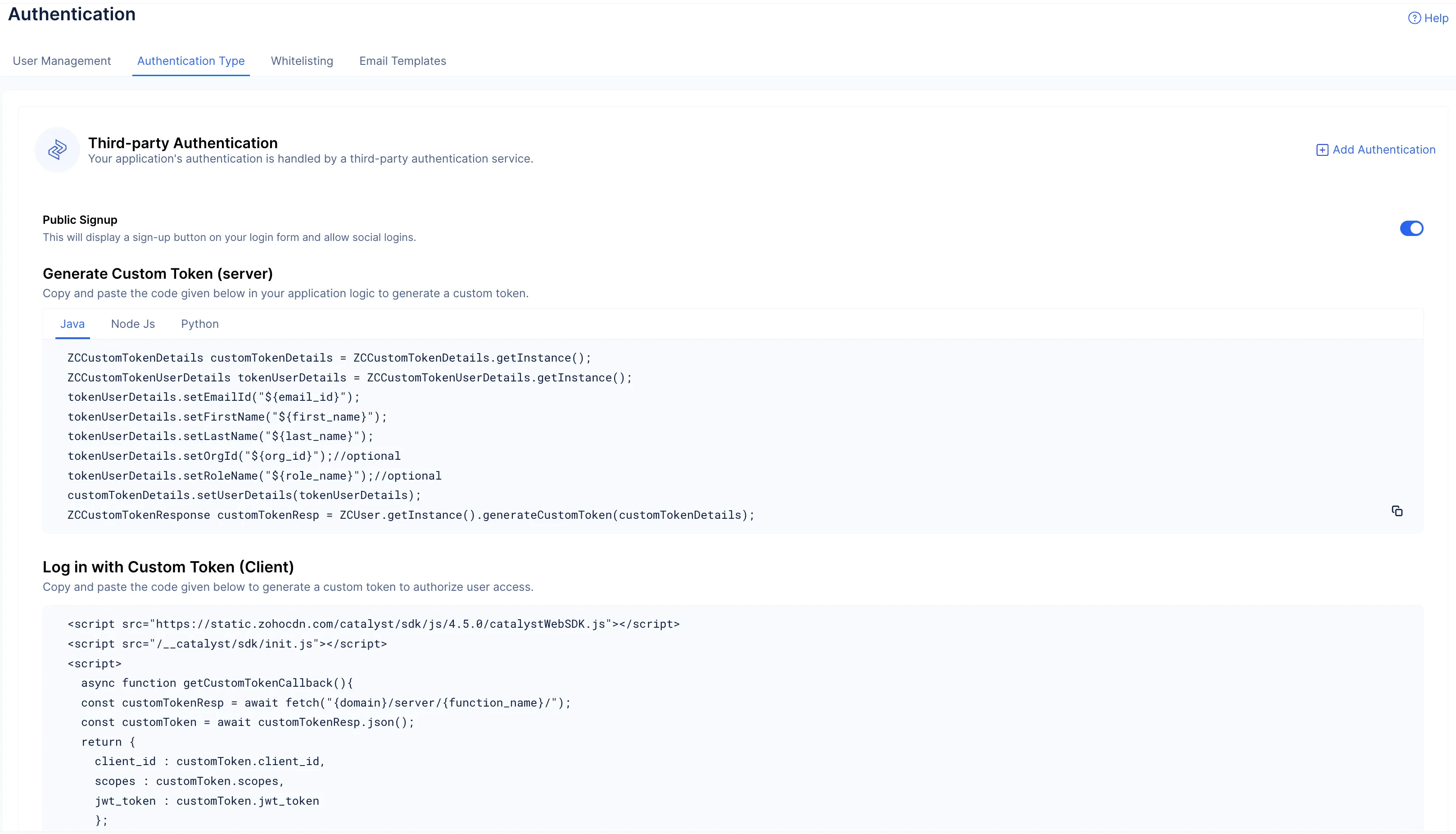
Last Updated 2026-03-06 21:49:28 +0530 IST