Create a pipeline
Now, follow the steps below to create a unified recommendation pipeline that integrates both data pre-processing and ML operations with the uploaded datasets.
-
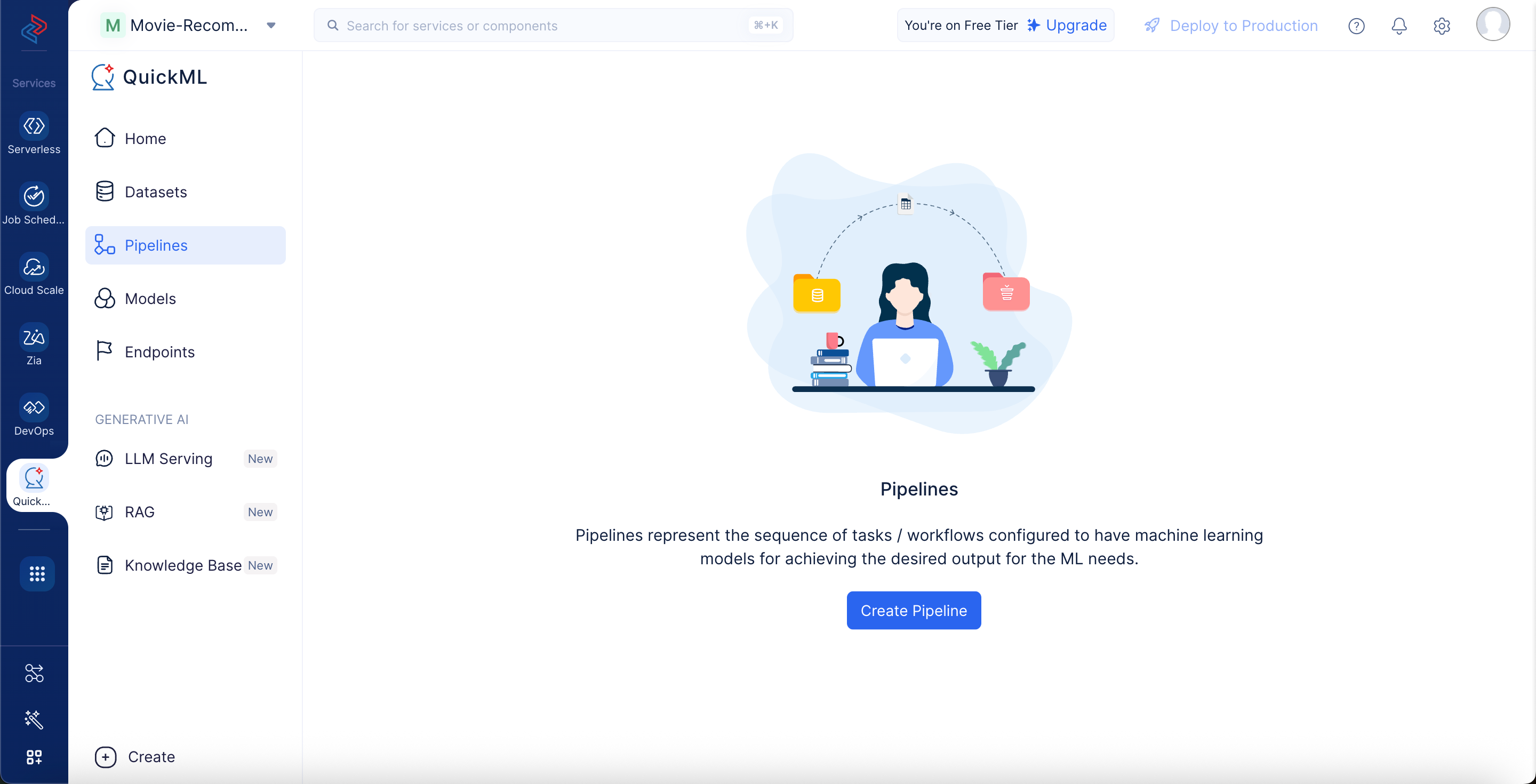
Navigate to the Pipelines component in the left menu and click Create Pipeline.
-
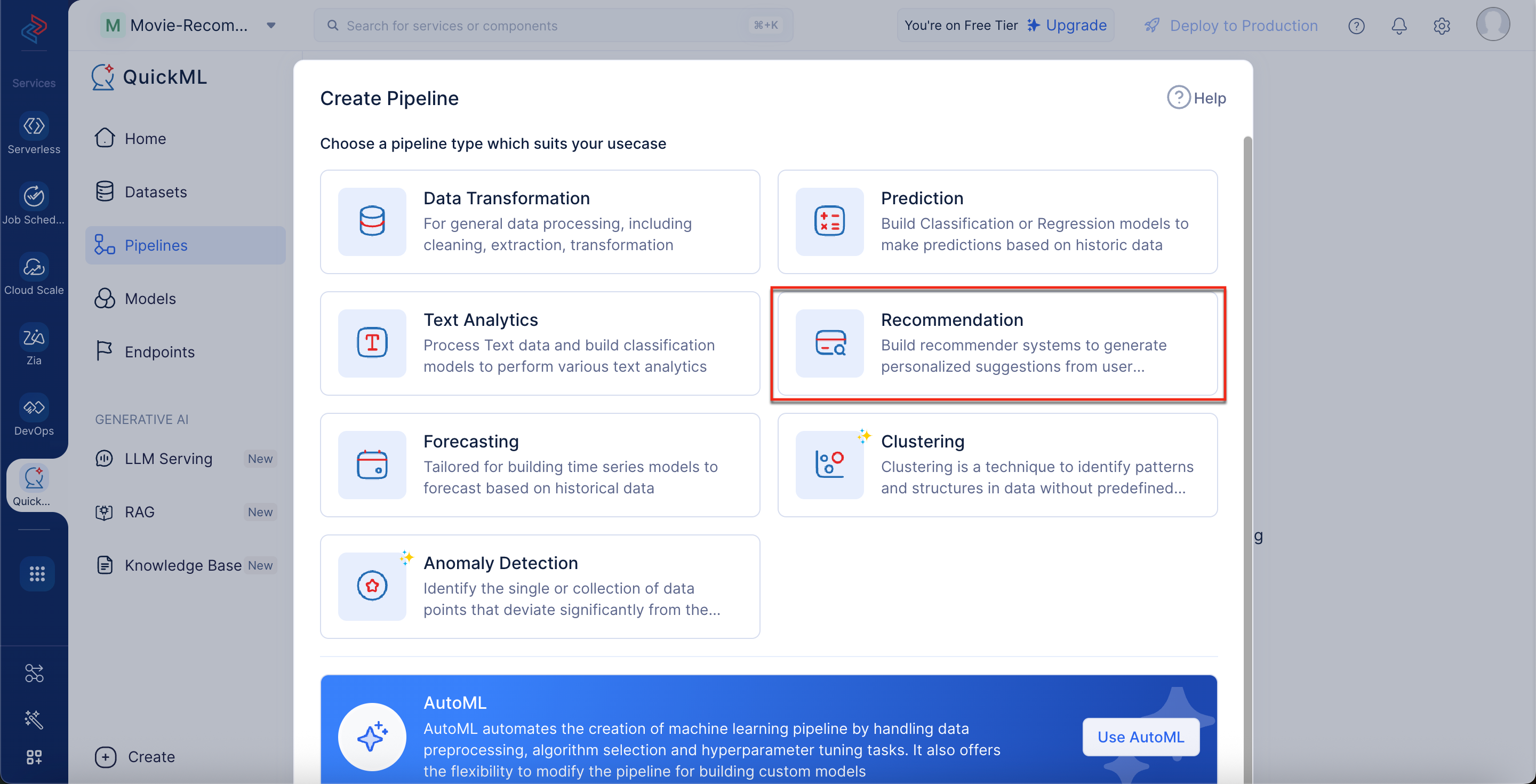
In the Create Pipeline pop-up window, choose Recommendation as the pipeline type.
-
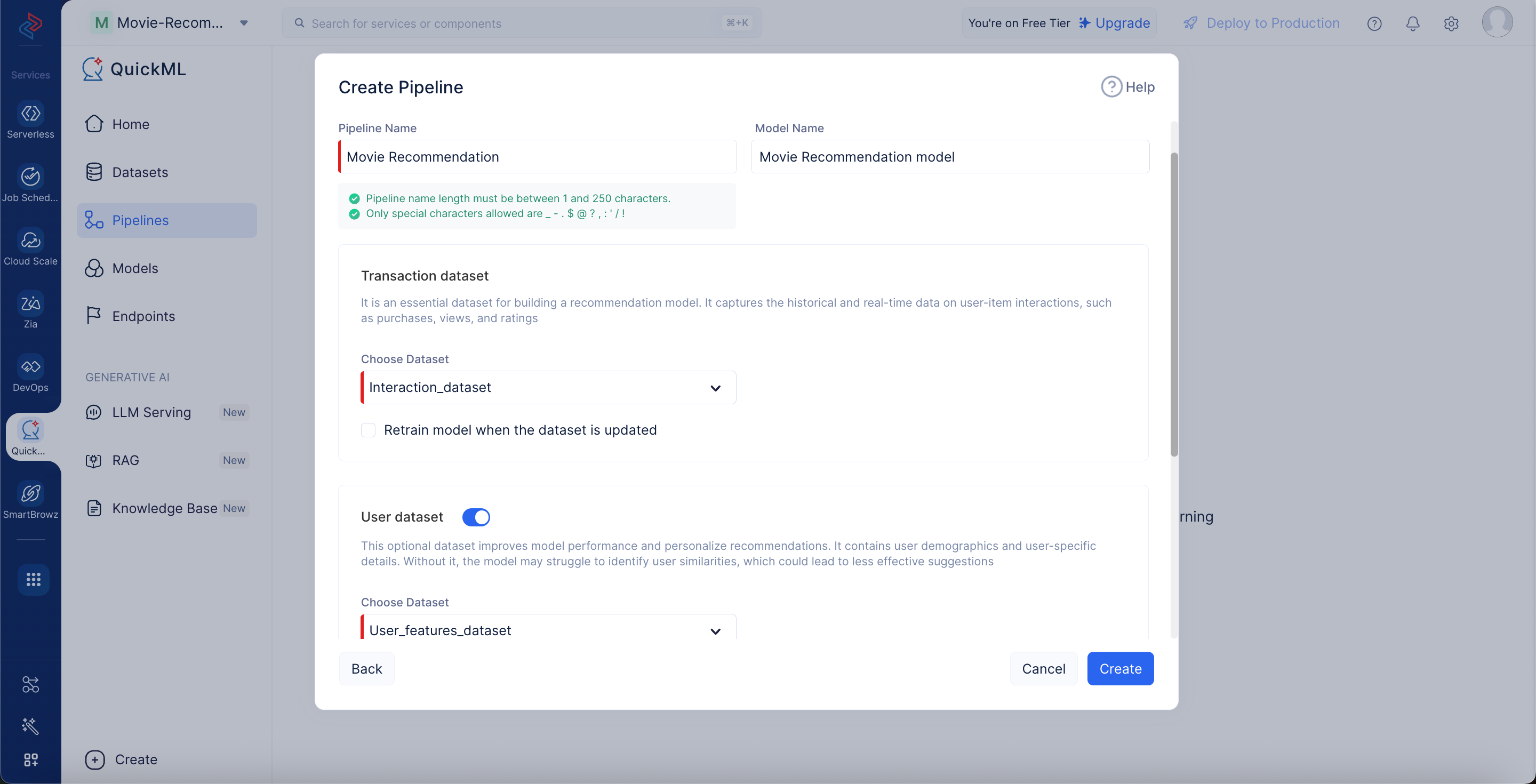
Set the pipeline name to “Movie Recommendation” and select Interaction_dataset as the Transaction dataset. Enable the User dataset option, choose User_features_dataset, enable the Item dataset option, choose Item_features_dataset, and then click Create.
The pipeline builder interface will be opened as shown in the screenshot below.
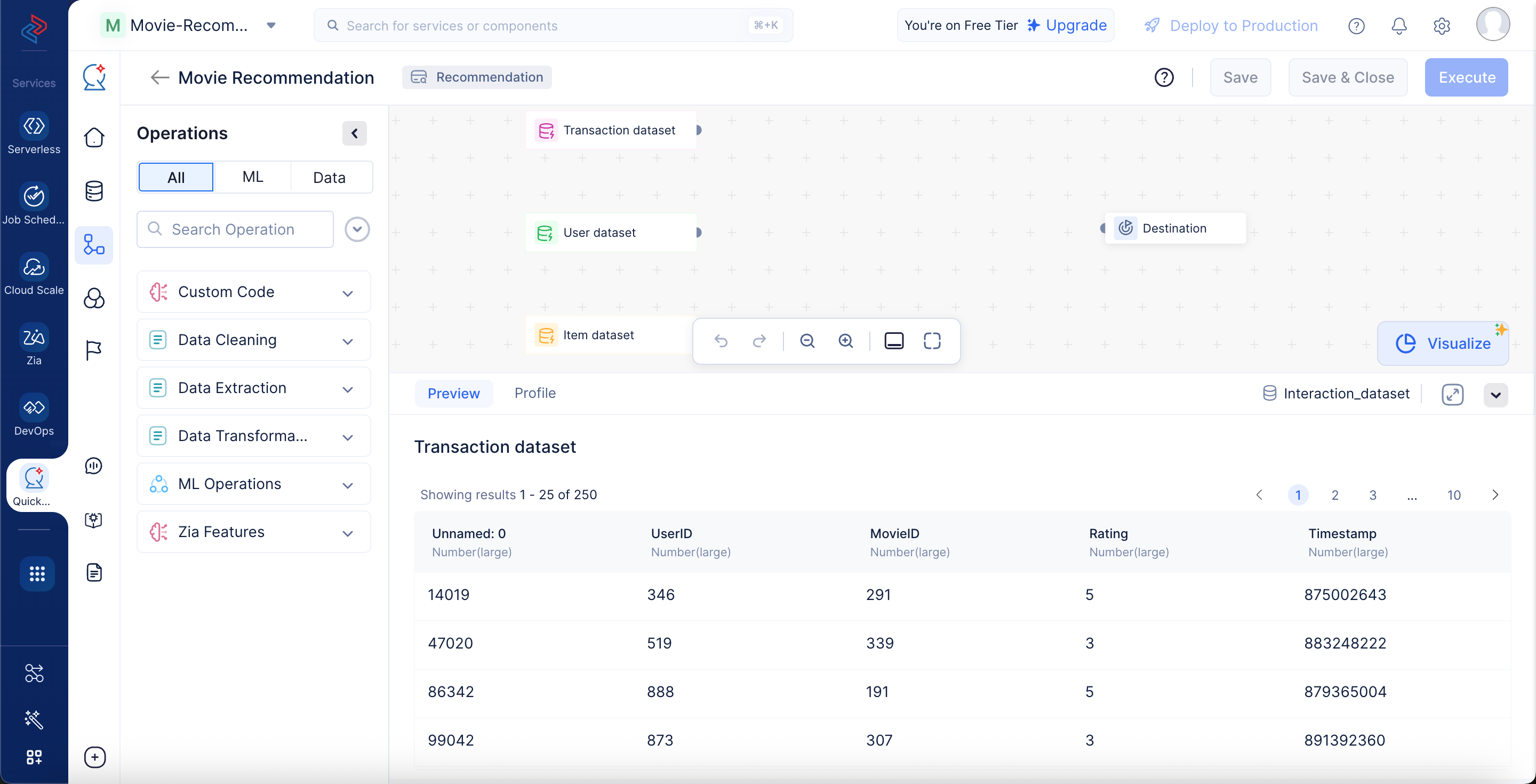
You’ll be performing the following set of data pre-processing and ML operations in different stages in order to clean, refine, and transform the datasets and then execute the pipeline. Each of these operations involves individual data nodes that are used to construct the pipeline.
Data pre-processing stage
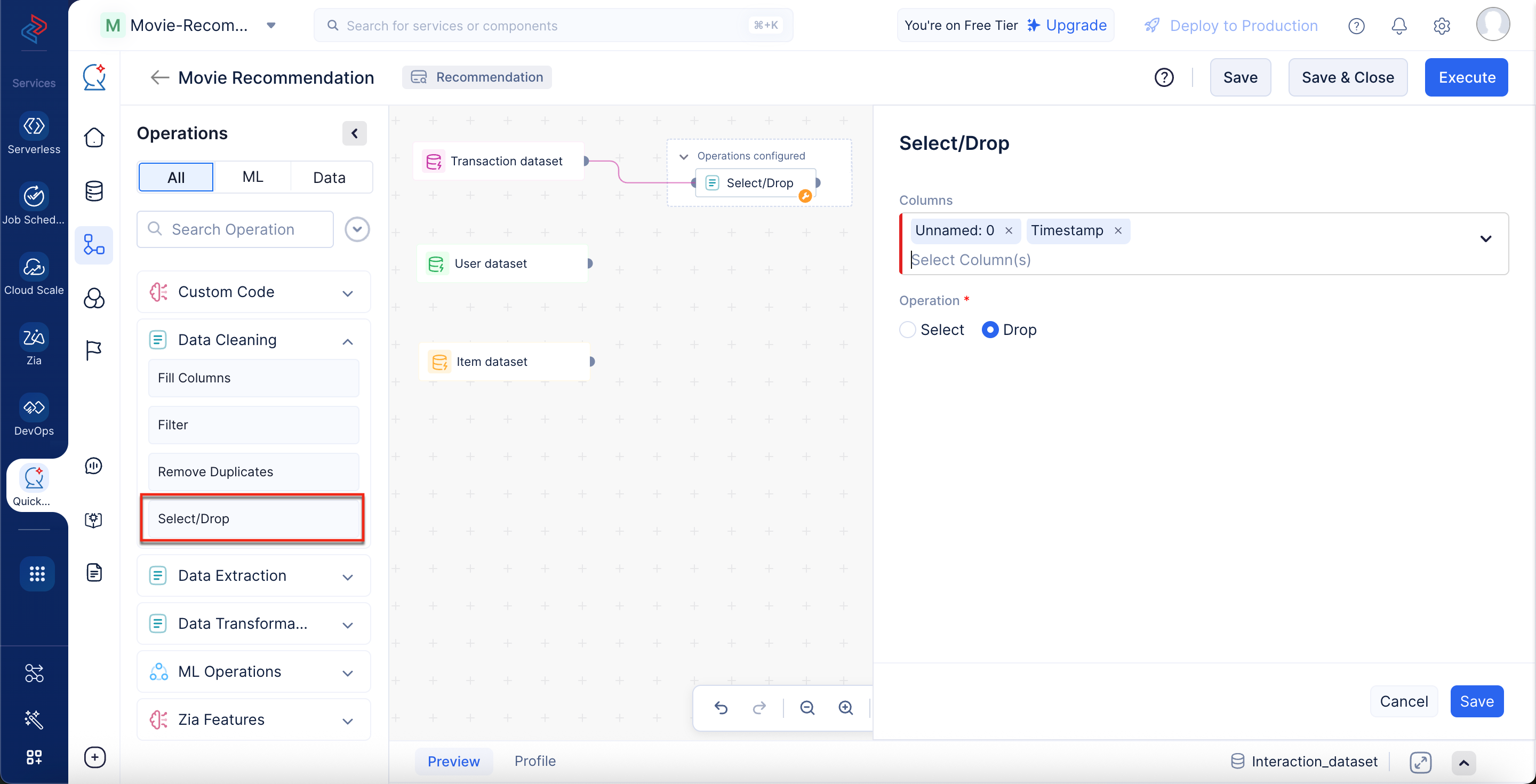
First, select the required fields in the datasets to modify them further. Transaction dataset
- Expand the Data Cleaning component in the Operations menu. Drag and drop the Select/Drop node in the pipeline builder and make a connection with the Transaction dataset node.
- In the Select/Drop section in the right panel, select the columns Unnamed and Timestamp.
- Choose the operation Drop to drop the columns from the Transaction dataset, then click Save. In our case, these columns are generic and serve no further purpose, so we’re removing them.
User Dataset
- Expand the Data Cleaning component in the Operations menu. Drag and drop the Select/Drop node in the pipeline builder and make a connection with the User dataset node.
- In the Select/Drop section in the right panel, select the columns Unnamed and Zip-code.
- Choose the operation Drop to drop the columns from the User dataset, then click Save. In our case, these columns are generic and serve no further purpose, so we’re removing them.
Item Dataset
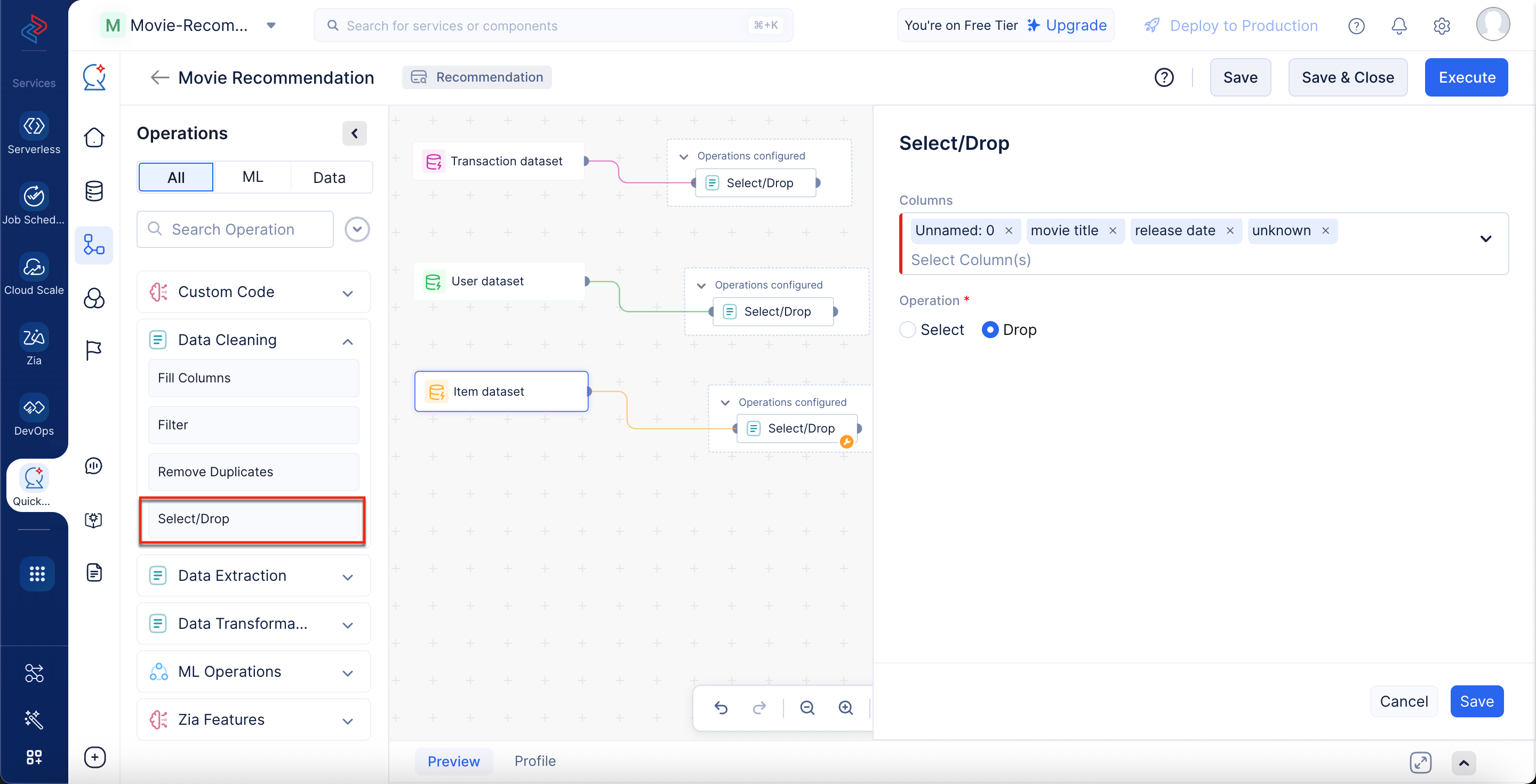
- Expand the Data Cleaning component in the Operations menu. Drag and drop the Select/Drop node in the pipeline builder and make a connection with the Item dataset node.
- In the Select/Drop section in the right panel, select the columns Unnamed, movie title, release date, and unknown.
- Choose the operation Drop to drop the columns from the Item dataset, then click Save. In our case, these columns are generic and serve no further purpose, so we’re removing them.
Encoding categorical columns stage
Since the columns Gender and Occupation in the User dataset contain categorical String-type data, we’ll One-Hot Encode them to meet the requirements of standard ML training. Follow the steps below to perform the encoding.
- Navigate to ML tab > ML Operations > Encoding > One-Hot Encoder.
- Drag and drop the One-Hot Encoder node into the pipeline builder interface and connect it with the Select/Drop node of the User dataset.
- In the One-Hot Encoder configuration panel on the right, select the columns Gender and Occupation, and then click Save.
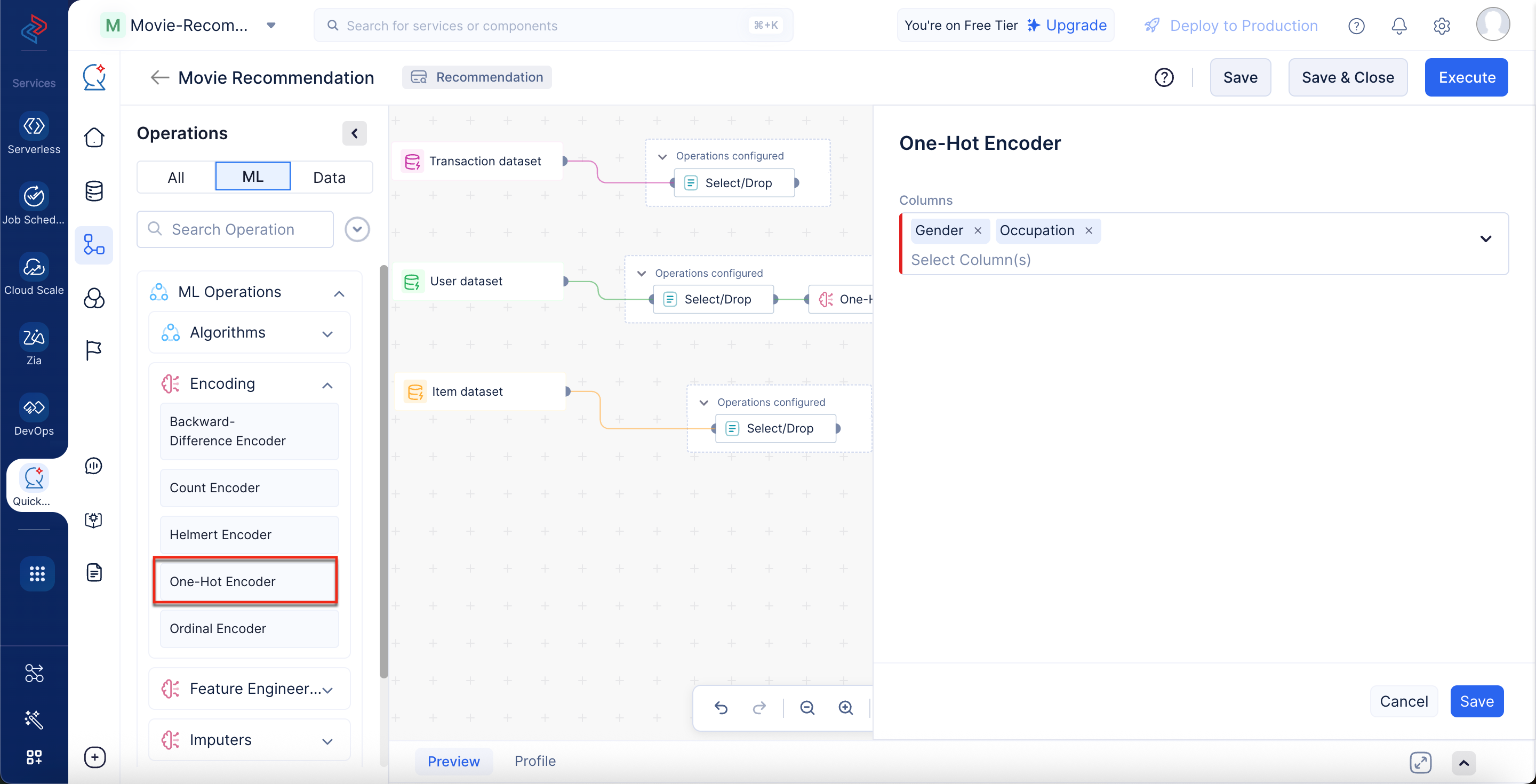
This operation will convert each unique value in these String columns into separate binary columns (0s and 1s), ensuring the model can interpret categorical attributes without losing information or introducing unintended ordinal relationships.
Applying ML Algorithm Stage
We are using the Light FM algorithm to build a hybrid recommendation system that combines both collaborative filtering and content-based filtering. This approach allows the model to learn from user-item interaction data (such as ratings or clicks) as well as from user and item feature data.
- Navigate to ML tab > ML Operations > Algorithms > Information Retrieval > Light FM.
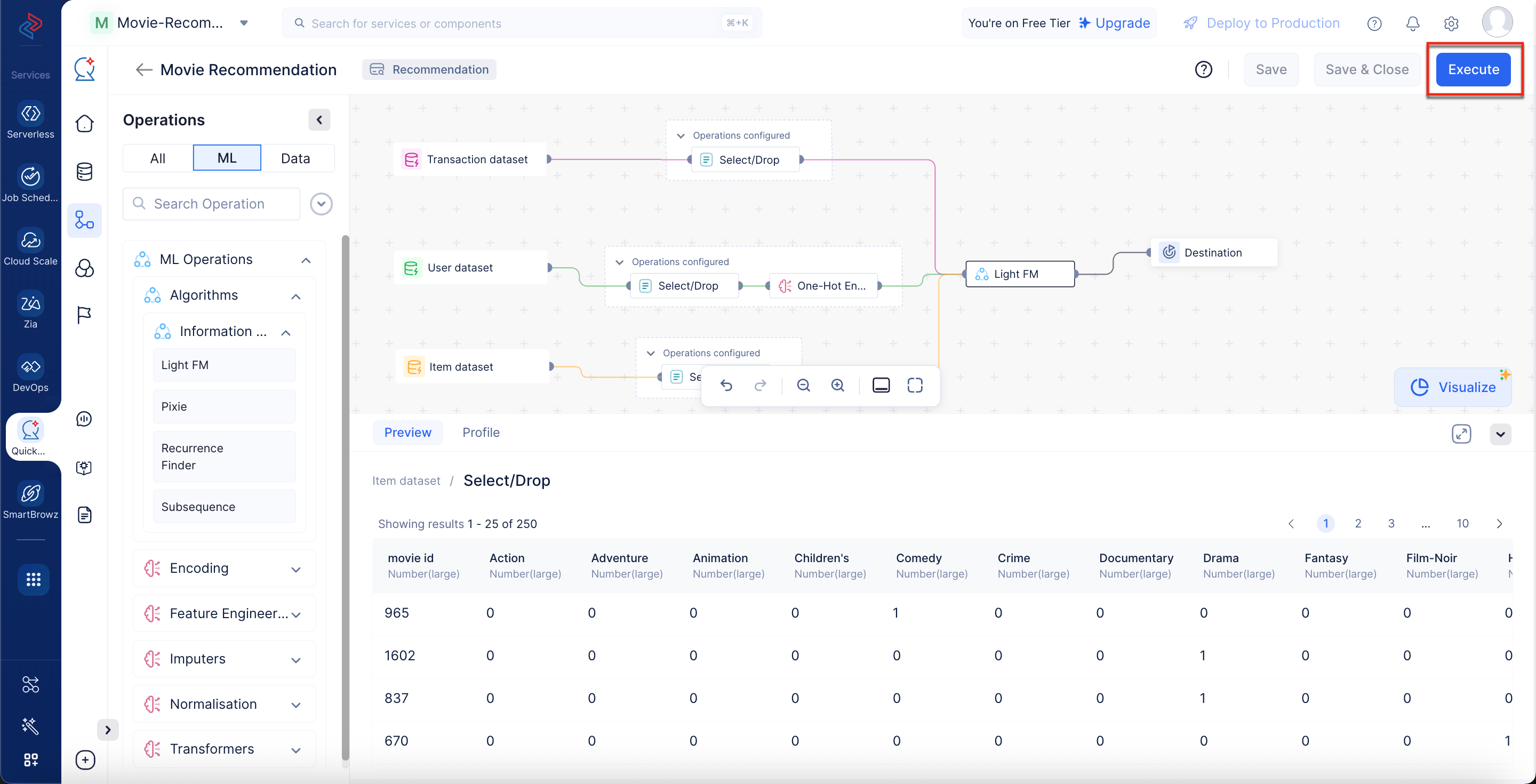
- Drag and drop the Light FM node into the pipeline builder interface and connect it to the configured operations for the Transaction, User, and Item datasets as shown in the screenshot below.
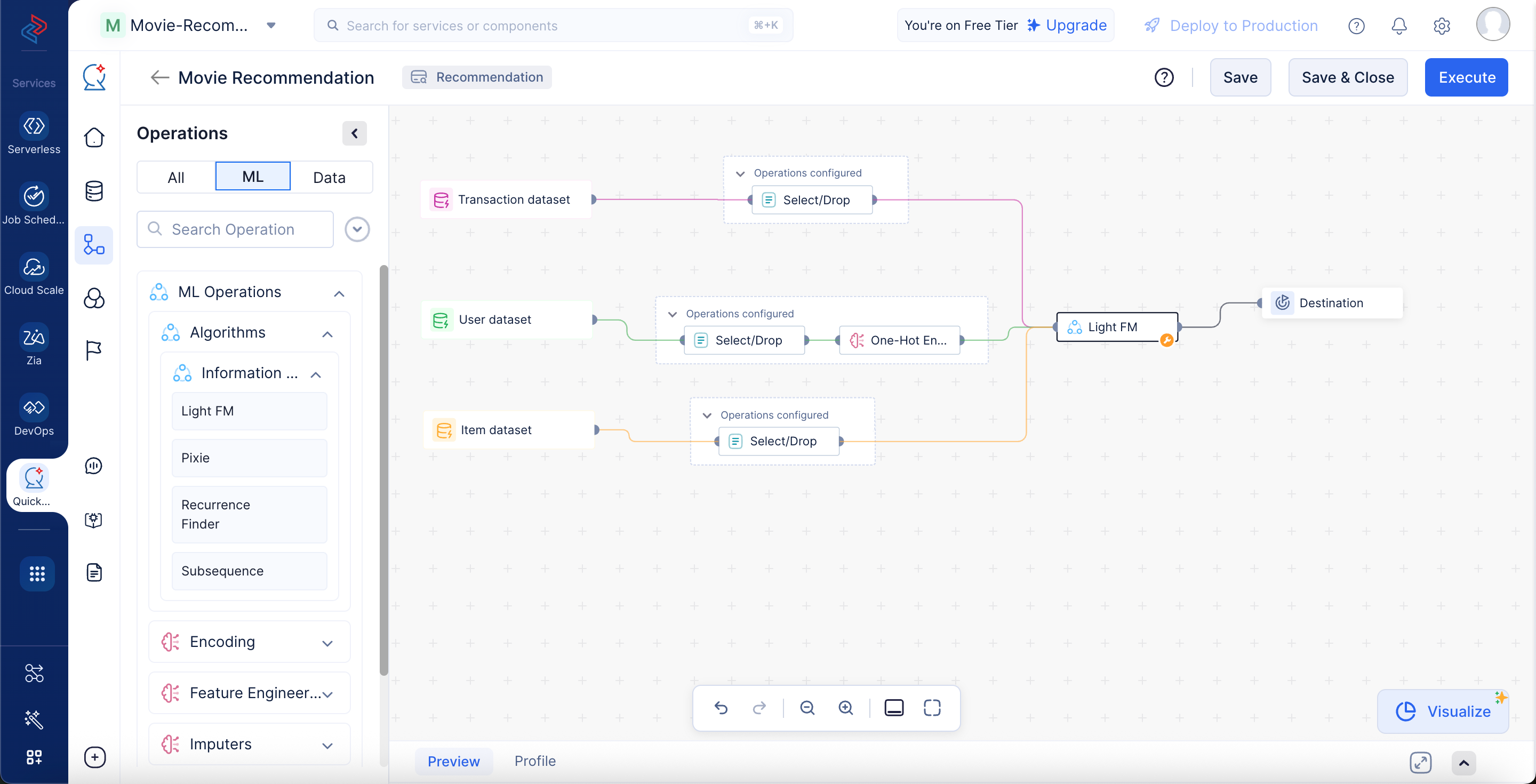
- In the Light FM configuration panel on the right, choose the UserID and MovieID columns for the Transaction dataset, choose the UserID column for the User dataset, and choose the movie id column for the Item dataset. Set the loss function parameter to BPR, leave all other parameters unchanged, and click Save.
Now we’ve finished making the required node connections and configurations. We can execute the pipeline by clicking Execute for further evaluation and deployment.
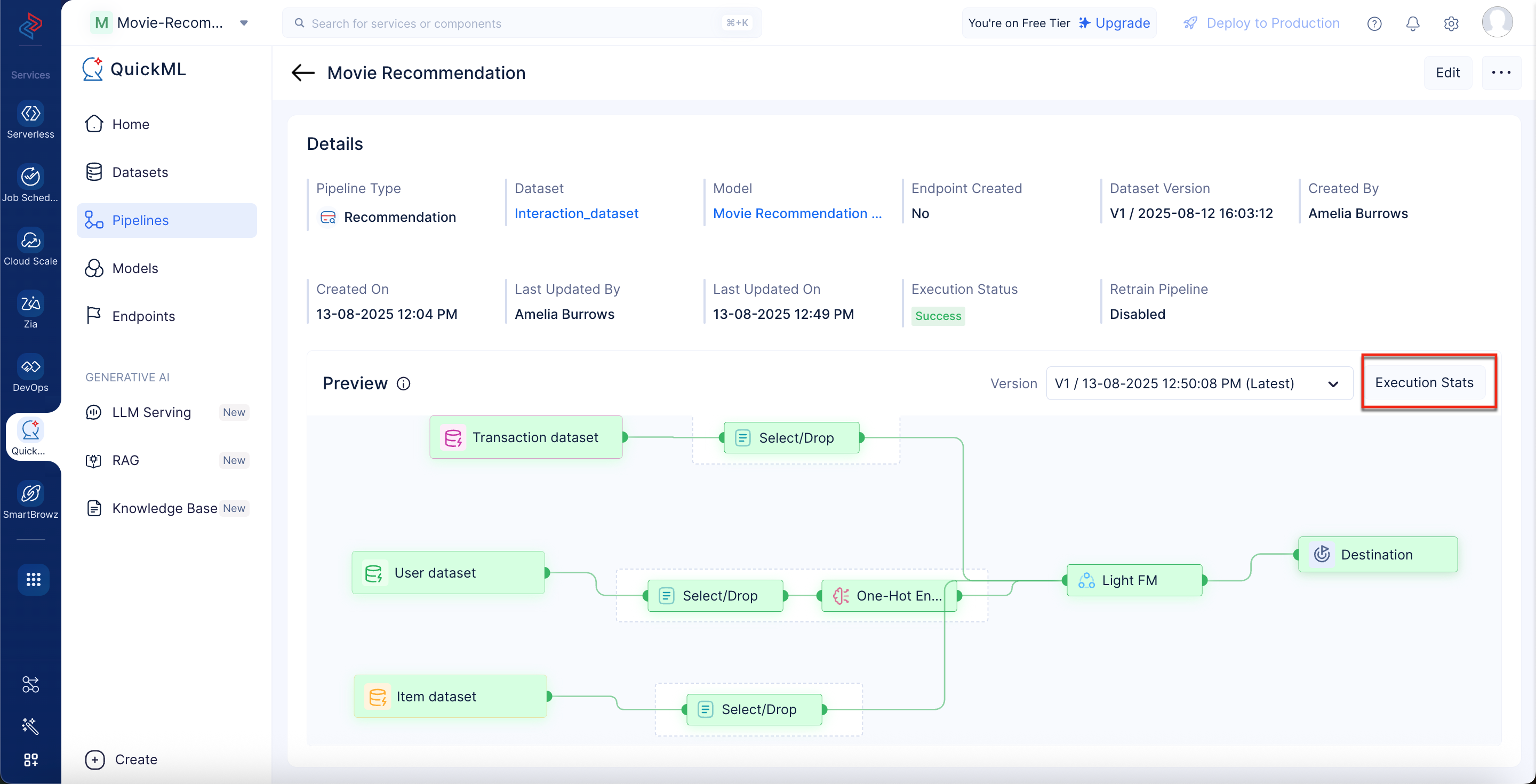
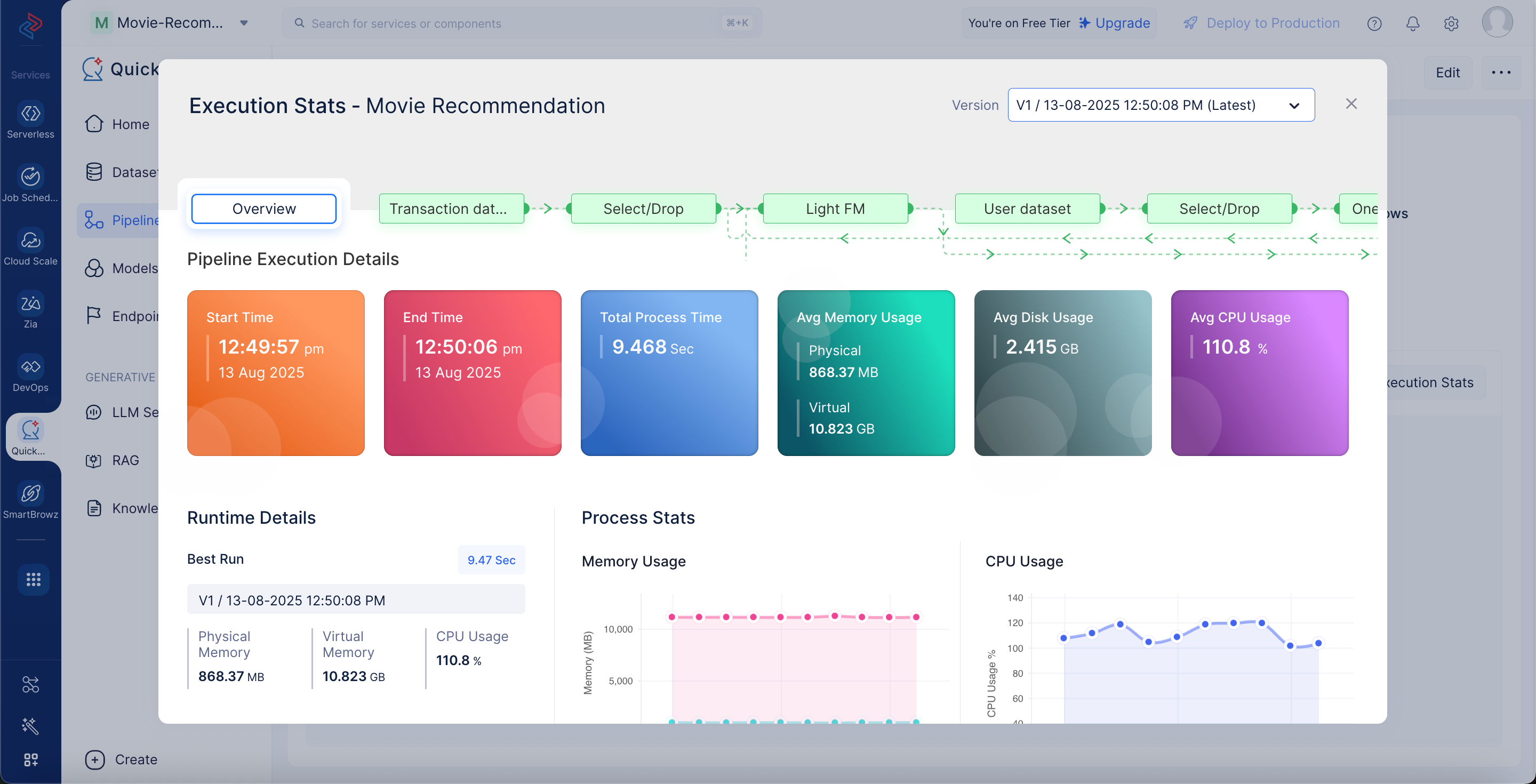
Click Execution Stats to view more details about each stage of the execution in detail.
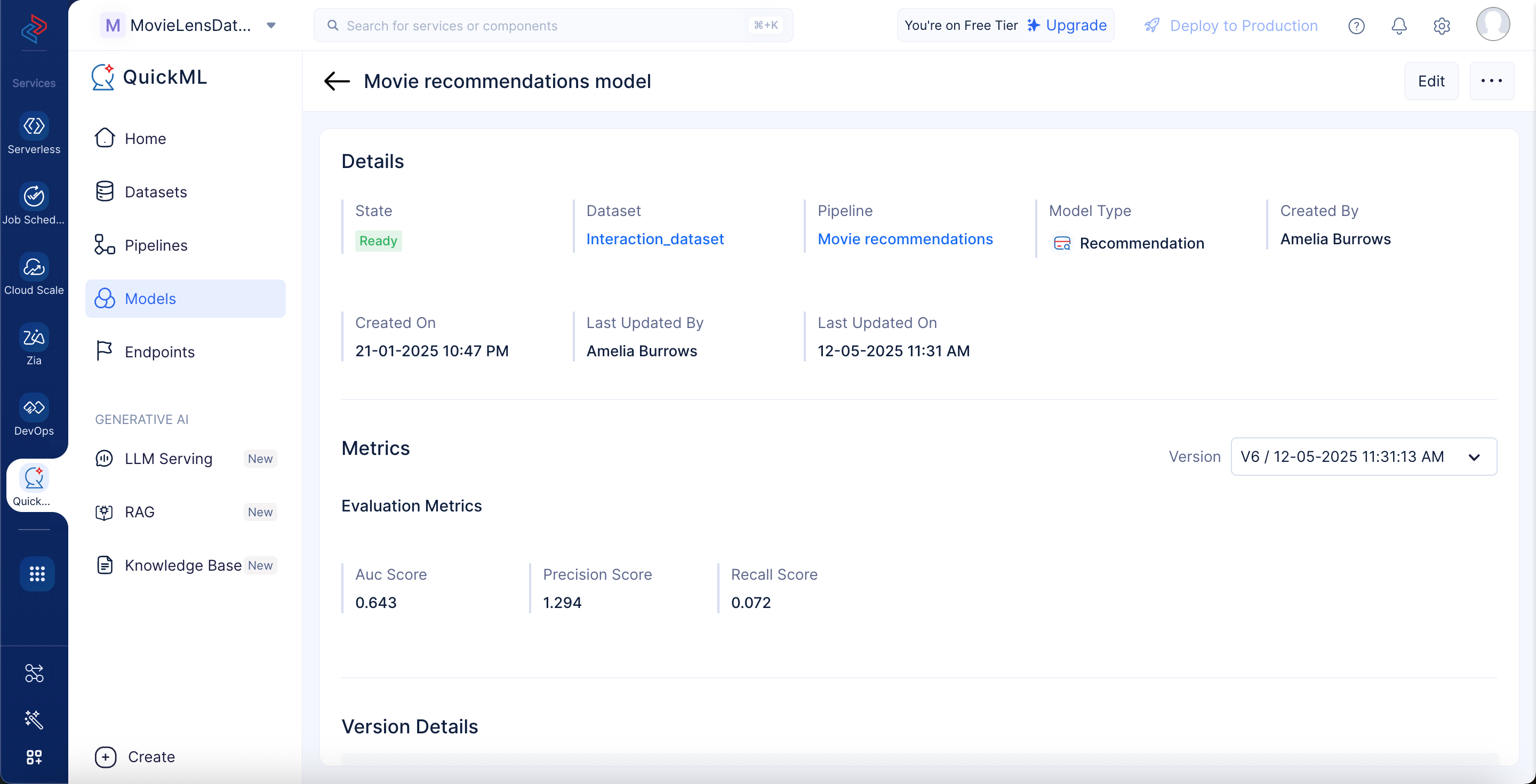
Upon successful pipeline execution, the Movie Recommendation model is created and will be displayed under the Models section with a Ready state.
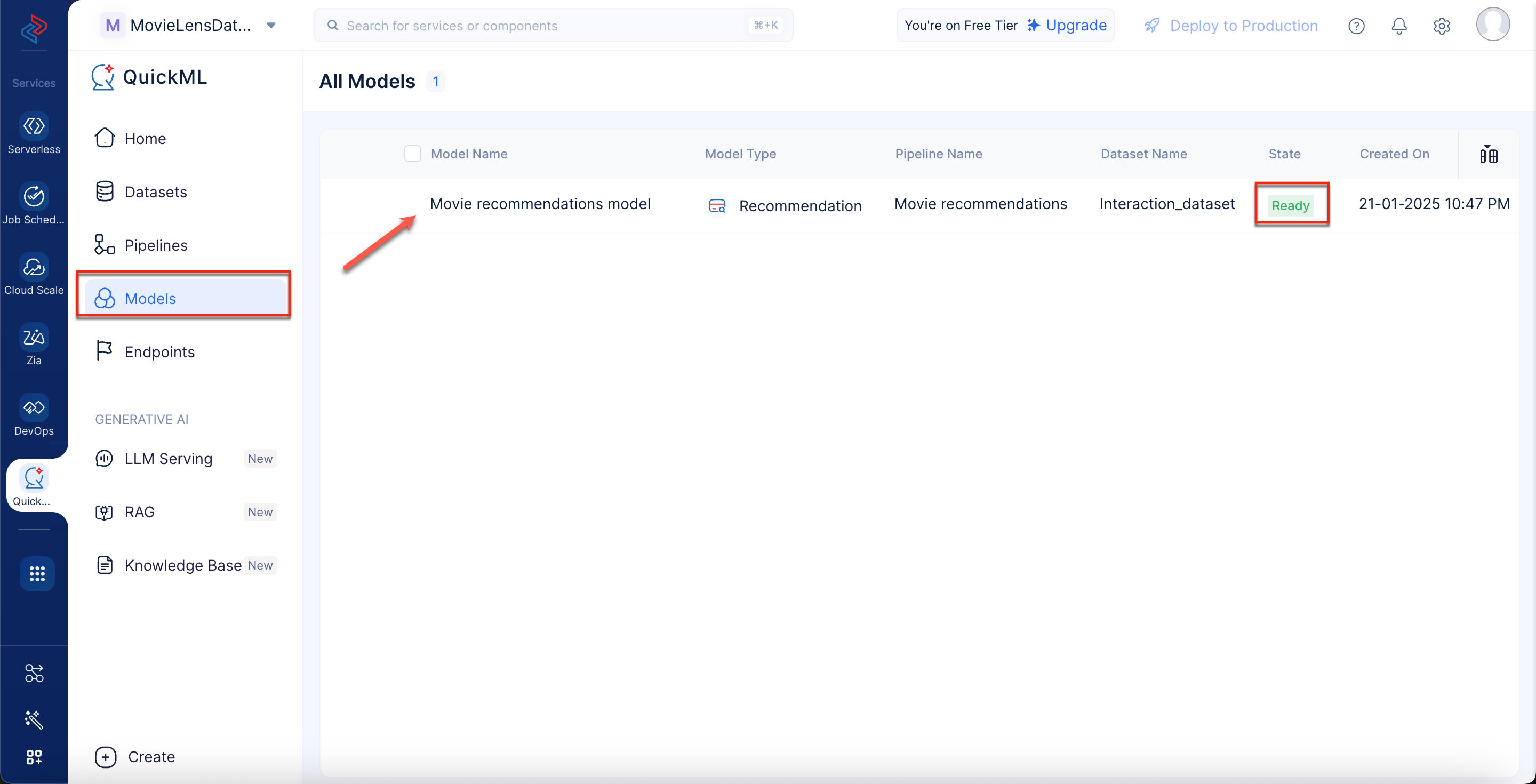
You can view the details of the model on the model’s Details page by clicking on the model name.
Last Updated 2026-08-20 12:42:54 +0530 IST