Initialize the Project
You can now begin working on your Catalyst project from the CLI. The first step is to initialize the project in an empty directory. This will be the home directory of your project, and all of the project files will be saved in it.
You can learn more about this from the Project Directory Structure help page. You can learn about initializing a project in detail from the CLI help documentation.
For this application, we will only be initializing the project. We will not be initializing any function or client components.
- Create a folder for the project on your local machine and navigate to it from the terminal.
- Initialize a project by executing the following command from that directory:
Navigate using the arrow keys and select your preferred portal and click Enter. If you have no other organizations associated with the account, then the default will be selected automatically.
-
The CLI will now ask you to associate a Catalyst project with the directory. Associate it with the project that we created earlier from the console. Select Authentication360 from the list and click Enter.
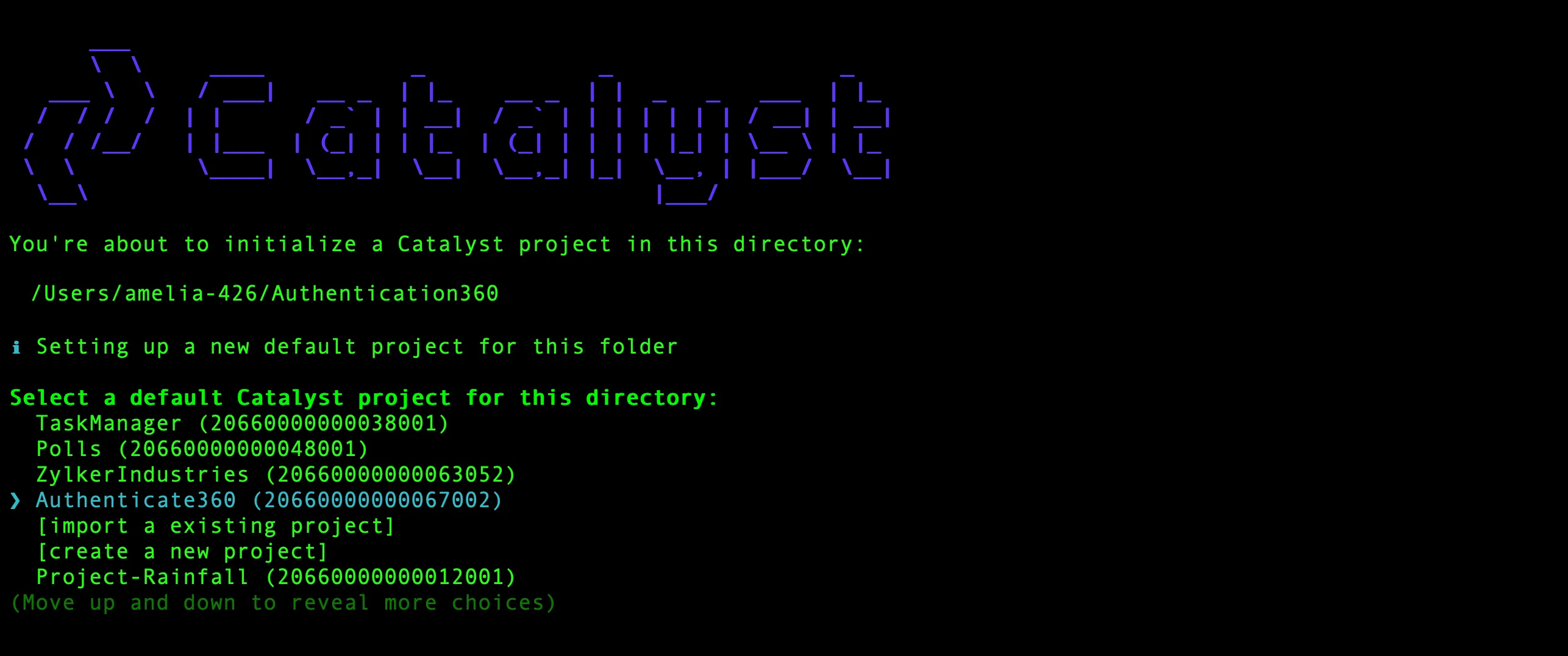
-
Select Functions and Client using the space-bar and press Enter to initialize the function and client components of your application.
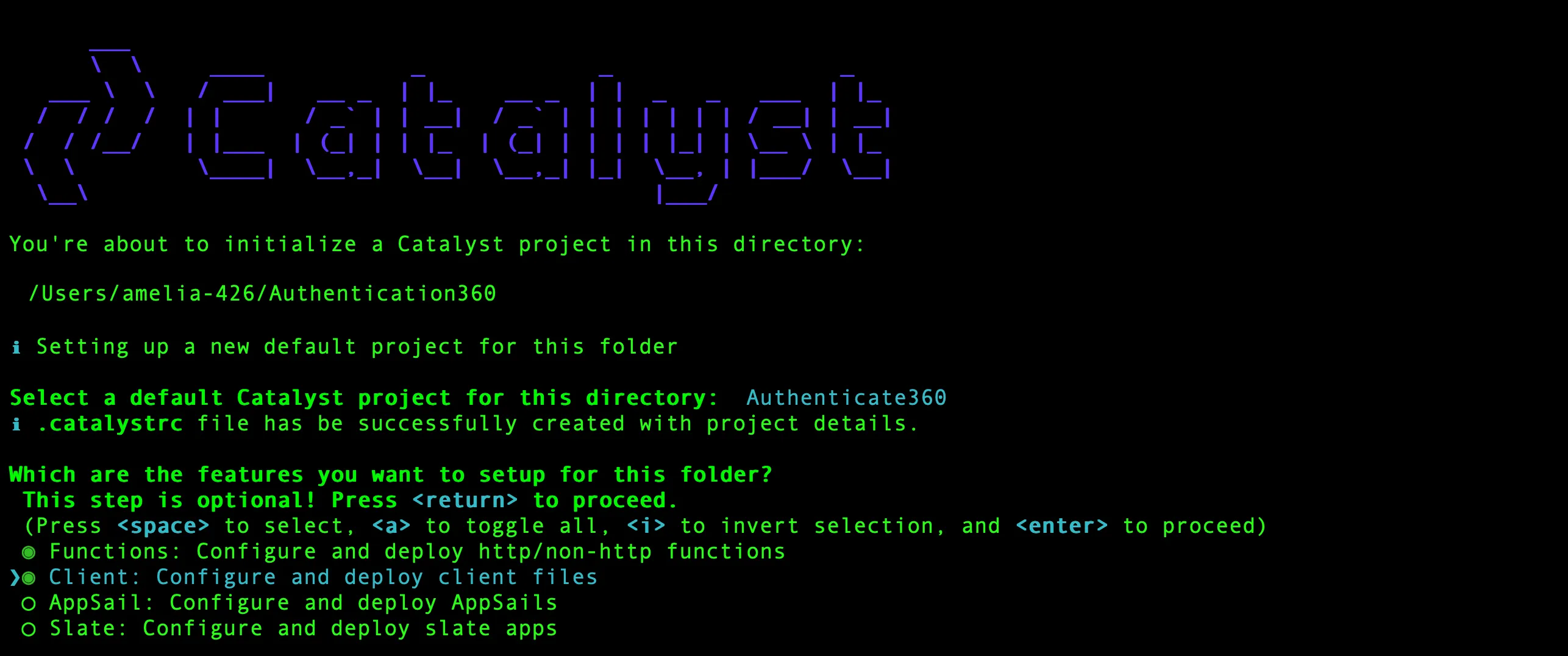
-
The CLI will initiate the function setup. Select AdvancedIO function as the function type to code your authentication logic.

-
Select the latest runtime of Node.js as the function stack.
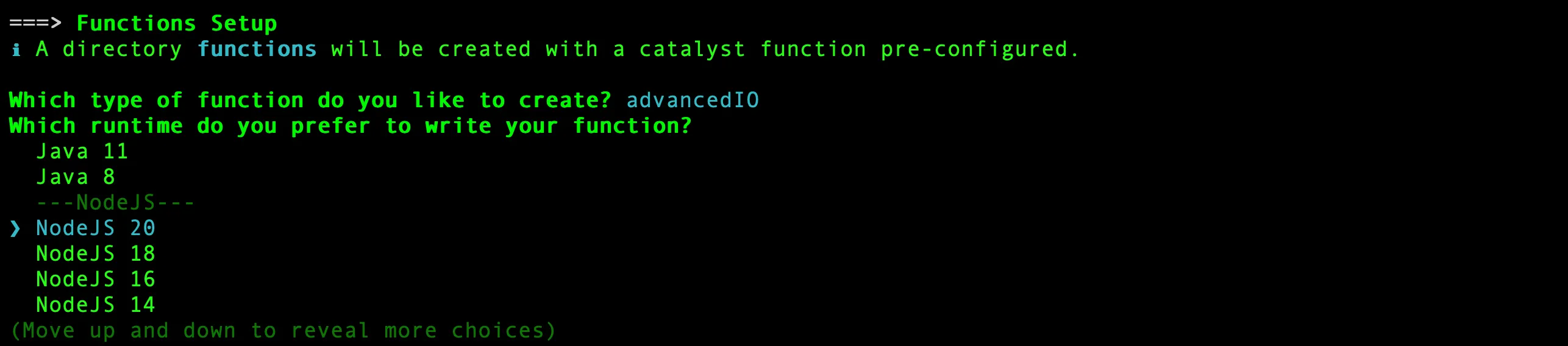
-
Enter “custom_token_generation” as the package name, “index.js” as the entry point, and your email address as the author, then press Enter. Alternatively, you can press Enter without entering inputs to fill in the default values. The CLI will prompt the initialization of the Node dependencies. Press Y to confirm the installation, and press Enter to confirm your choice. The Node modules will be installed.
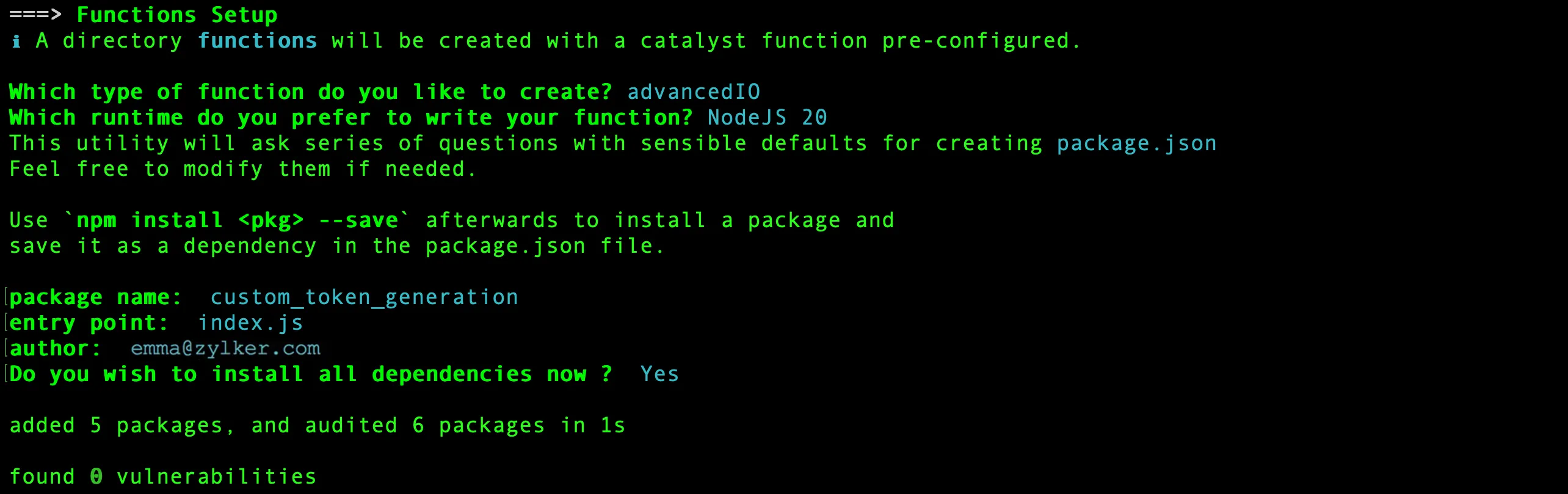
The CLI will now initiate the client setup.
-
Select Basic web app and press Enter to initialize your client as a basic web app.

-
Enter a name for your client package and press Enter. For the purposes of this tutorial, we are naming our client package “Authentication360”. You can use the same of provide a name of your choice.

The Catalyst initialization is now complete.
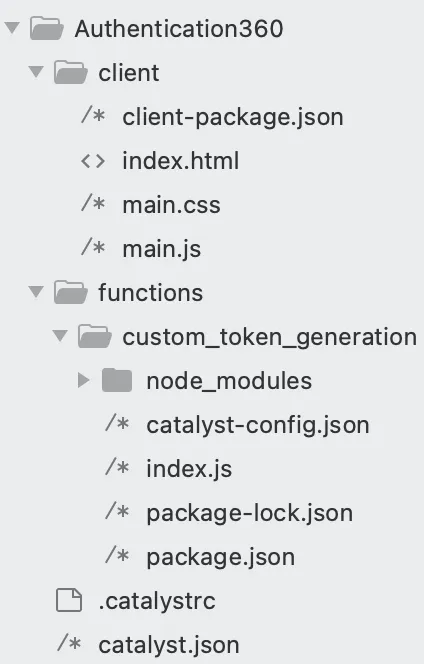
The project directory is now set up with the client directory and the functions directory along with configuration files and dependencies. The project directory also contains the catalyst.json configuration file and a hidden .catalystrc file.
The structure of your project directory should now appear as shown below:
Deploy Your Application
You will need to deploy the application to the Catalyst console to fetch the application URL. This URL is required to enable and Auth0 authentication service.
To deploy the application from the CLI:
Run the following command in your terminal from your project directory:
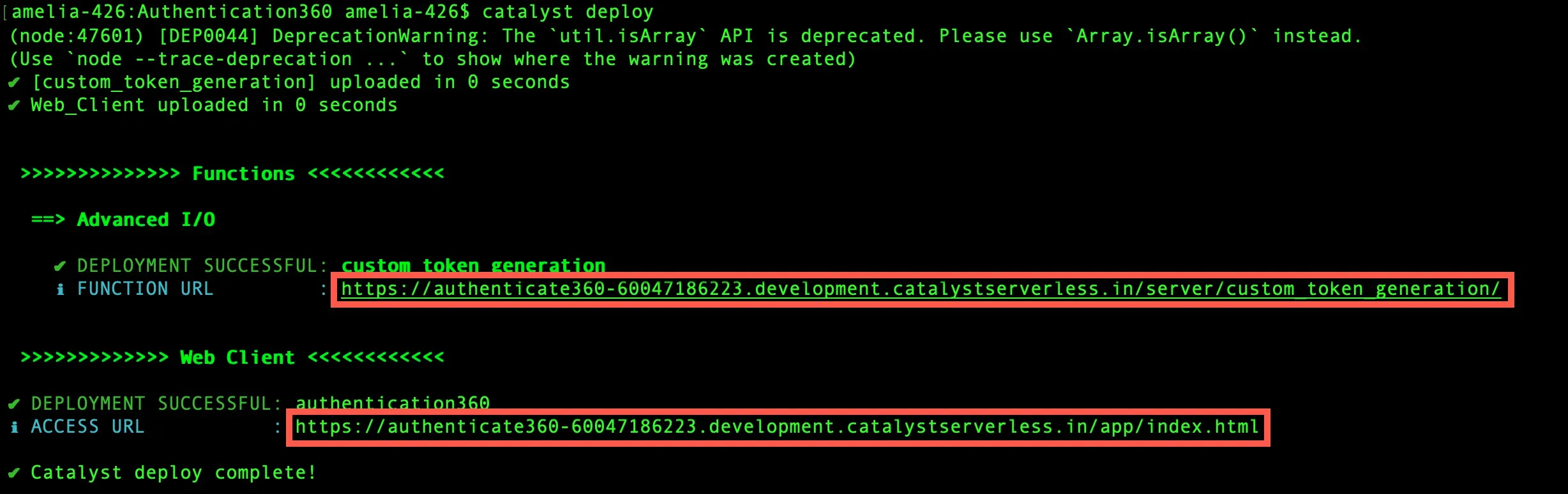
The function is deployed first, followed by the client component. The URL endpoints of the components will be displayed in the CLI:
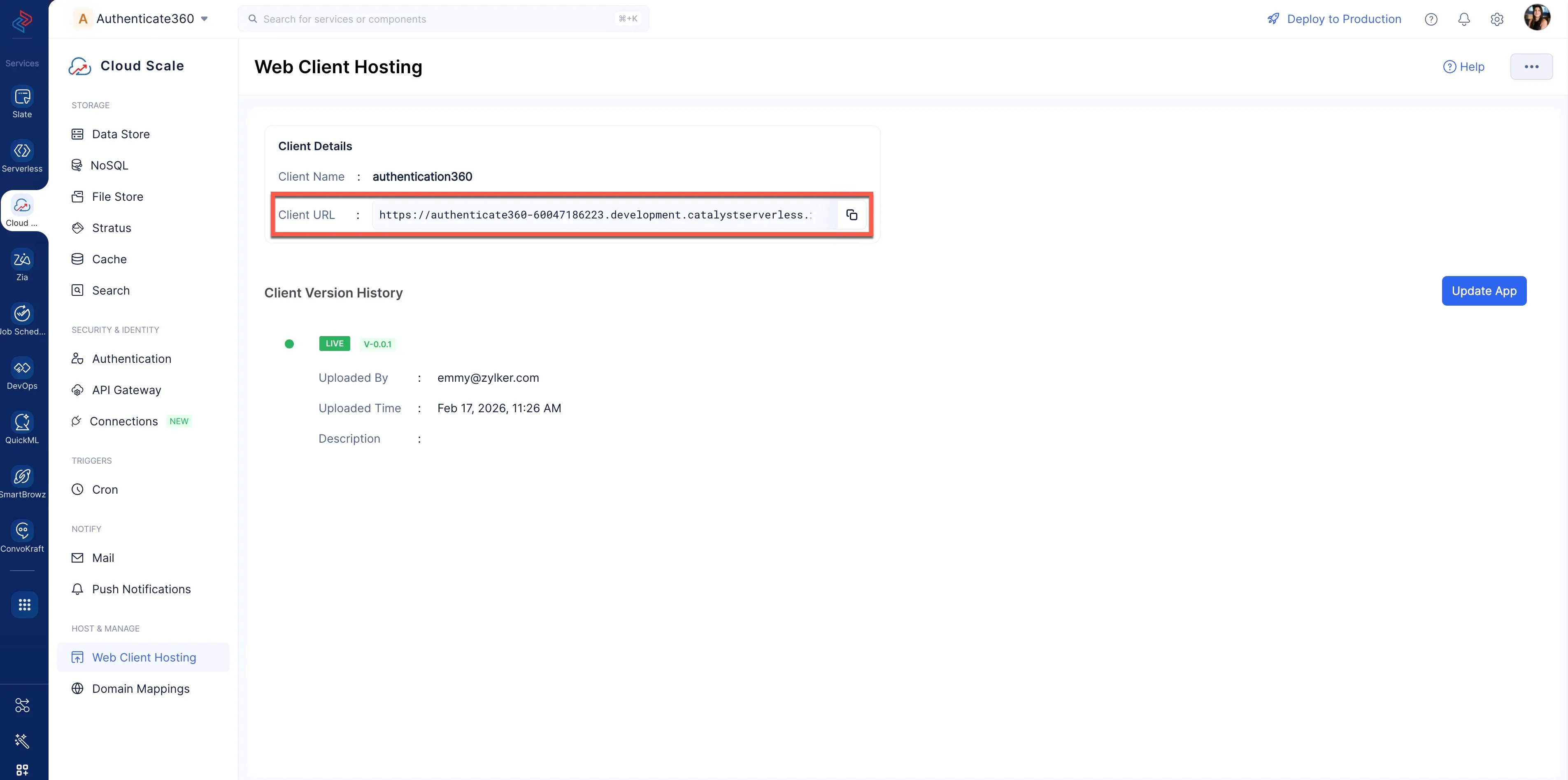
You can get the application URL at any point by navigating to the Web Client Hosting component.
We can now enable Auth0 authentication service for your Catalyst application.
Last Updated 2026-03-06 21:49:28 +0530 IST