---
title: "Create custom modules in CRM"
url: https://docs.catalyst.zoho.com/en/tutorials/ecommerce-bot/nodejs/create-custom-modules-in-crm/
description: "Configure a conversational sales assitant bot for an ecommerce website using Catalyst ConvoKraft, Serverless Integration functions, and Zoho CRM that will interact with the website users, and manage their orders."
last_updated: 2026-08-17T12:16:04Z
service: All Services
type: tutorial
related_links:
- name: "CRM Custom Modules"
url: https://help.zoho.com/portal/en/kb/crm/customize-crm-account/customizing-modules/articles/customize-modules#Custom_Modules_or_User-Generated_Modules
---
# Create Custom modules in CRM
Modules in [Zoho CRM](https://help.zoho.com/portal/en/kb/crm/getting-started/articles/get-started-introduction-zoho-crm#What_is_CRM), let you categorize and track various aspects of your business. We will be creating two custom modules namely EcomProducts and Orders for storing the product inventory and the orders placed respectively. You can learn more about custom modules from the [CRM documentation](https://help.zoho.com/portal/en/kb/crm/customize-crm-account/customizing-modules/articles/customize-modules#Custom_Modules_or_User-Generated_Modules).
To create a custom module in CRM, follow these steps:
1. [Login](https://www.zoho.com/crm/login.html) to your Zoho CRM account.
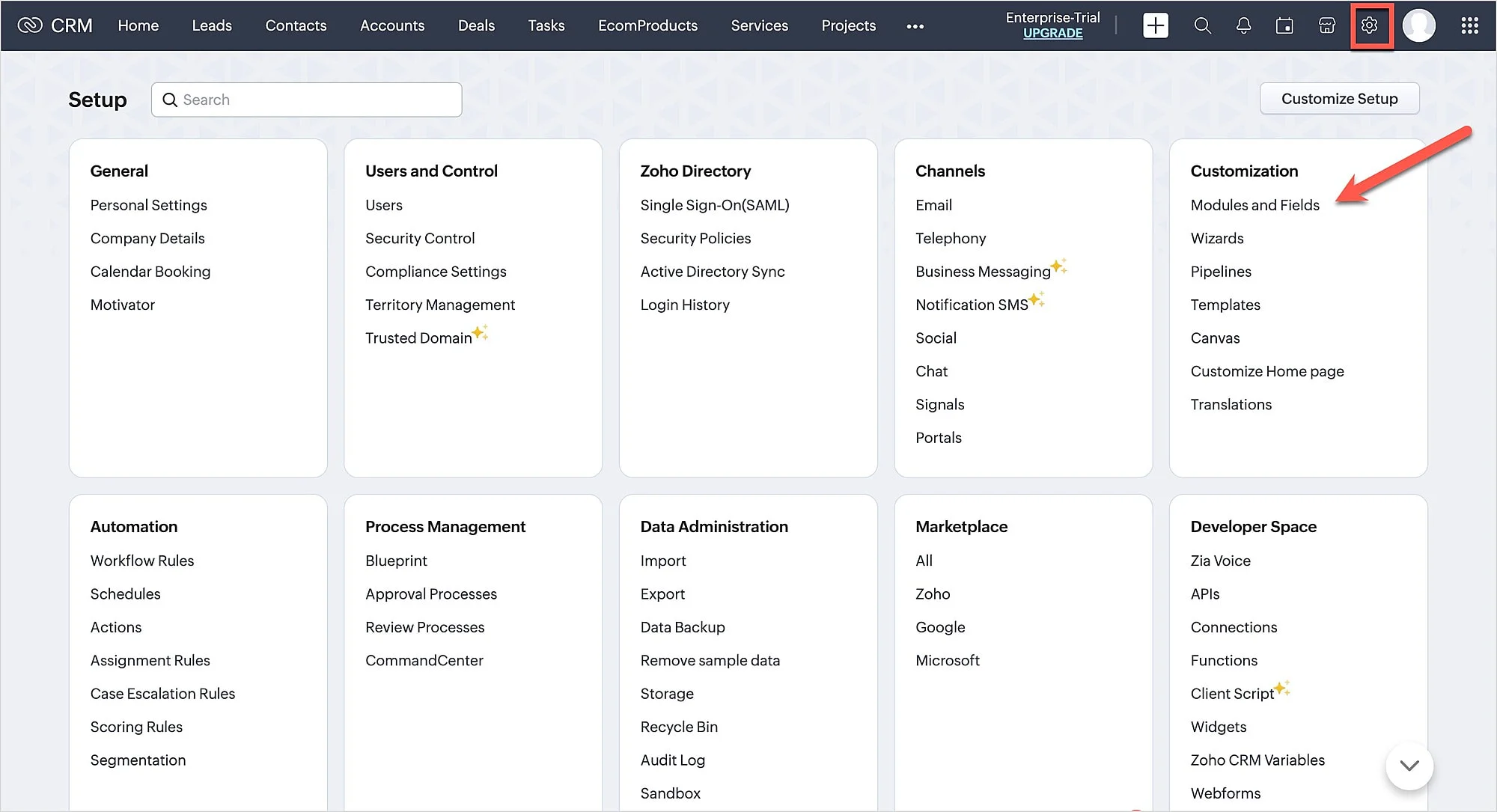
2. Click **Setup** in the top right corner of the dashboard as shown in the screenshot below, and under the **Customization** section, click **Modules and Fields**.
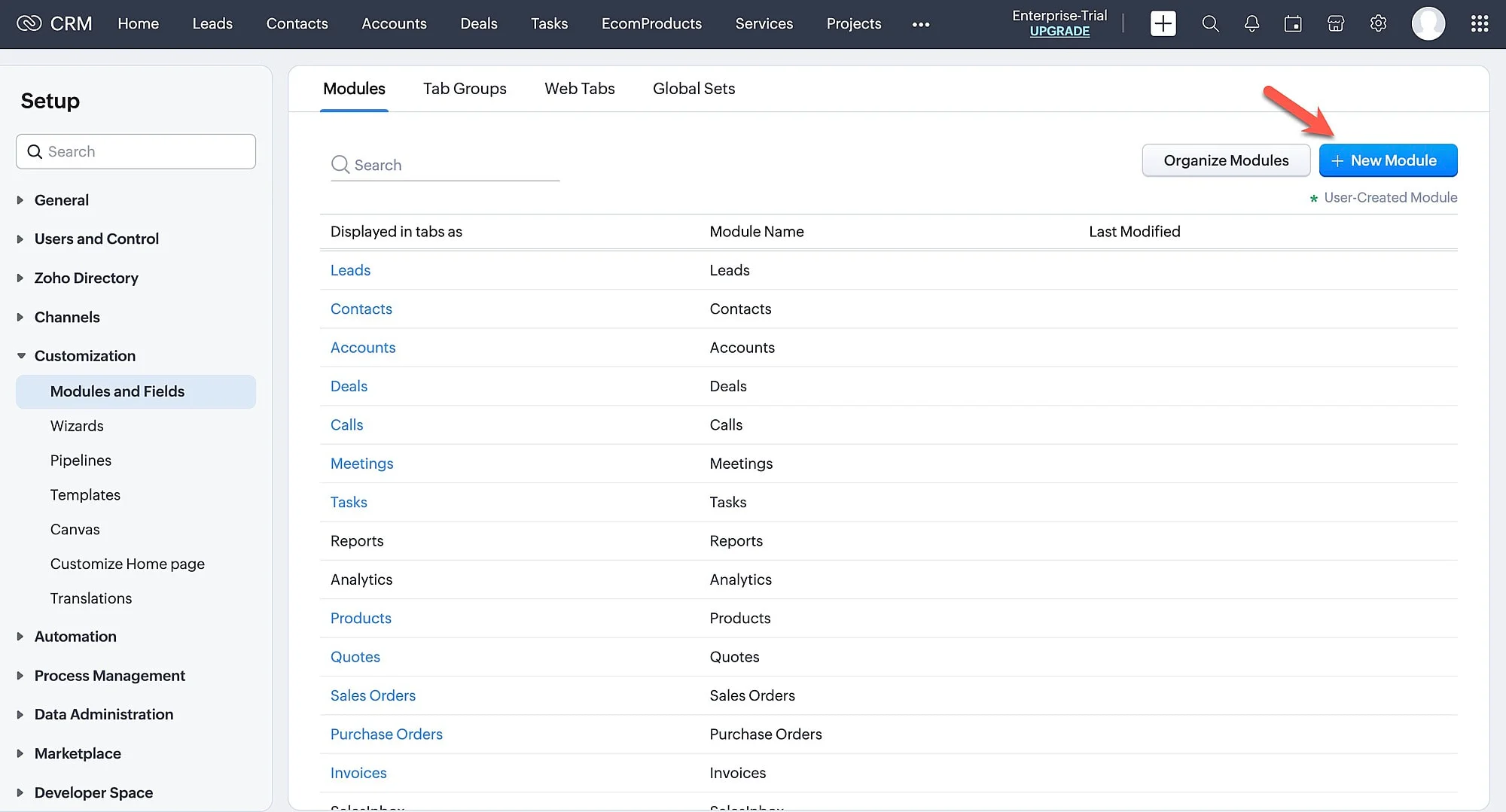
3. Click **New Module**.
#### EcomProducts
This module is used to store the details of various products available in the ecommerce online store. Please make sure to add the fields given below for the `EcomProducts` custom module.
| Field Name |
Type |
| `EcomProductName` |
Single Line |
| `Product_image` |
URL |
| `Price` |
Number |
| `Inventory Count` |
Number |
| `EcomProduct Owner` |
User |
You can simply drag and drop the field type to add a new field.
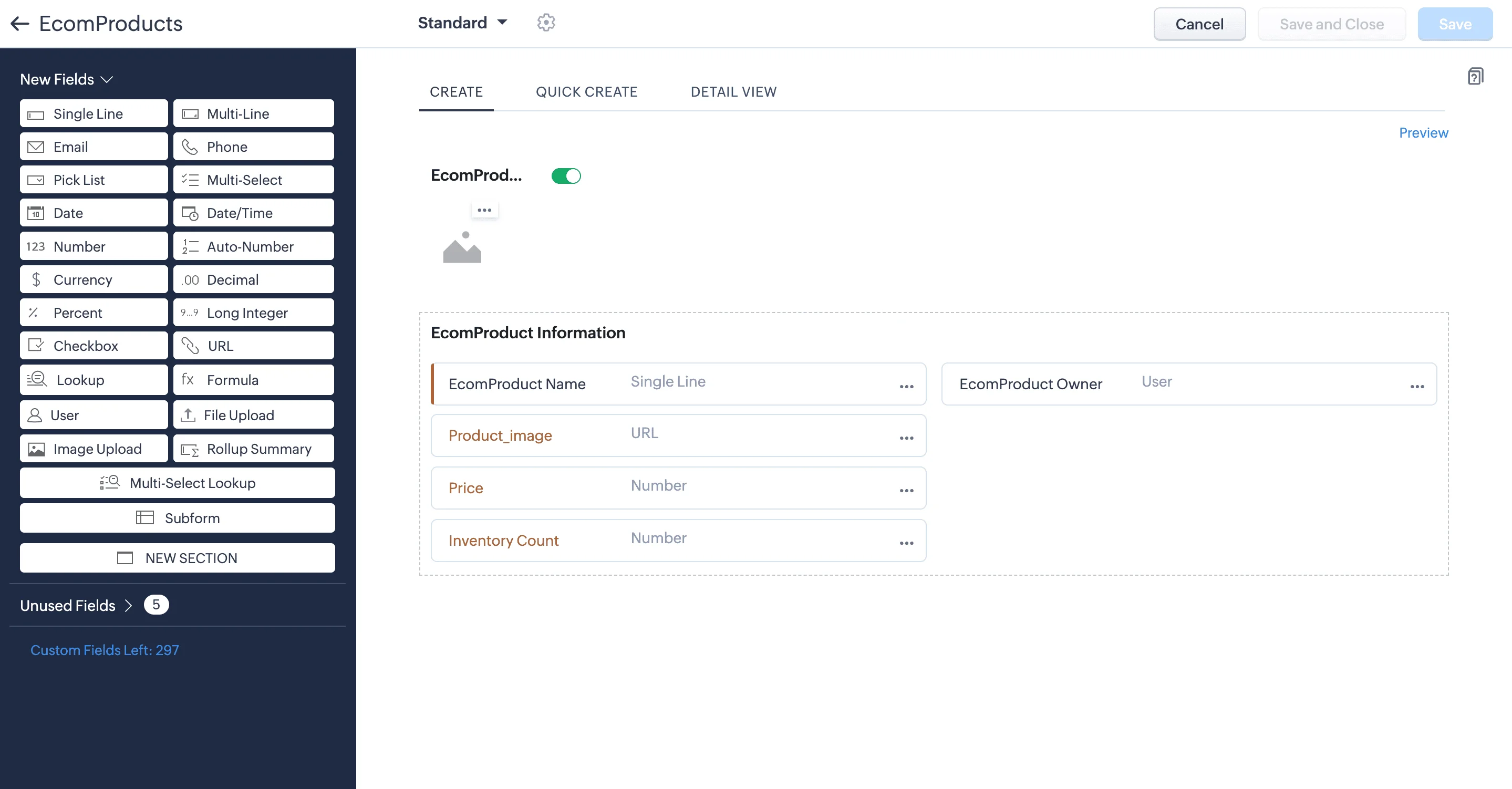
After you add the fields, click **Save**.
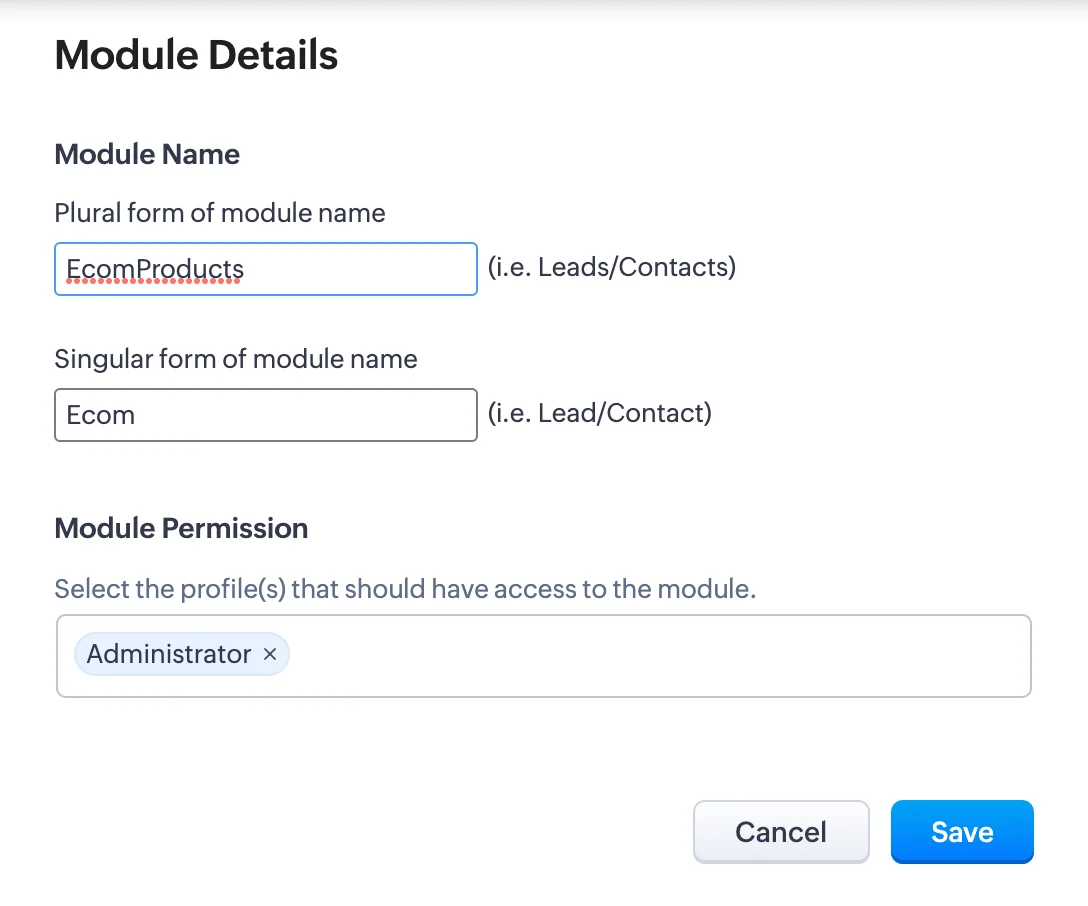
Provide the module name as "EcomProducts" and select the module permission as **Administrator** as shown in the screenshot below.
Now, you can create any number of products by adding them as records in the module.
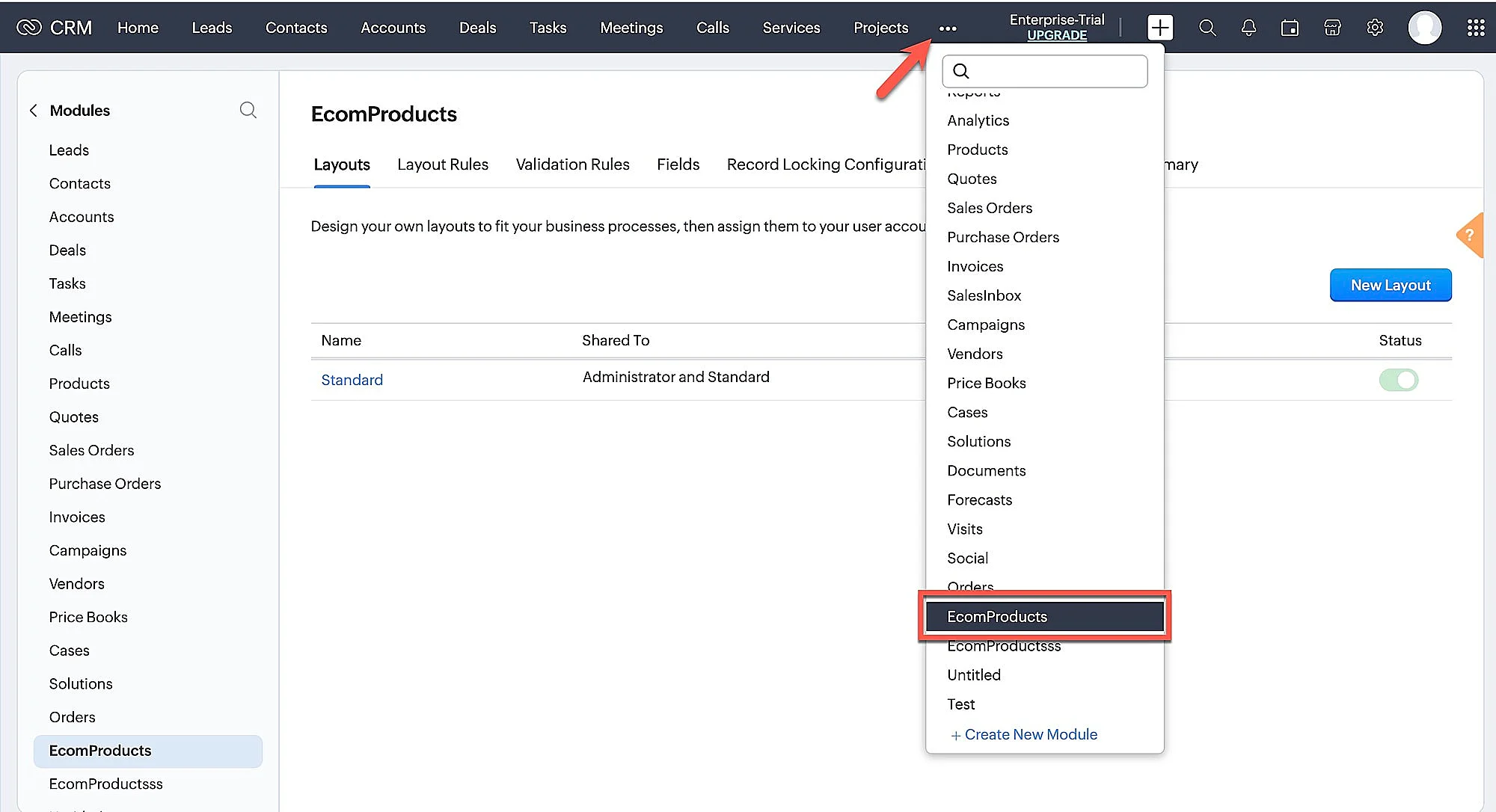
Navigate back to the modules page, and click on **Ecomproducts** from the menu as shown in the screenshot below.
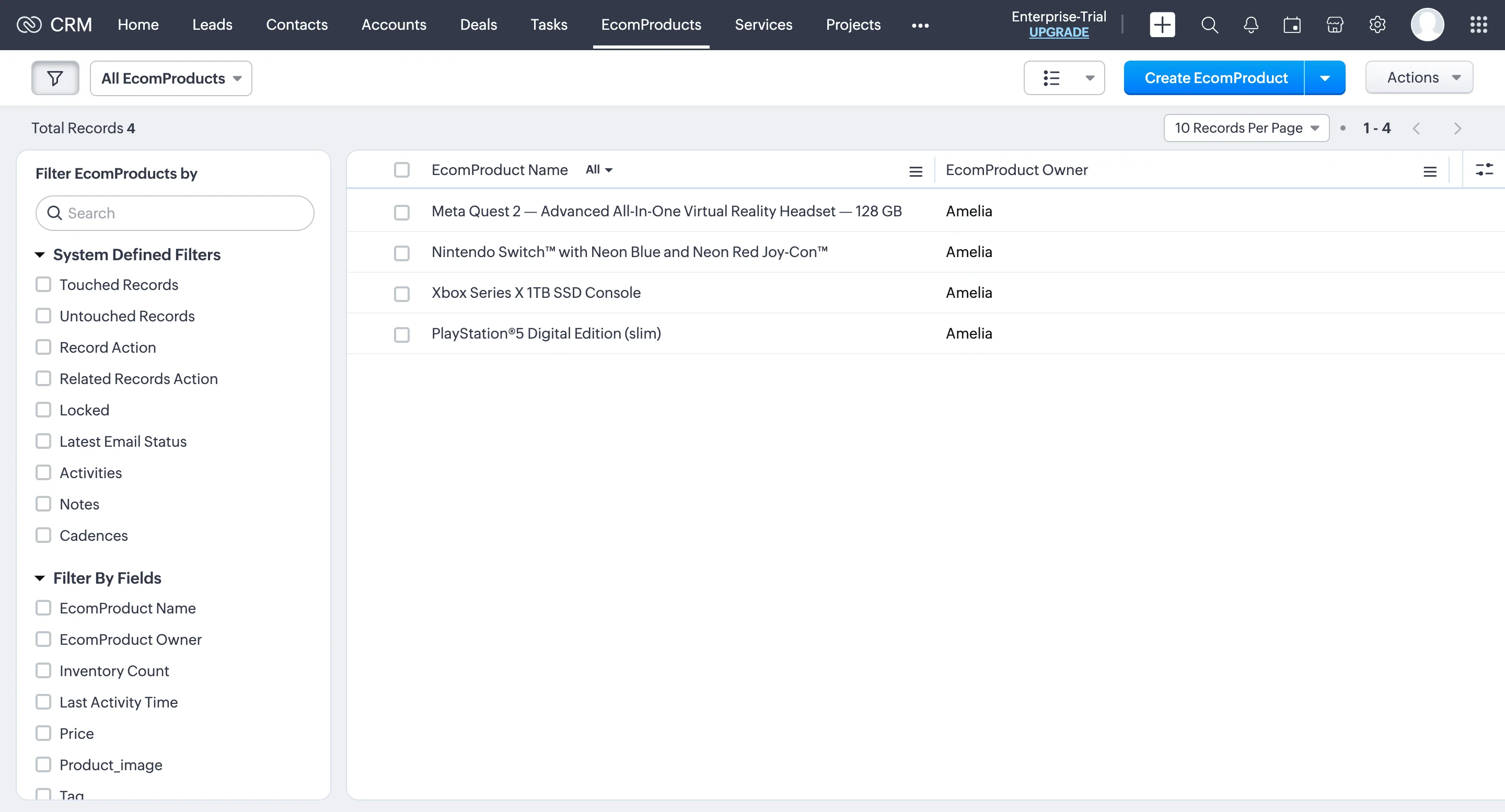
Click on **Create EcomProduct**.
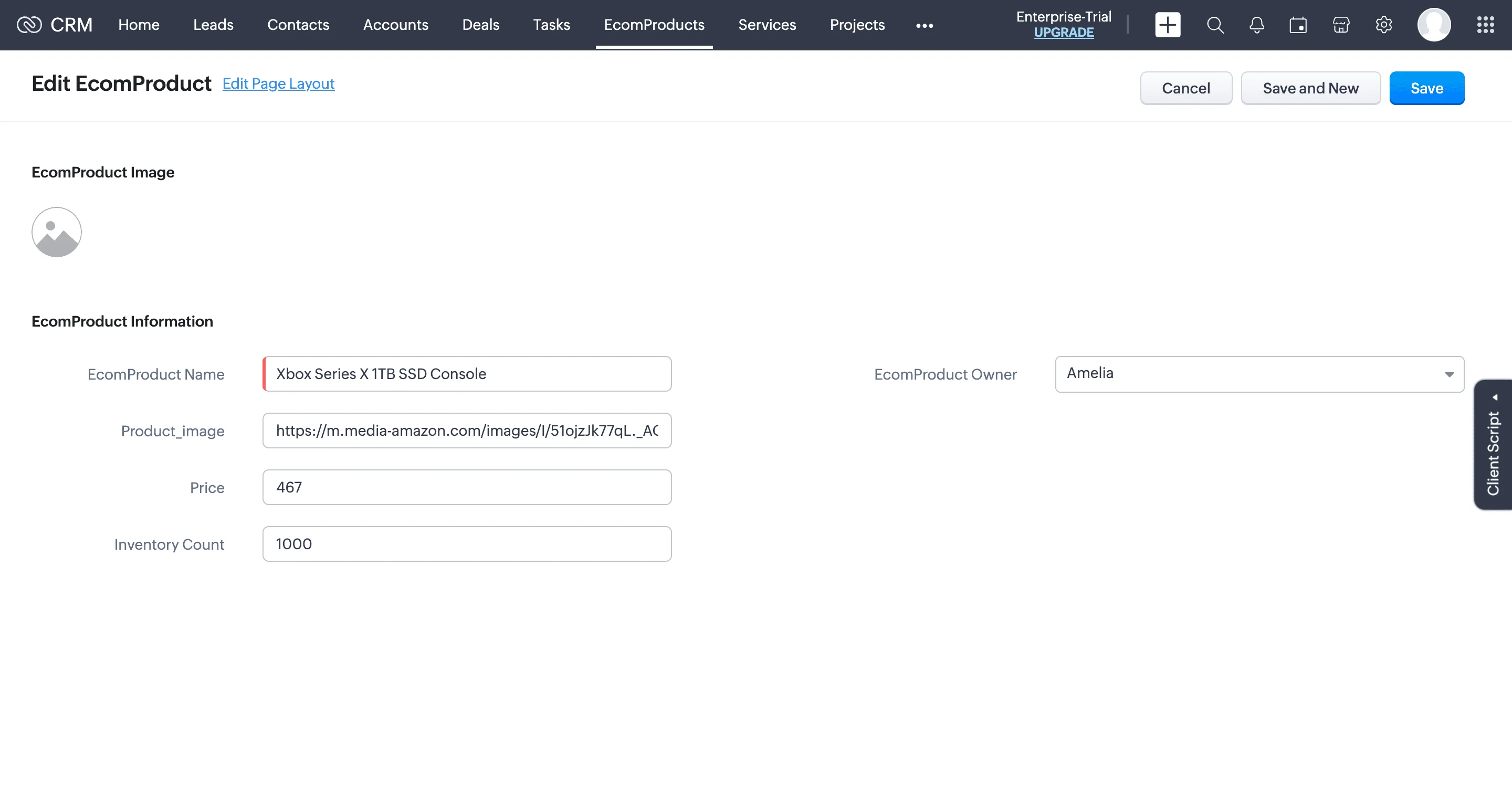
Provide the values for all the fields and click Save.
#### Orders
This module is created to store the order details of your ecommerce online store. Create this new module similarly mentioned before and name it "Orders". You can then configure the fields listed below for this custom module :
| Field Name |
Type |
| `Order Name` |
Single Line |
| `Email` |
Email |
| `Contact_No` |
Phone |
| `Product_Name` |
Single Line |
| `OrderID` |
Single Line |
| `Order_Status` |
Single Line |
| `Order_Owner` |
User |
| `Modified By` |
Single Line |
| `Price` |
Number |
| `Delivery_Address` |
Multi Line |
| `product_image_url` |
URL |
| `Expected_Delivery_Date` |
Single Line |
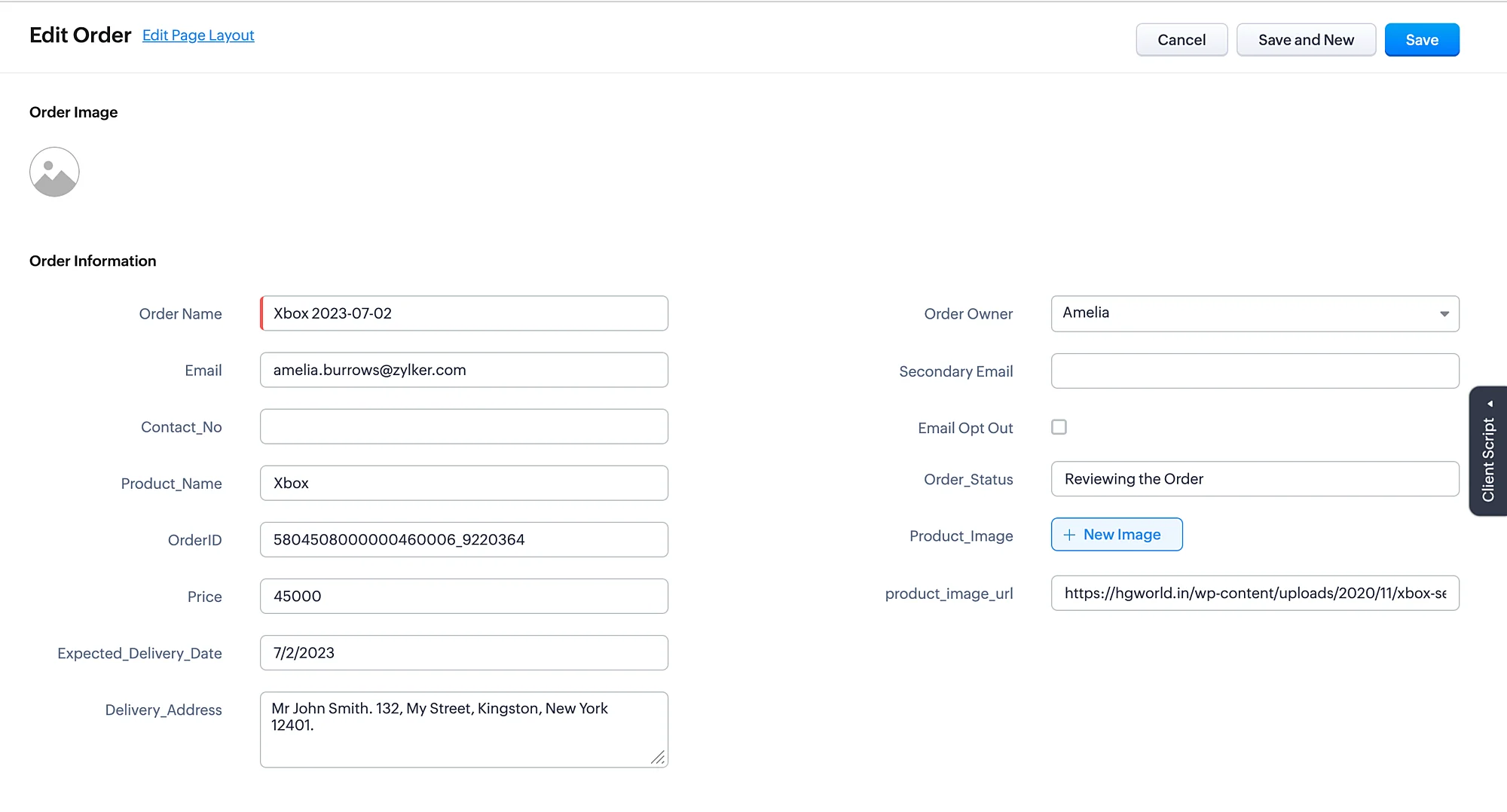
Whenever the user places an order, by conversing with the bot an entry will be automatically made in this module, i.e., the record will be created.
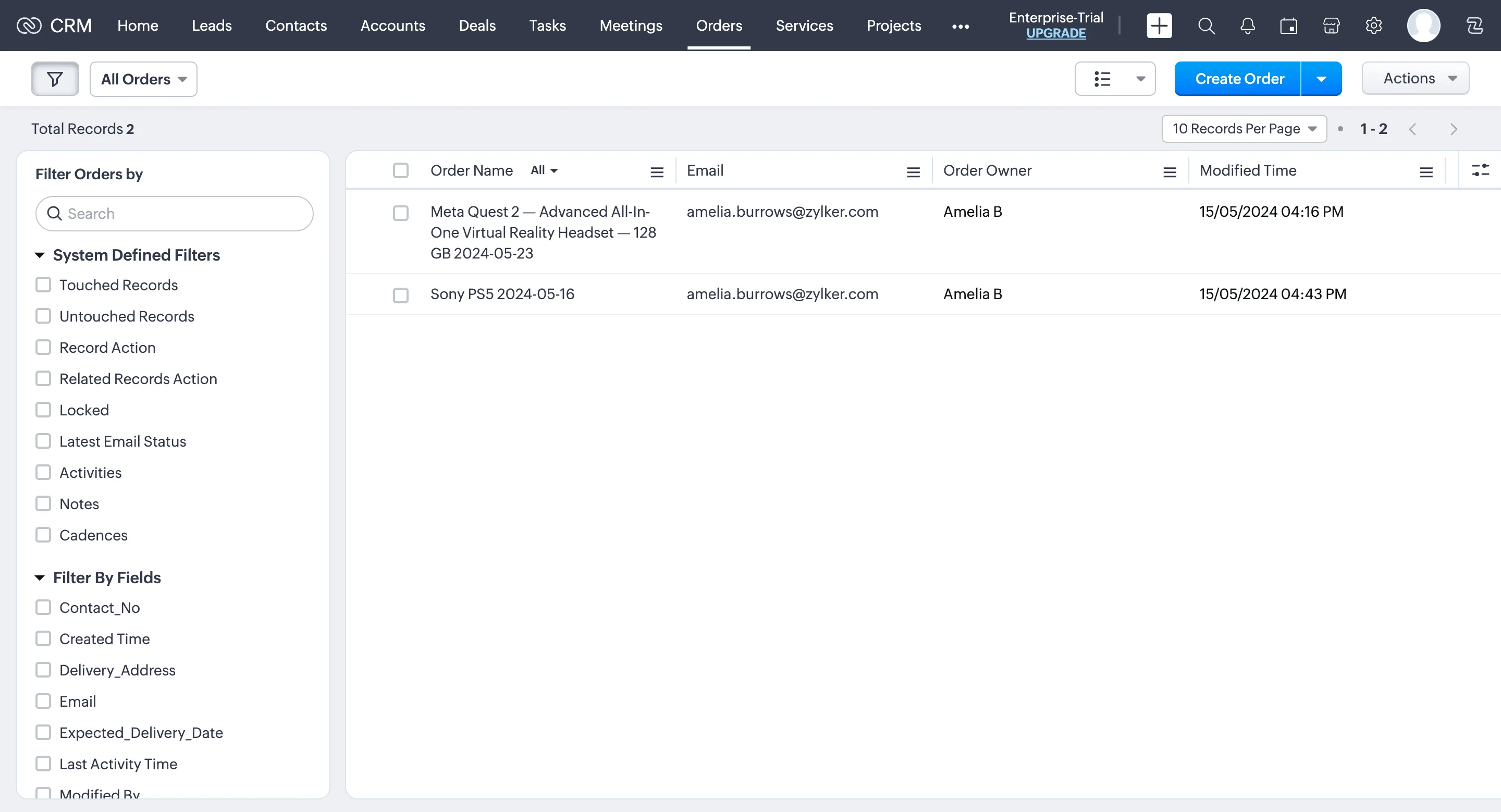
The record details will appear as follows:
> **Note :** Please make sure you use the exact same names for the fields, as we have used them in our bot's business logic.